If you find yourself scrolling in bed long after you meant to sleep, Android has a built-in tool that tackles the habit at its root: the bedtime setting in Digital Wellbeing (labelled "Night mode" in the Russian-language interface described by the source). Rather than blocking apps or running timers, it switches the entire display to black and white and silences notifications. The source author reports that with colour removed, photos, videos and social feeds simply lose their pull — and that after a week on a 23:00–07:00 schedule, falling asleep became noticeably faster.
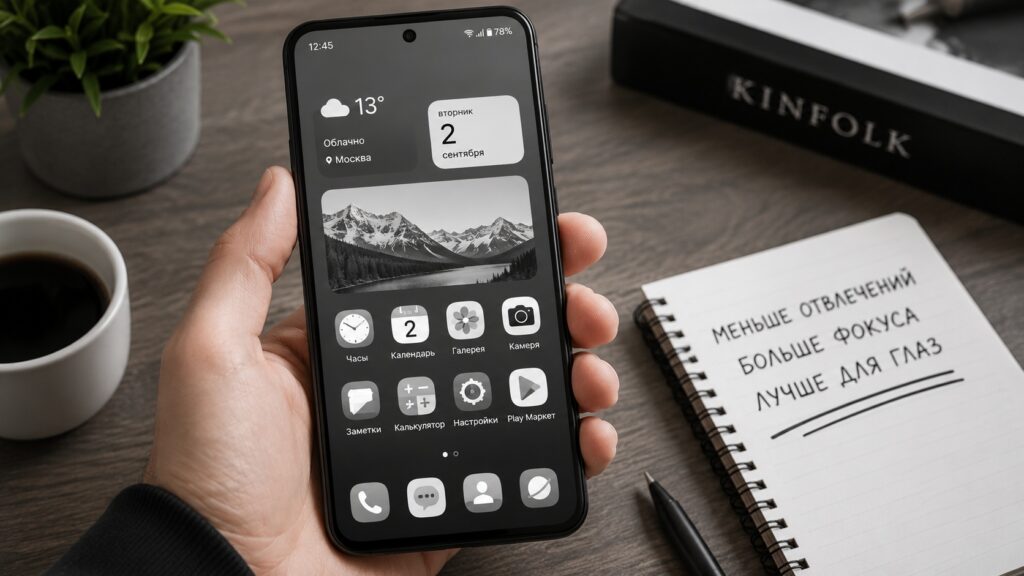
How and why a smartphone screen ends up black and white
What you need to know
- The mode lives in Digital Wellbeing and, according to the source, is available on Android phones since Android 9.
- It turns the display grayscale and mutes notification sounds and vibration; the grayscale toggle must be enabled separately or the mode only silences the phone.
- Do Not Disturb is switched on by default alongside it, which also blocks calls unless you add an exception; alarms keep working regardless.
- It is a different feature from the warm, yellow-tinted reading or eye-protection mode, which filters blue light but does not make scrolling less appealing.
Grayscale versus yellow: two modes that are easy to confuse
Android offers two features with similar-sounding names but different purposes. The reading mode (sometimes called eye-protection mode) gives the screen a warm, yellowish tint. It cuts the blue part of the light spectrum, which the source describes as interfering with melatonin production. That makes it useful for evening reading — eyes tire less and, the author says, falling asleep is easier. But it does nothing to reduce the urge to keep scrolling; it just makes scrolling more comfortable.
The bedtime setting in Digital Wellbeing takes a different approach. It renders the whole screen in black and white and at the same time disables notification sounds and vibration. Colourful content — photos, videos, the bright interfaces of social apps — abruptly becomes far less attractive. In the source author’s words, scrolling a feed becomes physically boring: without the visual reward of bright images, the brain lets go of the phone much sooner.

How to turn on the grayscale bedtime mode on Android
The feature sits inside Digital Wellbeing, which the source says has shipped on every Android phone since Android 9:
- Open Settings on your phone.
- Find Digital Wellbeing & parental controls.
- Tap the bedtime/night mode entry.
- Switch it on.
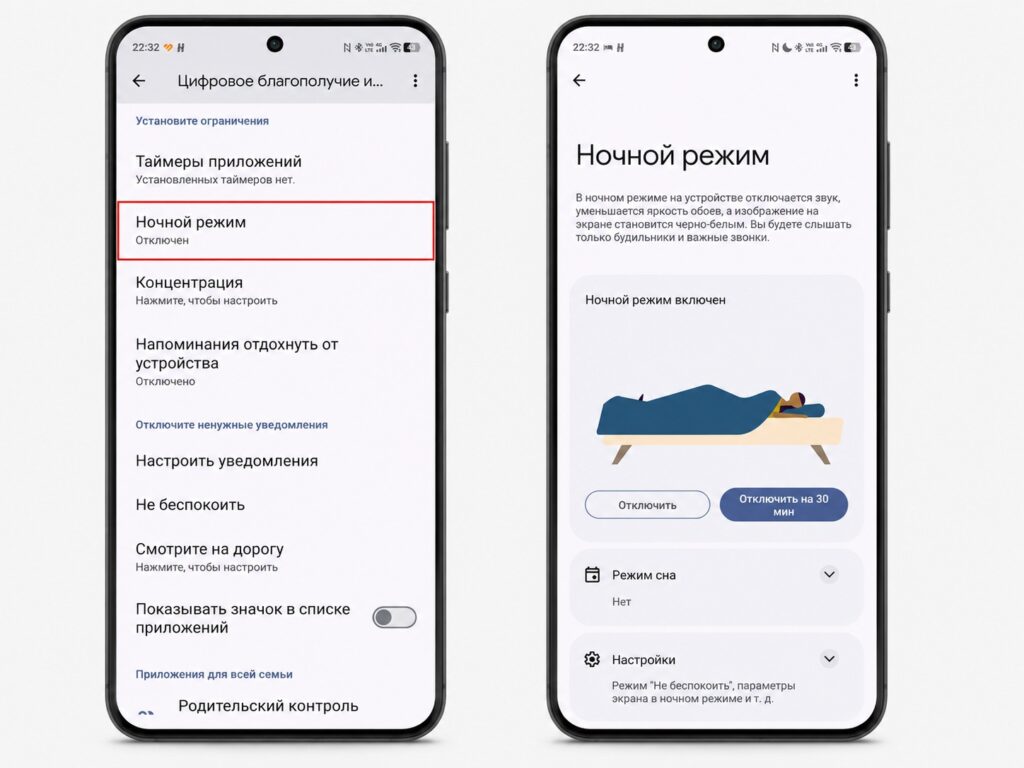
The mode is enabled through the Digital Wellbeing settings
Adjusting the settings
The source stresses that the defaults are not ideal, so a few adjustments matter:
- Set a schedule — for example, 23:00 to 07:00. The mode will then switch on and off automatically, so you do not have to remember it every evening.
- Make sure the Grayscale option is enabled — this is what actually turns the screen black and white. Without it, the mode only silences the phone.
- Check the Do Not Disturb behaviour. By default it activates together with the bedtime mode, which means incoming calls will not get through either. If you want calls to ring, find the calls exception in the Do Not Disturb settings and turn it on.
- Alarms always work — according to the source, they are not disabled in any of these modes.
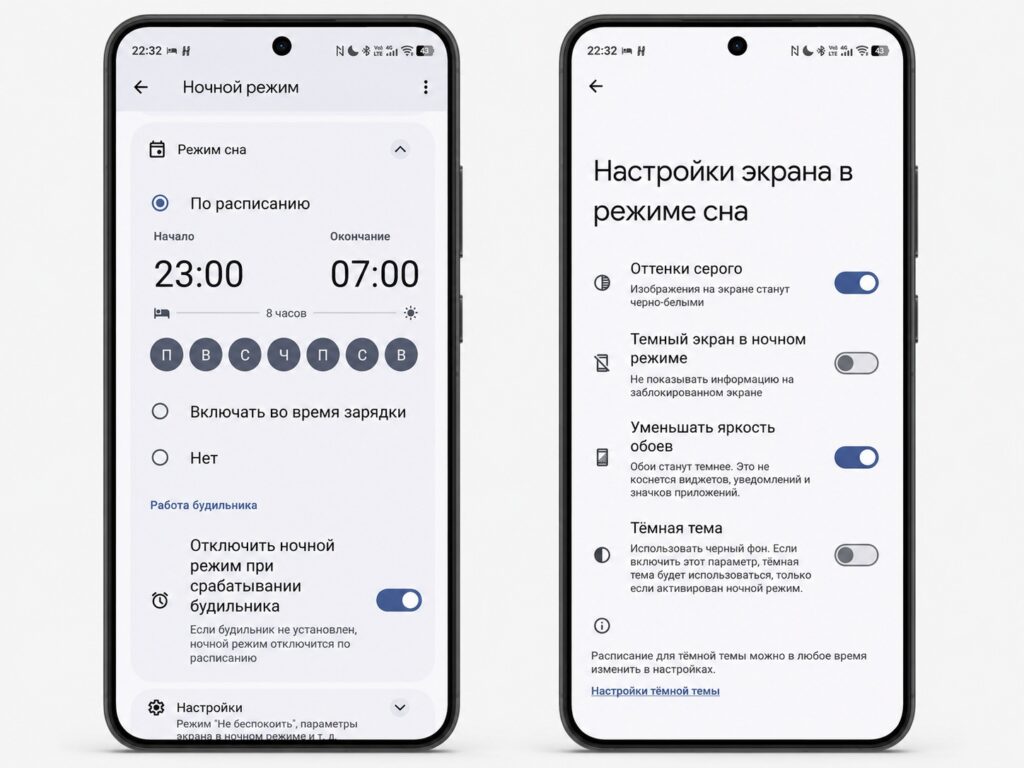
The bedtime mode has a wide range of additional settings

Manufacturer differences: on Xiaomi and REDMI phones the path may look different — Settings → Screen time → Night mode. On Samsung devices it is Settings → Digital Wellbeing → Sleep mode. The logic is the same everywhere; only the labels vary slightly.
Who should try it — and who should not
According to the source, the grayscale bedtime mode is a good fit if you:
- regularly get stuck on your phone before bed and cannot stop;
- take a long time to fall asleep while your phone lies within reach;
- want to limit evening screen time without hard app blocks or timers.
It is not for you if you actually work on your phone in the evening — editing photos, reviewing colour-coded diagrams or drawings. A black-and-white display makes that kind of work uncomfortable.
What the author observed
The source author reports enabling the mode on a 23:00 to 07:00 schedule and, after about a week, noticing they were falling asleep faster. The explanation offered is not that the phone locks itself or enforces a timer, but simply that a grey feed is uninteresting to scroll. This is a single person’s anecdotal experience rather than a controlled result, but the setup itself takes only a couple of minutes to try.


