In iOS 26, Apple brought the Preview app to iPhone, familiar to Mac users. It’s a free built-in tool for PDFs, images, and scans that replaces a scattering of disparate functions across Files, Mail, and third-party apps. If you’ve recently updated your iPhone to iOS 26, Preview is already waiting for you on the home screen. Below — what exactly it can do and which tasks it truly saves time on.
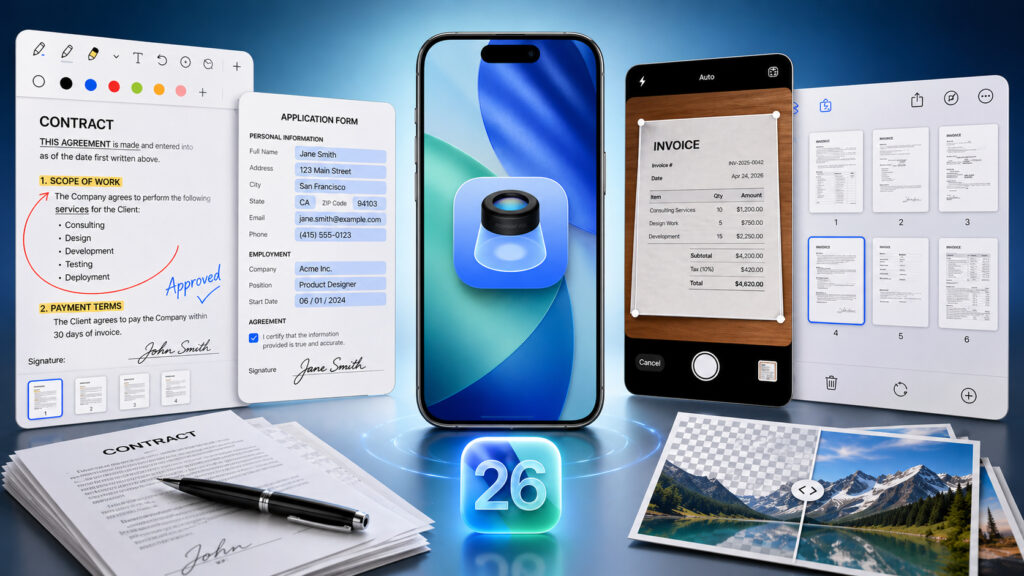
The Preview app lets you skip installing third-party software
Preview App on iPhone: What the New iOS 26 Tool Can Do
Preview originally appeared on NeXTSTEP as a quick document viewer, then became a standard macOS app, gradually gaining markup, page management, and signature support. Now the same set of tools is available on iPhone.
The app works with PDF, JPEG, PNG, HEIC, and TIFF. Inside, you can scroll through long documents, zoom into fine details, and view file properties without switching between apps. The basic set includes markup, signature, form handling, scanning, and light editing — without an overloaded interface.
Where to Find Preview on iPhone After Updating to iOS 26
The app appears automatically after installing iOS 26 — you can launch it from the home screen or via search. The key change: files within Files now open in Preview rather than the old built-in viewer. This gives you one clear place where work with a document begins.
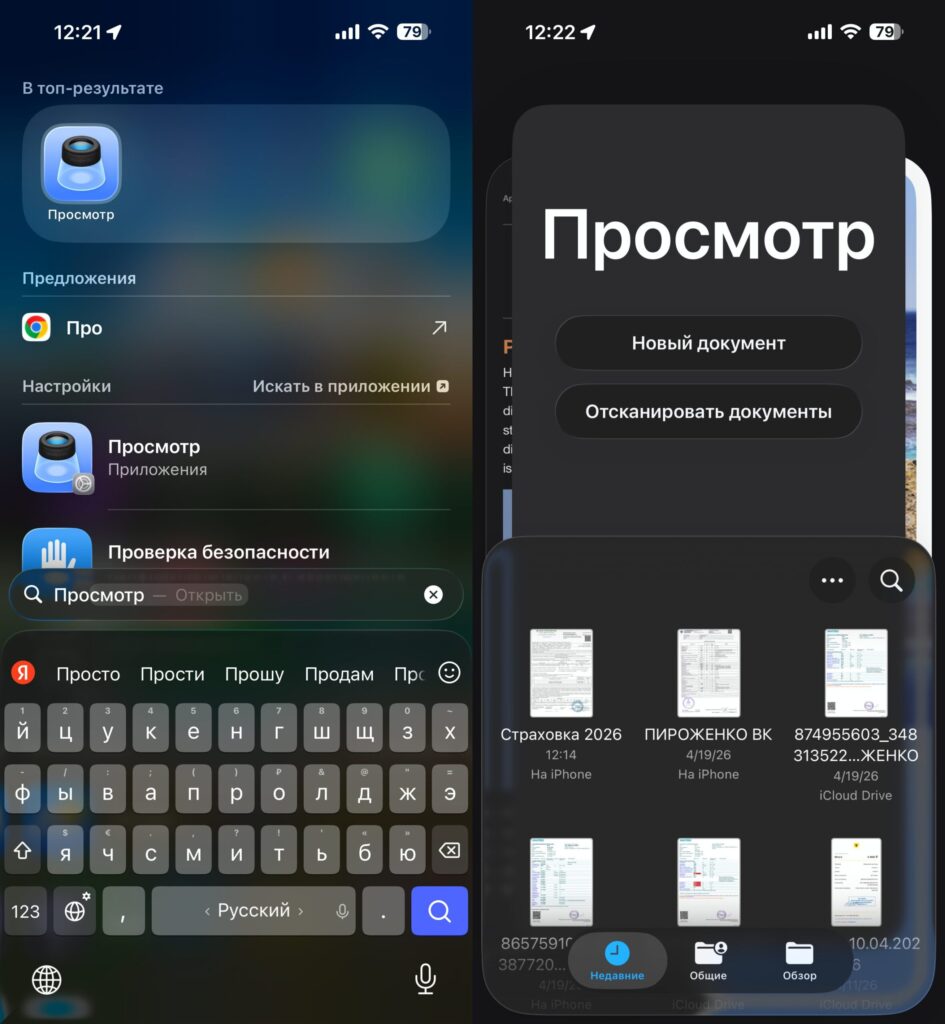
Preview will appear on your iPhone home screen, or you can find it via search
Navigation is predictable: swipes to flip pages, pinch to zoom, a thumbnails button to view all pages in a grid, text search, and an info panel with file size and dates. For long PDFs, this is more convenient than jumping between apps.
PDF Annotations on iPhone Without Third-Party Apps
The markup panel appears at the top as soon as the file supports annotations. Inside, you’ll find tools familiar from Mac — without needing to install a separate PDF editor.
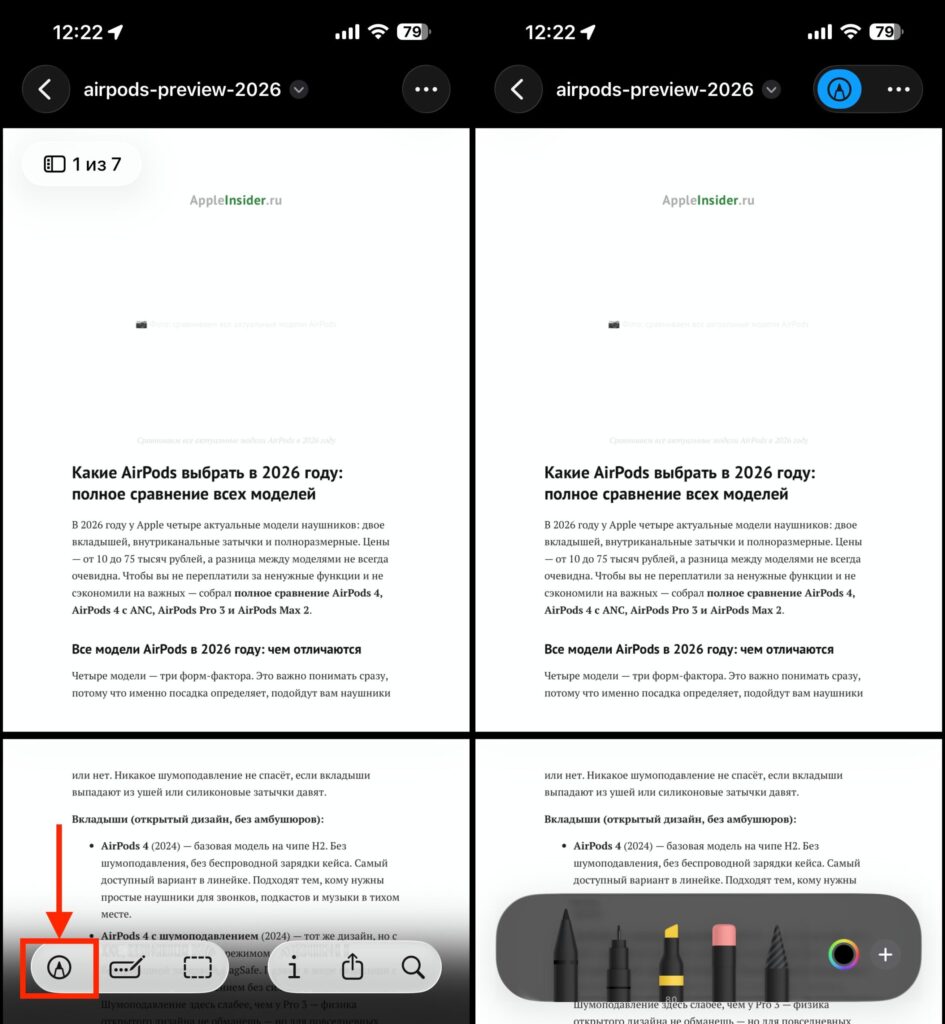
You can make any annotations, just like on photos
- highlight, underline, and strikethrough text
- draw with pen, marker, or pencil
- add a signature with your finger
- shapes — arrows, rectangles, circles
- text blocks and stickers on images and scans
- edit and delete any annotations with a tap
The main idea is to react to a document, not rewrite it from scratch. For approving edits and quick annotations, this is more than enough.
How to Fill Out a PDF Form on iPhone in the Preview App
Preview automatically recognizes form fields and guides you through them without extra menus. This is the task for which many people previously kept a Mac handy or searched for a third-party PDF app.
- open the form in Preview from the home screen or from Files
- tap the highlighted field and start typing
- accept the autofill suggestion if the system offers a name or address
- check checkboxes and toggle switches with a single tap
- add a signature using the signature tool
- review all fields by scrolling
- save or send the completed form
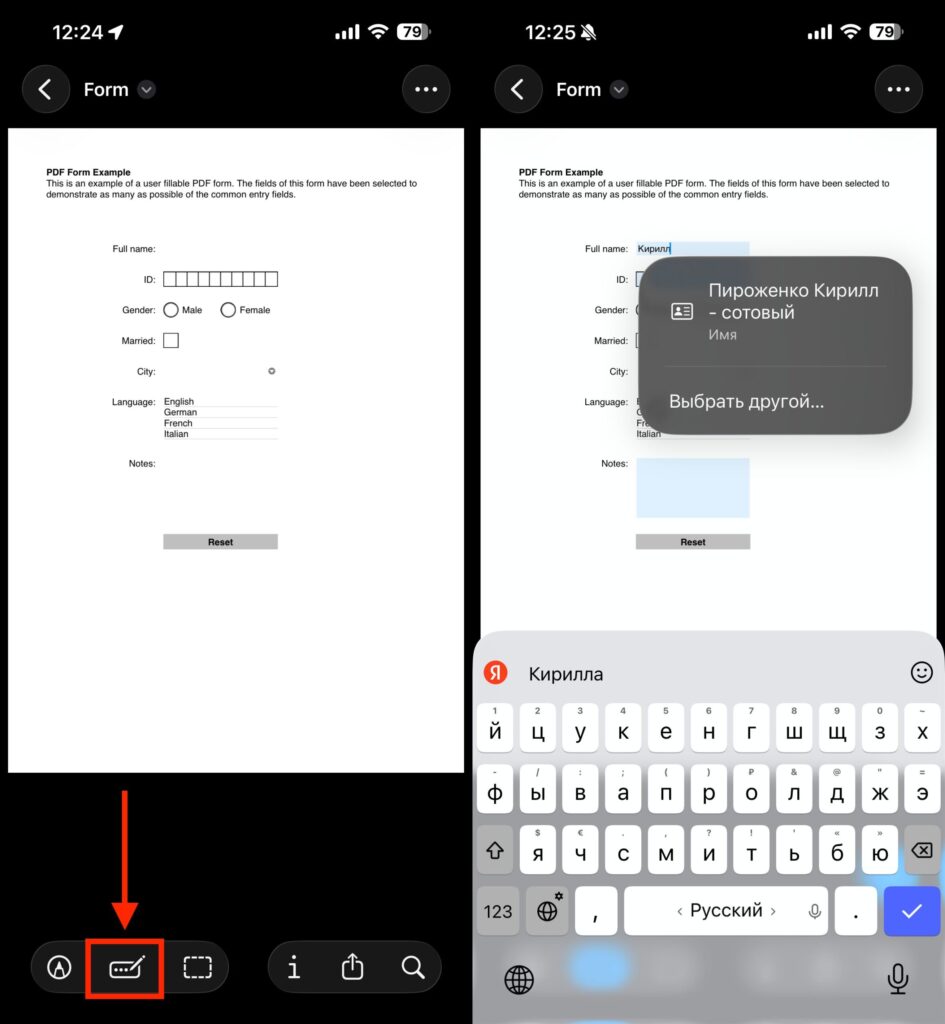
All available fields will be highlighted in blue
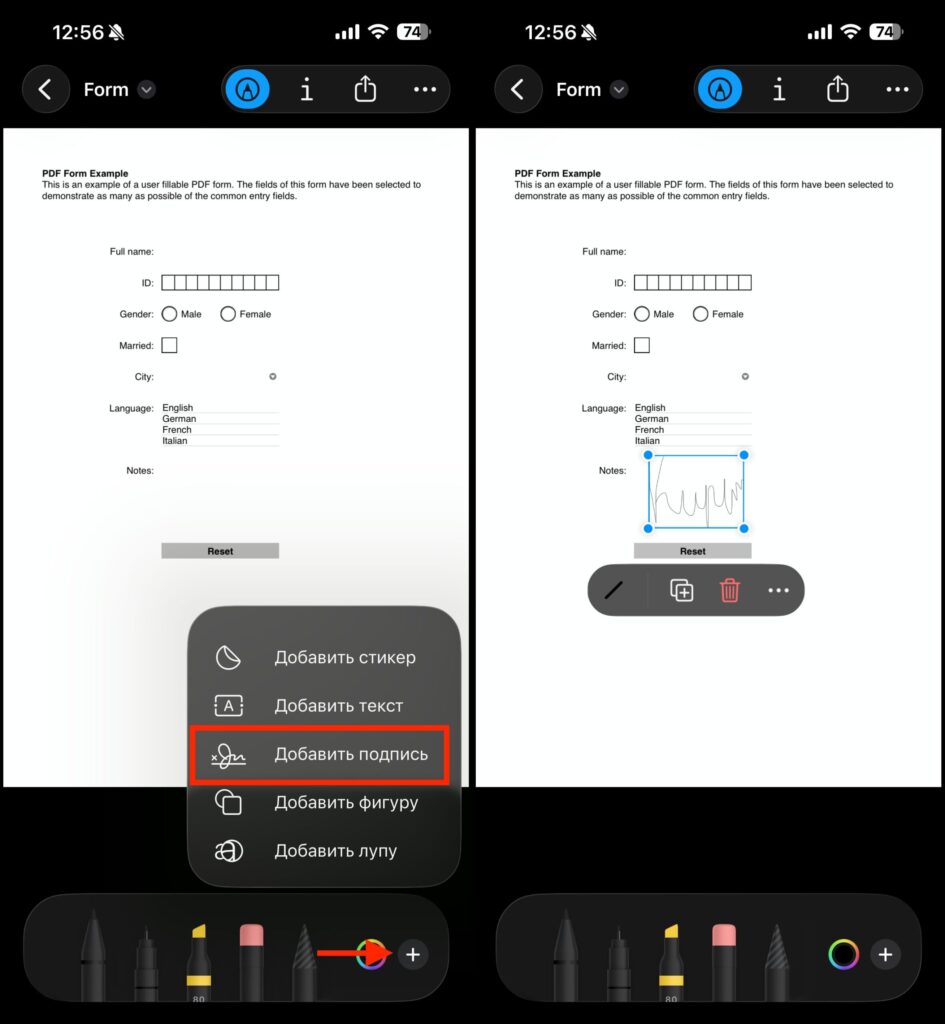
You can add a signature to any file
Document Scanning to PDF via Preview on iPhone
The built-in scanner launches quickly and immediately produces a PDF ready to send or store. The camera automatically detects page edges, so minimal effort is required from the user.
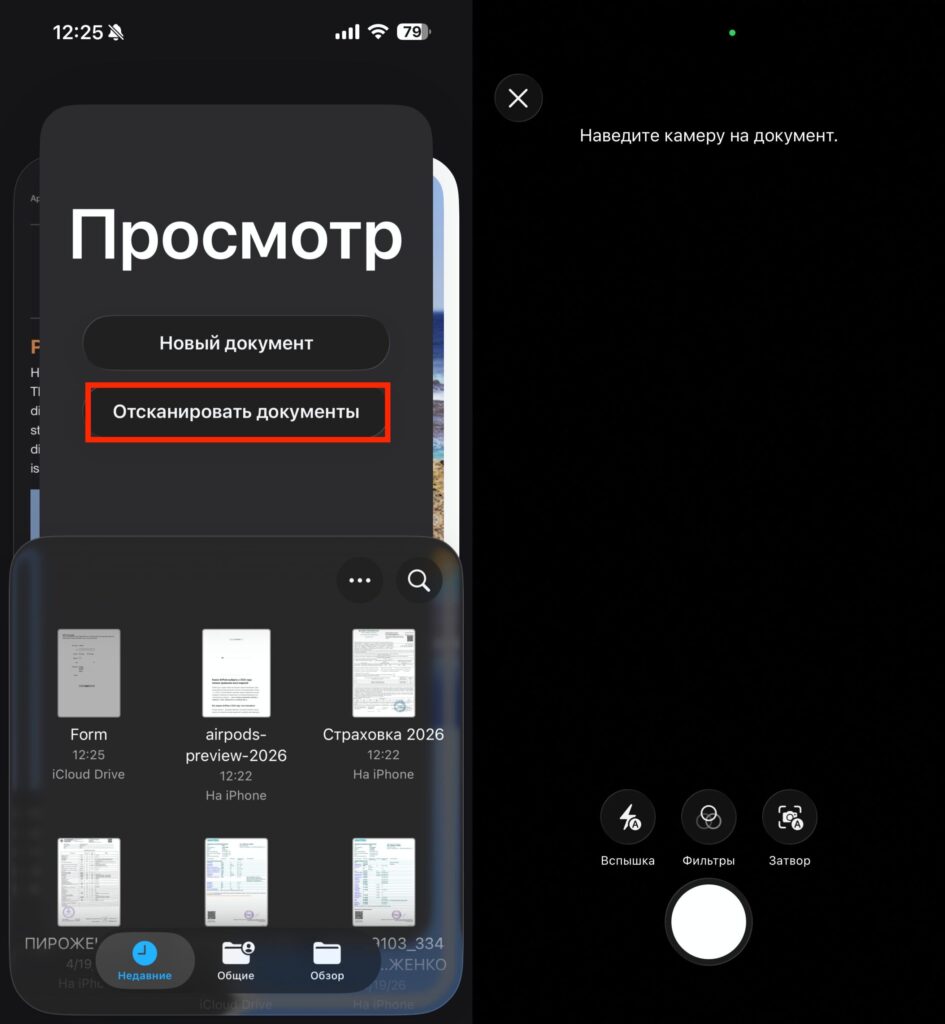
If it’s important to save a scan directly as PDF, you can use it from here instead of Notes
You can add multiple pages in a single session — convenient when scanning receipts or multi-page forms. A new scan can also be inserted into an existing PDF: for example, appending a signed page to a finished file. A separate scanning app is no longer needed.
Delete, Rotate, and Rearrange PDF Pages on iPhone
Some of the familiar Mac page management logic has made its way to iPhone. In thumbnail mode, pages can be rearranged, deleted, and new ones inserted.
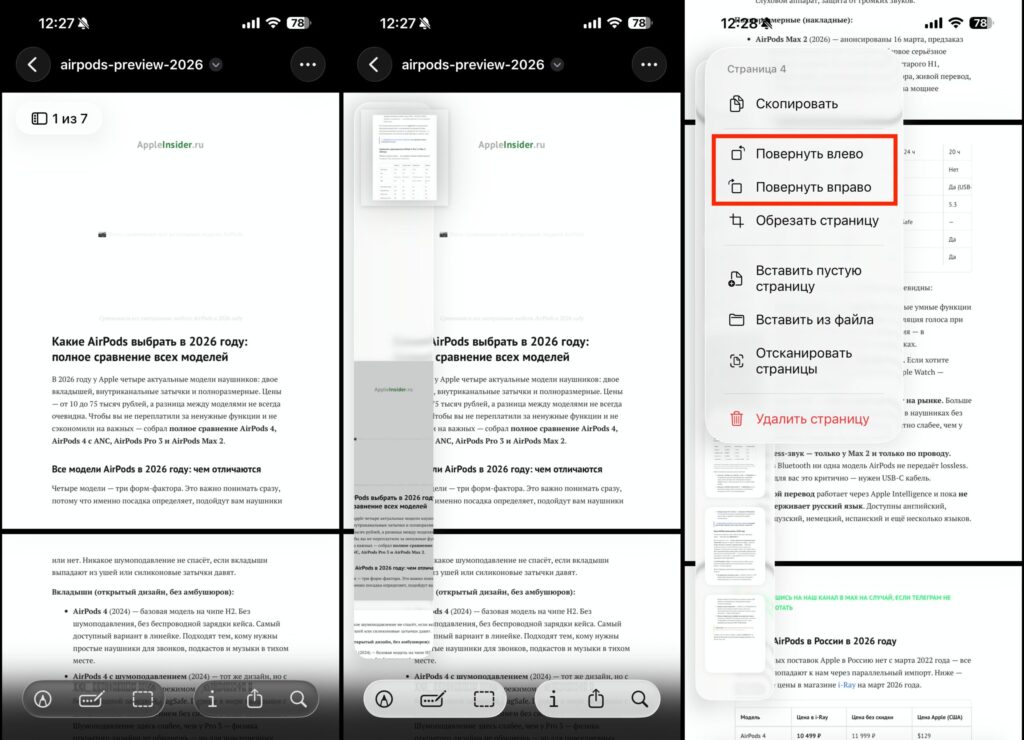
In this mode you can move pages, add new ones, and rotate existing ones
- open the thumbnail view — all pages will be in a vertical list
- long-pressing a page opens a menu for inserting, rotating, and deleting
- as a new page, you can add a blank sheet, a file from storage, or a fresh scan
- page order is changed by drag and drop
- rotation and cropping are available for individual pages


