Recently we discussed how to pay for the Gemini neural network in Russia, and right on cue, Google released a standalone Gemini app for macOS. Now the AI assistant works as a standalone application on Mac and can be invoked with a single keyboard shortcut — without needing to open a browser. For Mac owners, this is a direct analog of how ChatGPT works in its desktop application.
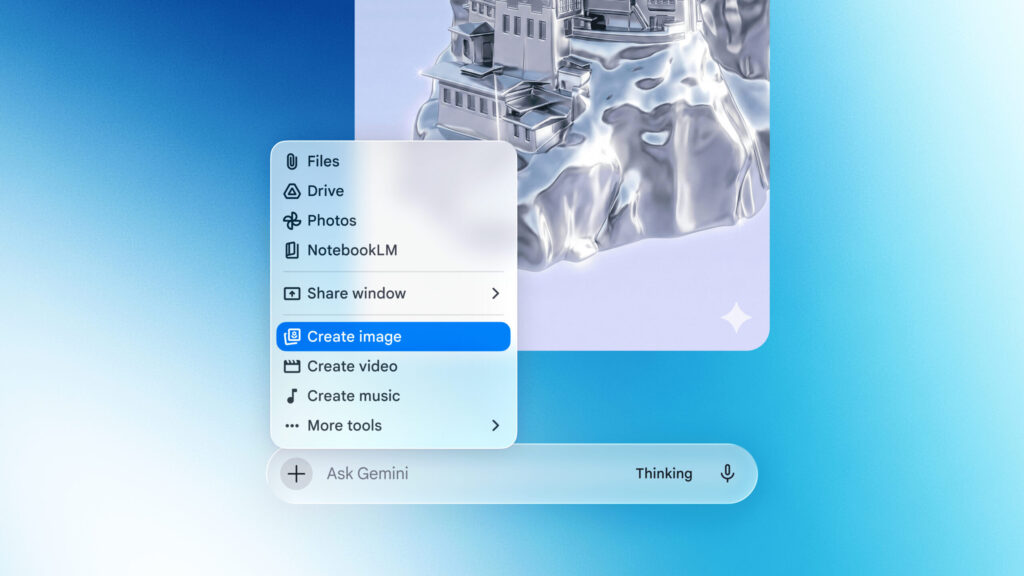
Gemini is now available on Mac
What the Gemini App for Mac Can Do
You can download Gemini for Mac from Google’s official website via this link (a foreign IP is required). After installation, Gemini launches with the keyboard shortcut Option + Space from anywhere in the system. No need to switch to a browser, look for a tab, or visit a website — the chat window appears on top of your current application.
List of supported features:
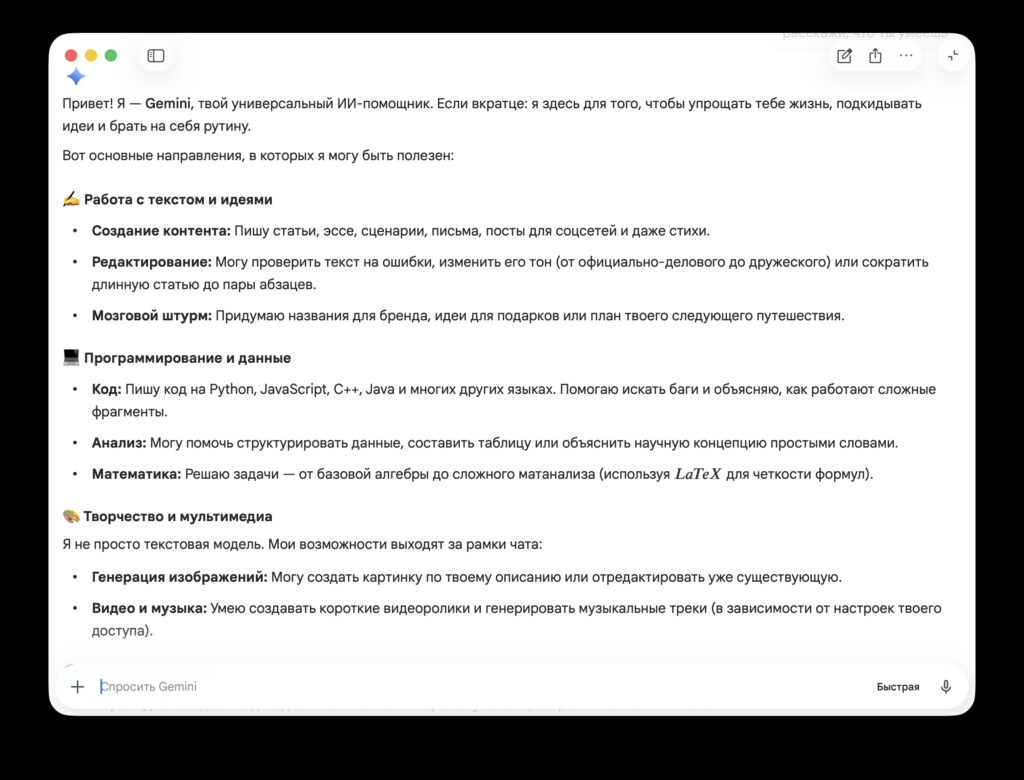
Gemini will tell you what it can do
- Answering questions and free-form chat
- Text generation: emails, documents, posts, drafts
- Summarizing long texts, articles, and notes
- Generating ideas, planning tasks and projects
- Help with code: explanations, fixes, generating snippets
- Working with images: analyzing pictures and answering questions about them
In terms of capabilities, Gemini for Mac mirrors the web version but works more conveniently thanks to quick activation and no browser dependency. The assistant window doesn’t interfere with your main work — you can open it on top of a document, code, or spreadsheet and immediately ask a question.
Mac Computers That Support Gemini
macOS Sequoia is the minimum requirement for Gemini
The app requires two conditions to work:
- At least 8 GB of RAM
- macOS 15 Sequoia or newer
All current Mac models — MacBook Air, MacBook Pro, iMac, Mac mini, Mac Studio, and Mac Pro — ship with 8 GB of memory or more, so there shouldn’t be any issues with that. However, Mac owners running macOS 14 Sonoma or older will need to update their system first. The app works on both Apple Silicon chips and older Intel-based models, as long as they support Sequoia.
Differences Between Gemini and ChatGPT on Mac
OpenAI has long had a desktop ChatGPT application for macOS, and it can also be invoked with a hotkey. Now Google offers a similar experience for its AI assistant.
The difference between them lies in the models themselves and their ecosystems. Gemini is more closely tied to Google services: email, documents, calendar. ChatGPT, on the other hand, is more deeply integrated into macOS thanks to the Apple and OpenAI partnership, and in the latest system versions is accessible directly through Siri.
The choice between them depends on which services you use more often. If you live in the Google ecosystem — Gemini may prove more convenient. If your main workflows are tied to Apple and built-in Siri features — ChatGPT remains the more logical option.
Installing Gemini on Mac
The app is available for download on Google’s official page. Installation is standard — download the file, drag it to the Applications folder, and launch it. Authorization is even simpler — sign in to your Google account with a foreign IP address and you’re good to go. After that, Gemini will be available via the Option + Space shortcut at any time while working on your computer.
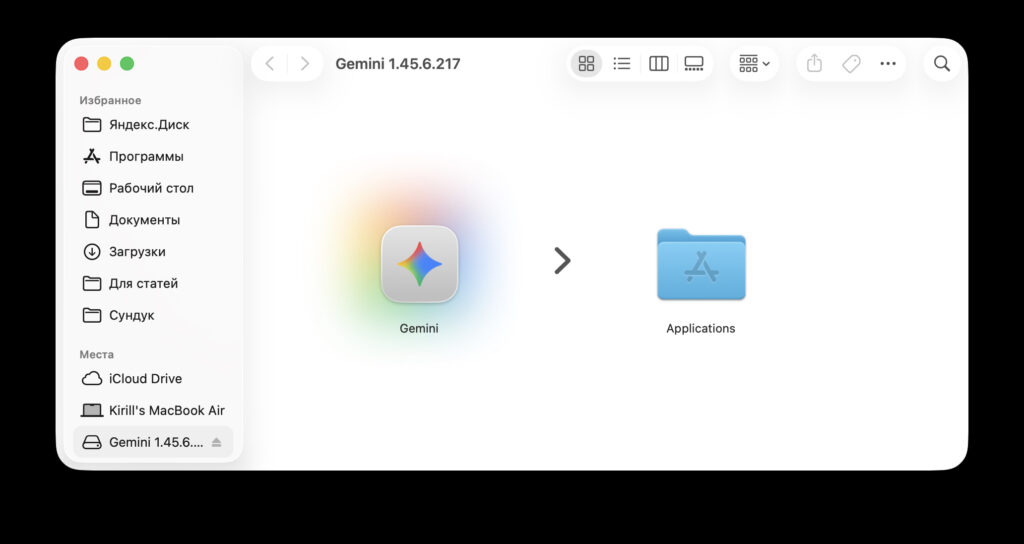
Simply drag the app to the Applications folder
On the first launch, macOS will request permissions — at minimum for displaying a window on top of other apps and assigning a hotkey. Without these permissions, the quick launch won’t work, so it’s best to grant them right away. If the Option + Space shortcut conflicts with another utility — such as Alfred or Raycast — it can be reassigned in the app’s settings.
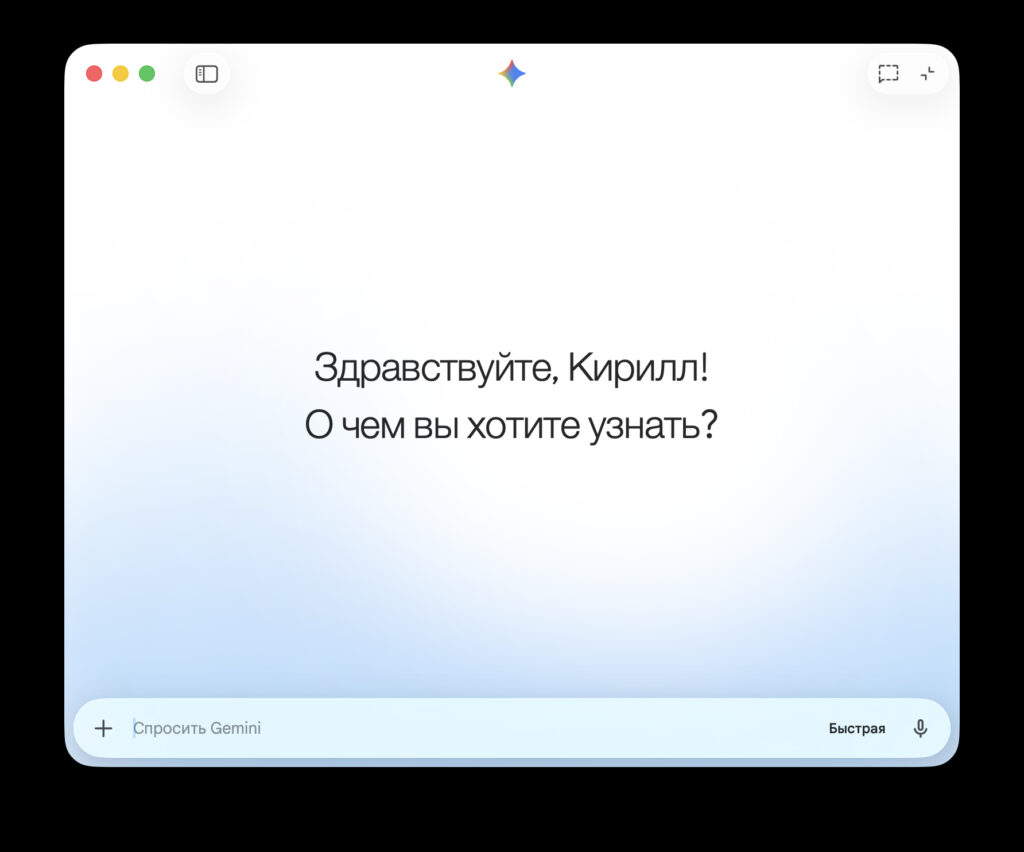
After signing in, Gemini will be ready to chat with you
Keep in mind that a Google account is required for full functionality. The free version of Gemini covers basic tasks — chat, text generation, and image processing. Advanced features, including access to newer models and increased limits, are unlocked with a Google AI Pro subscription.
Who Should Use Gemini on Mac
A standalone app is primarily about convenience. If you regularly turn to an AI assistant for texts, article summaries, or help with code, quick access via a hotkey saves time compared to switching to a browser. Over a day, you accumulate a dozen or so queries, and every saved couple of seconds adds up to a noticeable difference.
For those who use Gemini only occasionally, a standalone app doesn’t offer significant advantages — the web version works exactly the same way. And for those already accustomed to ChatGPT on Mac, switching makes sense only if you’re heavily tied to Google services. You can, of course, keep both apps installed simultaneously and assign different hotkeys to them — this makes it easier to compare responses and choose the right tool for each specific task.