We’ve already covered how to remove Android screen lock, covering all methods for those who remember their password. But what do you do if you’ve forgotten your pattern lock and the phone is locked? The situation is unpleasant but solvable. You’ll need to perform a few risky actions, but ultimately they’ll lead to the desired result.

Trying to reset the pattern lock on Android
Can You Reset a Pattern Lock
In short: yes, but almost always at the cost of losing data. Android intentionally doesn’t provide a simple way to bypass the pattern lock on a phone (it’s theft protection, not an annoying limitation). If there were a simple way to remove the lock without authorization, it would be used by more than just forgetful owners.
Previously (on Android 4.4 and below), after several incorrect pattern lock attempts, a “Forgot pattern?” button would appear on the screen, and you could sign in through your Google account. On modern versions of Android, this no longer exists.
What to Do If You Forgot Your Pattern Lock
Both working methods (button reset and remote reset) lead to the same result: all data on the phone is deleted. Photos, apps, conversations, settings — everything. If there’s no backup in Google Photos or Google One, the data cannot be recovered.
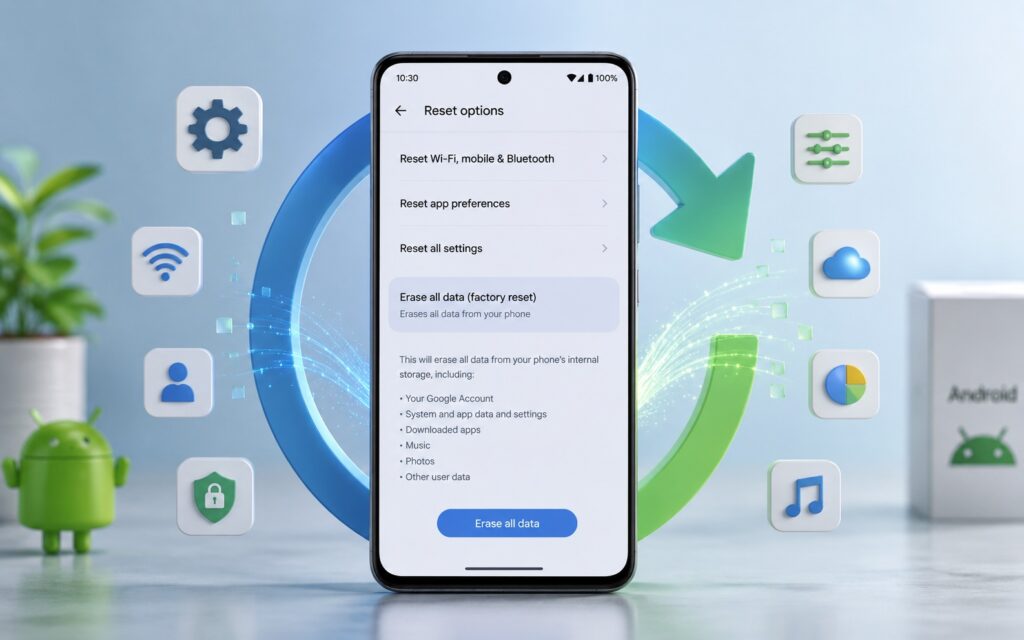
The problem is solved with a full factory reset
If the data is important, first try to remember your Android pattern lock by trying simple patterns: the letter L, Z, U, a diagonal, a spiral. Most people draw intuitively recognizable shapes. Give yourself time — sometimes muscle memory kicks in when you hold the phone in the usual way. If you can’t remember, proceed with the reset.
How to Reset Android Using Buttons
Android factory reset via Recovery Mode is a universal method that works on all devices without internet or accounts.
Button combinations for entering Recovery depend on the brand:
- Xiaomi: press and hold the power button and volume up button simultaneously, hold until the logo appears;
- Samsung: press and hold power and volume up, on some models the Bixby button is also required;
- HONOR and HUAWEI: press and hold power and volume up;
- realme and OPPO: press and hold power and volume down until the menu appears.
Instructions after entering Recovery:
- Turn off the phone completely (hold the power button until the screen turns off).
- Press and hold the required button combination for your brand for 5-10 seconds.
- When the Recovery menu appears, use the volume buttons for navigation and the power button for selection.
- Find the option “Wipe data/factory reset” or “Clear data.”
- Confirm the action (usually you need to select “Yes” in the next menu).
- Wait for the reset to complete and select “Reboot system now.”
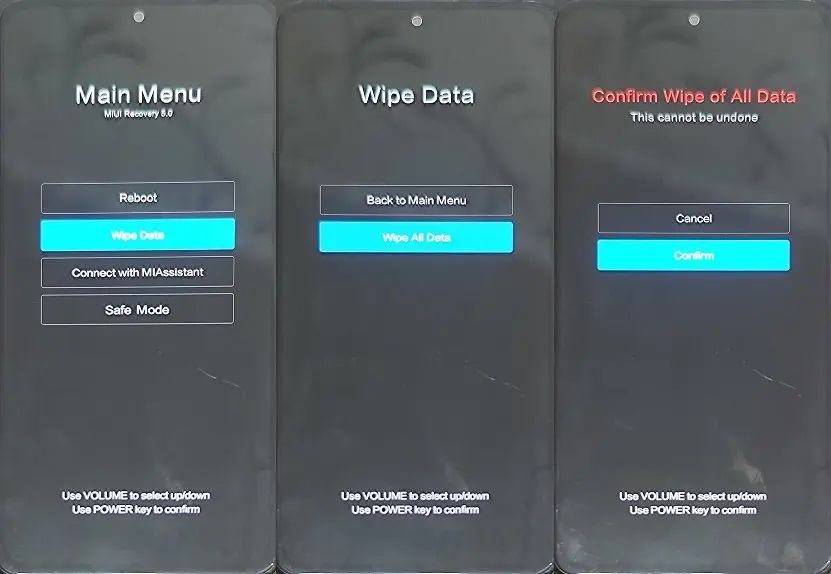
This is how a reset via recovery is performed
After rebooting, the phone will start as new — without the pattern lock and without any data.
Remote Android Factory Reset
If the phone is connected to the internet and has a Google account linked, you can perform a pattern lock reset remotely through a browser from any other device:
- Open a browser and go to google.com/android/find.
- Sign in to the Google account linked to the locked phone.
- Find the needed phone in the device list (it should show as online).
- Select “Erase device.”
- Confirm the action, after which the phone will receive the command and perform the reset the next time it connects to the network.
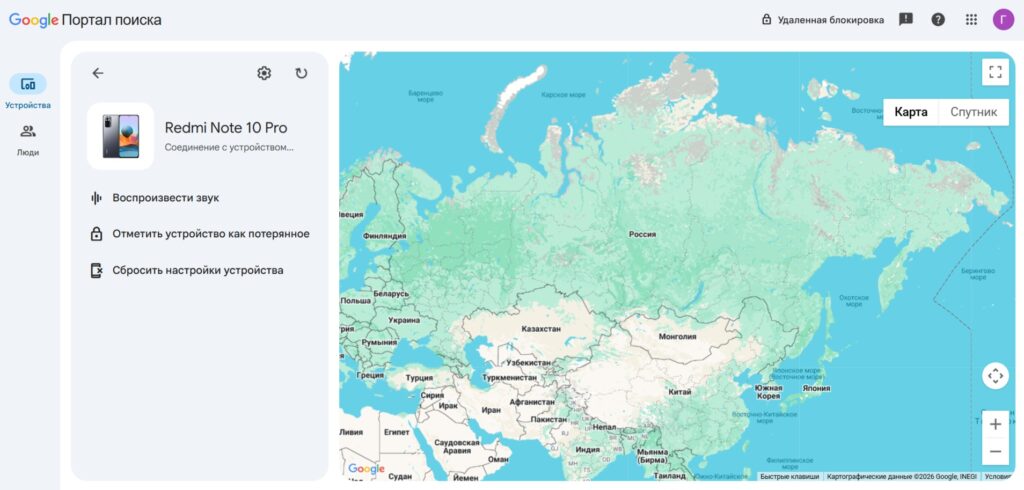
This is where device settings are reset
This method is more convenient than Recovery if the phone is somewhere with an active internet connection.
How to Remove Pattern Lock on Android
This section is for those who remember their pattern but want to get rid of it or change it to something else. To remove the pattern lock and change the lock method:
- Open “Settings” on your Android smartphone.
- Go to the “Security” or “Lock screen and security” section — the name depends on the UI skin.
- Tap “Screen lock” or “Lock type.”
- Enter your current pattern lock to confirm.
- Choose a new lock method: PIN code, password, biometrics, or “None” to completely disable the lock.
- Set up the chosen method and save.
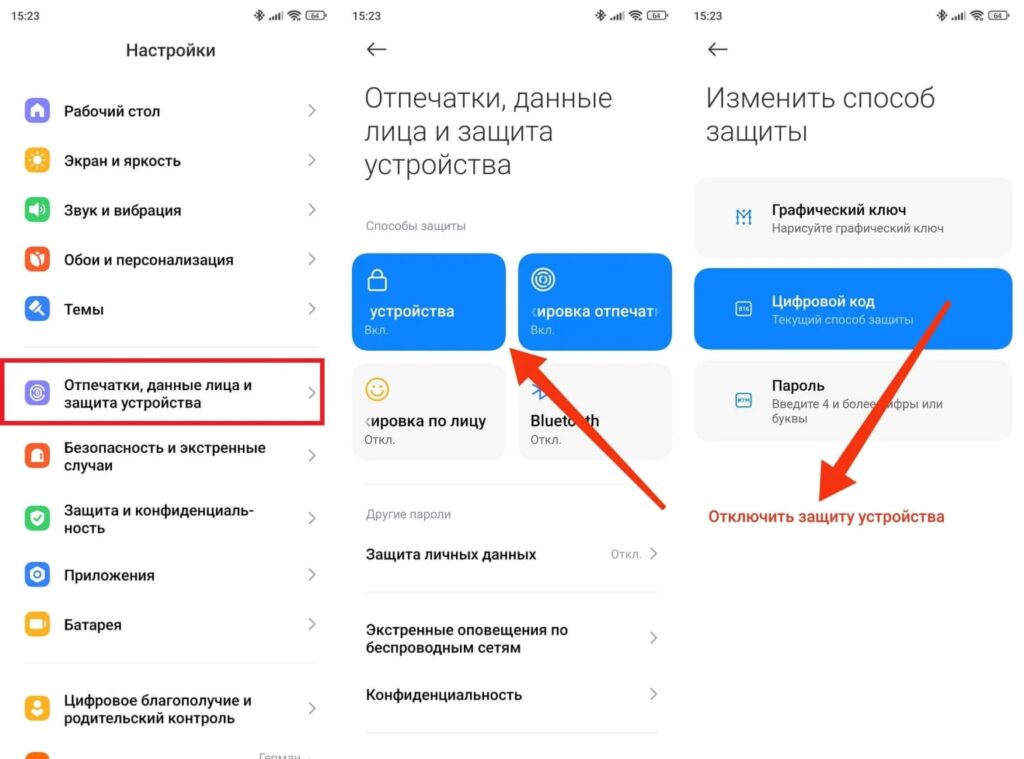
If you remember it, you can remove the pattern lock
Pattern lock settings — you can change or disable the pattern lock in the same section. If you want to keep the pattern lock but change the design — select “Pattern” again and draw a new one after confirming the old one.
Personal advice: ditch the pattern lock in favor of a 6-digit PIN or biometrics. The pattern lock leaves traces on the screen that can be used to reconstruct the pattern. A PIN is more secure, and a fingerprint or face unlock is the fastest option.