Using StandBy as a bedside clock every night poses essentially no burn-in risk on iPhones without an Always-On display, because their screens turn off after about 20 seconds. The question matters for Always-On models: the iPhone 14 Pro and Pro Max, all later Pro models, the iPhone 17, and the iPhone Air. On these phones, StandBy can keep the same image on the OLED panel all night, depending on a single display setting. According to the source’s analysis, choosing the Automatically option and enabling Night Mode keeps the risk minimal. The combination worth reconsidering is Never with Night Mode turned off.
What you need to know
- StandBy is available on any iPhone running iOS 17 or later. It activates when the phone is charging, lying horizontally, and stationary.
- On iPhones without Always-On, the StandBy screen goes dark after about 20 seconds. On Always-On models, the display can stay on continuously if set to “Never.”
- Apple’s official support documentation acknowledges that prolonged use can cause image retention and burn-in on OLED screens. It describes this as expected OLED behavior.
- StandBy’s red Night Mode relies mainly on red subpixels. The source notes that blue subpixels in OLED panels wear faster than the others.
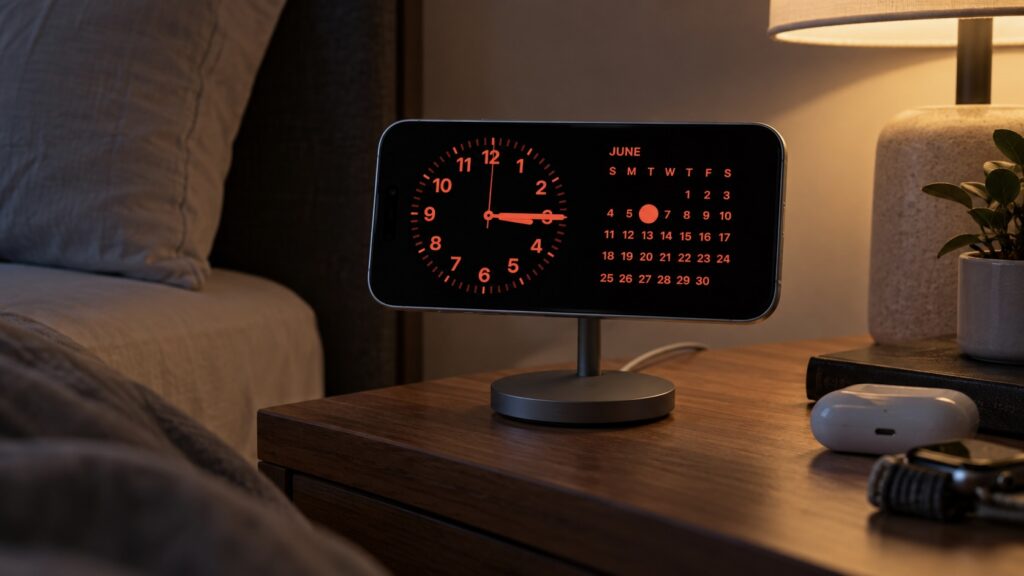
iPhone in StandBy with Night Mode turned on
Does the iPhone screen stay on all night in StandBy?
StandBy works on any iPhone running iOS 17 or newer. It turns on when the phone is charging, positioned horizontally, and not moving. At night, however, different models behave very differently.
iPhones without Always-On display
On these models, the screen turns off after roughly 20 seconds. To see the clock again, you can tap the display, give the nightstand a light nudge, or call Siri. The source author reports that their iPhone 16 Plus behaved exactly this way at night: a couple dozen seconds of clock, then darkness. The author found this annoying at first. From the display’s point of view, though, such a phone takes no risk, because the image never stays on screen for hours.
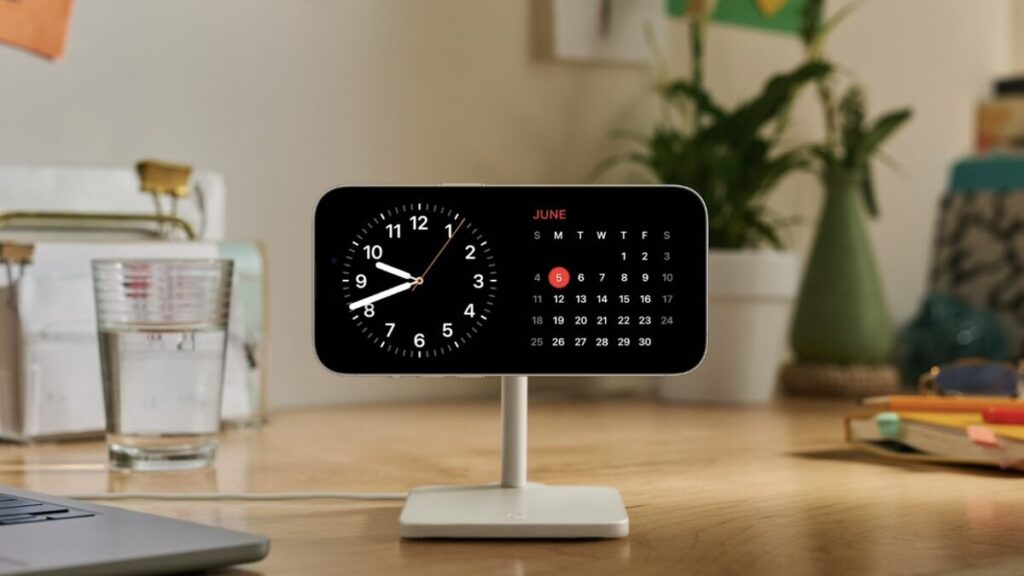
Standard daytime StandBy on an iPhone
iPhones with Always-On display
Always-On models are the iPhone 14 Pro and Pro Max, every Pro model released after them, the iPhone 17, and the iPhone Air. On these phones, StandBy may never turn off at all. Everything depends on one setting in the StandBy “Display” section, which offers three options:
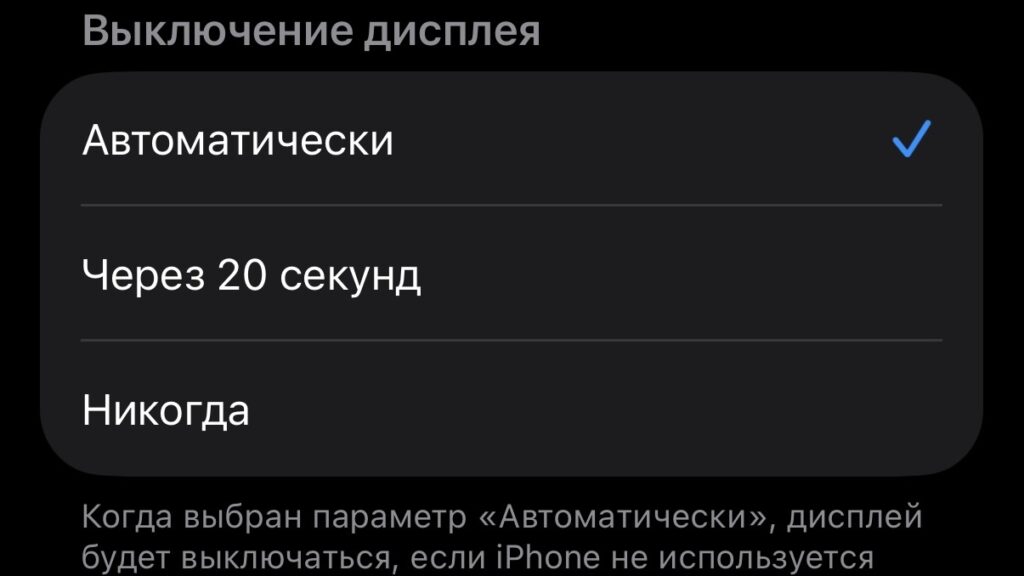
Three display options for StandBy
- Automatically: the screen turns off when the iPhone isn’t being used and the room is dark.
- After 20 Seconds: the same behavior as models without Always-On.
- Never: the display stays lit the entire time StandBy is active.
With “Automatically,” the screen goes dark once the bedroom is dark and nobody is using the phone. “Never” means exactly what it says: the same image stays on the display all night.
There is one more detail. Always-On does not work in Low Power Mode, so with Low Power Mode enabled the screen will turn off even on Pro models. If the clock sometimes disappears in the middle of the night, the source suggests checking this toggle first.
Why OLED screens dislike static images
In an OLED panel, each pixel emits its own light, with no shared backlight. This is why black on an iPhone is truly black: the pixel is simply switched off. The trade-off is that pixels wear over time. If some pixels work noticeably harder than others, the screen ages unevenly. The result is burn-in, where a faint trace of an old image shows through whatever is on screen.
According to the source, Apple openly acknowledges this in its official support documentation. The company states that prolonged use of an OLED display can lead to image retention and burn-in. Image retention is temporary and disappears after a few minutes of normal use. Burn-in occurs in more severe cases, when the same high-contrast image remains on screen for long periods at high brightness. Apple also describes this as expected OLED behavior. For that reason, the source cautions that owners should not count on a free warranty screen replacement in such cases.
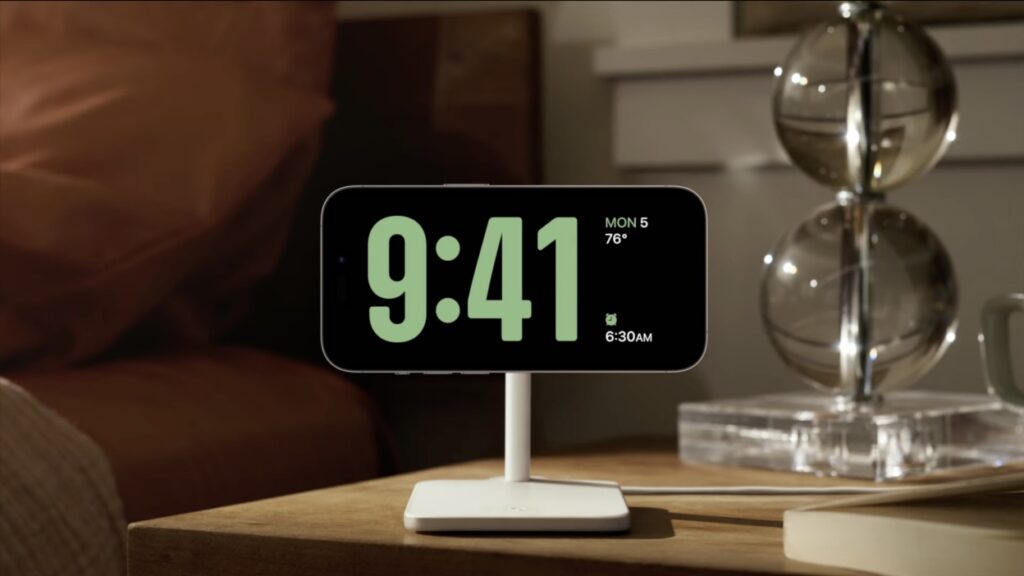
One of the StandBy display styles on an iPhone
How StandBy looks from the display’s perspective
In StandBy, large clock digits sit in the same place on a black background. If the screen stays on for eight hours every night, that adds up to almost 3,000 hours of the same image over a year. That sounds alarming, but the source points to several mitigating factors:
- Black background: most pixels are not lit at all during this time.
- Low brightness: at night, brightness drops to a minimum.
- Low refresh rate: on Always-On models, the refresh rate falls to 1 Hz.
Taken together, this is very different from leaving a photo open at full brightness.
Pixel shifting: unconfirmed protection
There is another detail that Apple does not officially document. Users have reported that the iPhone may shift interface elements by a few pixels so that wear does not build up in one spot. The source author reports observing this behavior with the regular Always-On display, not in StandBy. Whether it also applies in StandBy is unknown. The author therefore advises against relying on this protection alone.
In short, the real risk depends heavily on how StandBy is configured.
Red Night Mode is easier on both sleep and the screen
StandBy settings include a separate Night Mode option. When the room gets dark, the iPhone re-tints the clock and widgets in a dim red hue. According to the source, Apple created this feature primarily with sleep in mind: red light is less glaring than white digits and is less likely to interfere with falling asleep.
The source argues that Night Mode also benefits the screen. Displaying red requires only the red subpixels, so the blue and green ones get a rest. Blue subpixels in OLED panels wear out faster than the others. Combined with minimum brightness, this means the load on the display is much lower than with a white clock face.
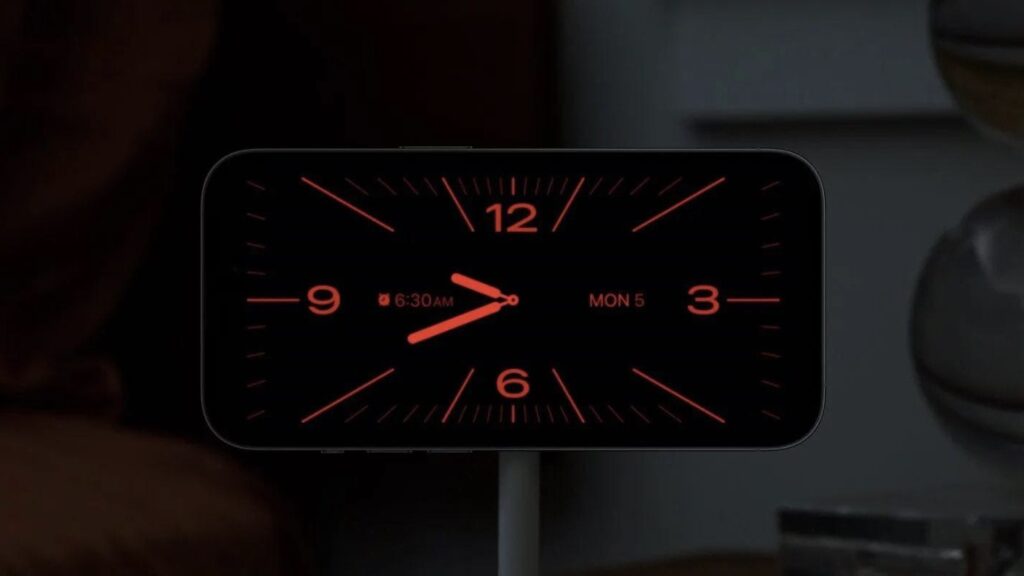
Night Mode in StandBy on an iPhone
Why auto-brightness matters
According to the source, Apple recommends keeping auto-brightness enabled because it prevents the screen from running at full power when that isn’t needed. Adapting to ambient light is especially important in StandBy. In a dark bedroom, even medium brightness is a lot for both your eyes and the panel.
Because StandBy only activates when the iPhone is charging on its side, a stand is the most convenient way to use it. When charging via MagSafe, StandBy also remembers which view you chose at a particular spot. For example, you can have a clock by the bed and photos in the kitchen.
Settings for worry-free nightly use
If you have an Always-On iPhone and want to use StandBy every night, the source says a couple of minutes in Settings is enough. It recommends changing these first:
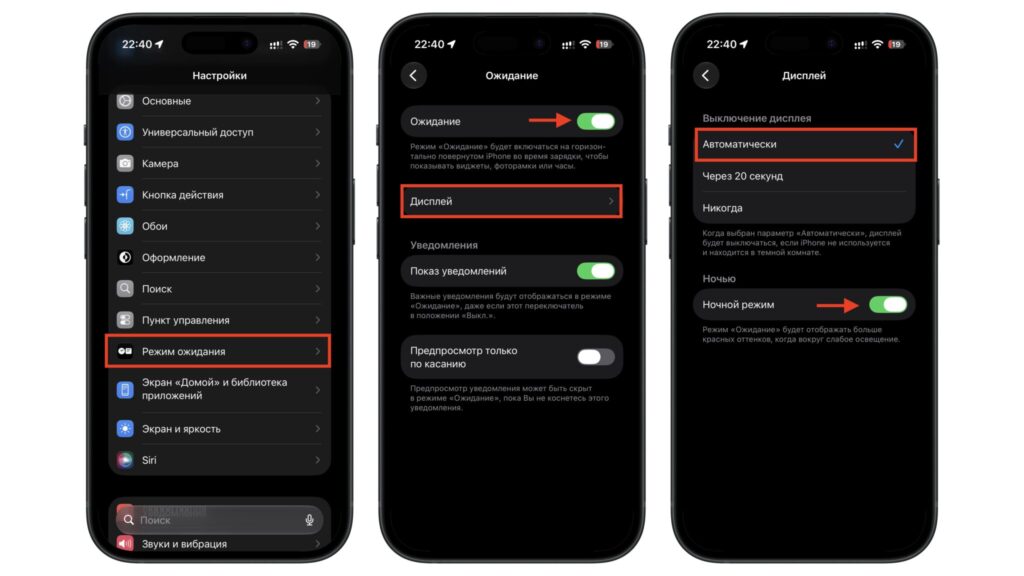
Turning on Night Mode and automatic display behavior
- Open Settings and go to StandBy.
- Tap Display and select Automatically.
- Go back and turn on Night Mode.
Auto-brightness is located in a different part of Settings. To check it:
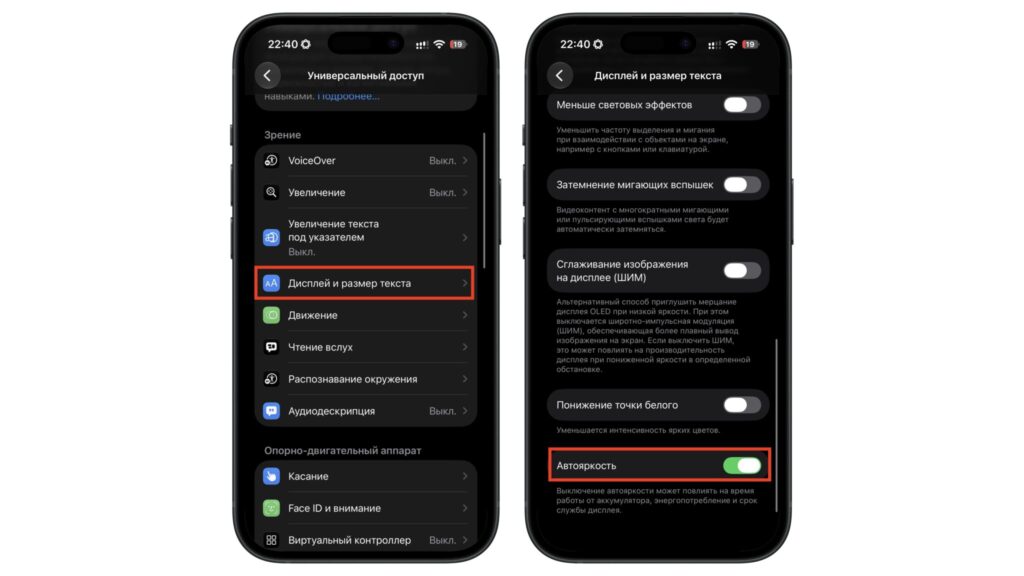
Turning on auto-brightness on an iPhone
- Open Settings and go to Accessibility.
- Tap Display & Text Size.
- Scroll down and make sure the Auto-Brightness toggle is on.
Another simple option is to change the StandBy view itself. Instead of a clock, you can display photos. According to the source, the pictures rotate automatically, which spreads wear across the screen far more evenly than clock digits that sit in one place all night.
Bottom line: risk by scenario
- iPhones without Always-On: nothing to worry about. The screen turns off on its own after 20 seconds.
- Pro models, iPhone 17, and iPhone Air set to “Automatically” with Night Mode on: minimal risk. The screen is off for most of the night, and when it is on, it is dim and red.
- Always-On models set to “Never” with Night Mode off: this is the only scenario the source flags for concern. Keeping white digits in the same place for years is not a good idea for any OLED display.


