Samsung smartphones have many useful features that are rarely talked about. And even in our special roundup, not all of them were covered. In particular, Samsung battery protection was overlooked. It’s turned off by default, even though this feature can noticeably extend the lifespan of your battery. You can enable it in a couple of seconds, and the real benefits will show after a year or two of using your smartphone.
Enable battery protection on your Samsung as soon as possible
Why Charging to 100% Is Harmful
The typical scenario looks like this: you put your smartphone on charge before bed and take it off in the morning at 100%. Convenient, but not the best regimen for a lithium-ion battery. Lithium-ion batteries degrade faster when they remain at 100% charge for extended periods. Six to seven hours every night at maximum capacity gradually reduces battery capacity.
The general rule: if you want to maximize your battery’s lifespan, don’t charge it to full and don’t drain it to zero. The optimal range is 20% to 80%. In practice, few people monitor this manually, but Samsung has already built in an automatic tool.
Samsung Battery Protection — What Is It
This battery feature has been available for several years now. Starting with One UI 7.0, it received more precise settings. You can now choose the maximum charge level: 80%, 85%, 90%, or 95%. There’s also a separate adaptive mode that stops charging at 80% during sleep and brings it up to 100% just before you wake up. Sleep time is determined automatically based on your smartphone usage habits. However, if you have an irregular sleep schedule, adaptive protection may not work correctly.
Battery protection stops charging before it reaches full
In the newer One UI 8 version, the structure has been slightly simplified: the adaptive mode is merged with the basic one, and now Basic automatically adjusts to nighttime charging. The maximum mode with manual limit selection remains unchanged.
How to Enable Battery Protection on Samsung
The process takes about ten seconds:
- Open “Settings” and go to the “Battery” section.
- Tap “Battery Protection.”
- Toggle the switch on and select the desired mode.
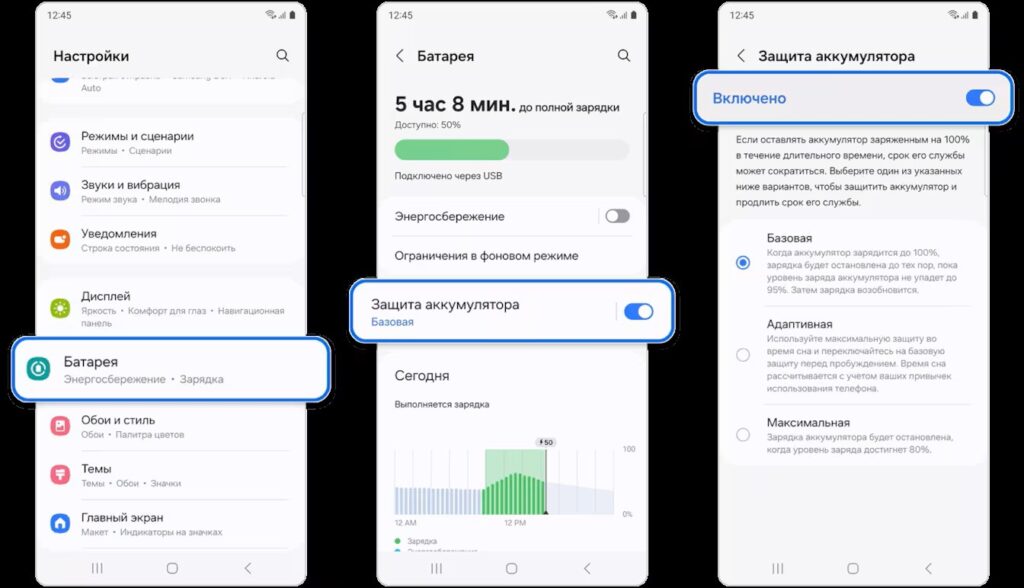
Battery protection can be enabled in just a couple of taps
You can simply find One UI battery protection through the settings search (it’s a single toggle). After activation, a message “Charging paused to protect battery” and a shield icon on the charge indicator will appear on the lock screen.
Proper Samsung Charging Setup
Setting the limit to 80%, 85%, or 90% helps reduce battery wear. The difference between these levels for everyday use is minimal. The main thing is not to leave your smartphone at 100% for extended periods. If you spend your day in the city with outlets and chargers readily available, an 80–85% limit is the optimal choice.
If every minute of battery life is critical for you, 90–95% becomes a reasonable compromise between battery health and convenience. For advanced scenarios, you can use Bixby “Modes and Routines”: for example, limit charging to 80% at night and switch to basic or adaptive mode during the day so the phone adjusts to your rhythm.
Is It Worth Enabling Samsung Battery Protection
The battery protection feature simply stops charging earlier and keeps the battery at a set level, reducing stress on the battery cells. The practical effect is especially noticeable if you don’t replace your smartphone every year. If you upgrade your phone every two to three years, you probably won’t notice significant drops in battery life anyway. But Samsung now promises seven years of updates, and if you plan to use your device that long, battery protection will help preserve its health.
Enable it if you plan to use your smartphone for a long time
Many useful One UI features are easy to miss, as Samsung doesn’t remind you about them after purchase. Battery Protection is not enabled by default, and if you haven’t activated it manually, your smartphone charges to full every night. Enabling this feature is one of the first things you should do when buying a new Galaxy. The sooner you activate it, the longer your battery will retain its original capacity. And if you decide to sell your smartphone in a couple of years, good battery condition will be an additional selling point for the buyer.


