Android includes a quick-settings tile called Sensors Off that disables all hardware sensors on your phone with a single tap — camera, microphone, accelerometer, ambient light sensor, gyroscope, and proximity sensor. It is buried inside Developer Options and most users never discover it. The toggle is useful when you want to be certain your phone is not recording anything, whether to prevent accidental captures or to address surveillance concerns.
What you need to know
- The Sensors Off tile disables camera, microphone, accelerometer, gyroscope, ambient light, and proximity sensors simultaneously.
- Wi-Fi, mobile data, and GPS continue to work — location tracking must be disabled separately.
- Apps are not force-closed; Android simply stops delivering sensor data to them, so a recording app, for example, captures silence instead of audio.
- The tile requires enabling Developer Options first and may appear under slightly different menu names depending on your device firmware.
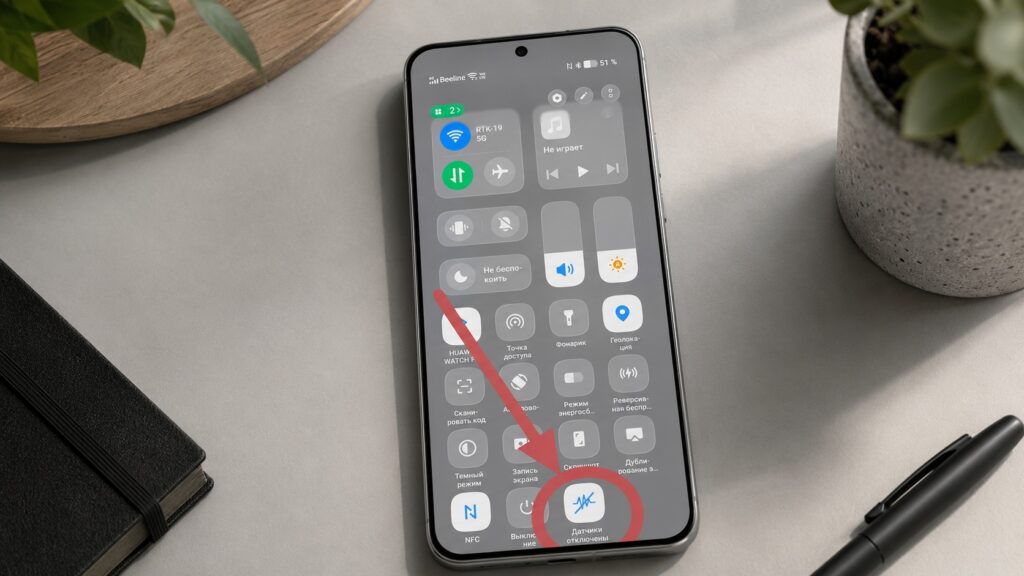
Very few users know about this hidden setting
What the Sensors Off tile actually does
When activated, the tile overrides every sensor-related permission you have granted to apps. Crucially, it does this without crashing or closing those apps. Android simply stops feeding them real sensor data. A voice-recording app, for instance, will not know the sensors are off — it will just record silence. The source notes this can be handy if you need to preserve a continuous timecode but temporarily want to stop capturing part of a conversation.

Another example: step counting. If you disable sensors, walk somewhere, and then re-enable them, the phone only counts steps taken while sensors were active. This can help you measure the exact number of steps between two specific points.
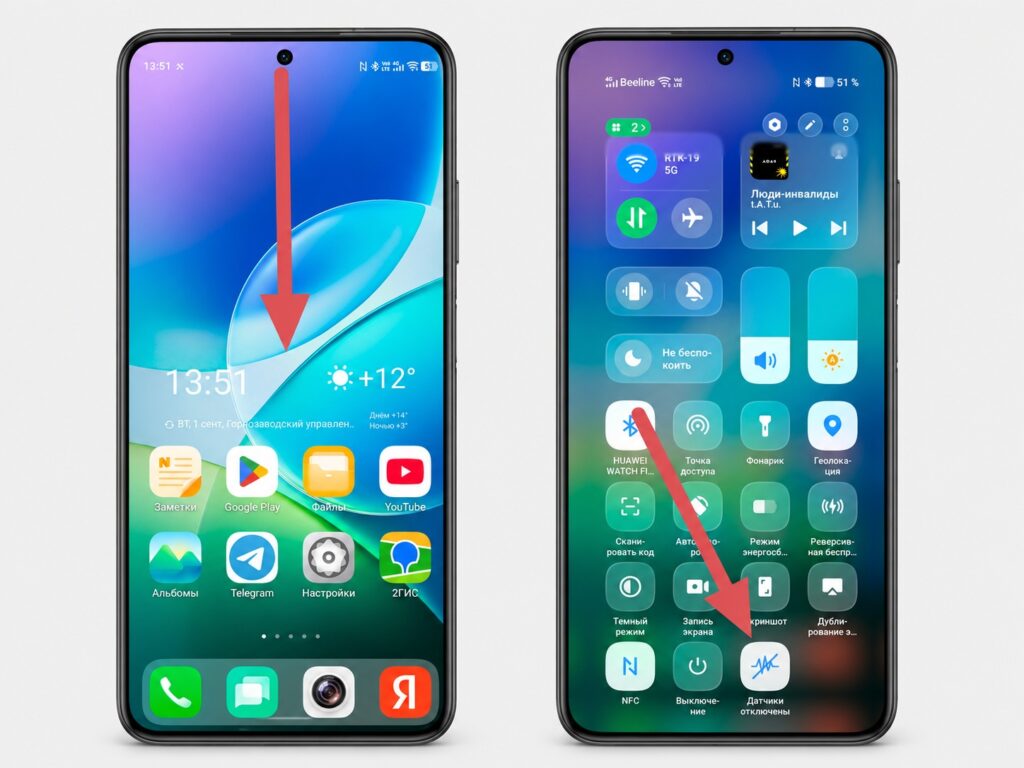
The toggle appears in the notification shade, but only after setup
Important limitation: GPS stays on
The Sensors Off tile does not disable Wi-Fi, mobile data, or GPS. Location tracking is controlled by a separate quick-settings tile and remains active by default. If your goal is full privacy, you need to disable location independently.

How to enable the Sensors Off tile
Step 1: Activate Developer Options
- Open the Settings app.
- Scroll down and tap About phone.
- Find Software version or Build number and tap it seven times until a message confirms Developer Options are enabled.
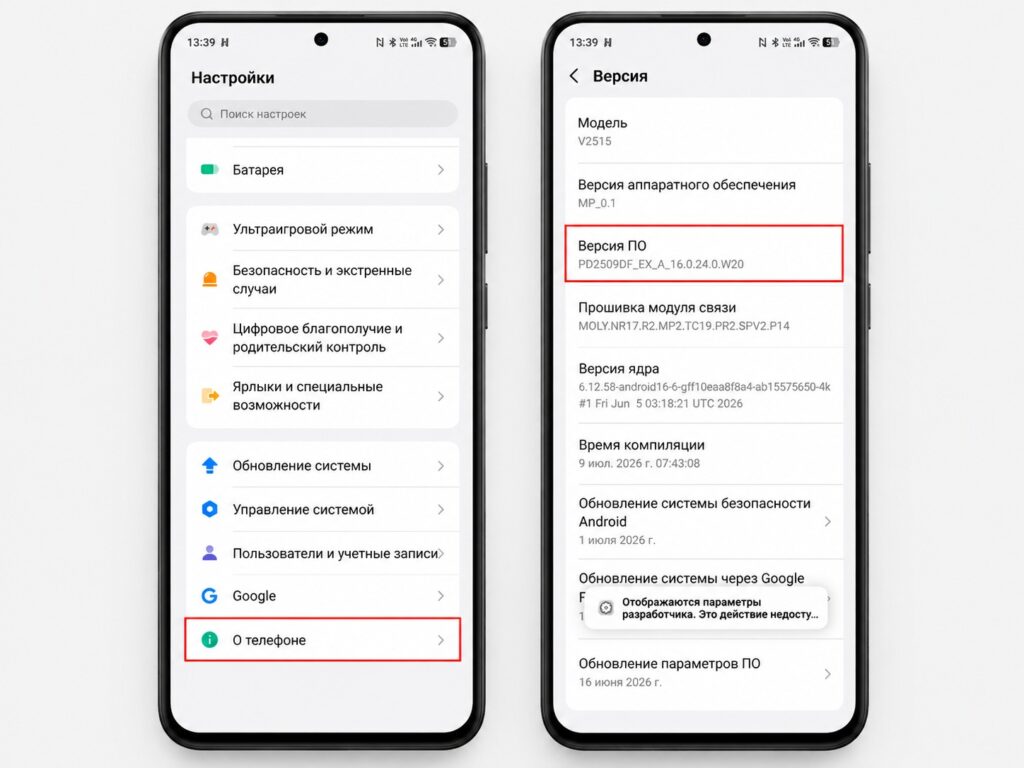
First, enable Developer Options
Step 2: Add the tile
- Open Settings again.
- Go to System → Developer Options.
- Look for Quick settings developer tiles (you can also search for it in the settings search bar).
- Enable the Sensors Off toggle.
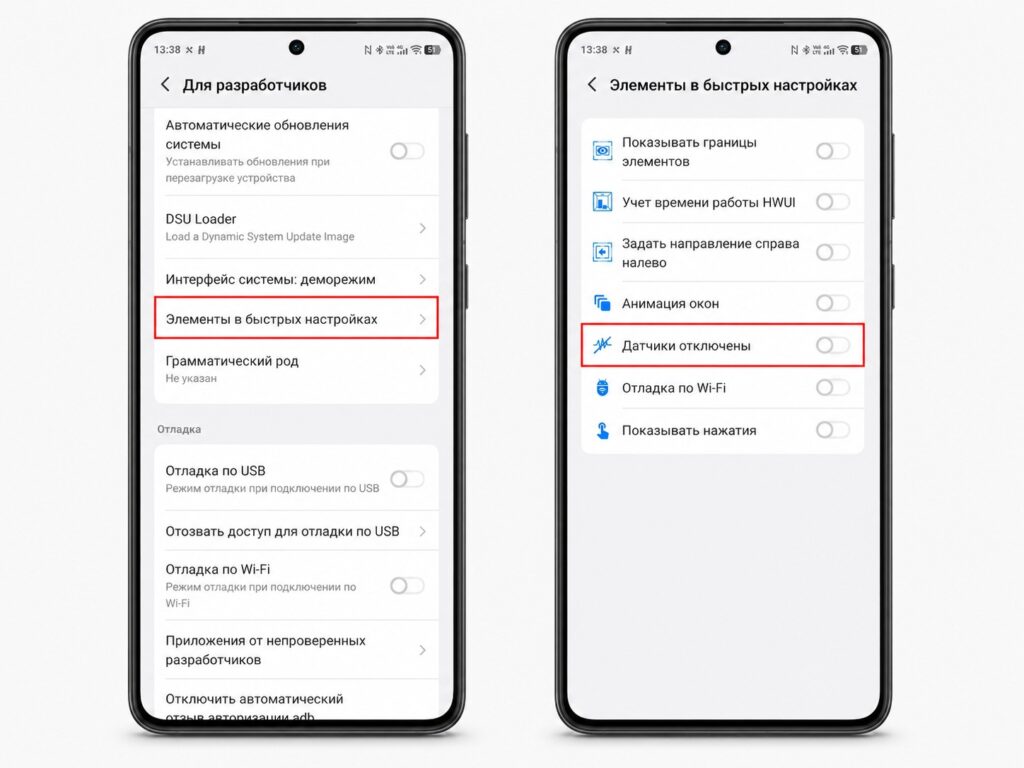
Now activate the toggle itself

Android will automatically place the tile on the first page of your quick-settings panel. When active, an icon appears in the top-right corner of the screen. The exact menu names may vary slightly across different device manufacturers and firmware versions, but the process is the same.
Sensors Off is not a complete privacy solution
This single button does not replace broader privacy habits. Alongside the Sensors Off tile, Android offers separate quick-settings toggles for the camera, microphone, and location individually, allowing more granular control. The camera and microphone toggles let you disable only those two sensors, while the location tile covers what the Sensors Off toggle does not.
Android also includes a Privacy Dashboard (in Settings) that shows which apps accessed sensors and data over the past 24 hours. Checking this panel regularly helps spot and remove suspicious apps. Combined with the Sensors Off tile, these tools offer meaningful — though not absolute — control over what your phone records at any given moment.


