AirDrop lets you instantly transfer photos, videos, documents, and other files between Apple devices wirelessly — no messenger apps, cloud services, or internet connection required. It uses a combination of Bluetooth (to discover nearby devices) and a direct Wi-Fi connection (to transfer the actual data), meaning transfers are fast even where there is no network coverage. Below is a complete guide to how AirDrop works, which devices support it, how to set it up, how to send files, and how to troubleshoot when a device isn’t visible.
What you need to know
- AirDrop uses Bluetooth for device discovery and a direct Wi-Fi link for file transfer — no internet or shared Wi-Fi network is needed.
- There is no file-size limit: you can send a single photo or dozens of large videos at once.
- According to the source, Google introduced cross-platform compatibility in November 2025, initially allowing Pixel 10 users to exchange files with Apple devices via Quick Share and AirDrop, with support reportedly expanding to Samsung, OPPO, OnePlus, Vivo, Xiaomi, and HONOR devices in 2026.
- On iOS 17 or later, bringing two iPhones close together with the Share menu open starts an AirDrop transfer instantly — but this gesture does not work during wireless CarPlay or Personal Hotspot sessions.
What is AirDrop and how does it work without internet?
AirDrop is Apple’s built-in file-sharing feature. It works in any combination of Apple devices: iPhone to iPhone, iPhone to Mac, iPad to iPhone, and so on. Its main advantage over messaging apps is that the file arrives and opens directly on the recipient’s device with no extra steps.
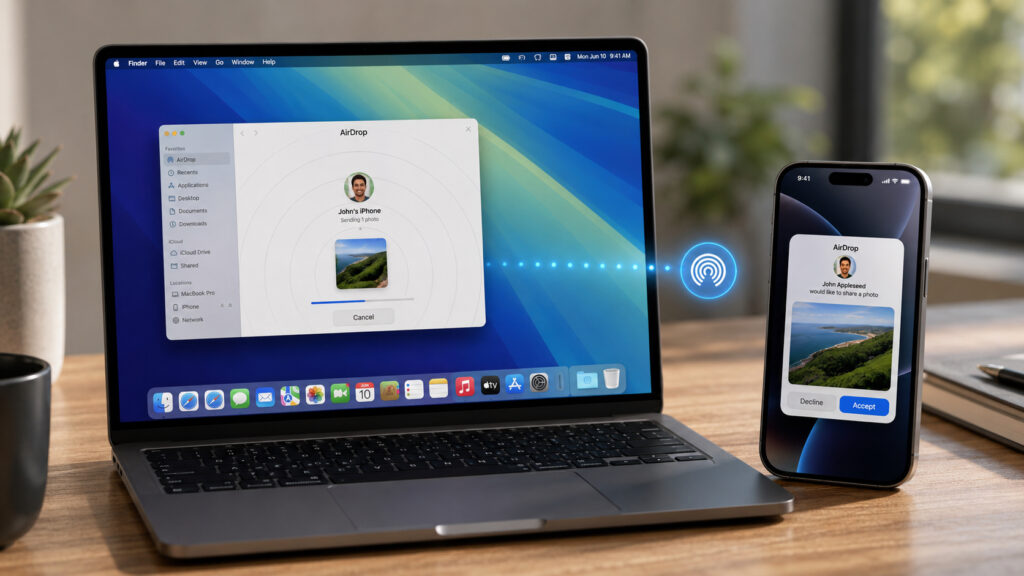
AirDrop is a genuinely convenient way to transfer files between Apple devices
Bluetooth helps the devices find each other, while the actual file is sent over a direct Wi-Fi connection between them. Neither an internet connection nor a shared Wi-Fi network is required: the devices create a temporary peer-to-peer link, so transfer speeds remain high even in areas with no connectivity.
Device compatibility
For iPhone, you need at least an iPhone 5 running iOS 7 or later. For iPad, a fourth-generation iPad (2012) or later, any iPad mini, or any iPad Pro running iOS 7 or any version of iPadOS will work. On the Mac side, any model released in 2012 or later running OS X Yosemite or newer supports AirDrop.
Cross-platform sharing with Android
According to the source, Google introduced cross-platform compatibility in November 2025, allowing Pixel 10 users to exchange files directly with Apple devices through a Quick Share–AirDrop link. The source reports that Pixel 9 devices were added in February, and Samsung models gained support in March and April. Google has also reportedly stated that compatibility will expand to Samsung, OPPO, OnePlus, Vivo, Xiaomi, and HONOR devices in 2026. An important limitation noted by the source: this cross-platform transfer currently works only when AirDrop is set to “Everyone for 10 Minutes” and Quick Share is similarly open.
How to enable AirDrop and change visibility on iPhone and iPad
AirDrop has three visibility modes:
- Receiving Off — the device does not accept any incoming files.
- Contacts Only — only people in your address book can see you and send files.
- Everyone for 10 Minutes — the device is visible to anyone nearby for ten minutes, after which it automatically reverts to Contacts Only.
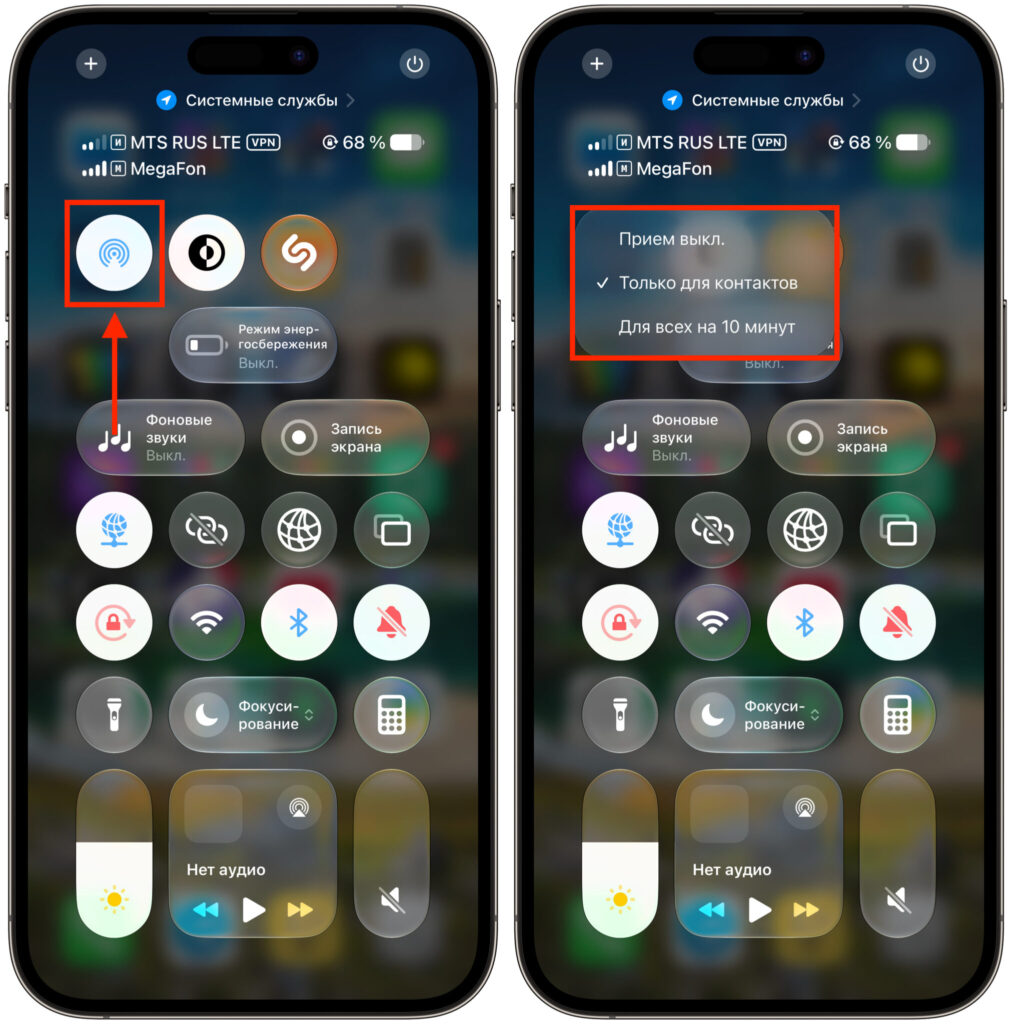
You can activate AirDrop through Control Center
On iPhone and iPad you can access these settings in two ways:
Via Control Center: Swipe down from the top-right corner of the screen, press and hold the connectivity block in the top-left corner, then tap the AirDrop button and choose the desired mode.
Via the Settings app:
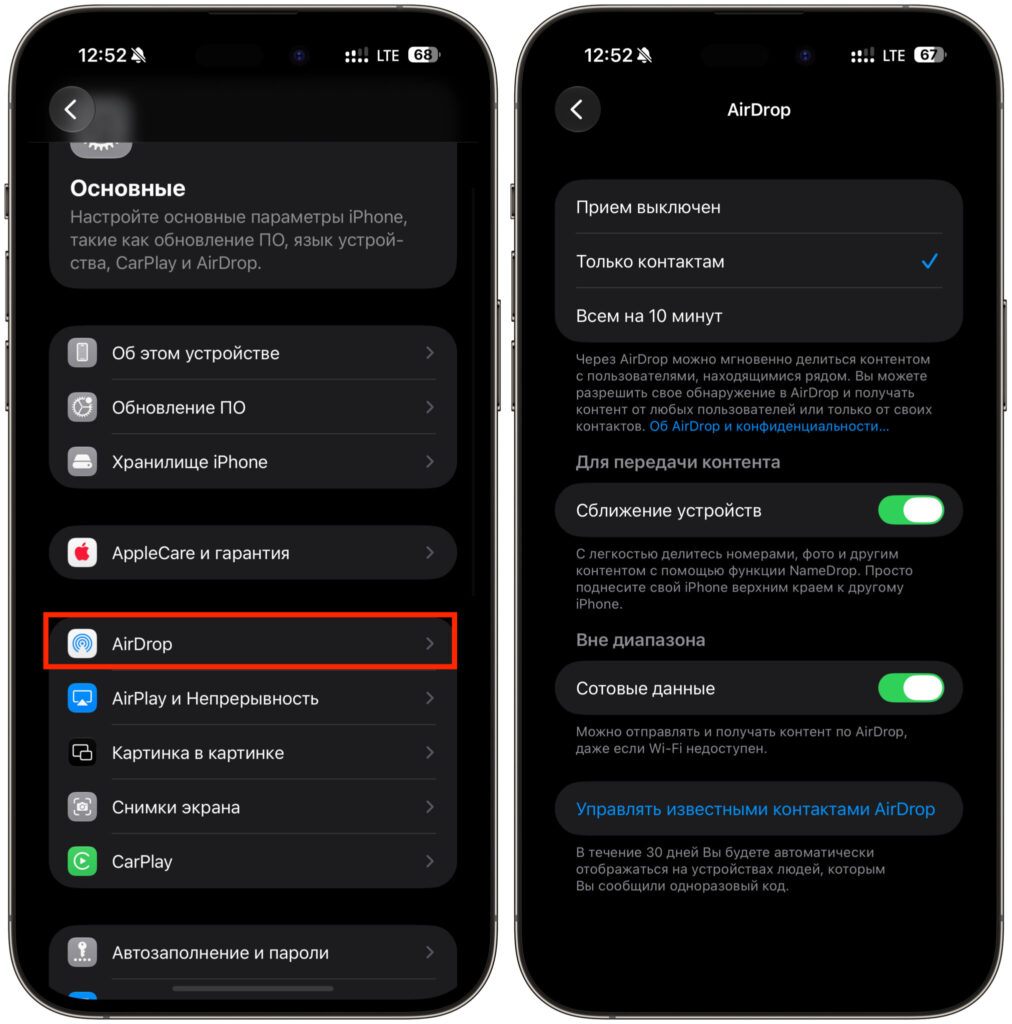
You can also enable it through Settings
- Open the Settings app.
- Scroll down and tap General.
- Tap AirDrop.
- Choose “Contacts Only” or “Everyone for 10 Minutes.”
How to enable AirDrop on Mac
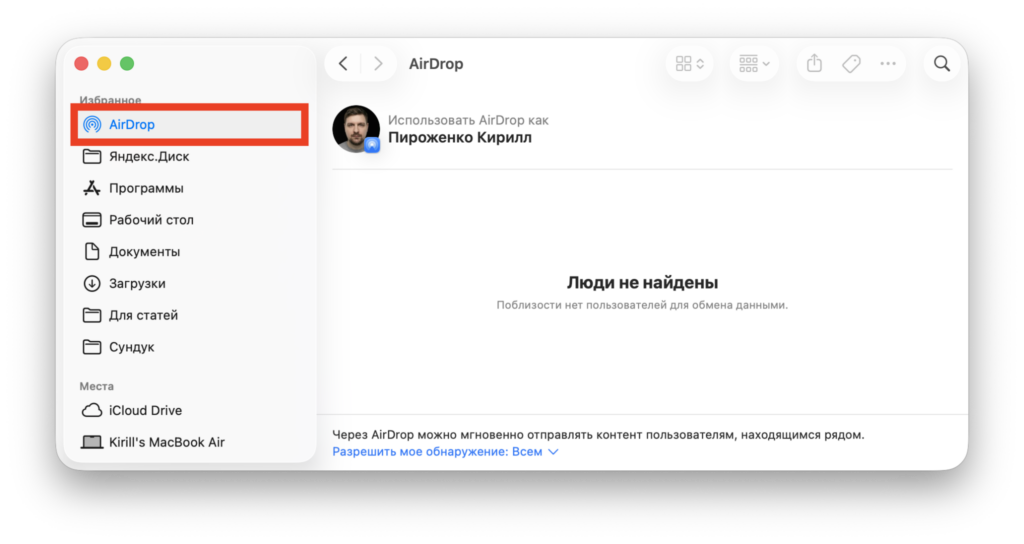
On Mac, you can find AirDrop in Finder
Open a Finder window and select AirDrop in the sidebar (if the item is missing, use the keyboard shortcut Command-Shift-R). In the “Allow me to be discovered by” line, choose the desired option from the drop-down menu. The same AirDrop settings are also available in Control Center in the menu bar.
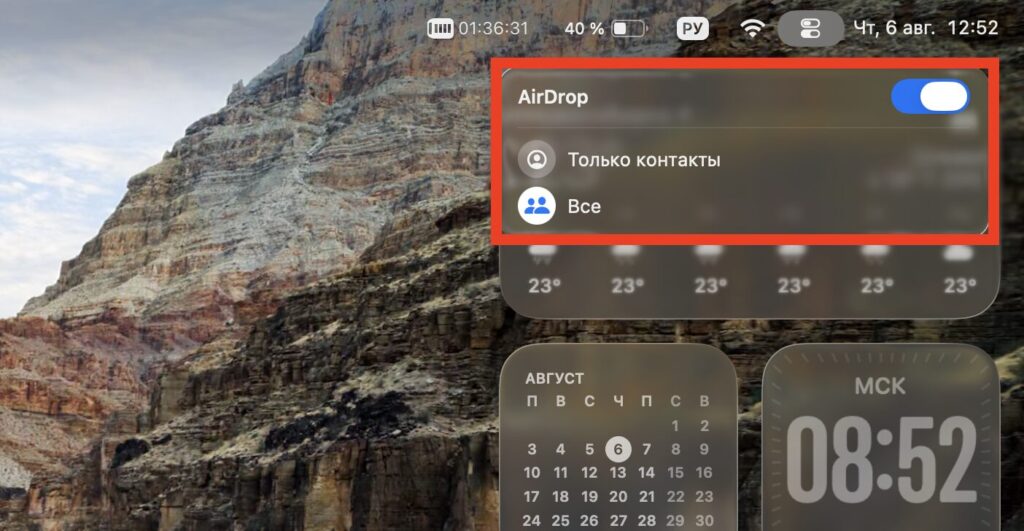
AirDrop settings are also available in Control Center on Mac
Security tip: Keep AirDrop set to “Contacts Only” by default and switch to “Everyone” only when you need to receive a file. This prevents unwanted transfer requests from strangers in crowded places.
How to send photos and files via AirDrop
The easiest way to use AirDrop is through the Share menu, which is available in almost every app. The share button (a square with an upward arrow) appears in Photos, Safari, Files, Notes, the App Store, and many other apps. There is no file-size limit, so you can send a single photo or dozens of videos at once.
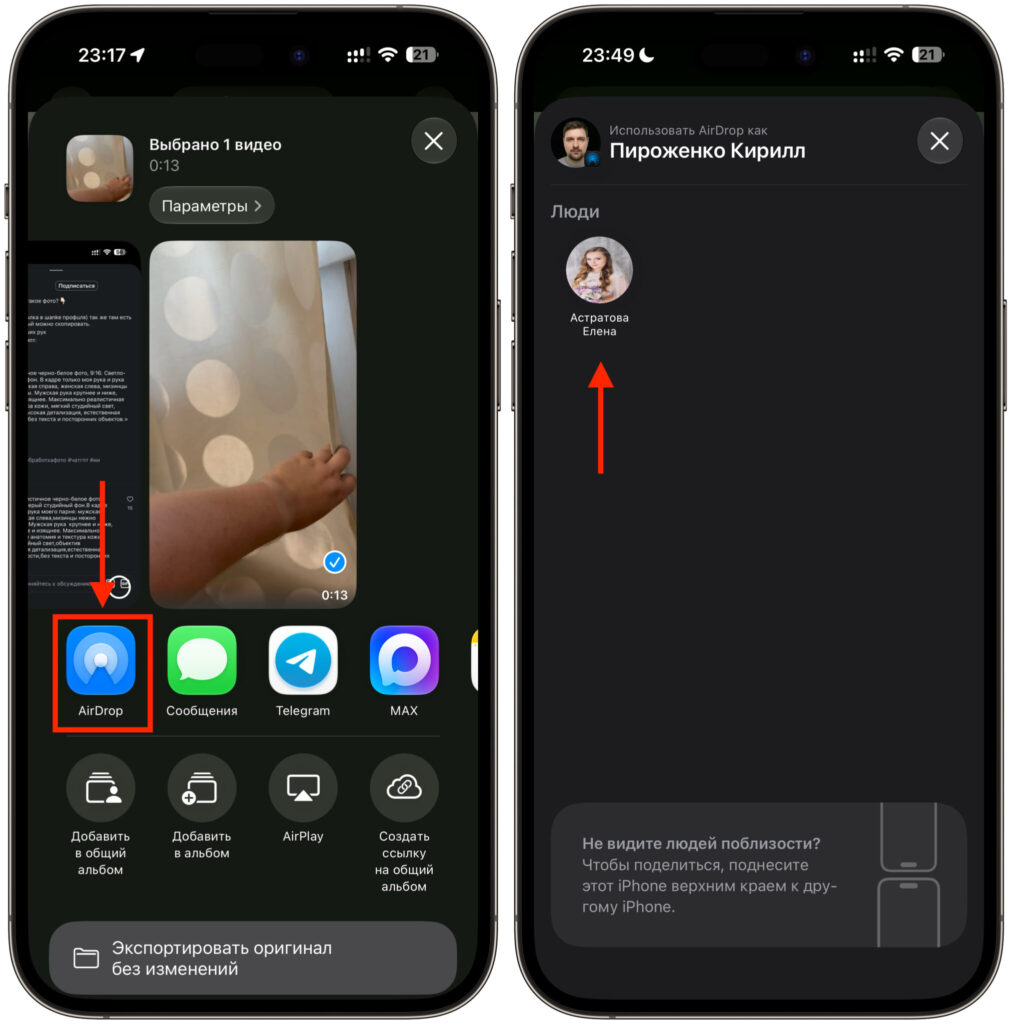
You can send anything — even a web page link
A standard transfer works like this:
- Open the photo, document, Safari page, or other content you want to share.
- Tap the Share button.
- In the share sheet, select AirDrop.
- Tap the name of the person or device you want to send to.
- Ask the recipient to tap “Accept” in the pop-up notification.
If the recipient is in your contacts and their device is unlocked and awake, their icon will appear automatically at the top of the recipient list. Your own Apple devices will also appear there, which is convenient when you need to move a file from your iPhone to your own Mac or iPad.
Quick transfer by bringing devices together (iOS 17+)
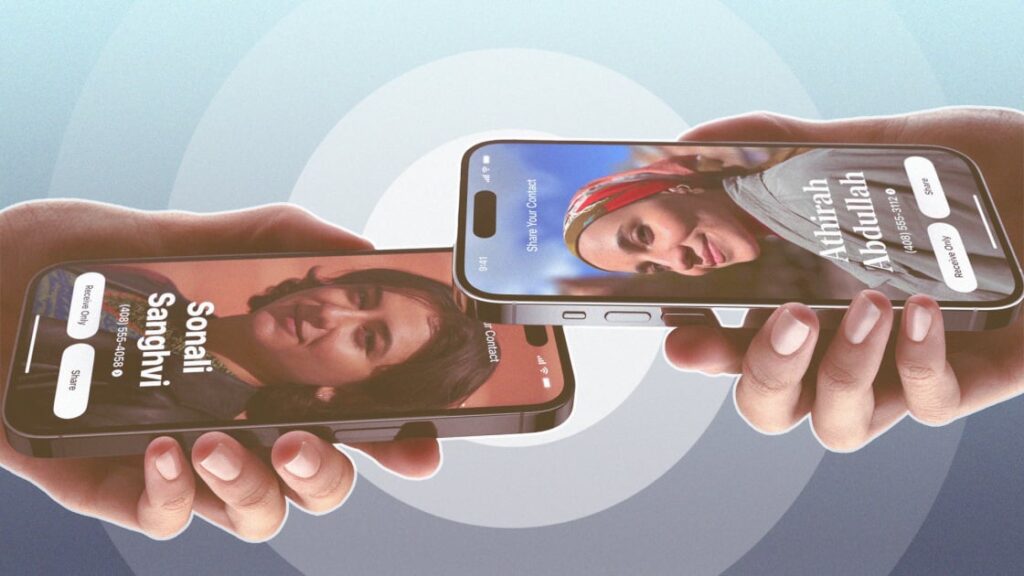
If a device is not found, you can bring the two devices close together
If both devices run iOS 17 or later, there is a faster method: open the Share menu and bring the tops of the two iPhones close together. The transfer starts instantly with a pulsing animation and haptic feedback. Using the same gesture without the Share menu open triggers NameDrop, a quick contact-card exchange. Note: these gestures do not work if either device is connected to wireless CarPlay or is using Personal Hotspot.
Sending to Android
According to the source, sending files from an iPhone to a compatible Android device follows a similar process. On the Android device, the user must ensure that sharing with Apple devices is enabled. On the iPhone, set AirDrop visibility to “Everyone for 10 Minutes” via Control Center. Then use the standard AirDrop share interface and select the Android device’s name from the recipient list. Although Google presents this as an iPhone–Android feature, the source notes that Android devices can also reportedly exchange files with iPad and Mac.
AirDrop not finding a device: causes and fixes
If AirDrop cannot find a device or a transfer fails, the cause is usually straightforward. Work through the following checklist from simplest to most involved:
- Check compatibility. Make sure both devices support AirDrop — very old iPhone, iPad, and Mac models do not.
- Wake and unlock the recipient’s device. A locked or sleeping device will not appear as available. The iPhone or iPad must be unlocked via Face ID, Touch ID, or passcode to receive files.
- Turn on Wi-Fi and Bluetooth. AirDrop requires both radios to be active. A common culprit is Bluetooth being accidentally turned off.
- Reduce the distance. When there is no shared Wi-Fi network, AirDrop relies solely on Bluetooth for discovery. Bluetooth range on modern iPhones is approximately 10 meters (about 33 feet), so keep devices within that range.
- Check the visibility mode. If the recipient is not in your contacts, ask them to temporarily switch AirDrop to “Everyone for 10 Minutes.”
- Disable Focus mode and Personal Hotspot. Focus (Do Not Disturb) can block incoming file notifications, and an active Personal Hotspot can interfere with the connection.
If the basic steps do not help, try more thorough measures:
- Restart the device. A simple reboot of the iPhone or Mac resolves many software glitches.
- Update software. Make sure the latest versions of iOS, iPadOS, and macOS are installed. Check under Settings → General → Software Update.
- Reset network settings. On iPhone or iPad, this often clears persistent AirDrop issues — but be aware that it erases all saved Wi-Fi passwords.
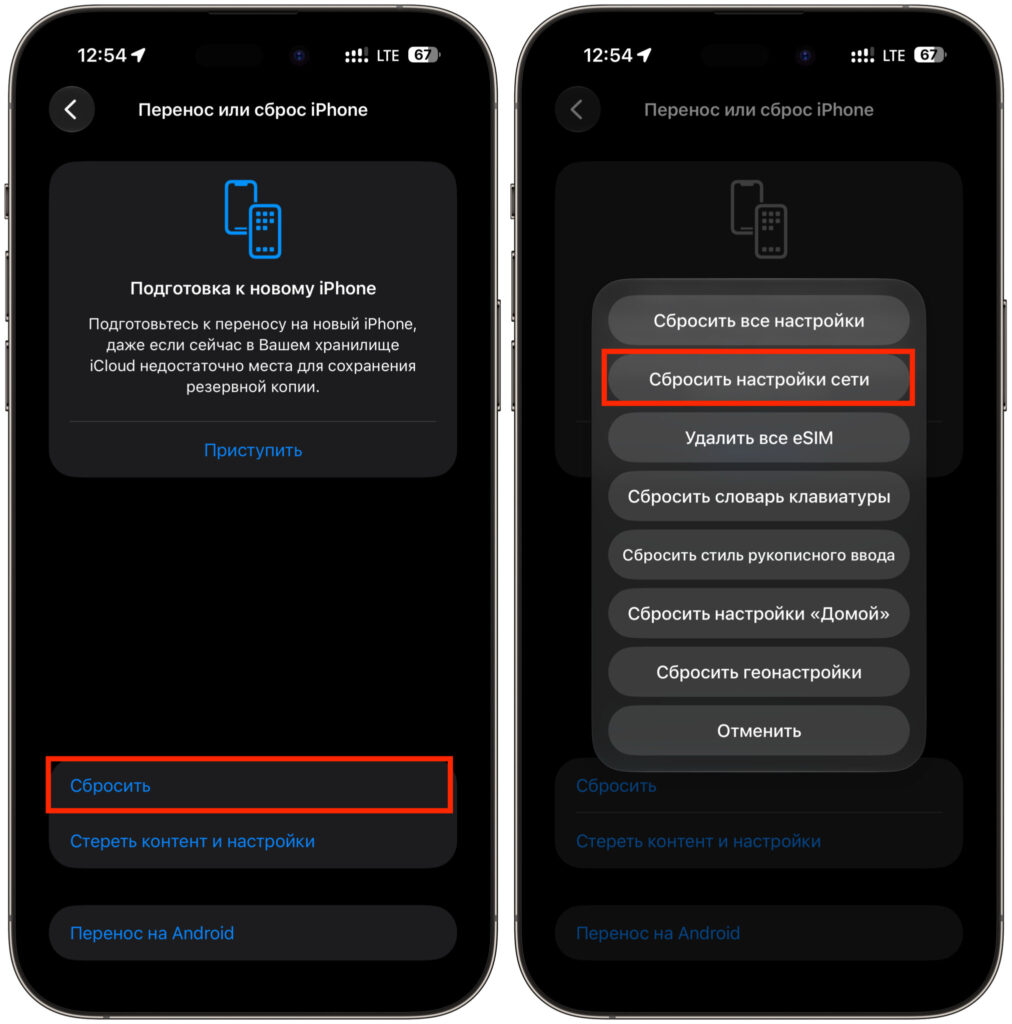
Resetting network settings often fixes AirDrop problems
If you see an unfamiliar name in the recipient list and need to distinguish your own devices, you can rename them in the device name settings on each Apple product.


