A Bluetooth gamepad on iPad can do more than just control characters in games — it can also navigate the home screen, launch apps, and switch between them. This feature turns the iPad into something resembling a game console and is especially useful for gamers, users with accessibility needs, and those who connect their tablet to a TV. In this article, we’ll walk through step-by-step instructions for iPad: connecting a controller, navigating the iPadOS interface, and customizing buttons.
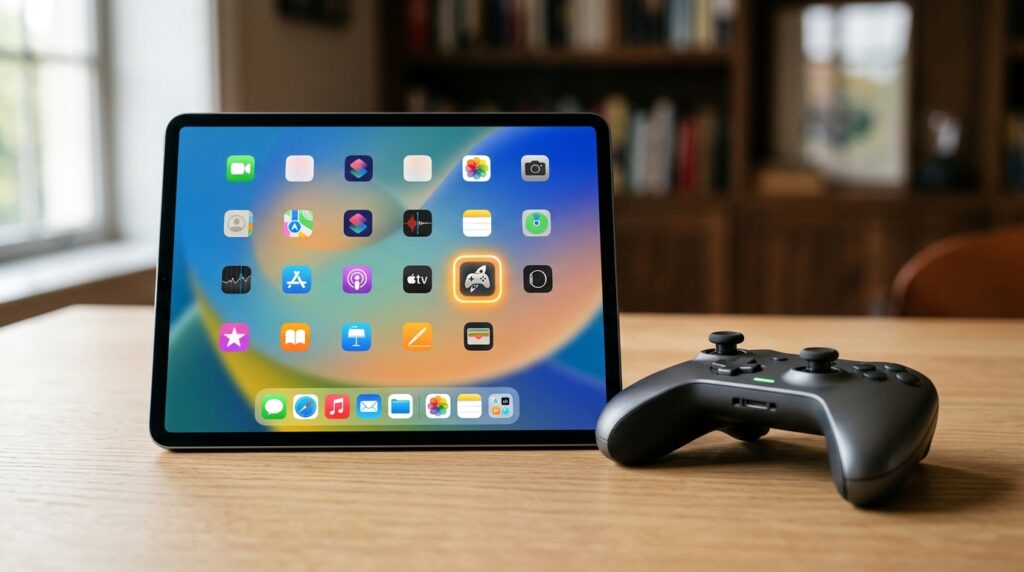
How to control iPad and launch apps with a gamepad
Controllers You Can Connect to iPad
iPadOS supports most popular Bluetooth controllers. Any compatible gamepad will work for navigating the interface and launching apps — there’s no difference in behavior between brands. Here are the main options:
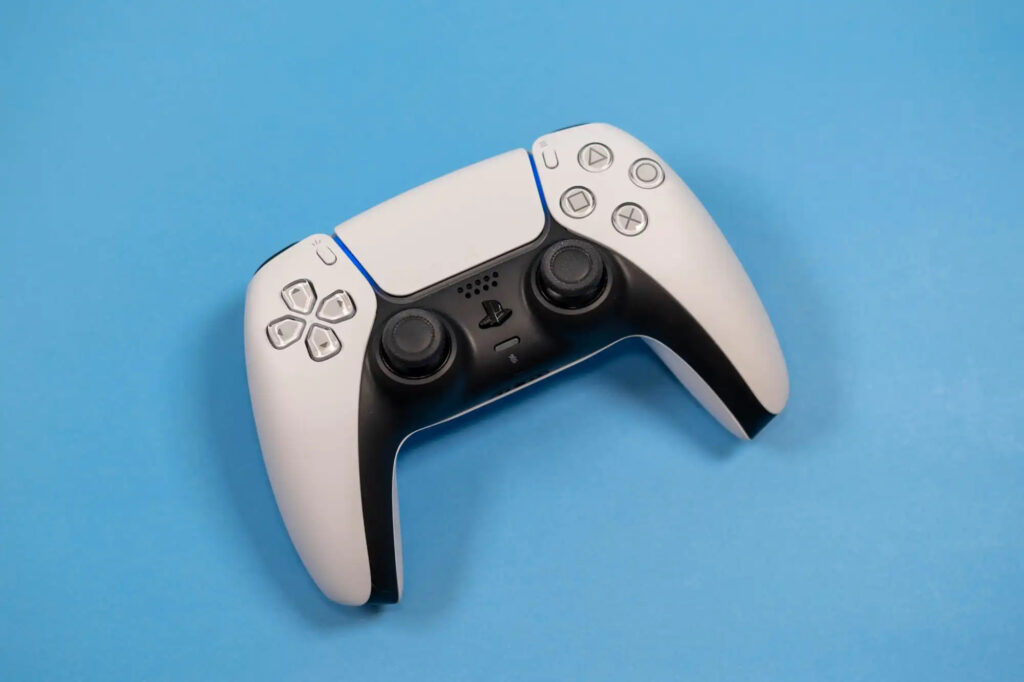
iPad supports connecting a wide variety of controllers
- PlayStation: DualShock 4 (PS4), DualSense and DualSense Edge (PS5)
- Xbox: Xbox Wireless Controller (Bluetooth models, including Xbox Series X/S controllers)
- Nintendo Switch: Joy-Con (individually or as a pair), Nintendo Switch Pro Controller
- 8BitDo: SN30 Pro, Pro 2, Ultimate, and other models with updated firmware
- Specialized MFi controllers: SteelSeries Nimbus+, Backbone One, Razer Kishi, and others
Nintendo Switch controller support was introduced in iOS 16 and iPadOS 16. PlayStation 5 DualSense controllers work with iPad starting from iPadOS 14.5. 8BitDo controllers may require a firmware update through the brand’s dedicated app — keep this in mind before your first connection.
iPad also supports wired controller connections via USB-C. If you have an iPad with a USB-C port (iPad Pro, iPad Air 4th generation and later, iPad mini 6th generation), you can simply plug in the gamepad with a cable — no additional setup required.
How to Connect a Gamepad to iPad via Bluetooth
The connection process is the same for all Bluetooth controllers and takes less than a minute. The only difference is how to enter pairing mode: each brand has its own button combination.
- Open the Settings app on your iPad and go to the Bluetooth section. Make sure Bluetooth is turned on.
- Put the gamepad into pairing mode. For DualShock 4 and DualSense — hold the PS and Share buttons simultaneously until the light indicator starts flashing rapidly. For Xbox — hold the pairing button on the controller body (small button near the USB port). For Joy-Con — hold the sync button on the side rail. For Nintendo Switch Pro Controller — hold the sync button on the top edge.
- The controller’s name will appear in the Bluetooth device list on iPad. Tap on it to connect.
- Once the connection is established, the controller’s indicator will stop flashing. iPad will remember the device and will automatically connect when the gamepad is turned on in the future.
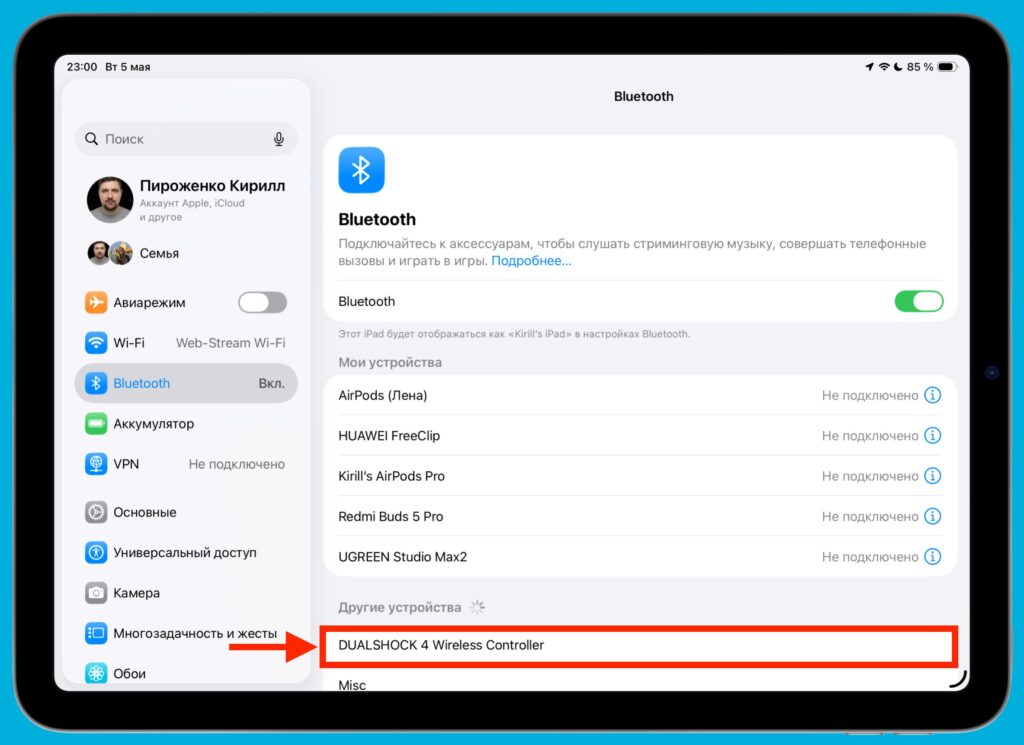
Find the controller in the list of available devices and tap on it
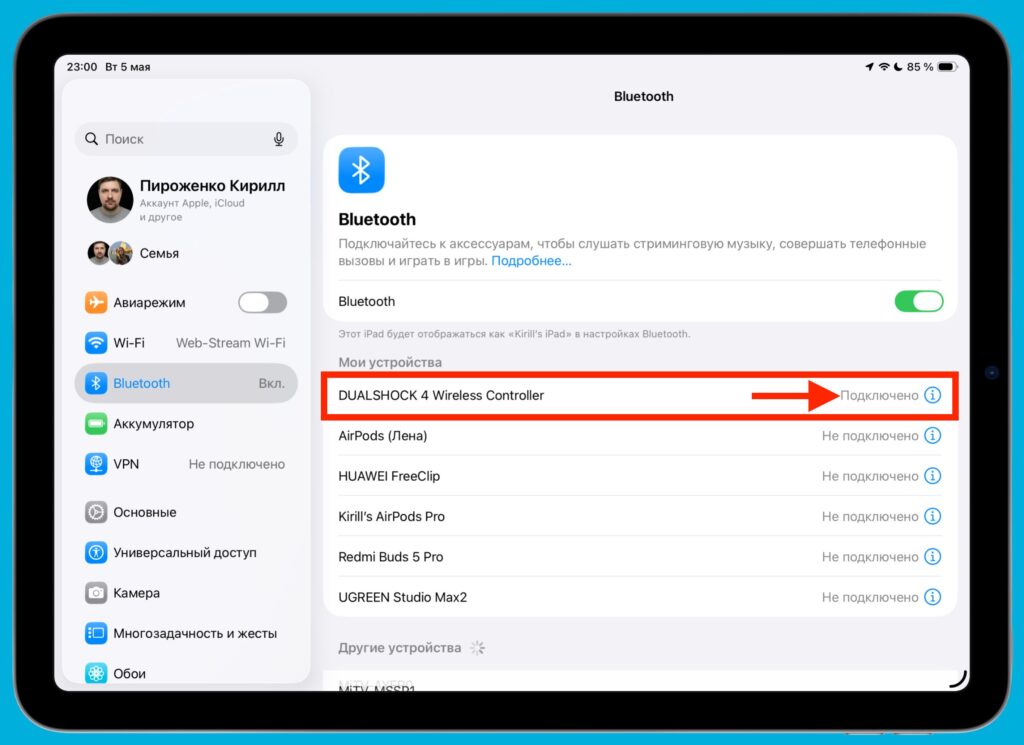
On successful connection, the controller will appear here
If the controller doesn’t appear in the list, make sure it’s not connected to another device (console, computer). Some controllers only support a connection with one device at a time. In this case, disconnect it from the previous device and try again.
How to Control iPad with a Gamepad Without Touching the Screen
After connecting, the gamepad works in games right away. But beyond that, it allows you to navigate the iPad home screen and launch apps without touching the screen. Navigation works on a principle similar to Apple TV: you move the highlight between elements and confirm your selection with a button.
- Go to the iPad home screen.
- Use the left stick or D-pad to move between app icons. The currently highlighted app will be visually emphasized.
- When the desired app is highlighted, press the “A” button on an Xbox controller or the “X” (cross) button on a PlayStation controller to open it.
- To return to the home screen, press the Xbox (Guide) button or the PS button on the respective controller.
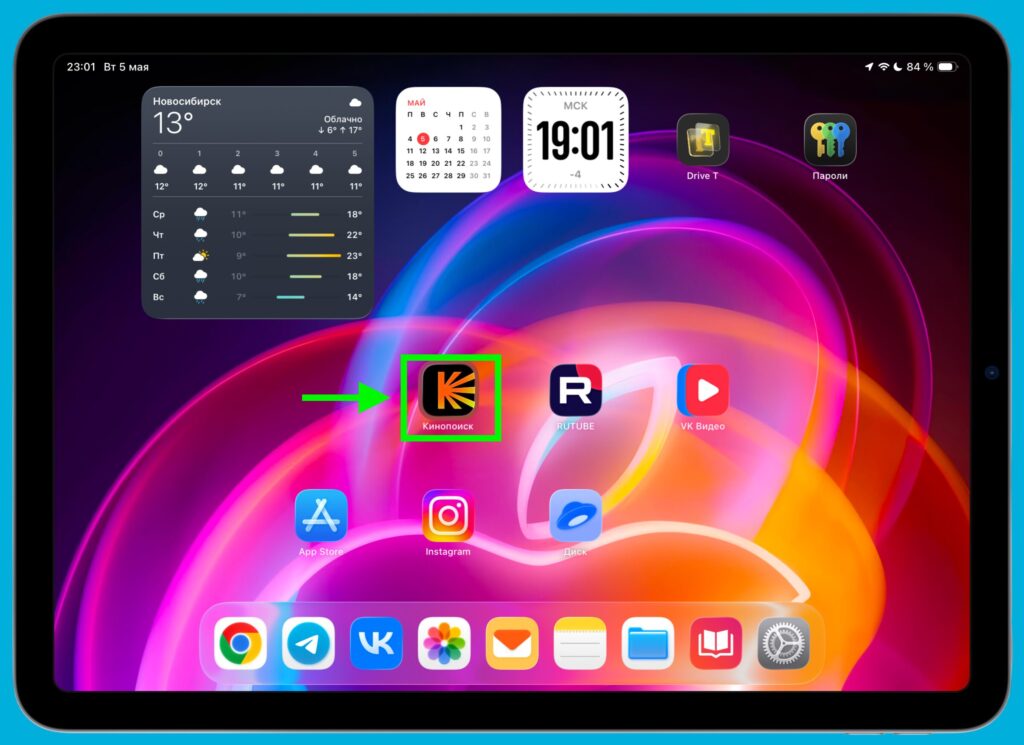
Notice the highlight around the elements you’ve navigated to
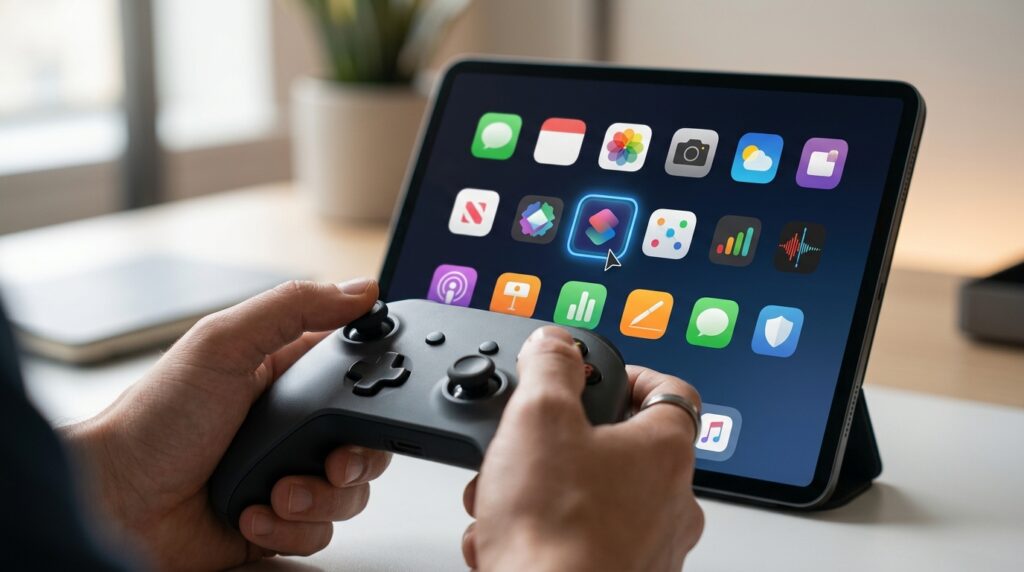
The gamepad highlights icons on the iPad home screen — navigation works via stick or D-pad
It’s important to understand that this navigation mode differs from trackpad or mouse control. The gamepad doesn’t move a cursor across the screen — instead, it switches focus between interface elements. This is convenient for quickly launching apps but isn’t suitable for precise actions like text editing.
Customizing Gamepad Buttons on iPad
iPadOS allows you to remap the buttons of a connected gamepad. You can create a general layout for the entire system or separate profiles for specific games.
- Open “Settings” and go to “General,” then “Game Controller.”
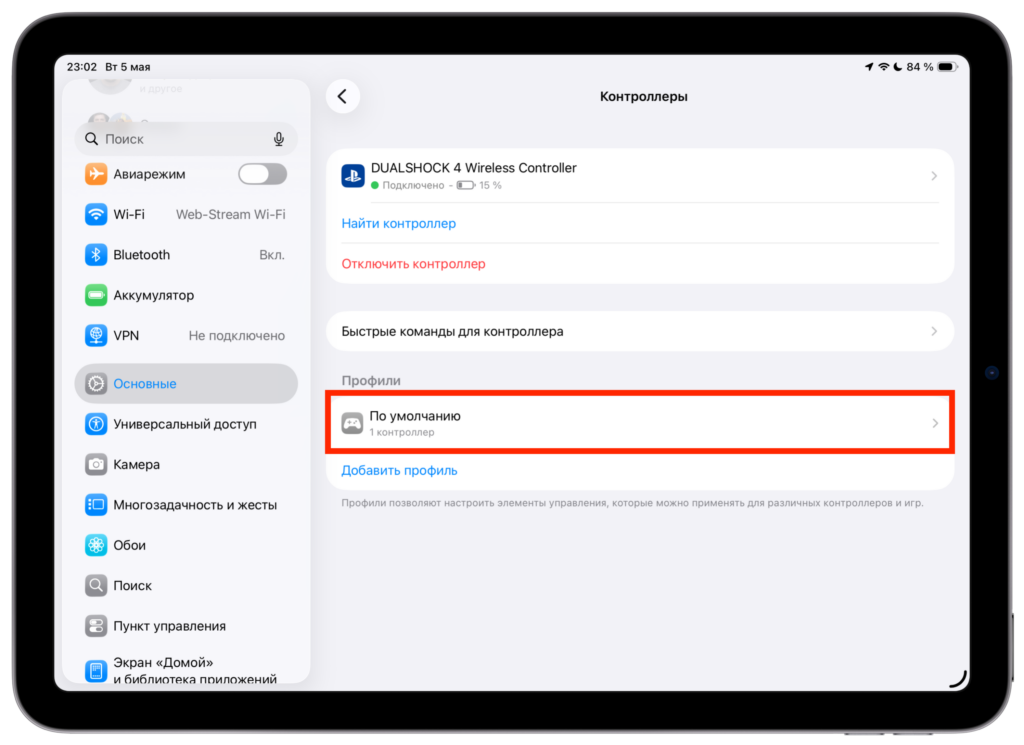
iPad settings include a menu for managing controller buttons


