Picking up your phone while driving is dangerous, yet many Android Auto users still reach for it out of habit — to start the app, choose music, or check a notification. The source author reports that after months of experimenting with wireless Android Auto, four free, built-in settings made the biggest difference in eliminating the temptation to touch the phone behind the wheel. All four are configured once and require no additional apps.
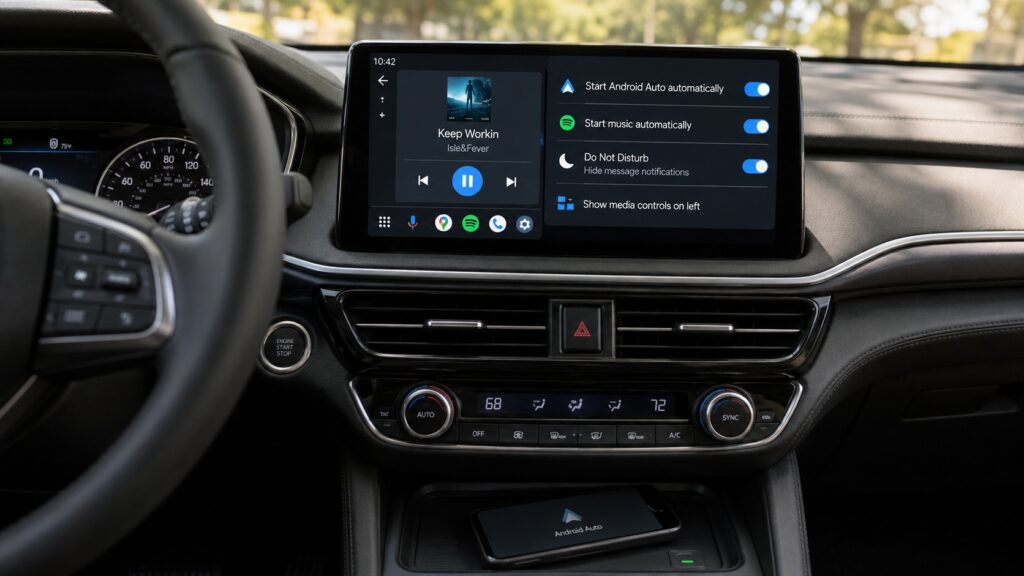
Recommended Android Auto settings for hands-free driving
What you need to know
- All four settings are free and built into Android Auto — no third-party apps needed.
- Auto-launch, auto-play media, driving Do Not Disturb, and driver-side UI repositioning are the four changes recommended.
- Some cars require an additional permission in the vehicle’s own infotainment settings for auto-launch to work.
- Moving media controls closer to the driver shifts the navigation map to the far side of the screen, which may be less convenient for some users.
Auto-launch Android Auto to skip manual setup
The source author reports that before enabling this setting, they would manually start Android Auto through the car’s infotainment screen each time — sometimes fumbling with the connection while already driving. Since they rely entirely on Google Maps through Android Auto (with no built-in car navigation), getting the system running before pulling away is essential.
To enable auto-launch:
- Open Settings and go to Connected devices.
- Navigate to Connection preferences, then Android Auto.
- Find Start Android Auto automatically.
- Select Always instead of “If used on last drive” or “Default (set by car).”
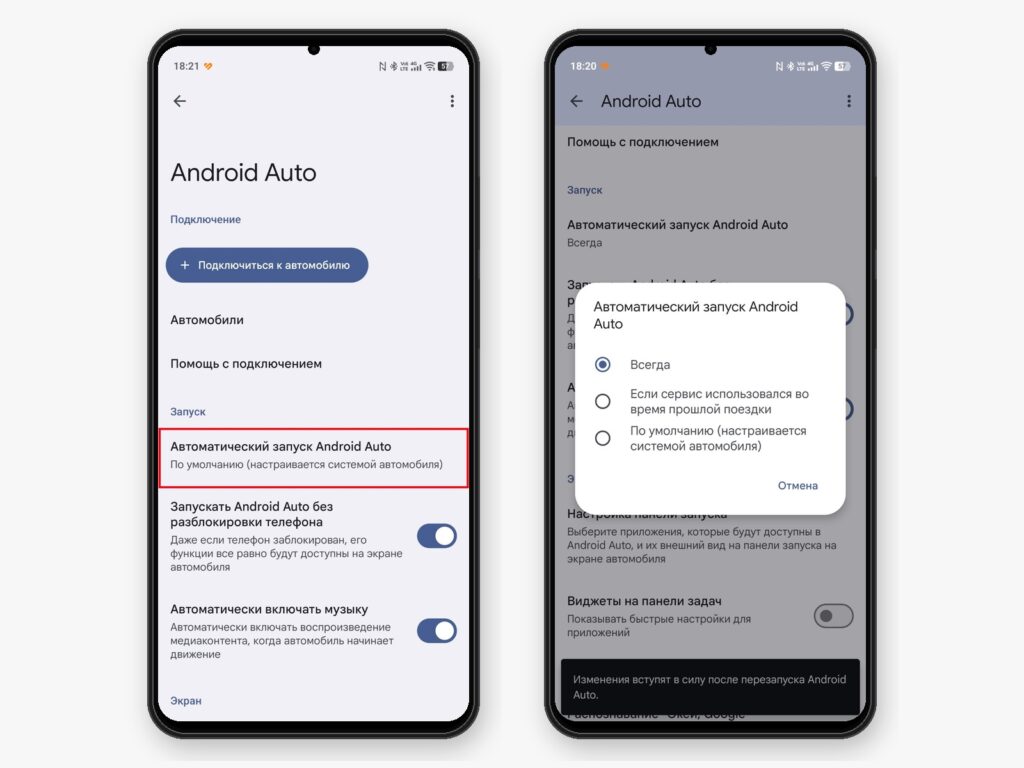
Make sure to enable Android Auto auto-launch

Important caveat: the source author notes that some vehicles also require you to allow Android Auto launch within the car’s own infotainment settings. The exact steps vary by make and model.
Auto-play music and podcasts to save time
The source author admits they initially disabled this feature because music blaring immediately upon getting into the car felt annoying. They later reversed that decision, finding that auto-play removes the need to pick up the phone and browse for something to listen to — and avoids interacting with what they describe as the “questionable” in-car interfaces of apps like Spotify and Pocket Casts on Android Auto.
To enable auto-play:
- Open Settings, then Connected devices.
- Go to Connection preferences and select Android Auto.
- Toggle on Start music automatically.
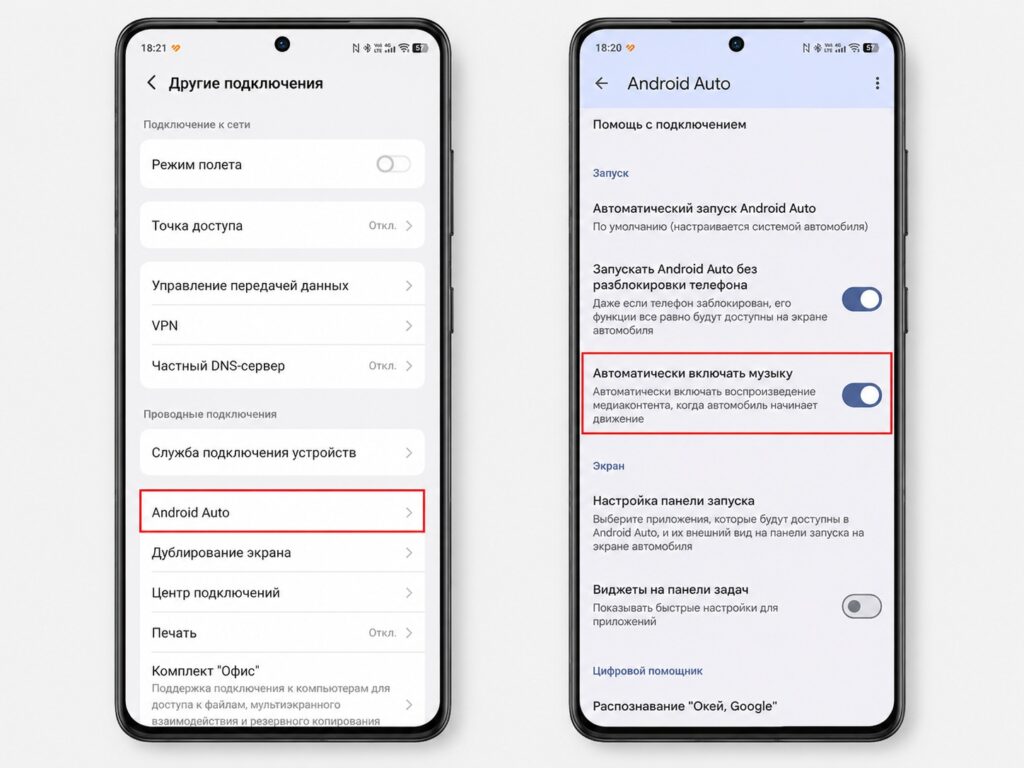
Auto-play music is another setting worth enabling

With this enabled, whatever was playing during the previous session resumes automatically. The source author notes they still occasionally pick up the phone to find a specific playlist, but the urge arises noticeably less often.
Driving Do Not Disturb mode hides notifications
Notification pop-ups on the car screen can be useful — the source author mentions replying to messages by voice via Gemini — but in heavy traffic or when the voice assistant is unreliable, they become a distraction. Android offers a driving-specific notification silencing mode that activates and deactivates automatically.
To set it up:
- Open Settings and go to Safety & emergency.
- Select Silence notifications while driving.
- Enable automatic activation based on Bluetooth connection to the car and motion detection.
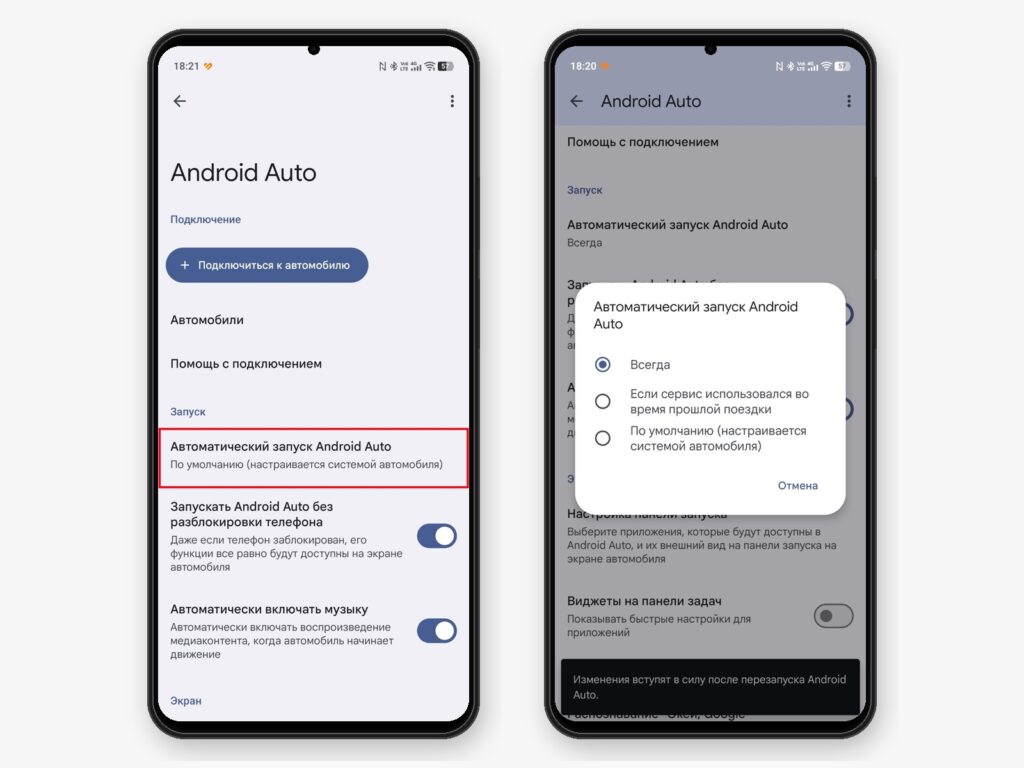
Silencing notifications while driving helps you stay focused
The key advantage is that the mode toggles on and off automatically — the phone detects the car connection and motion, so you don’t need to manually restore notifications after parking. The source author notes this feature is available on Pixel phones and some other Android devices; availability may vary.

Move media controls closer to the driver
The source author reports that interacting with the car’s touchscreen is often inconvenient: app interfaces are inconsistent, there can be lag, and basic actions like pausing music are awkward when the button sits at the far edge of the display.
Android Auto lets you reposition the interface so media controls sit on the driver’s side:
- Open Settings, then Connected devices.
- Go to Connection preferences and select Android Auto.
- Open Customize interface and choose the layout that places controls closer to the driver.
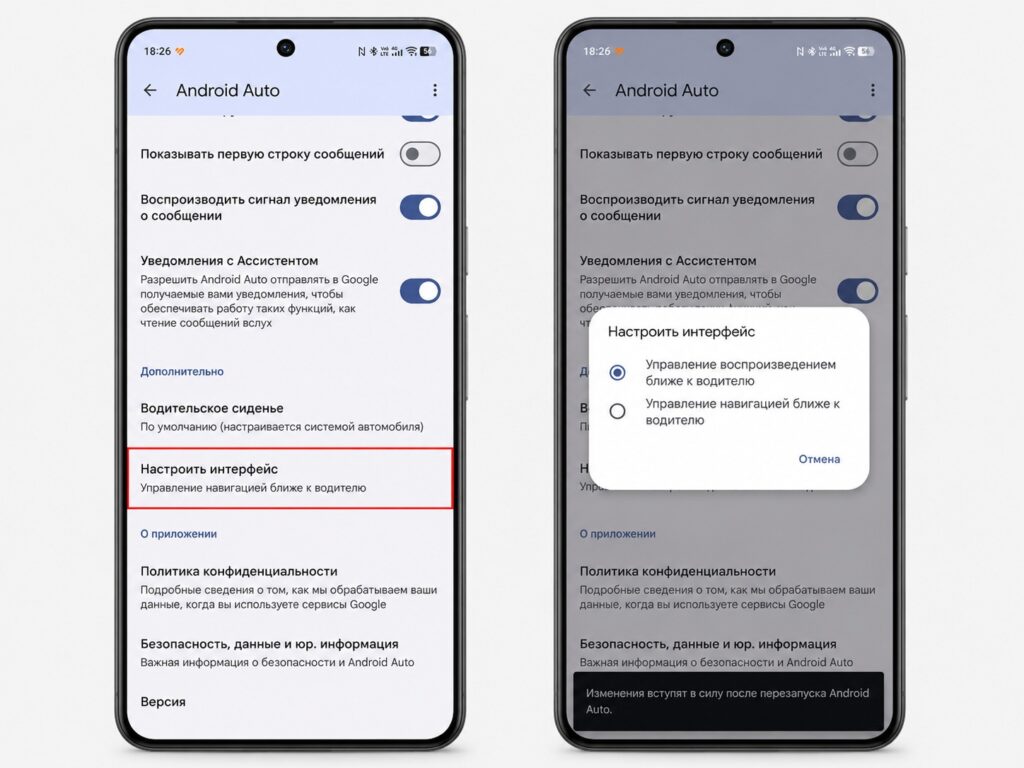
This is the optimal interface layout for the driver
The source author describes this as a small change that meaningfully reduces the urge to grab the phone just to skip a track. There is a trade-off, however: navigation in Google Maps and Waze shifts to the far side of the screen, making the map slightly less convenient to glance at. The source author says this doesn’t bother them personally, since they typically set the route on the phone before starting the drive.


