Over the years, iOS has accumulated dozens of features that even experienced users don’t know about. Apple rarely puts such settings in a prominent place — so they gather dust somewhere deep in submenus. Here are ten tricks that work on iPhone with iOS 26 and newer. Worth trying at least once.
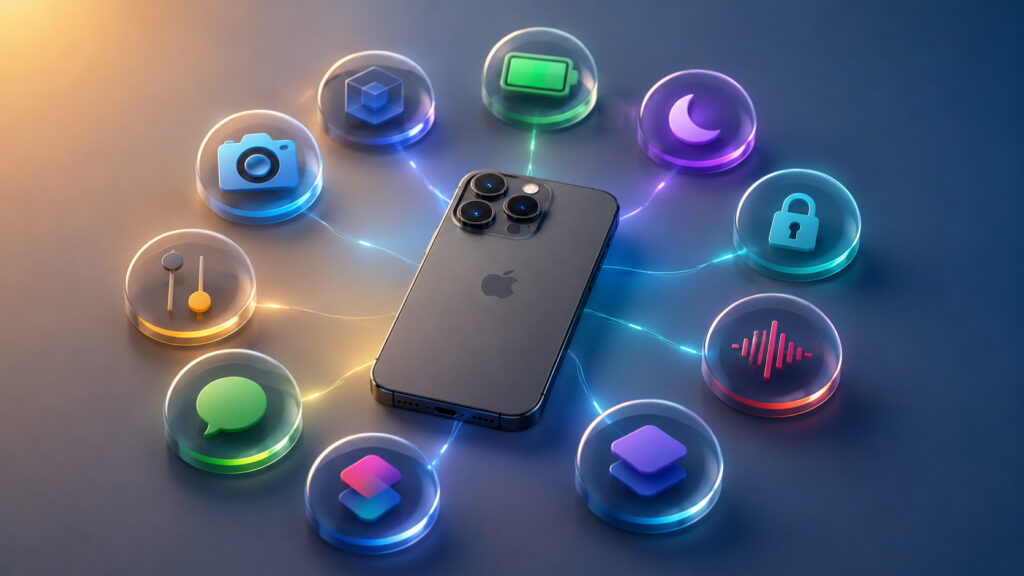
Not everyone knows about these iPhone features
Turn an App Icon into a Widget on iPhone
Any icon on the home screen can become a widget without going into a separate menu. Just long-press the icon and select one of the squares at the top — those represent the widget sizes. This works with both built-in Apple apps and third-party ones, as long as they have a widget. To revert to a regular icon, long-press it again and tap the icon with four squares in the upper left corner.
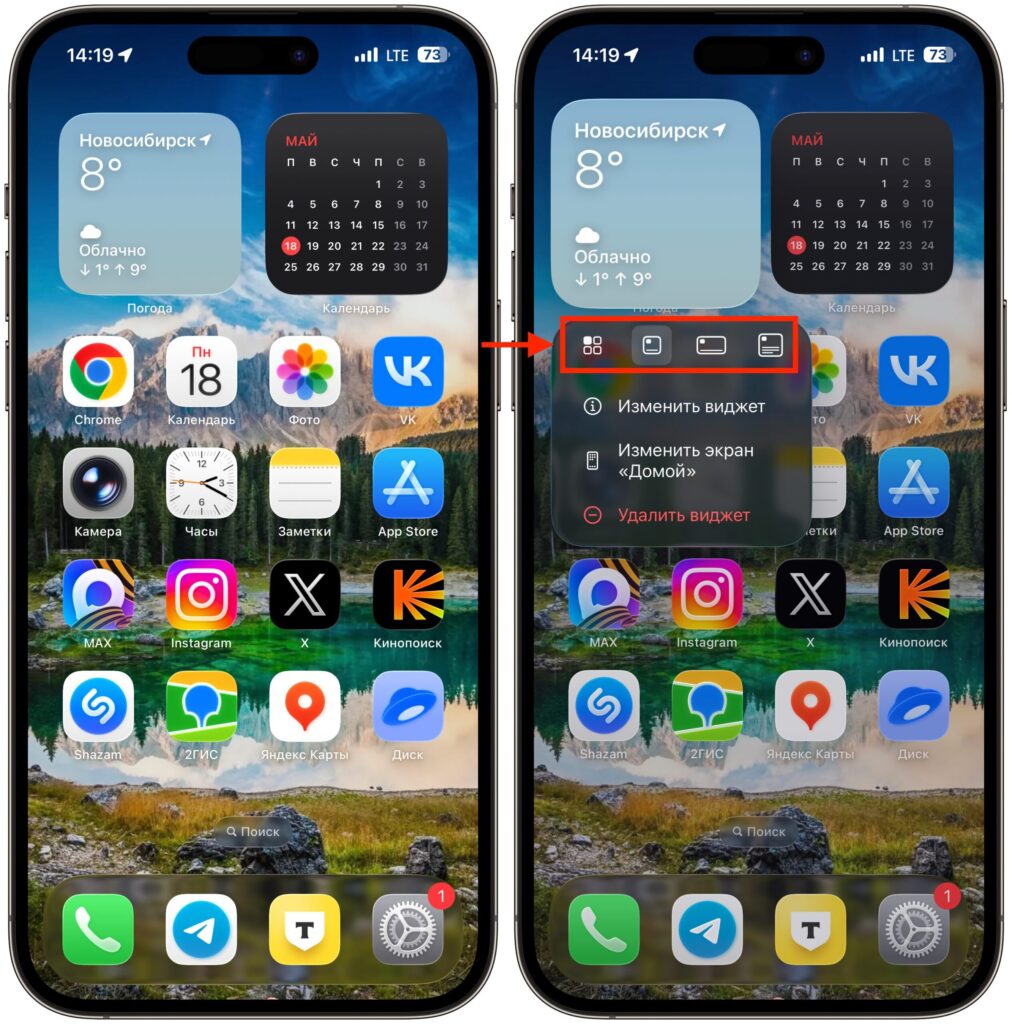
You can turn an icon into a widget and back
This is useful for those who want to see weather right on the home screen, calendar, or notes without switching to the app. Widgets save time: instead of opening an app, scrolling through tabs, and searching for the right information, you get it with a single glance at the screen. It’s especially convenient with Weather and Calendar widgets — they show current data without a single tap. Try putting a notes widget on your home screen, and you’ll be surprised how much more often you’ll check them.
How to View Visited Places on iPhone
The Maps app has a separate section with places you’ve visited. It’s handy if you went to a new city for the weekend and want to remember where that great restaurant was. To open the list, go to Maps, tap your profile, select “Places,” and then “Visited Places.” Entries are sorted by categories — such as leisure or shopping — and by cities.
You can clear the history manually or set a retention period. You can completely disable the tracking feature by going to “Settings — Maps — Location — Visited Places.” If you’re concerned about privacy, it’s worth checking this section and deciding what to keep and what to delete. By the way, location history is useful not only for nostalgia — you can use it to reconstruct a trip route or find the address of a place whose name slipped your mind.
Create a Custom Vibration for a Contact on iPhone
Do you keep your iPhone on silent? Then set up a custom vibration pattern for specific people — and you’ll know who’s messaging you even without looking at the screen. Custom vibrations are one of the lesser-known but incredibly useful iOS features. Here’s how to set up a vibration pattern:
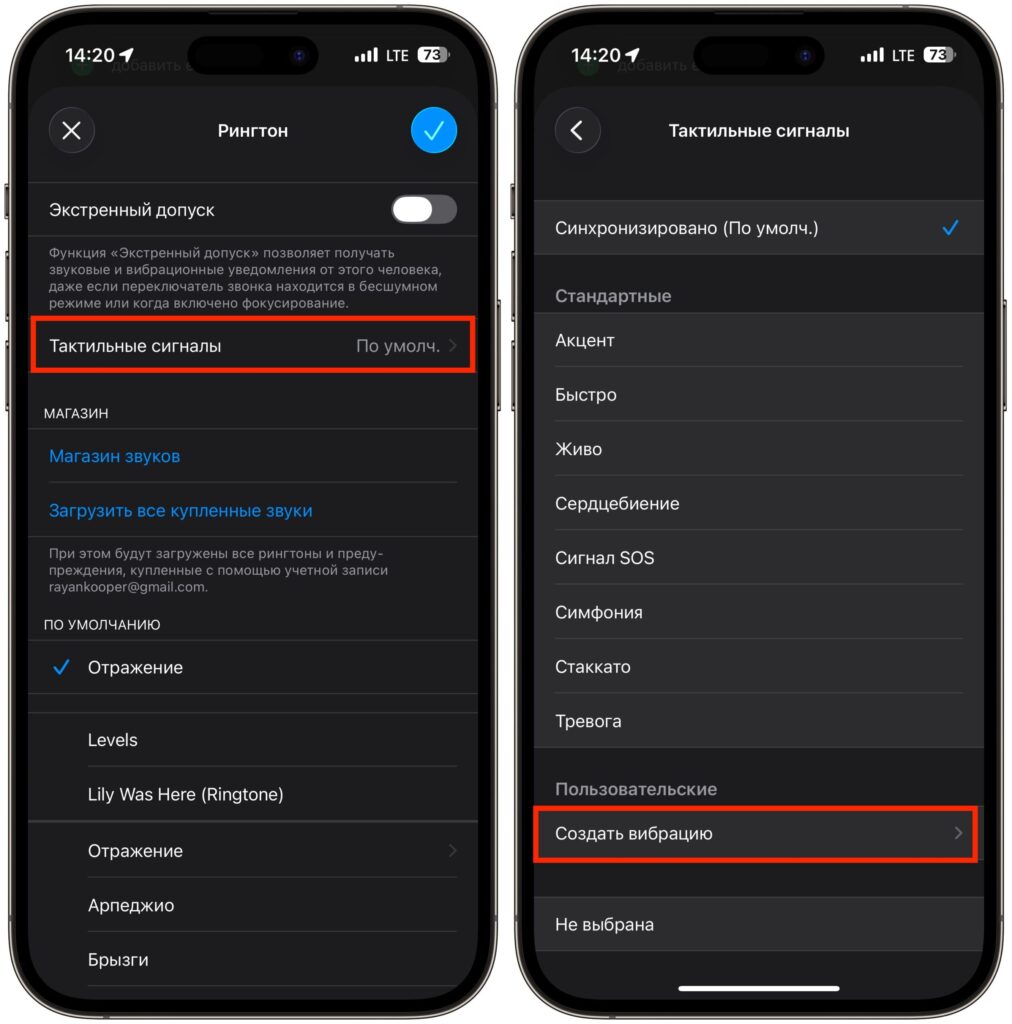
Create your own vibration and you’ll always know who’s texting or calling
- Open the contact in the Contacts app and tap “Edit.”
- Select “Ringtone” or “Text Tone.”
- Go to the “Haptics” section and tap “Create New Vibration.”
- Create the pattern using regular taps and long presses on the screen.
This feature is especially useful for those who work in a noisy office or, conversely, in a quiet environment where a ringtone would be inappropriate. You can set a unique vibration pattern for your spouse, boss, or close friend — and instantly know by the feeling in your pocket whether it’s worth pulling out your phone right now. The feature has existed for many years, but very few people use it.
Change the Buttons on the iPhone Lock Screen
The flashlight and camera on the lock screen aren’t set in stone. Either of these buttons can be replaced with an action from the Control Center, including commands from third-party apps.
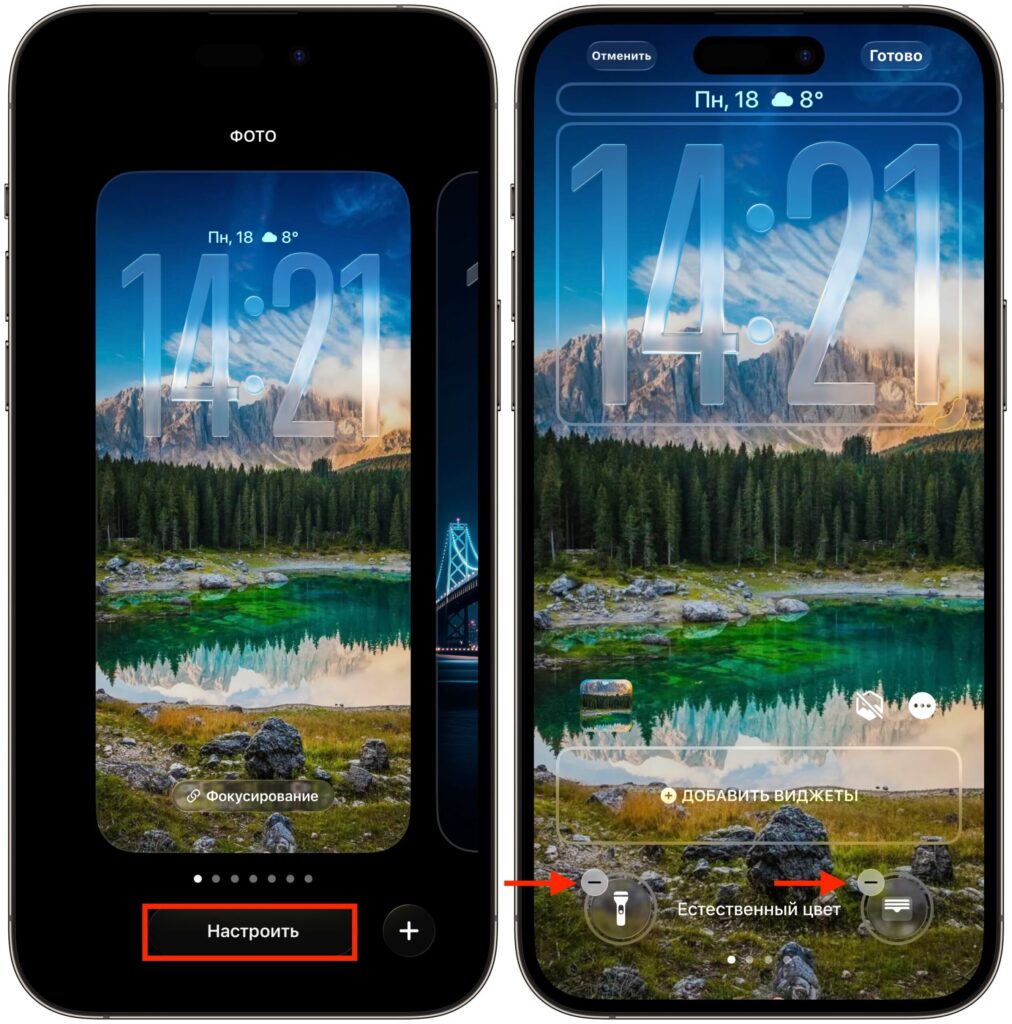
Set the buttons that are convenient for you. Or don’t set any at all
To replace the buttons, do the following:
- Long-press the lock screen.
- Tap “Customize” for your current wallpaper or “+” for new ones.
- Remove the unwanted button using “–”.
- Add a new one using “+”.
This is especially convenient if instead of the flashlight you more often launch the voice recorder, translator, or a quick scenario from Shortcuts. Many people set up a one-tap Shazam launch — you hear a song, tap the button on the lock screen, and instantly find out the title. There are dozens of options, and you can customize it for any use case.
iPhone Back Tap: How to Enable and Set Up
The Back Tap feature appeared a long time ago, but it’s easy to forget about. A double or triple tap on the back of the iPhone can launch anything — a screenshot, flashlight, or a custom scenario from the Shortcuts app. The setting is hidden in “Settings — Accessibility — Touch — Back Tap.”
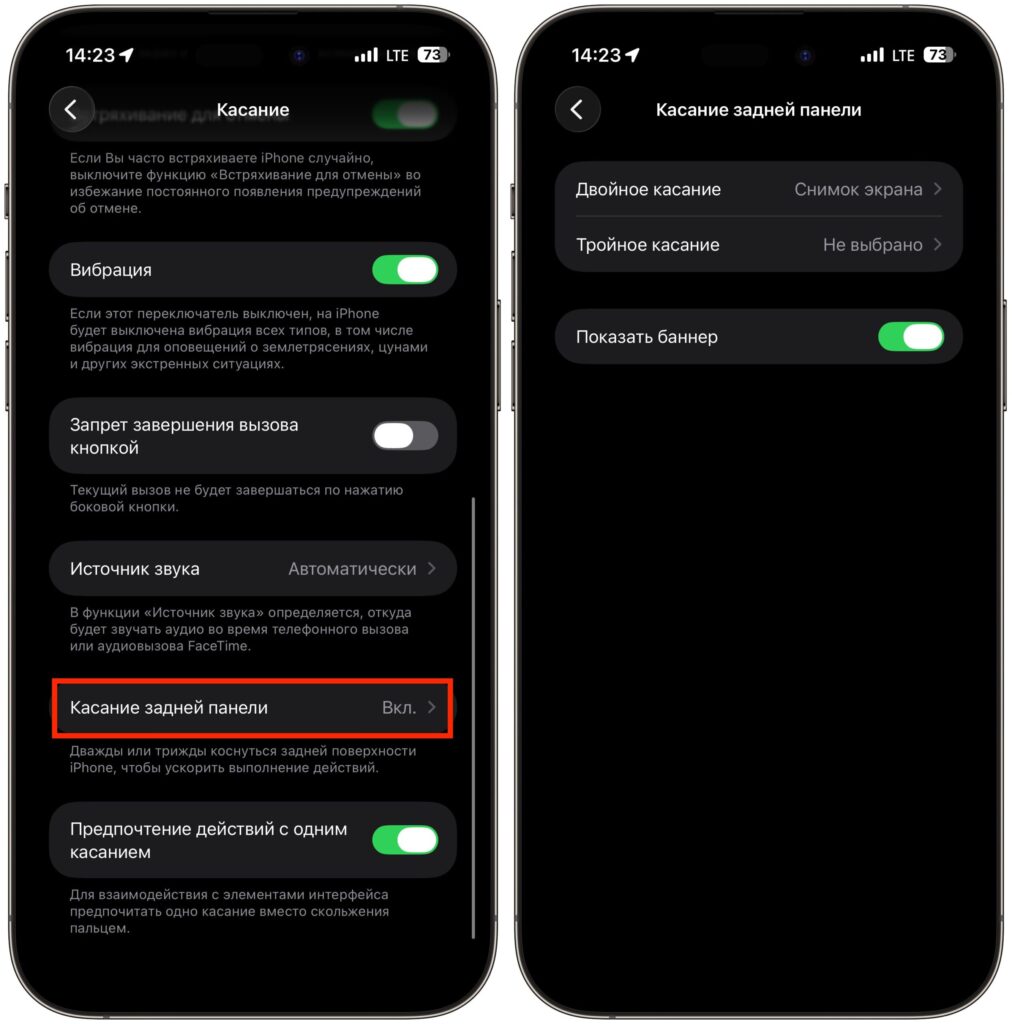
It’s an interesting feature, give it a try
The main advantage of Back Tap is that it works even through a case. You can assign a double tap for a screenshot and a triple tap for turning on the flashlight or launching Shazam. Combined with the Shortcuts app, the possibilities become virtually limitless: launching a timer, sending a pre-made message, switching focus modes. Try at least one gesture — chances are you’ll get used to it quickly.
Long Screenshot on iPhone: How to Create One
A regular screenshot only captures what’s visible on the screen. But if you need to save a long article or an entire PDF, there’s a separate mode. Take a screenshot as usual, tap the preview in the corner, and select the “Full Page” tab at the top. A long screenshot is saved as a PDF — you can send it or save it to Files.