New wallpapers from iOS 27 and macOS 27 Golden Gate can be downloaded right now, without waiting for the fall release of the systems. The updates themselves won’t come out for several months, but the official wallpapers have already spread across the internet in full resolution. At the presentation, Apple showed iOS 27 along with updated systems for Mac and iPad, and the wallpapers became a nice addition to the announcement. Below, we break down what’s new and why this year the wallpapers on iPhone and Mac look virtually identical.
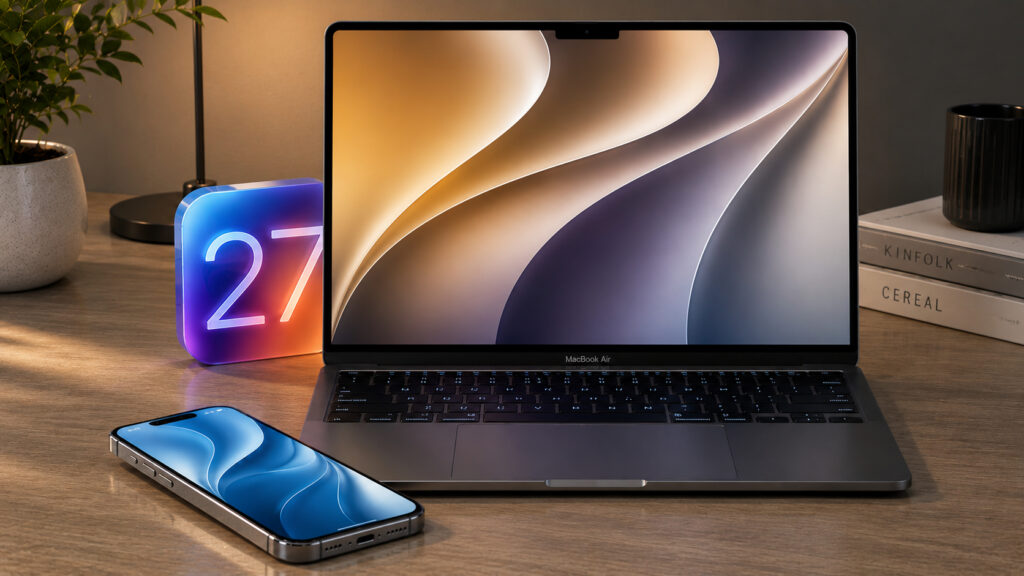
The wallpapers really do look stylish — you have to give Apple that
What the Default iOS 27 and macOS 27 Golden Gate Wallpapers Look Like
This year Apple made an interesting move. Previously, each system had its own set of wallpapers unrelated to the others: one thing on Mac, another on iPhone, and a third on iPad. Now iOS 27, iPadOS 27, and macOS 27 use variations of a single design. These are smooth, curved shapes that form a stylized number “27.” Look closely at any of the backgrounds, and you’ll see the two and seven hidden in the intertwining lines.
The approach to naming macOS has also changed. For many years, Apple named its desktop system after national parks, lakes, and other California landmarks: Big Sur, Monterey, Sequoia. This time the company broke from tradition and named the release after the Golden Gate Bridge in San Francisco. Hence the Golden Gate suffix and the warm golden tones in the design.
Everything else is familiar. Each background exists in light and dark versions to fit neatly with both daytime and nighttime themes. The result is a cohesive visual story: set a golden background on your Mac, a blue one on your iPhone, and they look like parts of one set rather than a random assortment.
iOS 27 Wallpapers for iPhone: All Colors and Versions
For iPhone, Apple prepared five static variants in different colors. These are blue, orange, pink, plus standard light and dark backgrounds. They’re all built on the same swirling shape with the number “27”, but thanks to the palette they look completely different. The blue goes into a rich depth, orange and pink give a soft warm mood, while the neutral light and dark options will suit those who don’t like brightness on their home screen.
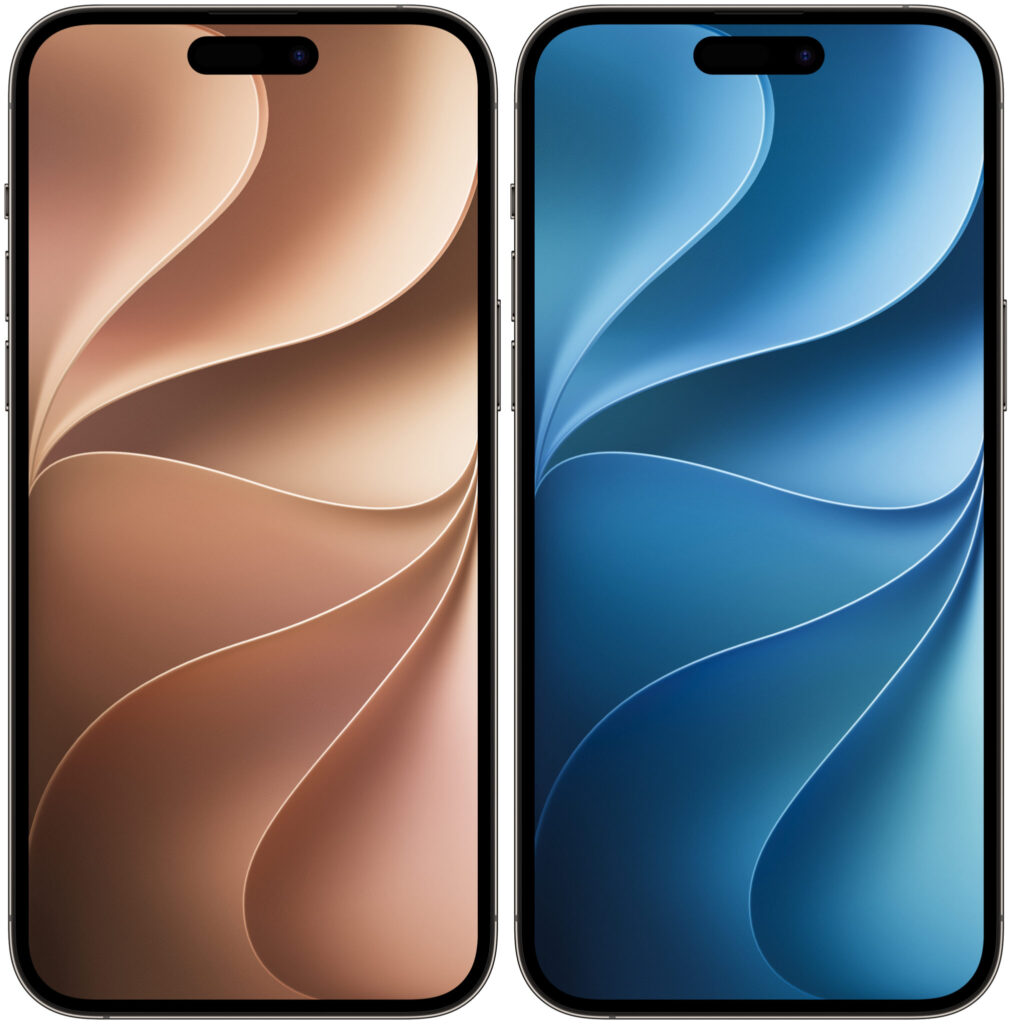
If you couldn’t make out the numbers, the 2 is on top and the 7 is on the bottom
There’s an important point here. In iOS 27, as in recent versions of the system, wallpapers can move with the tilt of the device, creating a depth effect. But dynamic versions will only become available with the official release this fall. Right now you can only download static images in full resolution, and for most users that’s more than enough.
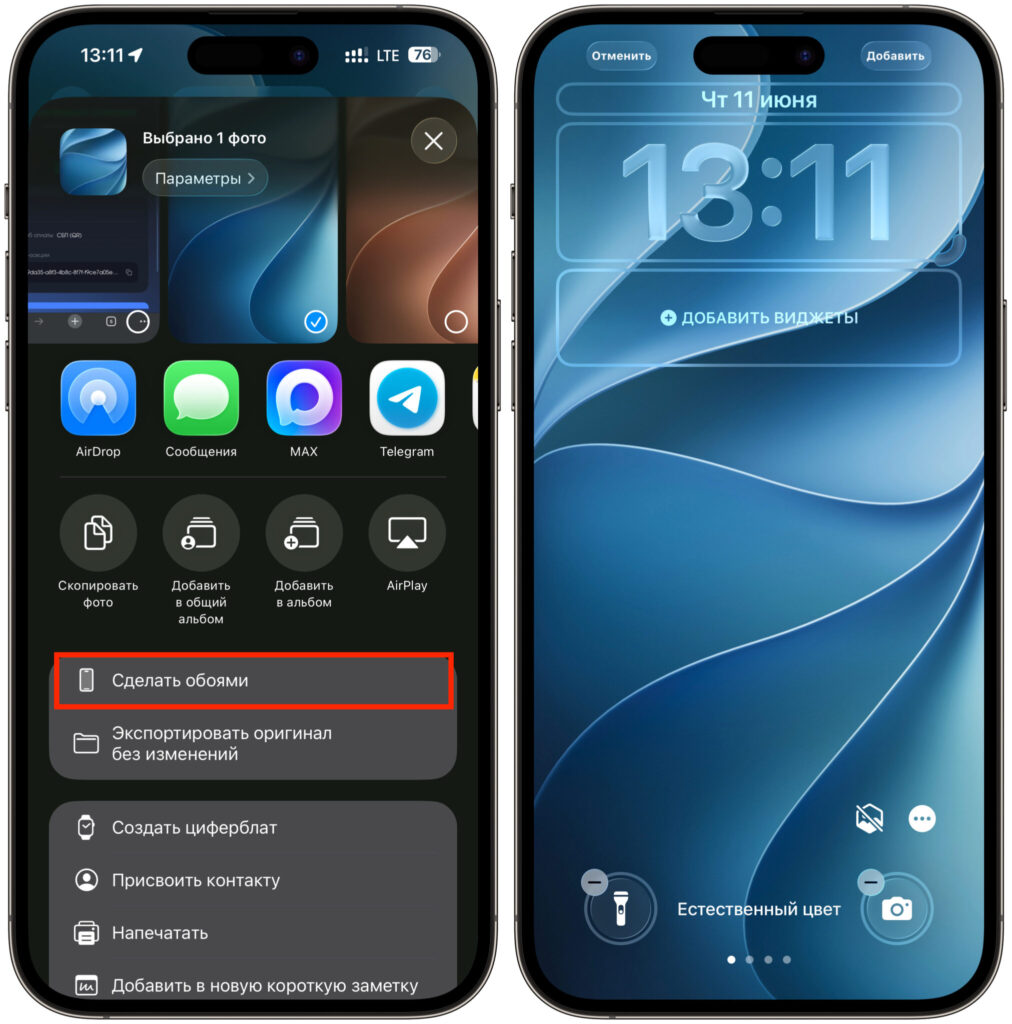
You can set the wallpaper with one button
Setting the background is very simple. Save the image to your iPhone, open the Photos app or Settings, select the picture, and set it as your lock screen or home screen wallpaper. No extra steps or third-party apps needed.
macOS 27 Golden Gate Wallpapers for Mac in Light and Dark Versions
On Mac, the wallpapers look more impressive thanks to the higher resolution and landscape orientation. The light version is done in golden-beige tones with transitions into blue and lilac, which directly references the Golden Gate name. The dark version is the opposite — deep, almost inky, with a cool purple-blue shimmer and thin glowing lines along the edges of the curves. Both images are built on the same signature wave, just in a larger and calmer execution, without bright gaudiness.
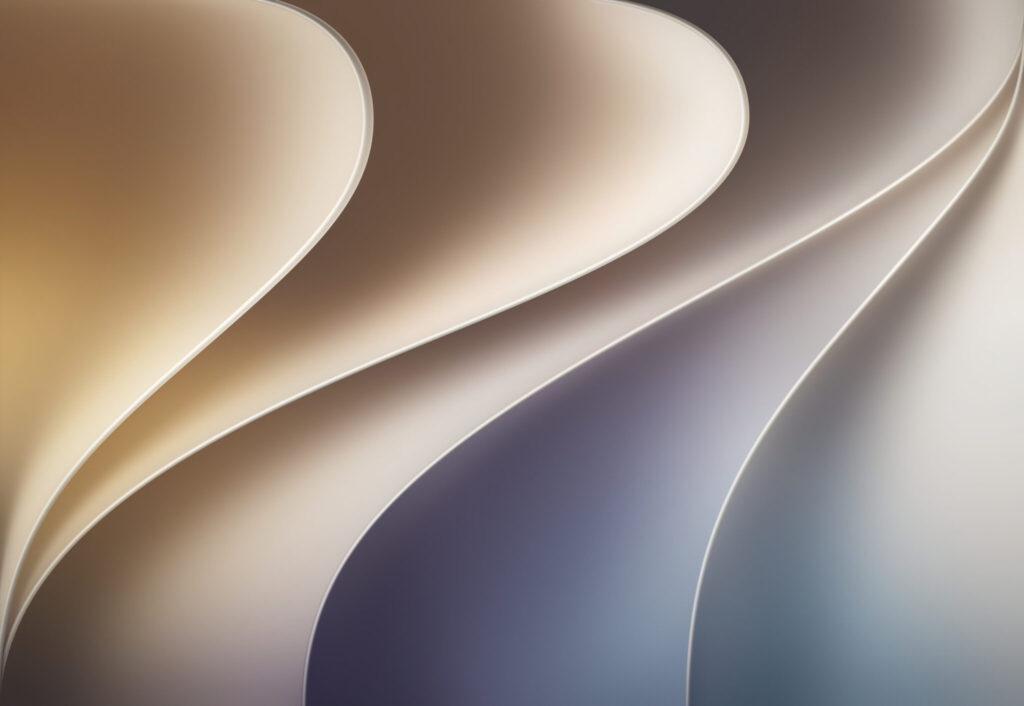
The Mac wallpapers also look great
As with iPhone, macOS 27 has dynamic versions of these backgrounds, but their motion can only be reproduced by the system itself. Full-size static images are already available, and for everyday use they’re more than enough.
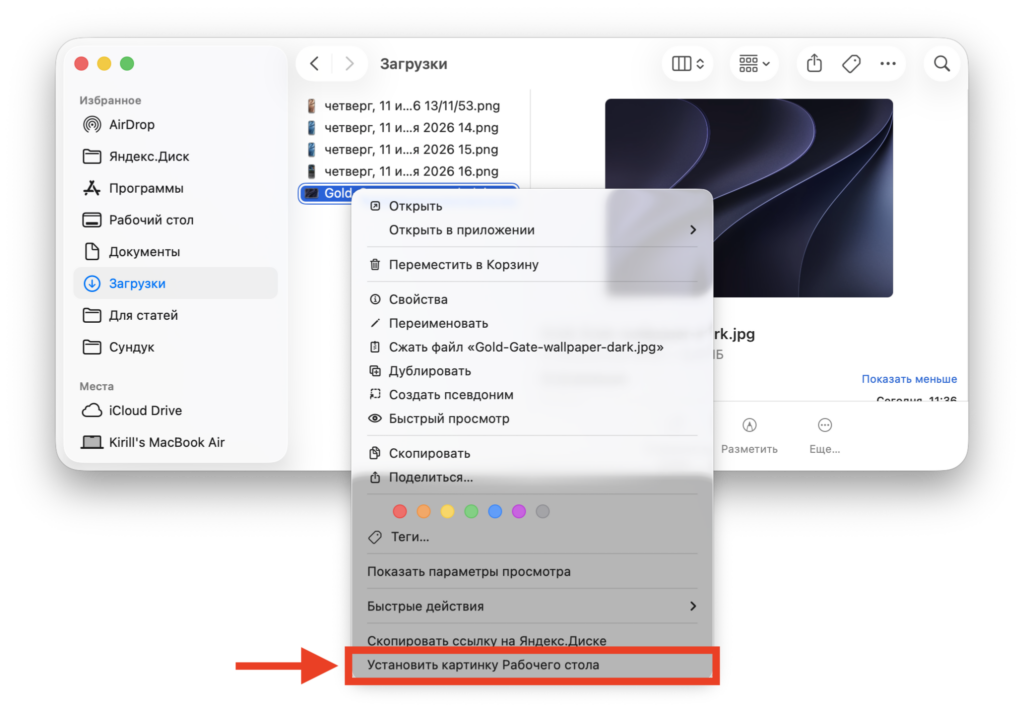
You can set them as wallpaper right from Finder
To set this background on your Mac, open System Settings, then the Wallpaper section, scroll down to “Your Photos” and click “Add Photo.” From there you can select an image from your photo library, add a file from your drive, or simply drag the image onto the thumbnail at the top of the settings window. There’s also a quick way: right-click the saved file in Finder and select “Set as Desktop Picture.” You can even set an image from the internet directly from Safari via the context menu without saving it separately.
New Features in iOS 27 and macOS 27 Worth Waiting For
Wallpapers are a nice touch, but behind them lies a much bigger update. In iOS 27, Apple revamped Shortcuts, improved Image Playground, and introduced a standalone Siri app. This means the voice assistant finally gets its own place in the system rather than remaining just a pop-up panel.
In macOS 27 Golden Gate, the list of changes is similar. They’re refining the Liquid Glass interface, also adding the new Siri with a standalone app, and improving performance. Apple clearly bet on a seamless cross-device experience, and the unified wallpaper style is just the most visible part of the bigger picture.
The main thing is that the wallpapers are already available to grab. Set them on your devices ahead of time and get in the mood for the fall updates that these backgrounds were made for.