Many iPhone owners confuse two concepts: resetting settings and factory reset. At first glance, the difference seems insignificant — just a couple of words. But in practice, these are completely different procedures that lead to different outcomes. One of them is harmless and preserves all your data, while the other turns the smartphone into a clean device “out of the box.” Let’s figure out what exactly the difference is and when to choose which option.
Breaking down the difference between two types of reset
Resetting All iPhone Settings Without Deleting Data
The “Reset All Settings” function is located in Settings — General — Transfer or Reset iPhone — Reset. It restores only system parameters to factory values: Wi-Fi and cellular settings, saved network passwords, keyboard dictionaries, home screen layout, notification, privacy, and sound settings. Cards added to Apple Pay are also removed.
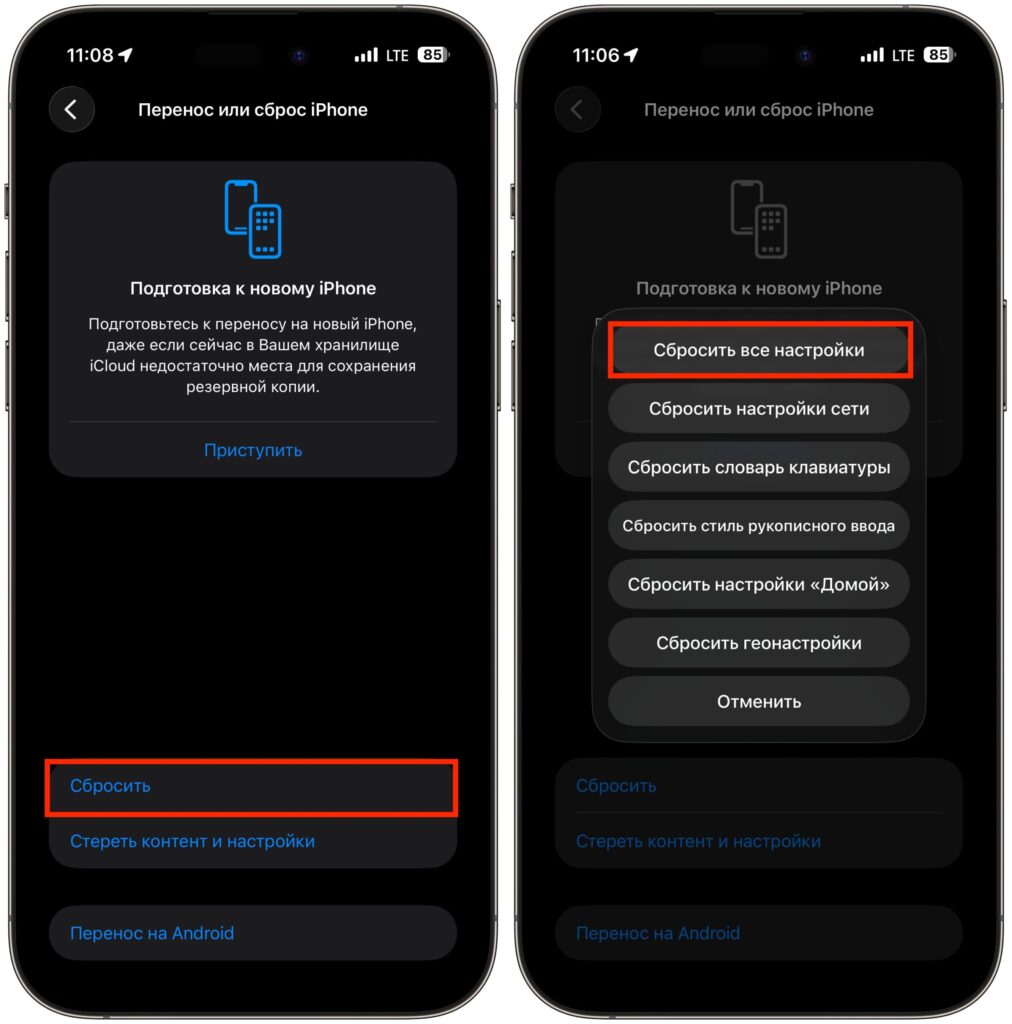
Resetting settings is a useful thing
At the same time, your photos, videos, contacts, notes, apps, and messages remain in place. The phone will restart, and you’ll get your familiar iPhone with all your data, but with default settings. You’ll need to reconnect to Wi-Fi, set up wallpapers, and restore the usual icon arrangement on the home screen.
This is the safest reset option if your iPhone starts behaving strangely after an iOS update. For example, notifications stopped coming through, Bluetooth stopped working properly, or the smartphone became noticeably slower. Resetting settings often resolves such problems without affecting your content. I’ve personally resorted to this method several times when my iPhone started acting up — and it helped every time.
It’s worth noting a nuance with certificates and VPN profiles. After a settings reset, they are not deleted but stop being trusted. You’ll need to go to Settings — General — VPN & Device Management and reactivate the necessary profiles. It’s a small thing, but it’s better to know about it in advance.
Erase All Content and Settings on iPhone: What Does It Mean
A completely different matter is the “Erase All Content and Settings” option, which is located in the same section: Settings — General — Transfer or Reset iPhone. This is the actual factory reset that many people are afraid of. And rightly so: it completely deletes absolutely everything from the device — apps, photos, videos, contacts, messages, bank cards from Apple Pay, eSIM profiles, authentication data, and even the Apple ID account association.
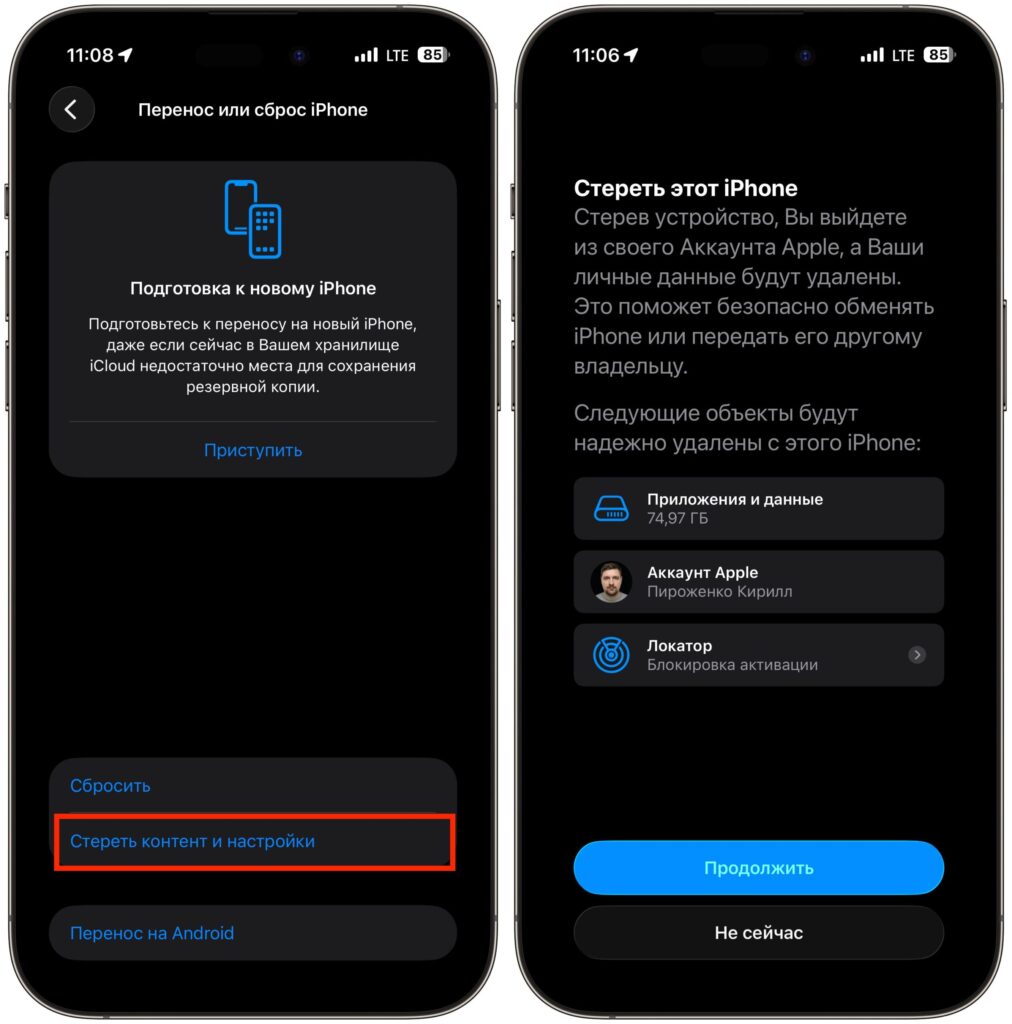
This is how a full iPhone reset begins
After the procedure is complete, the iPhone will restart and greet you with the initial setup screen — the same one you saw when you first took it out of the box. The smartphone becomes completely clean, as if it was just purchased from a store.
This type of reset is used before selling or transferring the device to another person. It guarantees that the new owner won’t have access to your personal data, messages, and banking apps. Information can only be recovered after such a reset from a previously created backup in iCloud or on a computer via Finder or iTunes.
Resetting Settings vs. Erasing iPhone: What’s the Difference
In short: resetting settings is a soft procedure that only resets system parameters. Your files, apps, and all user content are preserved. Factory reset is a hard wipe of the entire device that turns the iPhone into a “new” device without a single byte of user data.
Here are the main differences. Resetting settings removes Wi-Fi, Bluetooth, notification, sound, wallpaper, privacy, and keyboard parameters. Factory reset erases everything listed above plus all photos, videos, apps, contacts, messages, passwords, Apple Pay cards, eSIM profiles, and account data.
After an iPhone settings reset, you don’t need to set it up again — you just continue using it. After a factory reset, an activation screen appears with language and region selection. It’s also important to understand that a settings reset doesn’t require re-entering your Apple ID password. But after a full erase — it does. And if “Find My iPhone” was enabled, without the Apple ID password, the device will turn into a brick.
There are also intermediate options. iPhone allows you to reset only network settings, only the home screen layout, only the keyboard dictionary, or only location settings. Each of these options only affects its own area and doesn’t touch anything else. This can be convenient when the problem is clearly related to a specific function. For example, if mobile internet isn’t working, it’s often enough to reset only network settings.
When Should You Reset iPhone Settings and When Should You Erase Everything
Resetting all settings should be chosen if your iPhone is glitching after an iOS update, notifications stopped working, Bluetooth or Wi-Fi went haywire, or the device became noticeably slower for no apparent reason. This procedure takes a couple of minutes and doesn’t require a backup — your data is safe.
A factory reset is needed in more serious situations. You’re selling or giving away your iPhone — be sure to do a full reset to protect your data. The smartphone is completely frozen, and neither a restart nor a settings reset helps — a full erase via Finder or iTunes may bring it back to life. You bought a used iPhone with someone else’s data — a factory reset will clean it up.
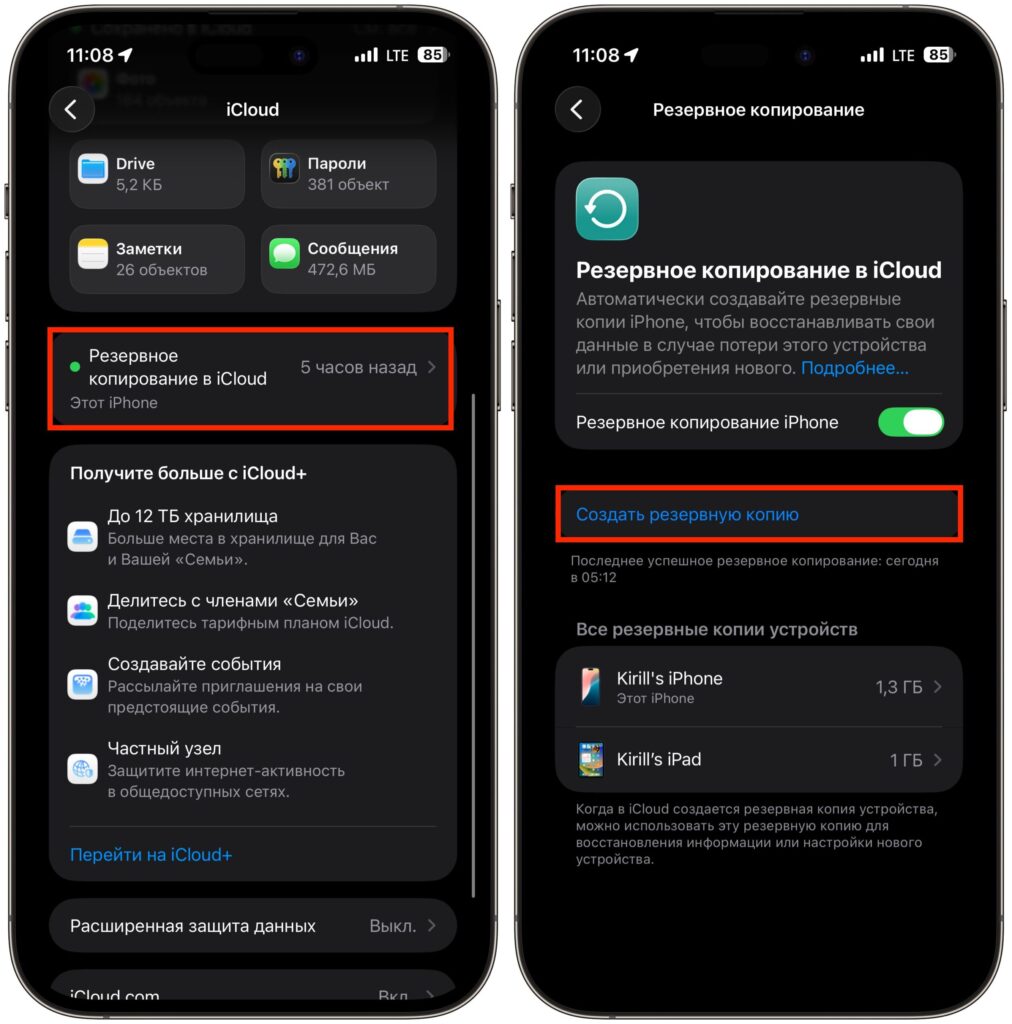
Be sure to create a backup so you don’t lose data
Before a full reset, be sure to make a backup. You can do this right on your iPhone: Settings — your Apple ID — iCloud — iCloud Backup — Back Up Now. Or via a computer — by connecting your iPhone to Finder (on Mac) or iTunes (on Windows). Without a backup, all data will be lost permanently.
One more important point. Before selling your iPhone, don’t forget to sign out of your Apple ID account and disable the “Find My iPhone” feature. Otherwise, the buyer won’t be able to activate the device — it will remain linked to your account. The system usually prompts you to do this automatically when selecting “Erase All Content and Settings,” but it’s better to double-check.
How Not to Confuse Settings Reset with Full iPhone Erase
Apple placed both options in the same menu section, and this sometimes causes confusion. Remember a simple rule: everything


