The sleep score feature on Apple Watch appeared in watchOS 26 and has since become one of the most notable health tracking tools. We’ve already covered how the scoring works, but we haven’t discussed how to properly set it up. It only becomes truly useful if you customize notifications to your needs — rather than receiving the same alerts every morning.
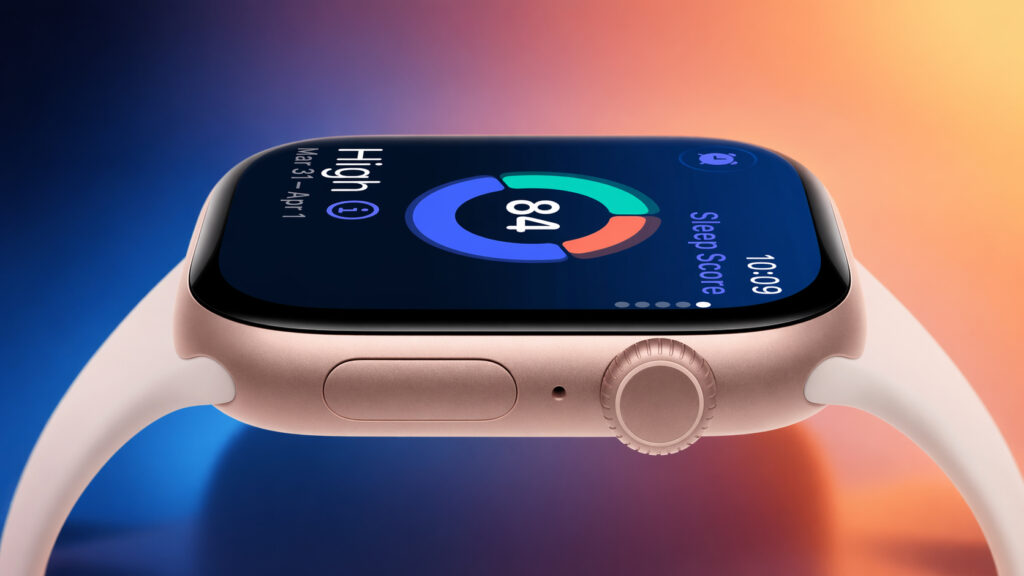
You can set up the sleep score on Apple Watch so that it only brings you benefits
What the Apple Watch Sleep Score Shows and How It’s Calculated
Sleep rating is a numerical score that Apple Watch assigns every morning after a night’s sleep. You simply need to put on the watch before bed: no additional apps or manual actions are required.
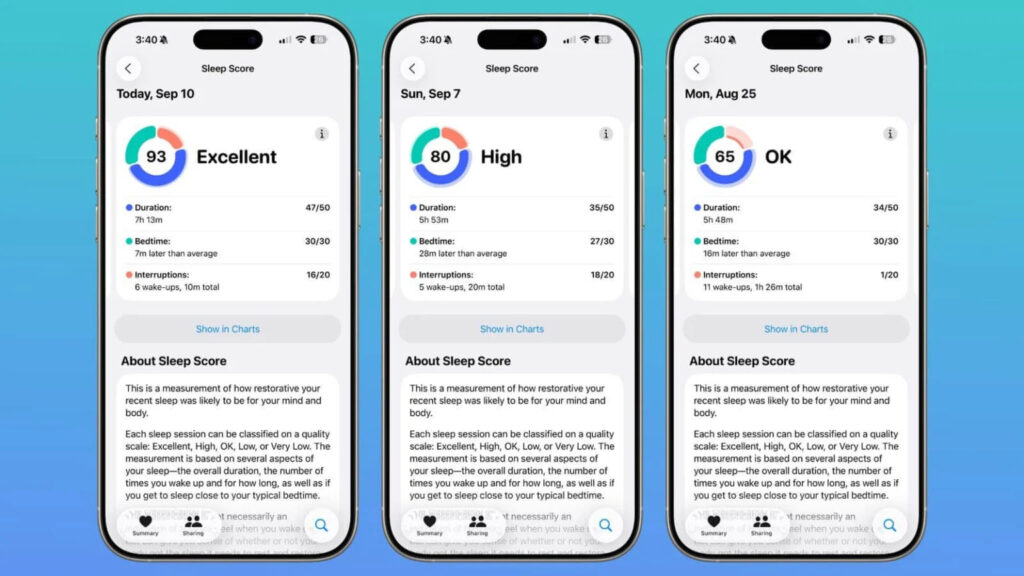
The watch can evaluate and display your sleep results
The rating is composed of three key parameters:
- Sleep duration — up to 50 points
- Bedtime consistency — up to 30 points
- Number of awakenings during the night — up to 20 points
The maximum is 100 points. After launching in watchOS 26, Apple has already revised the scoring system based on user feedback, so the current version more accurately reflects actual sleep quality.
Five Sleep Score Levels on Apple Watch
Apple divides the result into five rating ranges:
- Very Low: 0–40
- Low: 41–60
- Normal: 61–80
- High: 81–95
- Very High: 96+
By default, the watch sends a notification every morning, regardless of the result. Initially, this helps you understand how the system works and what affects the score. But over time, daily alerts turn into background noise.
Sleep Score Notifications on Apple Watch
The main idea is simple: good sleep doesn’t need a reminder — it speaks for itself. But poor sleep is worth tracking to figure out the causes.
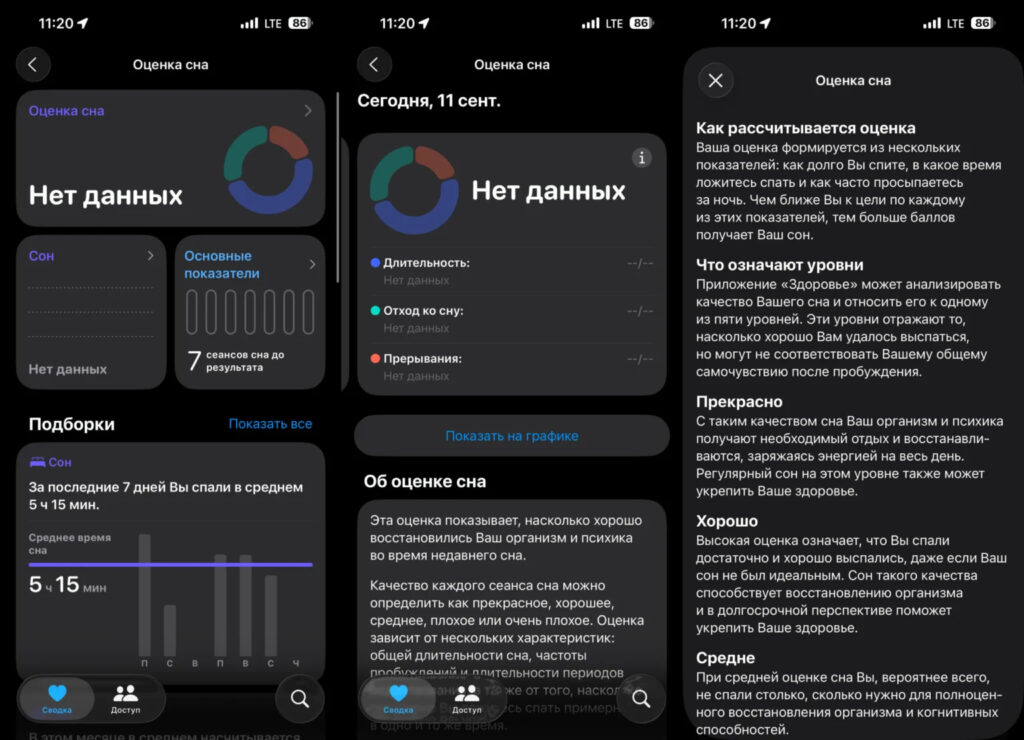
You can check the Health app every time, or you can simply receive notifications
Instead of getting alerts for every night, it makes sense to enable notifications only for the “Normal,” “Low,” and “Very Low” levels. If you receive such a notification in the morning, it’s a signal to think: did you go to bed late, drink coffee in the evening, or stare at your phone before sleep? And if there’s no notification — everything is fine, and you can calmly start your day.
You can set up notifications in two ways:
On iPhone:
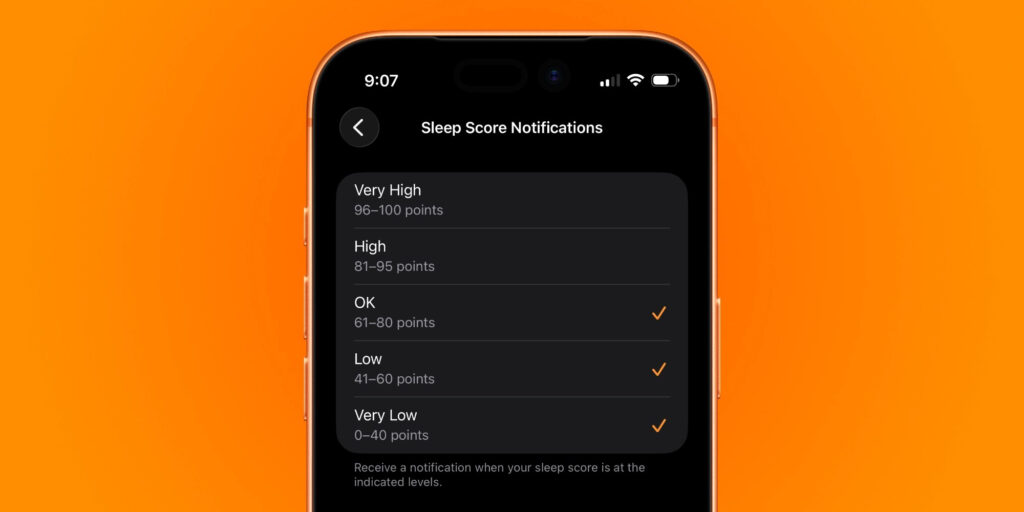
The easiest way to set up alerts is on iPhone
- Open the Watch app
- Scroll down to the “Sleep” section
- Tap “Sleep Rating Notifications”
- Turn on or off alerts for each range individually
On Apple Watch:
- Open “Settings”
- Scroll to the “Sleep” section
- Tap “Sleep Rating Notifications”
- Select the desired ranges
Apple Watch Models with Sleep Score Support
The sleep rating feature requires watchOS 26, which runs on the following watch models:
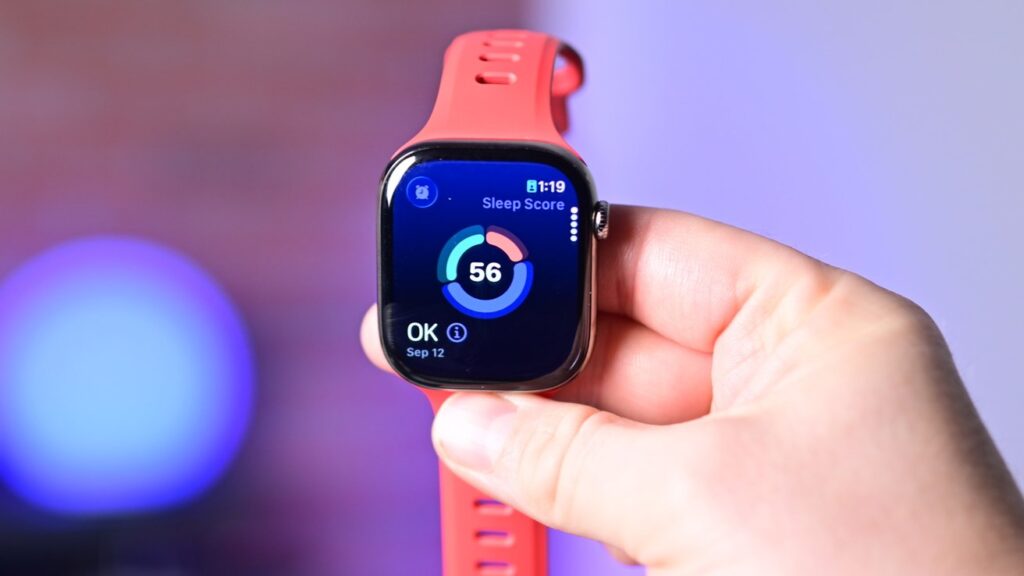
Sleep score support isn’t limited to just the newest models
- Apple Watch Series 6 and later
- Apple Watch Ultra (all generations)
- Apple Watch SE second generation and later
If you have an older model, the sleep rating won’t be available — only basic time-in-bed tracking.
The sleep rating feature is useful not on its own, but combined with properly configured notifications. If you wear your Apple Watch at night and have already stopped paying attention to morning alerts, try keeping only notifications for poor sleep. It takes a minute, and the feature becomes noticeably more useful.