I recently noticed that my Mac started running slower than usual. The first thing I did was open Activity Monitor to see which process was consuming the most resources. The culprit turned out to be WindowServer, devouring CPU and memory on macOS. It was causing interface lag, animation delays, and increased battery drain. If you’ve been thinking about buying a new Mac Mini or Mac Studio for more memory or a more powerful processor, first try optimizing your current system — especially since it’s incredibly easy to do, and I’m going to teach you how right now.
Any Mac can run faster
What Is WindowServer on Mac
WindowServer is a macOS system process responsible for rendering everything you see on the screen. Application windows, animations, menus, Dock, the menu bar, transparency effects, transitions between desktops, rendering on external monitors — all of this goes through WindowServer.
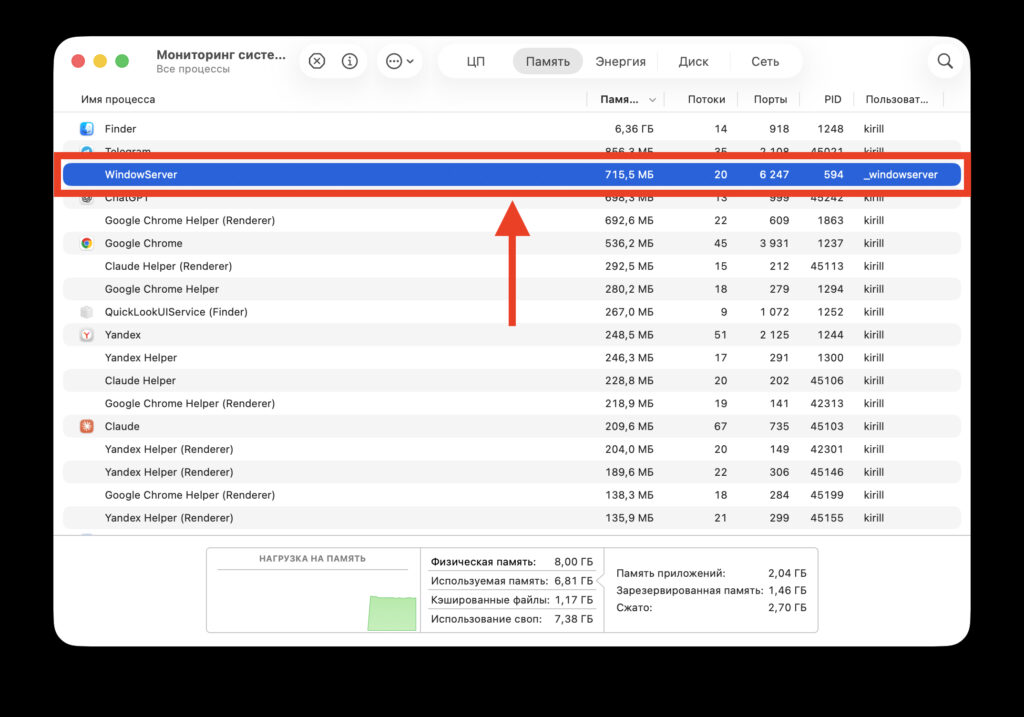
This thing consumes RAM and uses processor resources, but you can’t close it
Essentially, it’s the graphics engine of the operating system. It runs constantly while the Mac is on, and you can’t simply terminate it without consequences. The more visual elements are displayed on the screen simultaneously, the more CPU and RAM resources WindowServer requires to operate.
It’s important to understand: WindowServer is not a virus or a bug. It’s an integral part of macOS without which the system simply cannot display anything on your screen. The problem arises when its resource consumption goes beyond reasonable limits and starts interfering with normal operation.
Why WindowServer Overloads the CPU and Memory
The main reason for high WindowServer load is the large amount of visual work the Mac performs simultaneously. Here are the specific factors that most often lead to excessive resource consumption:
- Many open windows and applications. Each window is a separate object that WindowServer must render, update, and composite with the rest. Dozens of windows create a significant load.
- Browser tabs. Safari, Chrome, Firefox, and other browsers are known for consuming a lot of resources. Each tab is essentially a separate page that needs to be rendered. Browsers are also prone to memory leaks during prolonged use.
- macOS visual effects. Window transparency, background blur, animations when minimizing and maximizing, desktop switching effects — all of this loads WindowServer. In newer versions of macOS with the Liquid Glass interface, there are even more visual effects, which noticeably increases the load compared to previous versions of the system.
- External monitors with high resolution. Connecting one or more 4K or 5K external displays multiplies the number of pixels that need to be rendered. WindowServer handles rendering for each connected screen.
- Resource-intensive applications. Video editors, games, 3D modeling apps, streaming services with video playback — all of them generate a lot of visual content that passes through WindowServer.
- Monitoring utilities. Paradoxically, system monitoring tools themselves (including the open Activity Monitor, htop, Stats, and similar ones) can increase the load on WindowServer by constantly updating their graphs and metrics on screen.
It’s also worth mentioning bugs in specific macOS versions. For example, in several early versions of macOS Tahoe, the “Reduce Transparency” feature didn’t work correctly and failed to reduce the load as it should have. Apple fixed this in subsequent updates, so having the latest version of the system matters.
How to Close Applications on Mac
Below are specific steps that will help reduce WindowServer’s load on the CPU and RAM. The recommendations work on any version of macOS but are especially relevant for macOS Sonoma, Sequoia, and Tahoe. The simplest and most effective method: fewer windows on screen means less work for WindowServer. The result is often visible immediately.
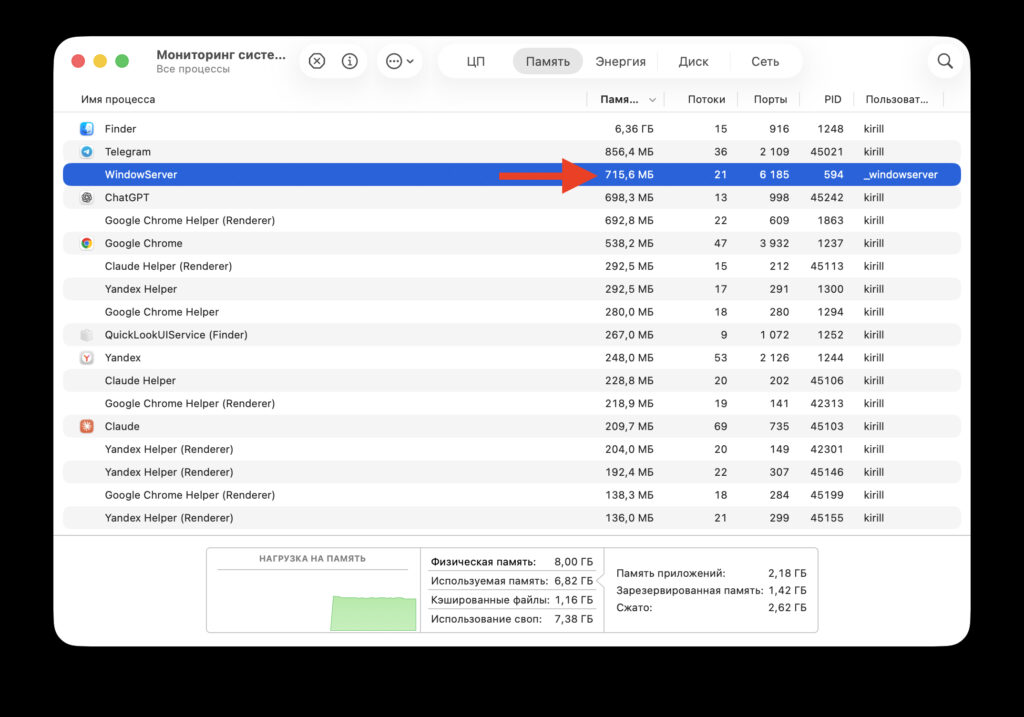
Here’s what it looked like before closing
- Check the Dock to see which applications are running (there’s a dot indicator under their icons).
- Close the programs you’re not currently using. To do this, right-click the icon in the Dock and select “Quit,” or use the keyboard shortcut Cmd+Q within the application.
- In the browser, close tabs you don’t need right now. If you have a habit of keeping dozens of tabs open “for later,” consider saving them to bookmarks or a reading list.
- Close unnecessary Finder windows — they also consume WindowServer resources.
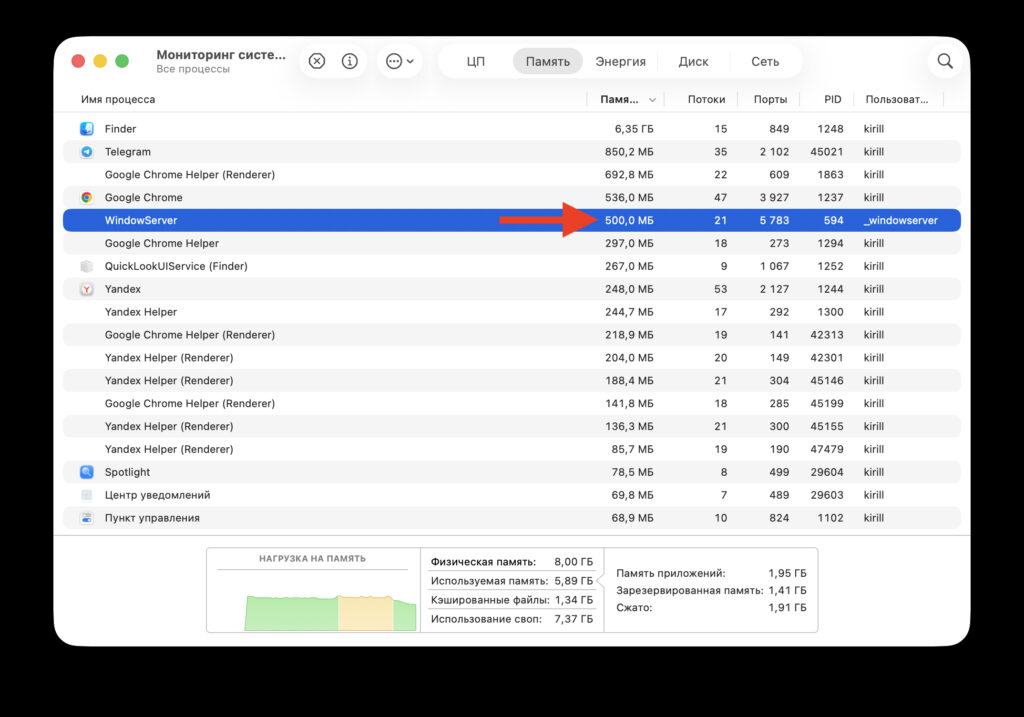
And here’s what it looked like after. There’s a difference and it’s significant
Disable Transparency and Animations in macOS
macOS uses many visual effects: semi-transparent panels, background blur, smooth animations when opening and closing windows. All of this looks beautiful but makes WindowServer work harder. Disabling these effects noticeably reduces the load, especially on older Macs and models with integrated graphics.
To reduce transparency:

Removing transparency. It won’t be as pretty, but it’ll definitely be faster
- Open “System Settings” through the Apple menu.
- Go to the “Accessibility” section.
- Select “Display.”
- Turn on the “Reduce Transparency” toggle.
To reduce the number of animations:
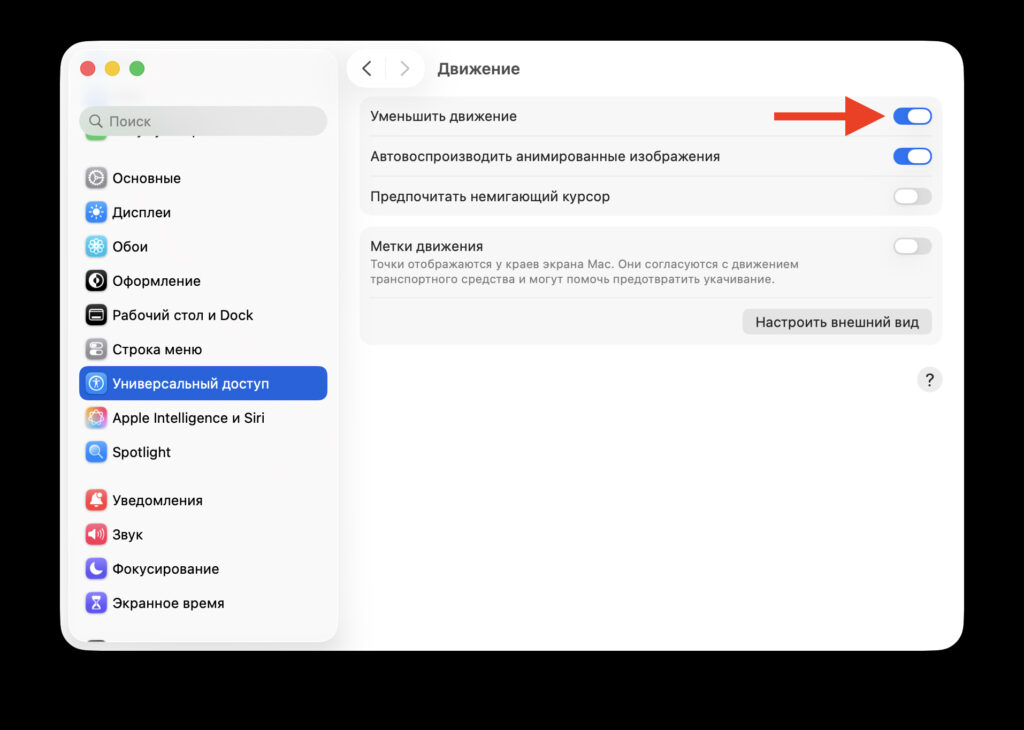
You can also trim the animations
- In the same “Accessibility” section, go to the “Motion” subsection (or “Display,” depending on the macOS version).
- Turn on the “Reduce Motion” toggle.
If you’re using macOS Tahoe, make sure the system is updated to the latest version.