Apple takes the security of data on every user’s iPhone seriously and even doesn’t allow USB accessories to be connected to it without authorization. If you recently changed your iPhone passcode and can’t remember it, you don’t need to reset your phone to factory settings. Starting with iOS 17, you have 72 hours to unlock your device with the old passcode and set a new one. Let’s figure out how this works and what to do if the time has already expired.
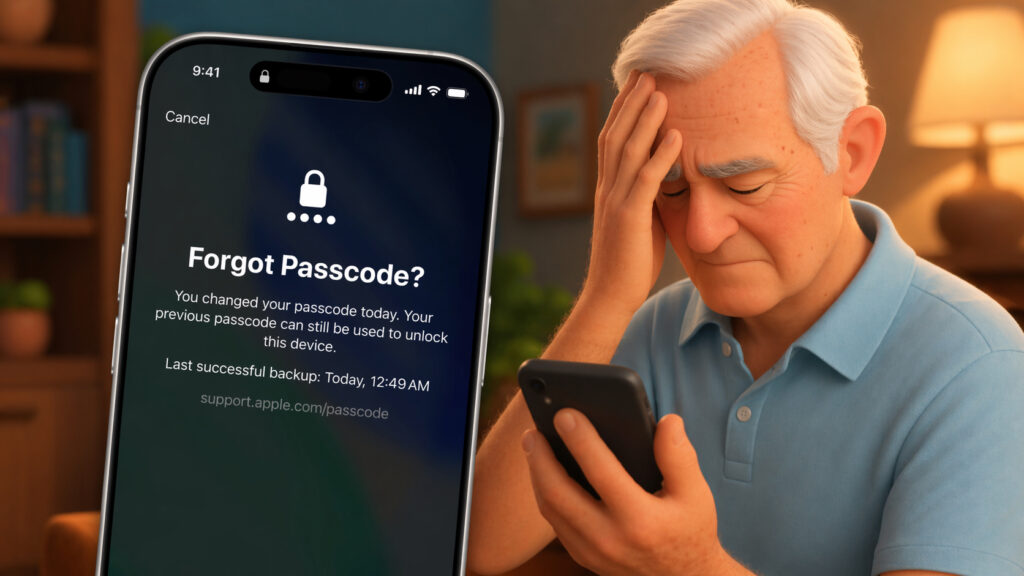
Forgetting your new password is easier than you think
Unlocking iPhone with the Old Passcode
After changing the iPhone passcode, the system keeps the previous passcode for 72 hours. If during that time you realize you don’t remember the new combination, the system will offer you to enter the old one and immediately set a different one.
Previously, the only way out of this situation was a complete data wipe and restore from an iCloud backup — a process that takes several hours. Now, the reset takes just a couple of minutes and doesn’t affect your data.
The feature is available on any iPhone running iOS 17 or later. Considering that iOS 17 is supported starting from iPhone XS, most current models qualify. Just like with the Lockdown Mode, which protects you from most viruses and external attacks on your data.
Resetting the New iPhone Passcode
If you changed your passcode less than 72 hours ago and remember the old one, follow these steps:
- Enter the wrong passcode several times until the “iPhone Unavailable” screen appears with a lockout timer.
- Tap “Forgot Passcode?” in the bottom right corner.
- Select “Enter Previous Passcode”.
- Enter the previous passcode you were using before the change.
- Set a new passcode that you’ll definitely remember this time.
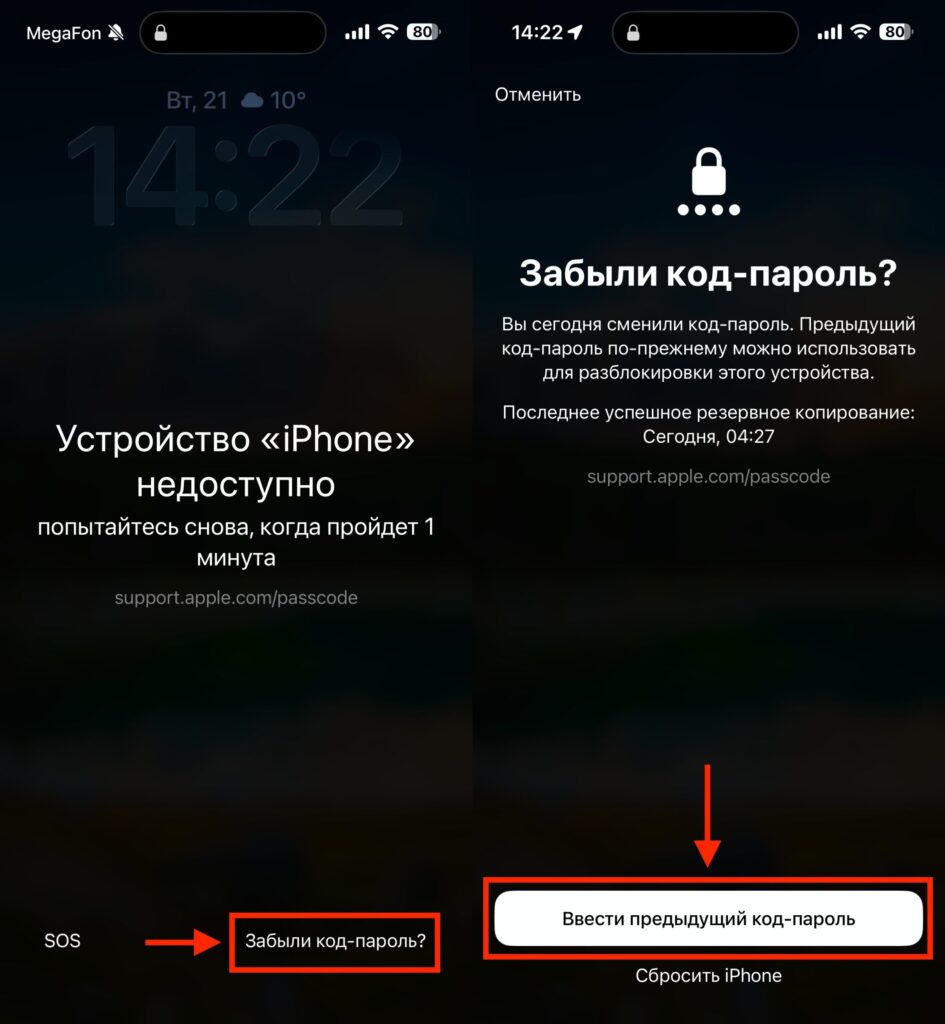
Unlock your iPhone with the old passcode
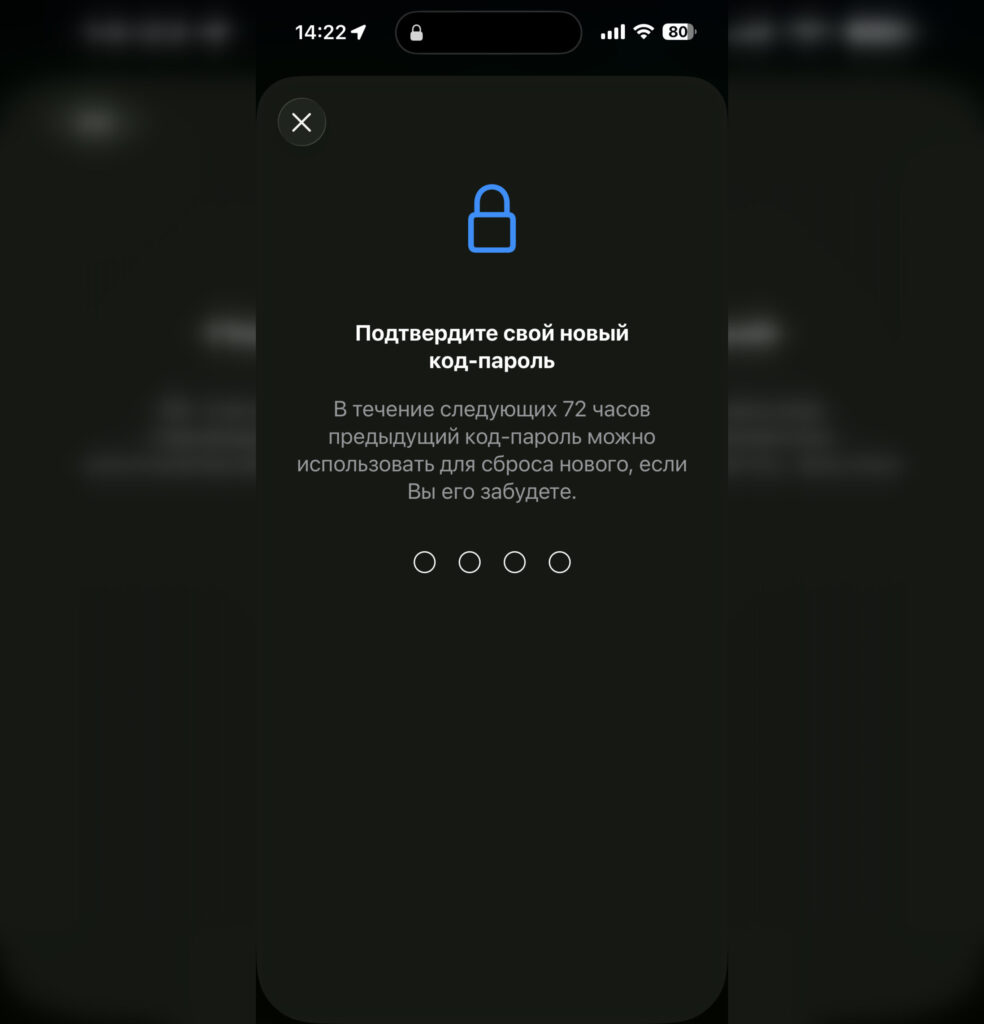
Set a new password
After the reset, the iPhone will immediately work with the new passcode. All your data, apps, and settings will remain intact.
How to Disable iPhone Unlock with the Old Passcode
There’s a flip side: if someone knew your previous passcode, they can still use it for three more days after the change. This is an important consideration if you changed your passcode specifically for security reasons — for example, after someone watched you enter it in a public place.
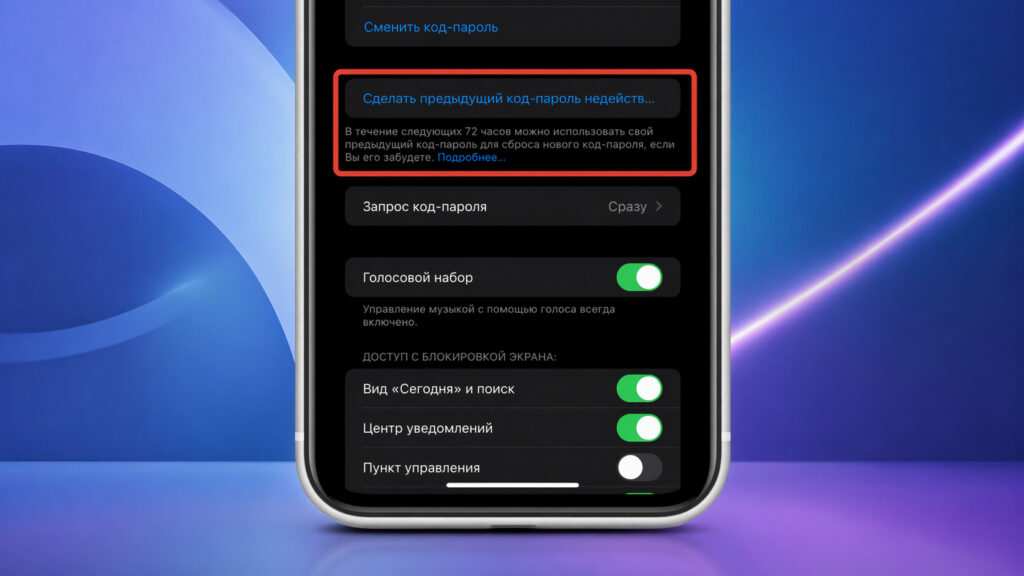
Unlock with the old code can be disabled in settings
To immediately invalidate the old passcode, open Settings, go to “Face ID & Passcode” (or “Touch ID & Passcode”), enter your current passcode, and tap “Expire Previous Passcode Now.”
After that, it will no longer be possible to unlock the iPhone with the old passcode, and the “Forgot Passcode?” button will disappear from the lock screen.
What to Do If the Old iPhone Passcode Has Already Stopped Working
If you didn’t make it within the 72-hour window or had already deactivated the old passcode beforehand, a more drastic approach remains. You need to connect the iPhone to a computer, put it into recovery mode, and restore from an iCloud backup. Any data not included in the latest backup will be lost.
Apple recommends contacting support or following the instructions on the official help page in such cases.
This is exactly why you should regularly make backups — via iCloud or on a computer. If your backup is recent, the recovery process will be relatively painless. If there’s no recent backup, you’ll lose your data along with your passcode.
How to Avoid Forgetting Your New iPhone Passcode After Changing It
Many iPhone users face a situation where they decide to change a simple numeric code to a complex alphanumeric password and forget it within a few hours. They end up having to completely erase their iPhone.
To avoid this, try a simple trick: after changing your passcode, make your new code something you were mistakenly entering instead of the forgotten one. This way, muscle memory will work in your favor rather than against you.
Also: if you haven’t changed your passcode, the 72-hour window feature simply won’t be needed — it only activates after a passcode change.
This feature is useful for anyone who has ever changed their passcode and immediately forgotten it. It doesn’t require any additional setup and works automatically in iOS 17 and later. The only limitation is the 72-hour window and the need to remember the previous passcode. If you’re changing your passcode for security reasons, don’t forget to immediately invalidate the old one in settings. And if the three-day window has already closed — prepare your backup and your computer.