You probably enabled Always On Display on your Apple Watch right after buying it — why spend that much on a watch if the screen goes dark every time you lower your wrist? But then you started noticing that you need to charge it more and more often. I recently ordered an Apple Watch and have been testing all its features. I checked how much AOD affects battery life, and the results surprised me.
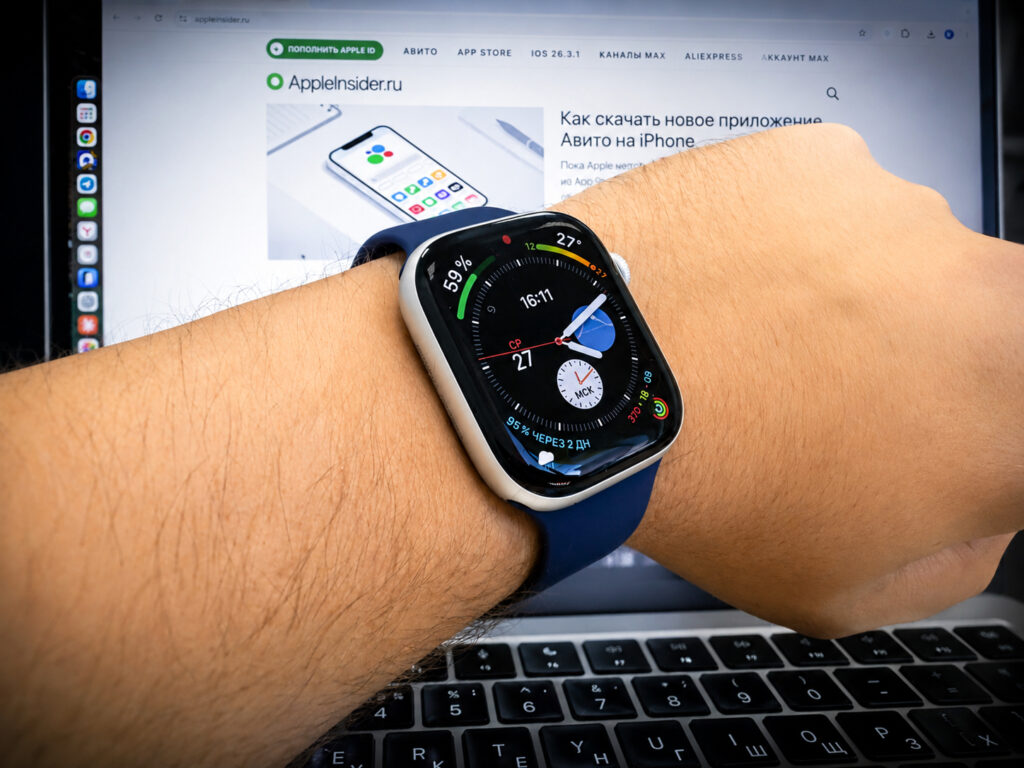
Always On Display is a great feature, but you need to manage it
How AOD Affects Apple Watch Battery
When Apple first introduced the Always On Display feature in Apple Watch Series 5, it felt like a real breakthrough. Finally, a watch costing tens of thousands of rubles actually behaved like a watch — showing the time constantly, not just when you theatrically raise your wrist. But convenience comes at a cost. And that cost is literal — battery life.
I wear my Apple Watch almost around the clock. The reason is simple — a silent alarm. Haptic vibration on the wrist wakes you up gently without disturbing the whole family. Because of this, the watch stays on my wrist all night, and goes on the charger in the evening between work and sleep.
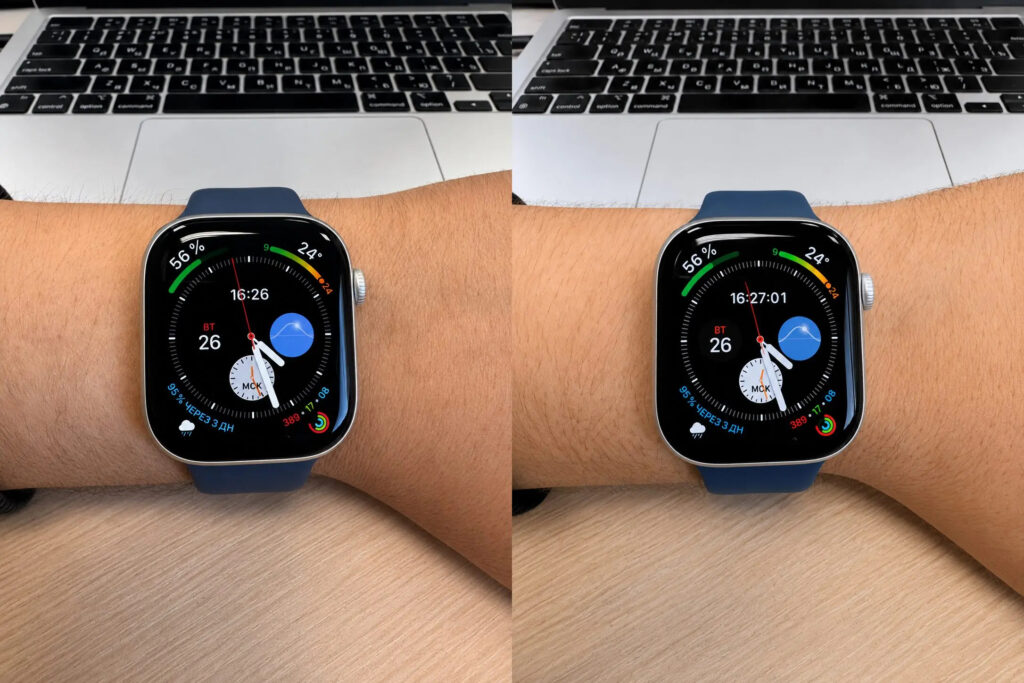
AOD on the left. The only difference from a regular watch face is the absence of seconds on the digital clock. Imagine how much battery it drains
It was actually the nighttime mode that helped me see the real picture. The thing is, during sleep, Always On Display turns off automatically — the watch detects that you’re sleeping and turns off the screen. This creates a natural experiment: night without AOD, day with AOD.
The results amazed me. After a full night on my wrist — with sleep monitoring, constant heart rate tracking, and blood oxygen level monitoring — the watch still had 95% battery. That’s on par with my old Amazfit, which lasted a week. Apple Watch only used 5% overnight, and I thought Apple had finally learned how to make a watch with decent battery life.
But as soon as I woke up and AOD kicked in, the discharge graph dropped sharply. By eye — almost twice as fast as at night. The screen, even dimmed, keeps working, updating the watch face, and lighting up pixels. The OLED display in Always On Display mode consumes noticeably more than a completely turned-off screen.
Apple Watch Battery Life With AOD On vs. Off
To back this up with numbers, here are the specifics. On the first day of use with AOD enabled, I put the watch on the charger at 8:00 PM with 21% battery left. That’s less than a day — and the watch was already on its last legs.
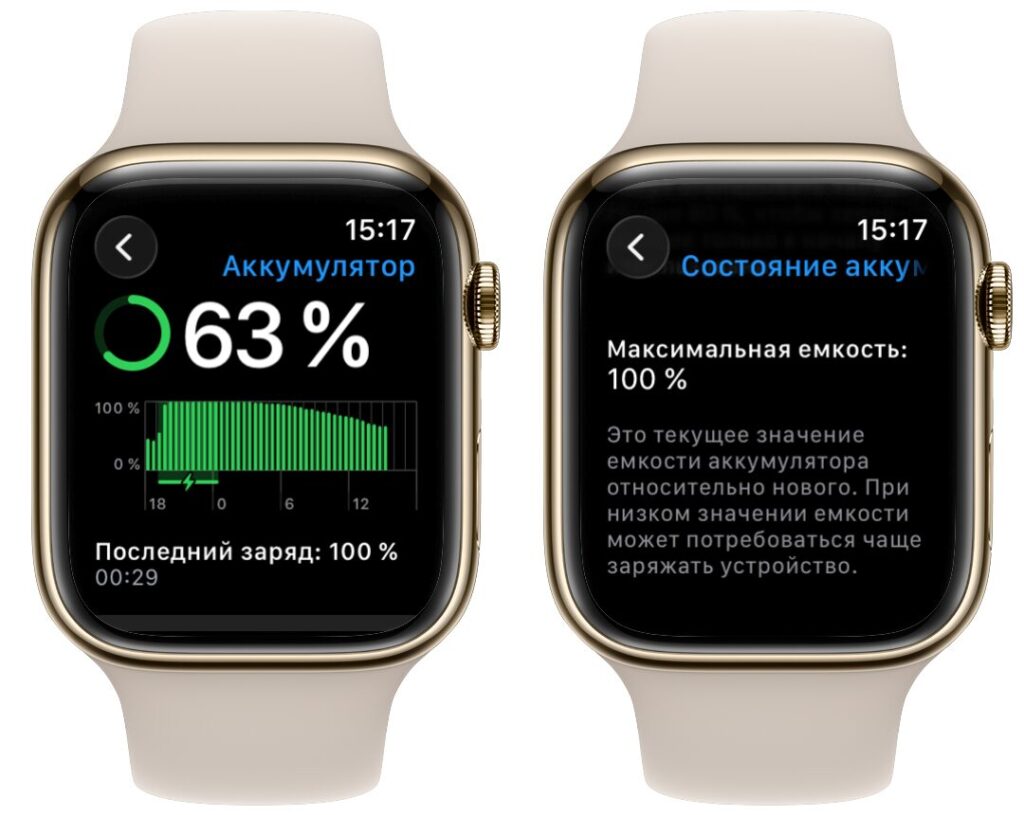
AOD turns on at 7 AM. Look at how sharply battery drain begins
On the second day, I set up Sleep Focus with a schedule, and AOD stopped running around the clock. The result — by evening, the watch still had 43% battery. The difference is enormous. The same model, the same set of sensors, the same activity — but simply less time with the screen on.
If you disable Always On Display completely, Apple Watch can easily last 2-3 days on a single charge. With it on — exactly one day. In practice, AOD cuts battery life in half, if not more. This isn’t speculation — it’s simple math that you can verify on your own watch.
Auto-Disabling AOD on Apple Watch Using Focus Mode
There’s no dedicated schedule setting for Always On Display on Apple Watch. Apple, for some reason, didn’t think to add a simple timer so AOD could turn on, say, from 9 AM to 6 PM. Even my five-year-old Amazfit, which I wore since 2021, had that feature. But there is a workaround — through the Sleep Focus mode.
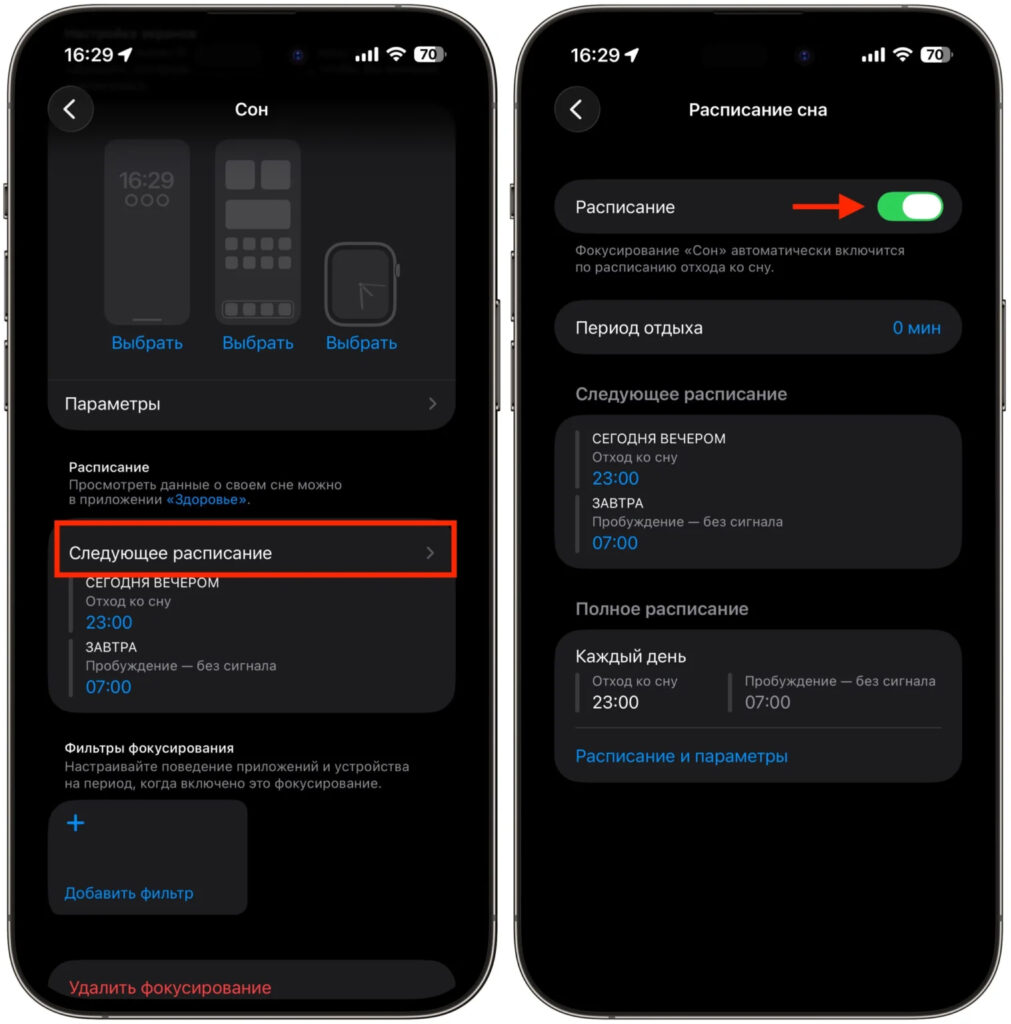
Set up a schedule for Sleep Focus, and things will immediately get better
When Sleep Focus is activated on the watch, AOD automatically turns off. The watch continues to track all health metrics, the alarm works, but the screen goes dark and doesn’t glow in the dark. That’s exactly why my Apple Watch only used 5% battery overnight — Sleep Focus turned off AOD, and the watch operated in a power-saving mode.
The trick is that the Sleep Focus schedule can be set to any time. Open “Settings” — “Focus” — “Sleep” on your iPhone and set a schedule for when this mode will activate automatically. Set it, for example, from 10:00 PM to 8:00 AM — and every evening AOD will turn off by itself, then turn back on in the morning.
My own experience confirmed this. As soon as I set up Sleep Focus for nighttime hours and AOD stopped running around the clock, my evening battery level went from 21% to 43%. And I didn’t change anything else — the same notifications, the same health monitoring, the same workouts. Essentially, you get AOD when you actually need it and save battery when the screen is glowing for nothing.
How to Disable Always On Display on Apple Watch
If you’ve decided to disable AOD completely or want to first check how much longer your watch lasts without it, you can do it in a minute:
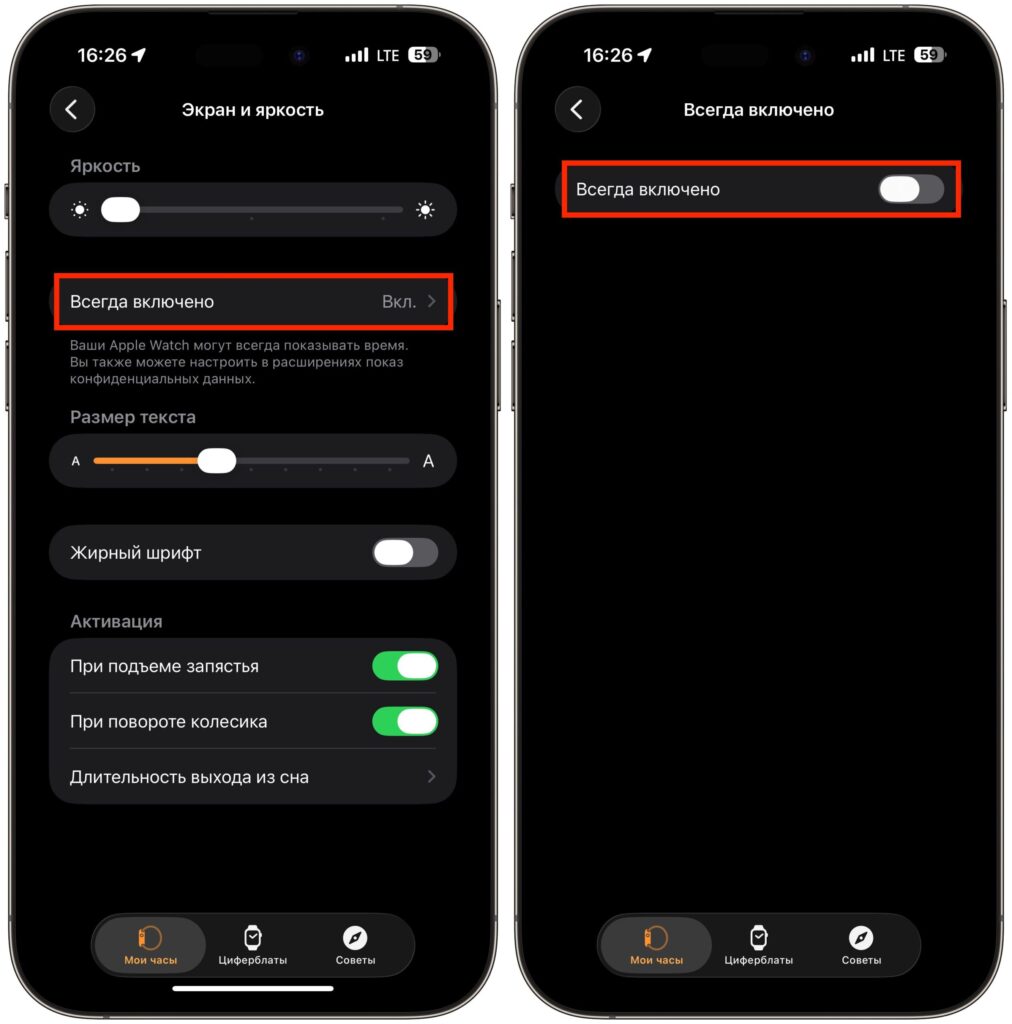
Sometimes it’s better to just turn off AOD completely
- Open the Watch app on your iPhone.
- Go to the “My Watch” section.
- Tap “Display & Brightness”.
- Find the “Always On” option.
- Toggle off “Always On”.
After that, the screen will only light up when you raise your wrist or tap the display. The watch will continue to track heart rate, blood oxygen, and all other metrics — only the constant screen operation is disabled.
What to Choose on Apple Watch: AOD or Longer Battery Life
Let’s be honest. Always On Display looks great. A watch costing tens of thousands of rubles actually looks like a watch, not a black rectangle on your wrist. But if you want to charge your Apple Watch once every two to three days instead of every evening, AOD has to go.
My advice — try living without Always On Display for at least a week. You’ll quickly get used to raising your wrist to see the time, and your battery will last with plenty to spare. If you find that life without AOD is uncomfortable, set up Sleep Focus on a schedule — let the screen stay on only when it’s truly needed.
I chose exactly this option for myself. AOD runs during the day when I’m in meetings and don’t want to flick my wrist every time, and in the evening and at night, Sleep Focus turns off the screen automatically.