NameDrop lets you exchange contacts by simply bringing two iPhones close together. The feature appeared in iOS 17 and works by default — but it has its nuances: what exactly gets shared, how to customize it, and why sometimes nothing happens.
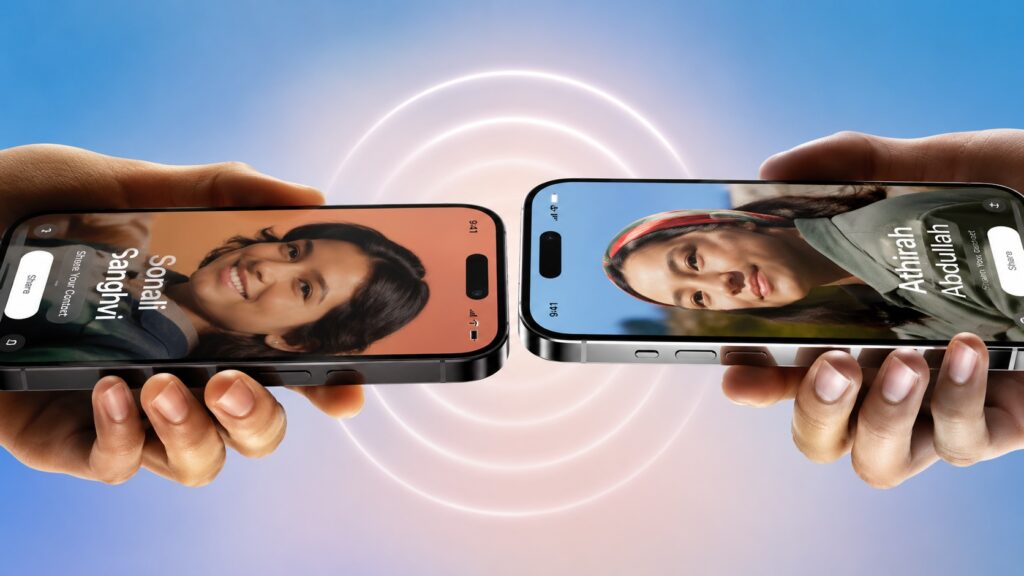
NameDrop is a cool feature — I’ve even used it a couple of times
NameDrop on iPhone: What Is This Feature
NameDrop is part of the contact sharing system built around Contact Poster (a contact card with a photo and custom design). Apple introduced NameDrop in iOS 17 as a replacement for manually entering phone numbers: instead of dictating digits, users tap their iPhones together and decide — send a contact, receive one, or do both.
An important point about privacy: by default, only your name, Contact Poster, and primary phone number or email are shared. Address, birthday, pronouns, and other card fields are not sent through NameDrop. Essentially, NameDrop uses the same wireless technologies as AirDrop.
Exchanging Contacts on iPhone via NameDrop
For the feature to work, you need two iPhones running iOS 17 or later with AirDrop enabled. If you haven’t changed the settings, everything already works out of the box.
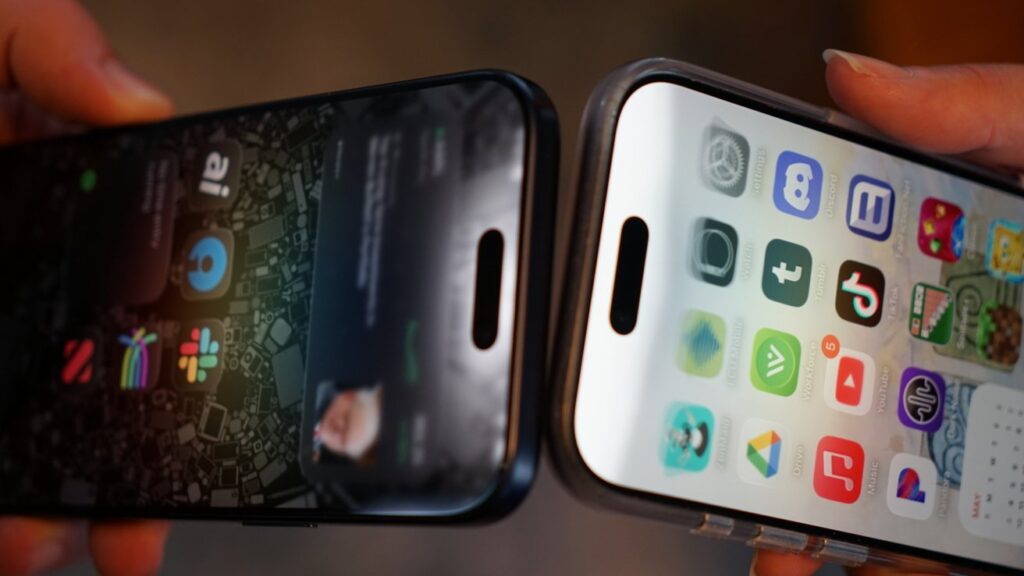
Bring the iPhones close to each other and this cool animation appears
- Unlock both iPhones and leave them on the lock screen or home screen — any screen where you can’t “share” anything.
- Bring the top edges of the devices close to each other and hold them for a couple of seconds.
- Wait for the NameDrop animation and the appearance of your poster.
- Choose “Receive Only” or “Share” for a two-way exchange.
- Keep the iPhones close together until the transfer is complete.
If you lock either phone or turn off Bluetooth or Wi-Fi before the interface appears, the process will be interrupted. When NameDrop doesn’t trigger right away, first check these settings on both devices.
A case barely affects functionality: NameDrop uses the same radio technologies as AirDrop and Apple Pay, and modern cases are designed to allow NFC signals through. And one more useful detail: proximity is only needed to initiate the contact exchange — once the buttons appear, you can move the iPhones apart and calmly make your selection.
NameDrop Between Apple Watch and iPhone
The feature works between Apple Watch, iPhone, and other Apple Watch devices. The principle is the same, but due to the smaller screen, there’s less visual feedback.
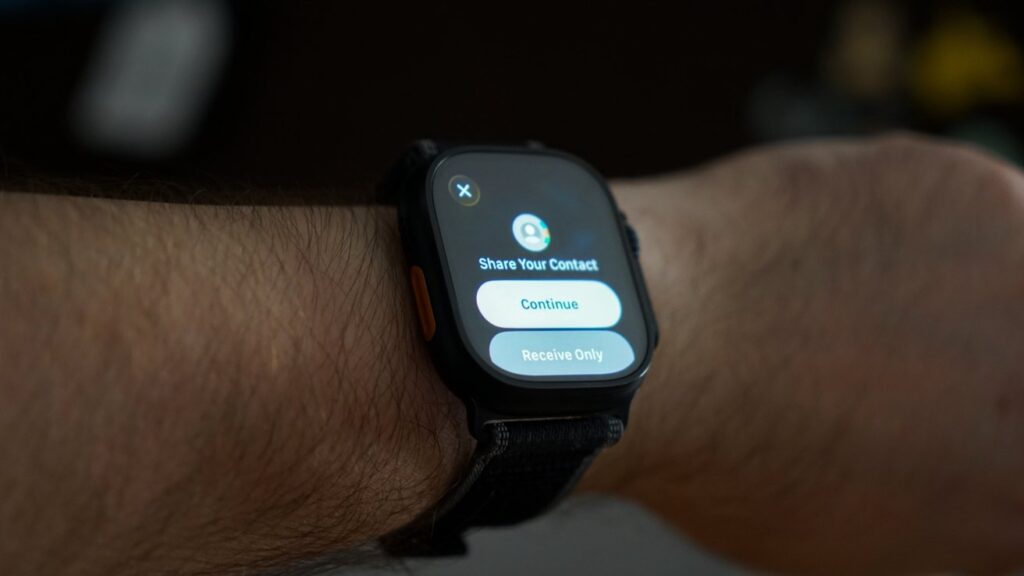
Just bring your Apple Watch close to the iPhone and it will work
- Bring the front of the Apple Watch to the top edge of someone else’s iPhone or another watch.
- Wait for the NameDrop animation and the appearance of the contact exchange interface.
- Confirm the exchange and keep the devices close until the transfer is complete.
On the watch, only “Continue” and “Receive Only” options are available, without a large Contact Poster preview. This is convenient when your iPhone is in a backpack or bag and you don’t feel like taking it out for just one contact.
Setting Up Your Contact Poster on iPhone
Before actively using NameDrop, it’s worth tidying up your card. An old photo, a random emoji in your name, or an outdated work email — all of this will go to the other person exactly as it’s saved on your device.
- Open the Contacts app on your iPhone.
- Tap “My Card” at the top of the list.
- Tap “Edit.”
- Tap the contact photo.
- Select Poster at the top of the screen and customize it to your liking.
- Enable “Name and Photo Sharing” if you want to share your updated card design with others.
- Choose “Contacts Only” for automatic sharing with saved contacts, or “Always Ask” if you want to confirm each time.
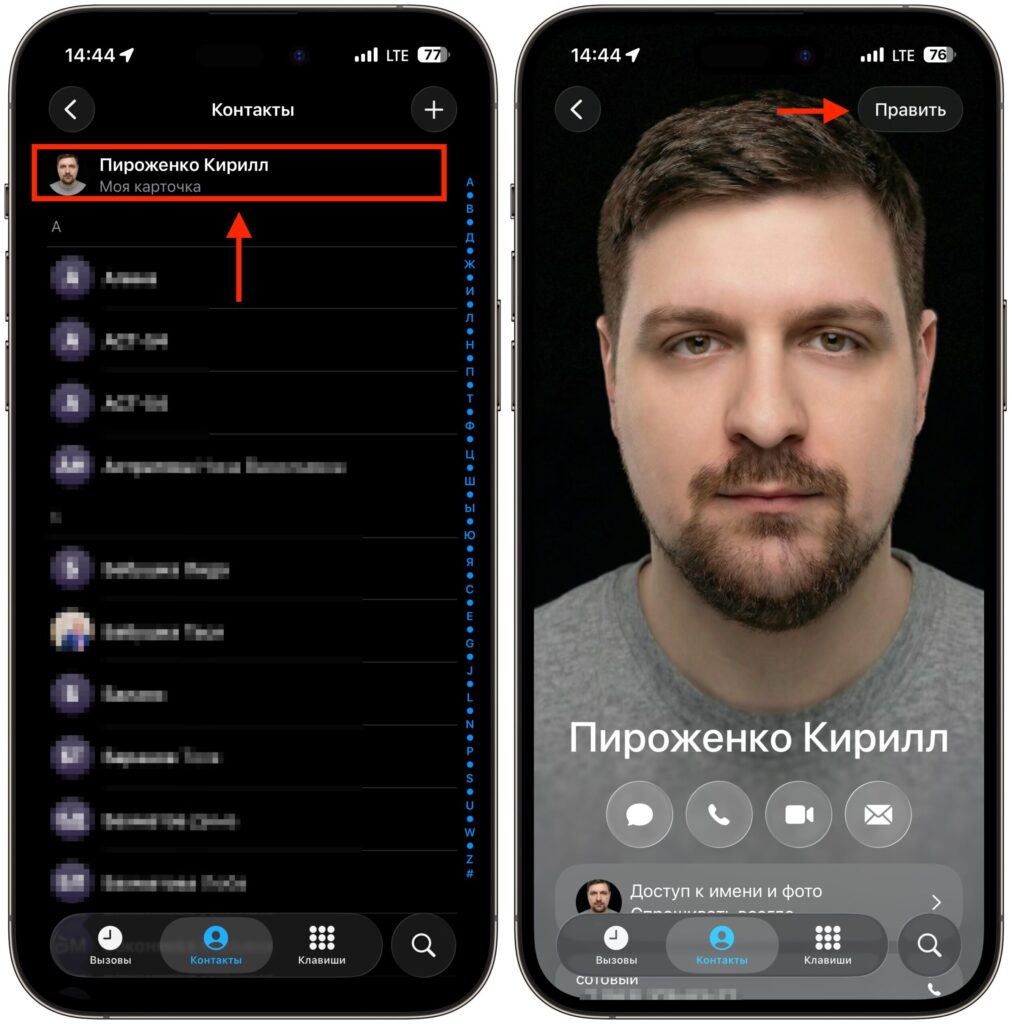
Start customizing the poster from the contacts list
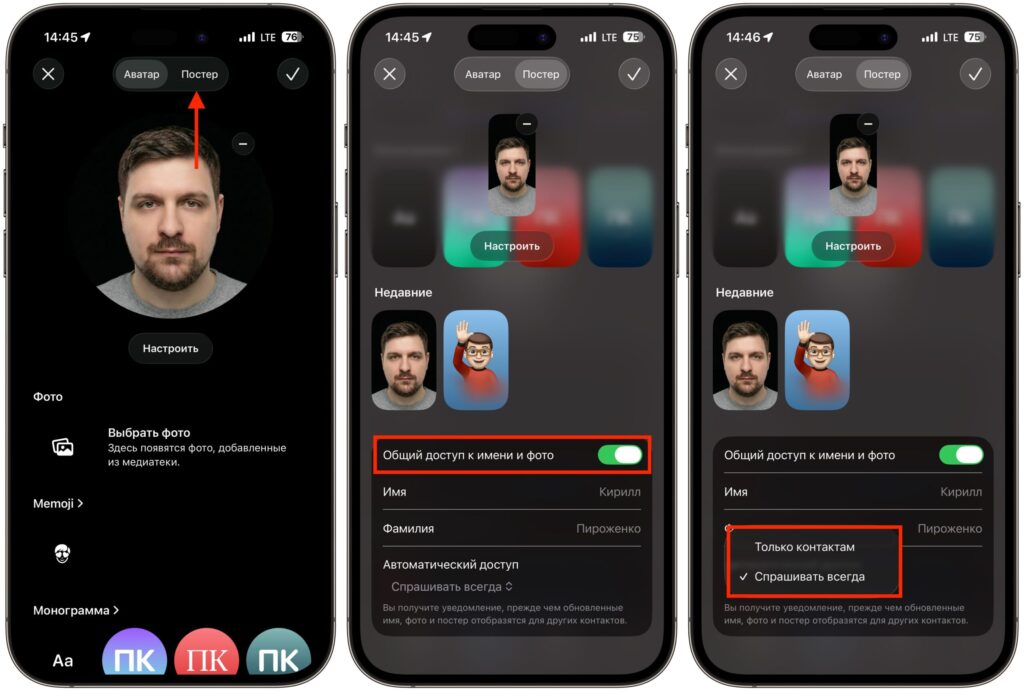
Customize all visual effects and desired parameters
Contact Poster has become your Apple ID avatar: it’s visible during incoming calls and when using NameDrop. That’s why the photo is sometimes more important than the number itself.
Choosing a Phone Number to Send via NameDrop
If you have multiple numbers or email addresses, you can specify which one goes to the other person during each exchange. On the NameDrop screen, next to the phone number or email there’s a small “>” button. Tapping it opens a list with checkmarks — select the items you need and tap “Share.”
This is convenient for separating personal and work numbers: give a colleague the corporate one, give an acquaintance the personal one. The selected set of fields is remembered until next time, saving a couple of taps with regular use.
NameDrop does not transmit pronouns, address, birthday, or other additional card fields — only the name, selected numbers or email, and Contact Poster.
Why NameDrop Doesn’t Work and How to Fix It
Apple uses the same proximity gesture for AirDrop, SharePlay, and NameDrop. Because of this, a completely different interface sometimes pops up instead of the contact exchange. AirDrop, for example, appears when a file, link, or other shareable object is open on the screen.
If NameDrop is behaving strangely, try a simple scenario: lock the iPhone, wake it up, unlock it, and try again. And make sure that both devices are on the home screen or lock screen — this reduces the chance of accidentally triggering AirDrop instead of NameDrop.


