The MAX messenger is equally popular on both iPhone and Android. But does that mean both versions of the app work exactly the same way? Not quite. We found differences that the developers don’t mention. I use MAX on both platforms and decided to figure out exactly how the messenger experience differs on iPhone and Android. Spoiler: there are differences, and some are quite noticeable.
Compared MAX on iPhone and Android. The result was surprising
MAX Chat on iPhone and Android: What’s Different
The first thing that catches your eye when comparing is the placement of interface elements in the chat window. The difference is subtle, but if you’re used to one platform and switch to the other, your fingers will miss the mark for a while.
On iPhone, the paperclip button for attaching files is located to the left of the text input field. Stickers are positioned on the right. The logic is clear: first you attach a file, then add a sticker to the message, or vice versa. Everything is intuitive and familiar for those who use the iOS version.
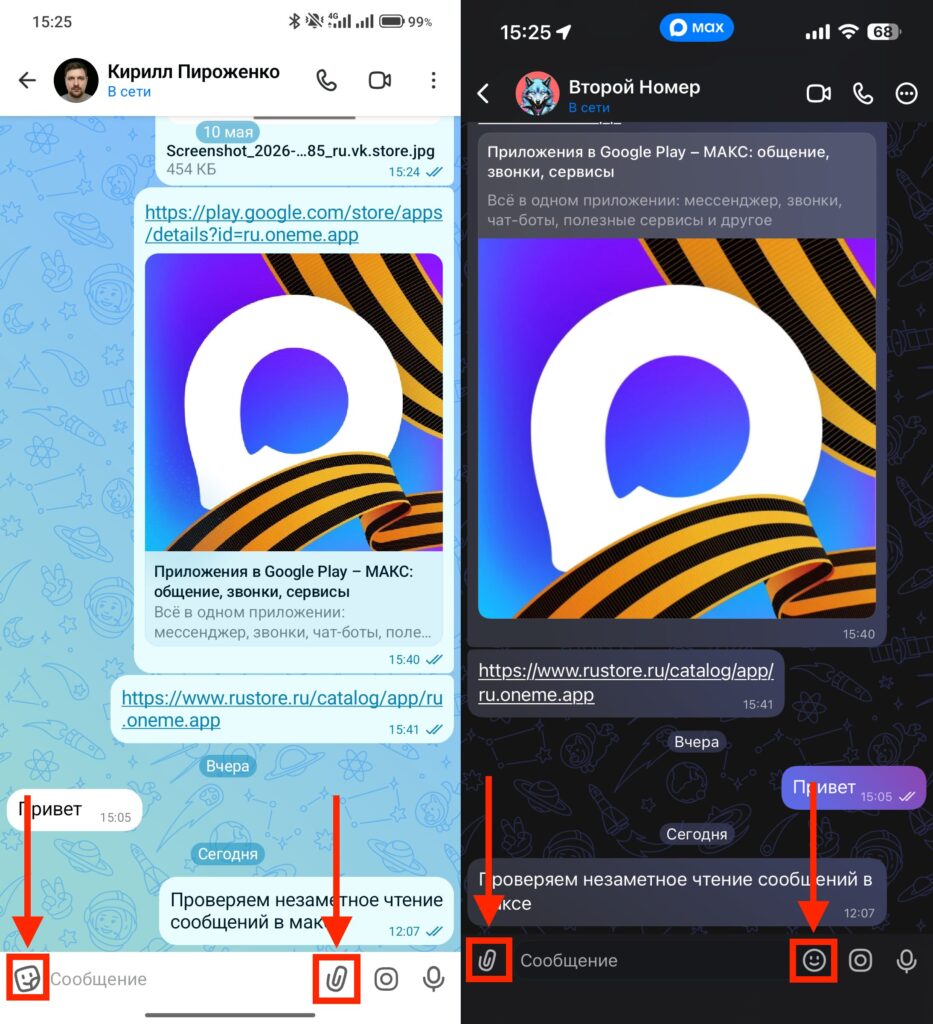
The placement of elements in the chat is different. It can be confusing at first. (Android on the left, iPhone on the right)
On Android, the situation is mirrored. The file attachment paperclip has moved to the right, and stickers are on the left. It might seem like a small thing. But try using one version for a week, then switch to the other. You’ll be surprised how often your finger reaches for the wrong button. Muscle memory is a serious thing, and the familiar placement of elements plays a huge role in messengers.
Why did the developers decide to make them different? Most likely, it’s related to platform guidelines. Apple and Google recommend placing key interface elements differently. iOS apps traditionally place the primary action on the right and secondary ones on the left. Android’s logic is sometimes the opposite. The MAX team apparently followed each platform’s recommendations rather than fully unifying the interface.
Does it affect usability? If you only use MAX on one platform, you won’t notice the difference at all. The problem arises for those who switch between an iPhone and an Android smartphone or, for example, help set up the messenger for someone on a different platform.
Message Preview in MAX: Key Differences on iPhone and Android
Now this is a much more significant difference than just button placement. On iPhone, the MAX messenger supports chat preview via long press — a feature that simply doesn’t exist on Android.
Here’s how it works. You go to the chat list, press and hold on the desired conversation, and see a pop-up window with the latest messages. You can quickly read what someone wrote to you without fully opening the chat. The mechanic is familiar to all iPhone users — it’s a standard iOS feature called Haptic Touch. Link previews in Safari, notifications, and many other system elements work the same way.
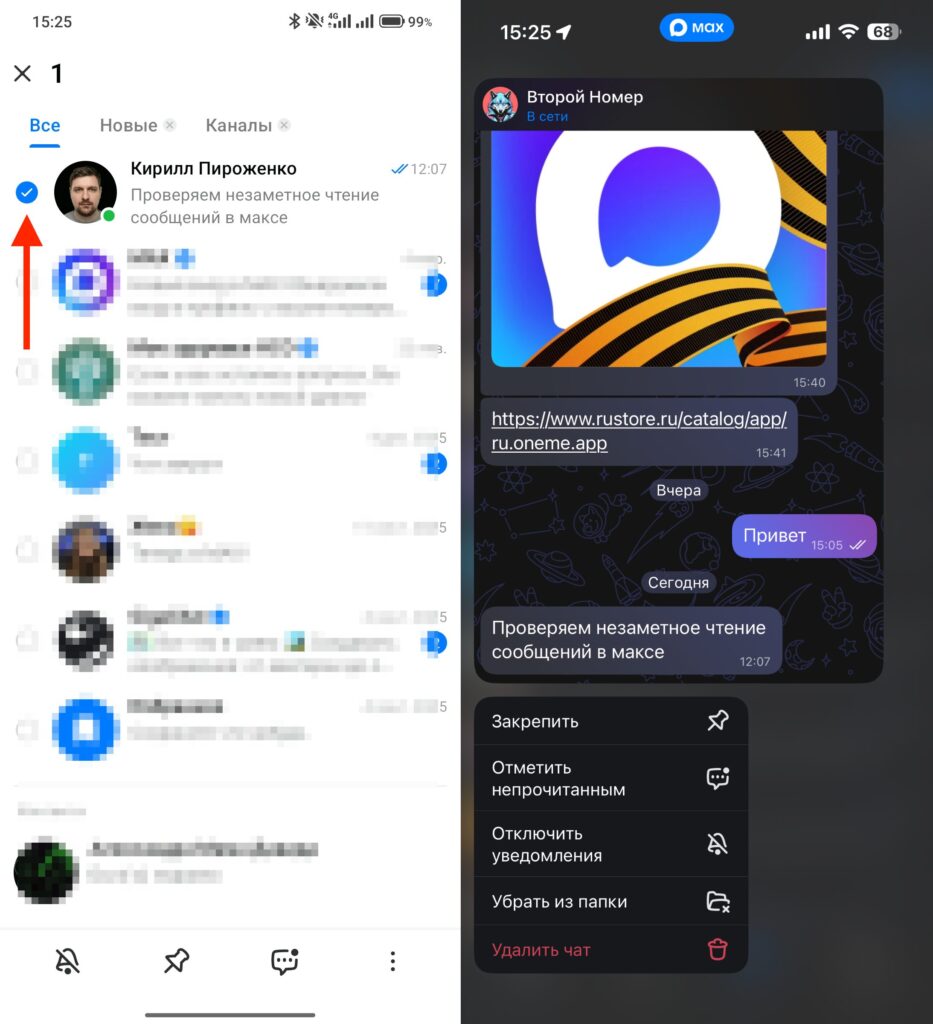
Long-pressed a chat on iPhone — a preview opened, while on Android it got checked with a tick. (Android on the left, iPhone on the right)
The MAX team on iOS integrated this system capability into their app. And they did it very well. The preview shows enough content to understand the gist of the message, but doesn’t fully open the chat.
On Android, there’s no equivalent feature. A long press on a chat in the list brings up a context menu with actions like “Pin,” “Delete,” or “Mute notifications.” But there’s no content preview itself. To read a message, you’ll have to fully enter the conversation.
Can You Read a Message in MAX Without Being Noticed
The preview on iPhone isn’t just a convenient feature. It has another non-obvious advantage that few people think about. When you preview a chat via long press, the messenger doesn’t send the sender a read receipt.
This means you can calmly read a message, think about your response, and return to the conversation later — while the other person will think you haven’t seen it yet. For some, this is a minor detail, but for others, it’s a real lifesaver. Especially in work chats where a response is expected immediately after the message is read.
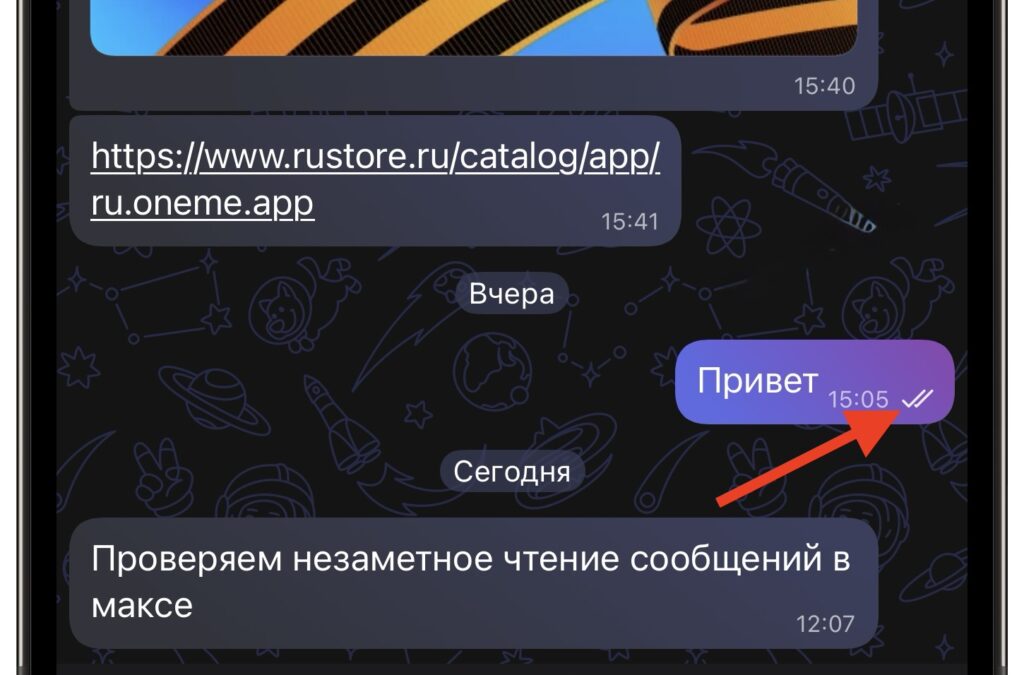
You won’t be able to read a message without the second checkmark on Android
On Android, MAX doesn’t offer this capability. As soon as you open a chat, the other person sees that the message has been delivered and read. The messenger offers no other built-in ways to bypass the read receipt. You could, of course, read the beginning of a message in a push notification, but if the text is long, that won’t be enough.
It turns out that iPhone users get an additional level of privacy control. Not because of any tricky settings, but simply because iOS provides this system capability and the MAX developers chose to support it.
MAX Features That Work on Both iOS and Android
To be fair, aside from the two nuances described above, the MAX messenger on iPhone and Android is completely identical. All core features work the same on both platforms, and your choice of device doesn’t limit your capabilities in any way.
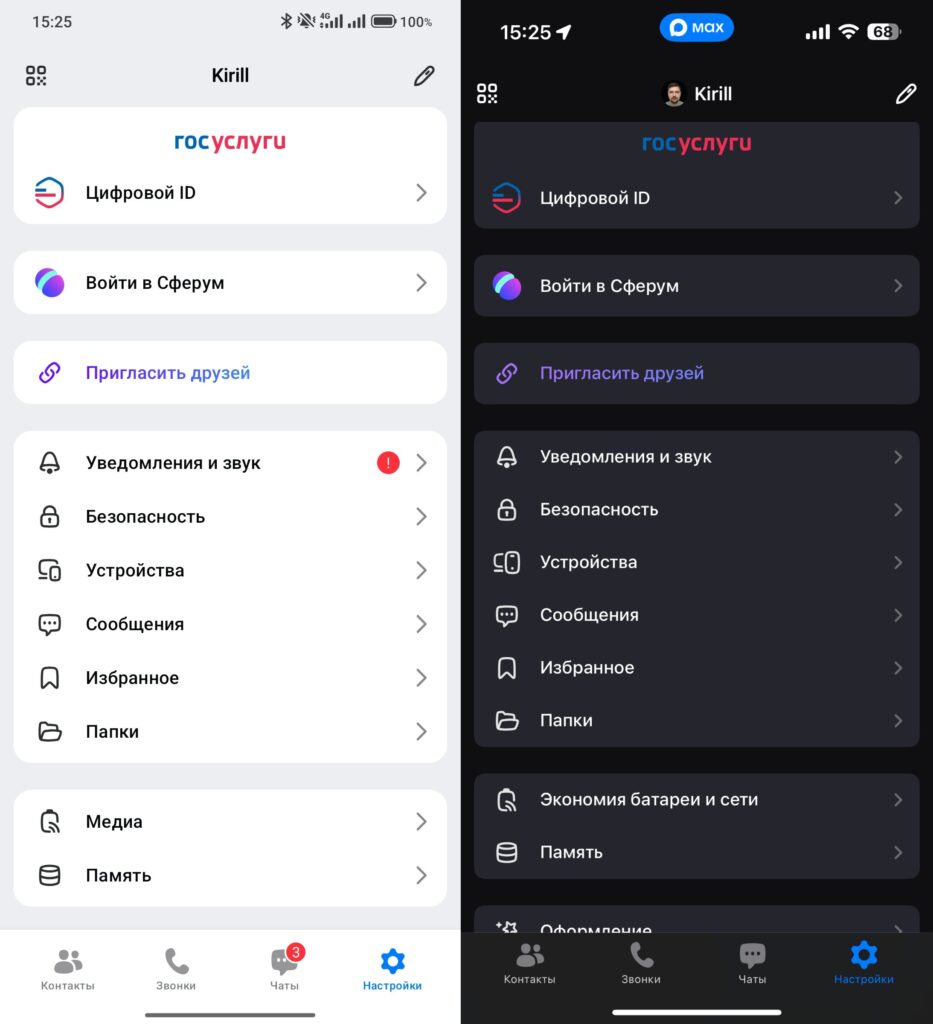
Even the settings are laid out identically. (Android on the left, iPhone on the right)
Personal and group chats, voice and video calls, channels and secret chats — all of this is available on both iOS and Android. Integration with Gosuslugi (Government Services), age verification via digital ID — these features work cross-platform and don’t depend on what smartphone you have.


