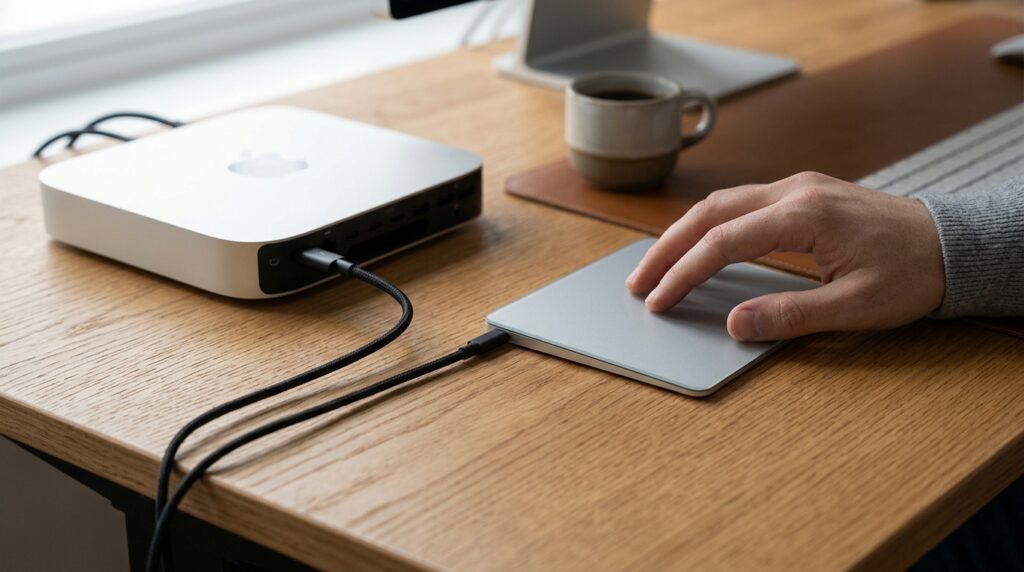
Is the cursor on your MacBook or external Magic Trackpad moving jerkily, lagging, or, conversely, flying across the screen at the slightest touch? Most often, it’s a software glitch, and it can be fixed in a couple of minutes. This behavior usually appears after a system update, toward the end of a long work session, or due to dirt on the touchpad surface. Below is a step-by-step breakdown of what to do: from simply wiping the surface to resetting Bluetooth and reinstalling macOS.
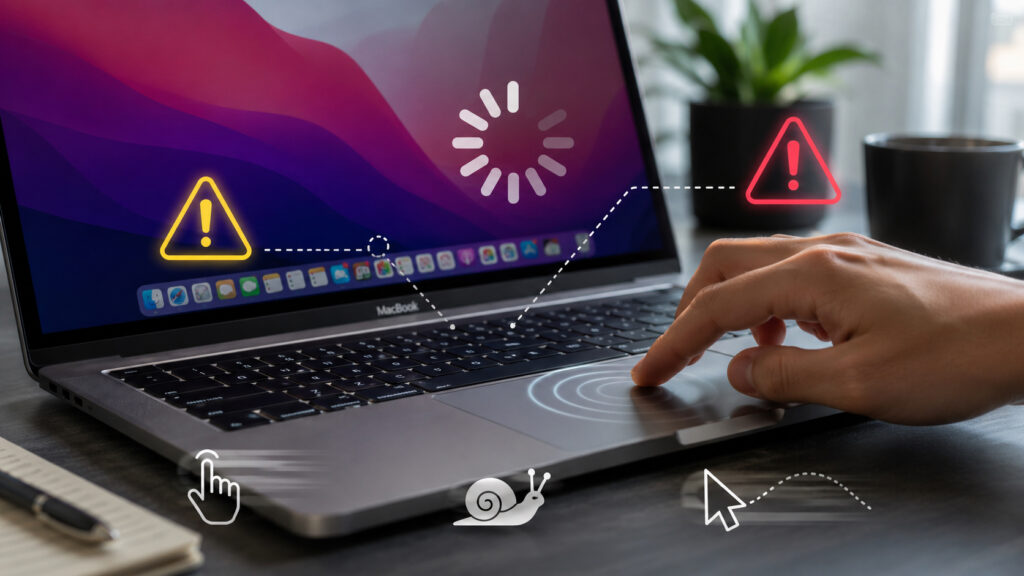
Figuring out what to do when the trackpad is acting up
Why the MacBook Cursor Moves Jerkily
Before taking action, it’s helpful to understand the source of the problem. The pointer may behave unexpectedly for several reasons:
- Dirty surface — water droplets, finger grease, hand cream residue interfere with the sensors reading movement.
- macOS software glitches — especially after installing a major system update.
- Bluetooth issues — connectivity problems are common with the external Magic Trackpad.
- Incorrectly set pointer speed in settings.
- Hardware failure — the rarest case, but it can’t be ruled out.
In the vast majority of cases, it’s a software issue, and it never gets to the point of visiting a service center. Let’s start with simple steps.
Dirty MacBook Trackpad: How It Affects the Cursor
This is the first thing you should do. Small water droplets, skin oils, cream particles, or dust on the glass surface disrupt touch recognition. Take a dry microfiber cloth or soft lint-free fabric and gently wipe the trackpad.
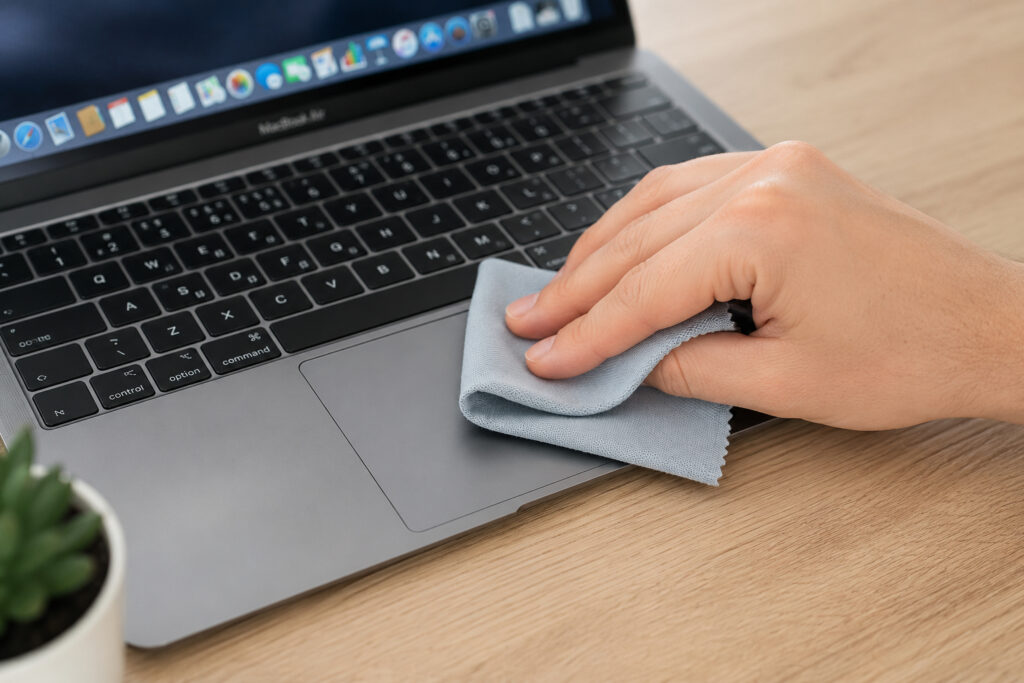
Start by cleaning the trackpad
Do not use household cleaning products, high-concentration alcohol, or wet rags — this can damage the oleophobic coating. If the contamination is heavy, slightly dampen the cloth with distilled water and wipe the surface, then dry it thoroughly. Your hands should also be clean and dry: greasy or wet fingers are a common cause of a “jumping” cursor.
Quick Way to Restart the Trackpad
A simple trick that often works. Press the power button (Touch ID on modern MacBooks) to lock the screen. Wait 10 seconds and unlock the Mac again by entering your password. This short session “restart” is often enough for the system to reinitialize the trackpad driver and make the pointer movement smooth again.
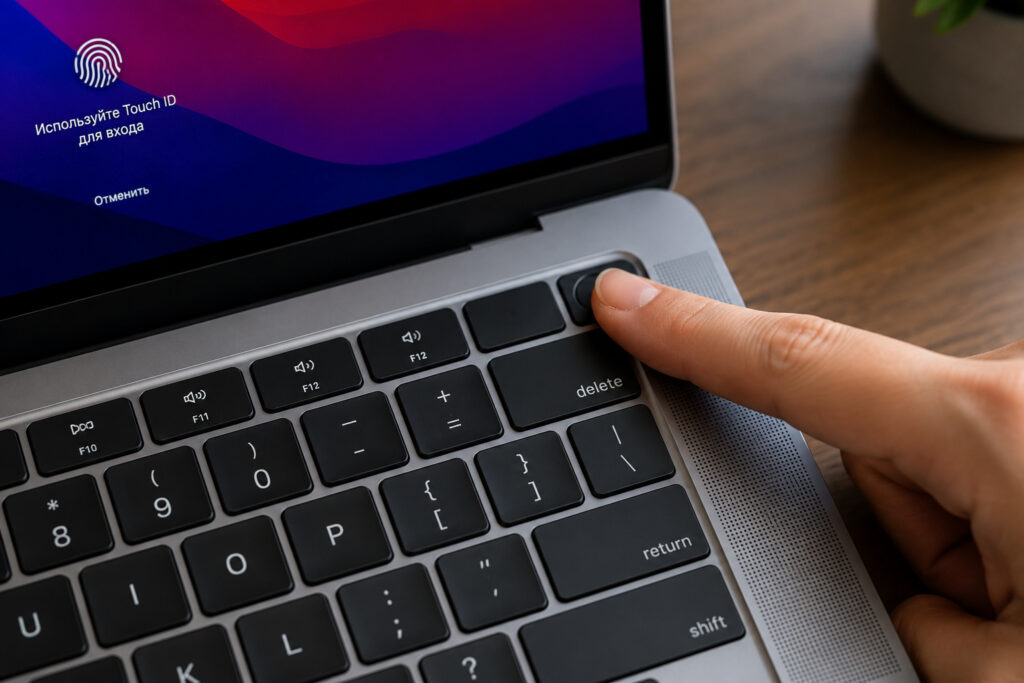
The quickest way to lock a MacBook
You don’t need to try to hit on-screen buttons or do anything using the poorly working trackpad. Everything is done with a button on the keyboard.
How to Change Cursor Speed on MacBook
Sometimes the problem isn’t the trackpad itself, but sensitivity that’s too high or too low. If the pointer “flies away” at the slightest finger movement or barely crawls, adjust the speed:
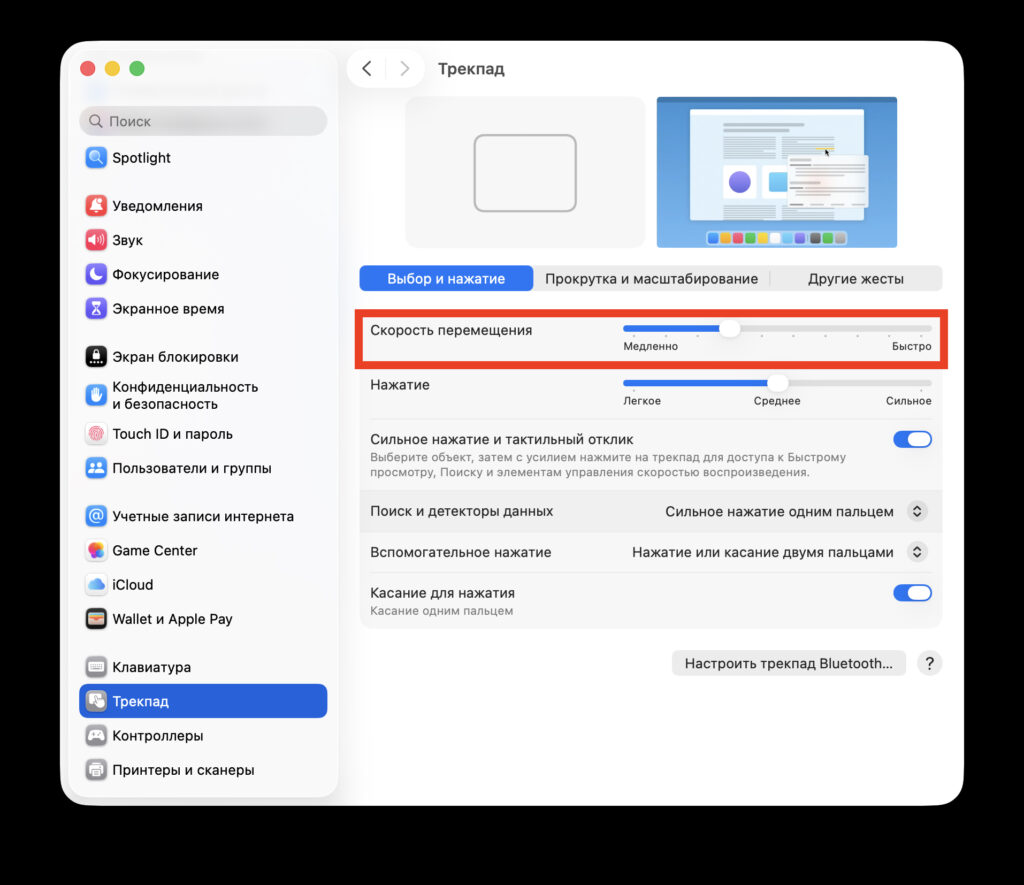
Adjust the trackpad speed here
- Open the Apple menu in the top-left corner and select “System Settings.”
- Go to the “Trackpad” section.
- On the “Point & Click” tab, find the “Tracking speed” slider.
- Set the value to approximately the middle of the scale.
- Swipe your finger across the trackpad and see how the pointer moves. Adjust further if needed.
In the same section, you can disable or enable “Tap to Click,” adjust the click pressure (Force Click), and check gestures — sometimes a user accidentally changes settings and then doesn’t understand why the trackpad is behaving “strangely.”
How to Reconnect Magic Trackpad to Mac
This step is relevant for the external Magic Trackpad connected to an iMac, Mac mini, or Mac Studio. This method is convenient because it doesn’t require restarting the computer or closing your work applications.
- Flip the trackpad over and switch the toggle on the back to the “off” position.
- Open “System Settings” and go to the Bluetooth section.
- Make sure that “Not Connected” appears next to Magic Trackpad.
- Wait 10–15 seconds and turn the trackpad back on.
- Wait for automatic reconnection. If it doesn’t happen, click on the device in the Bluetooth list manually.
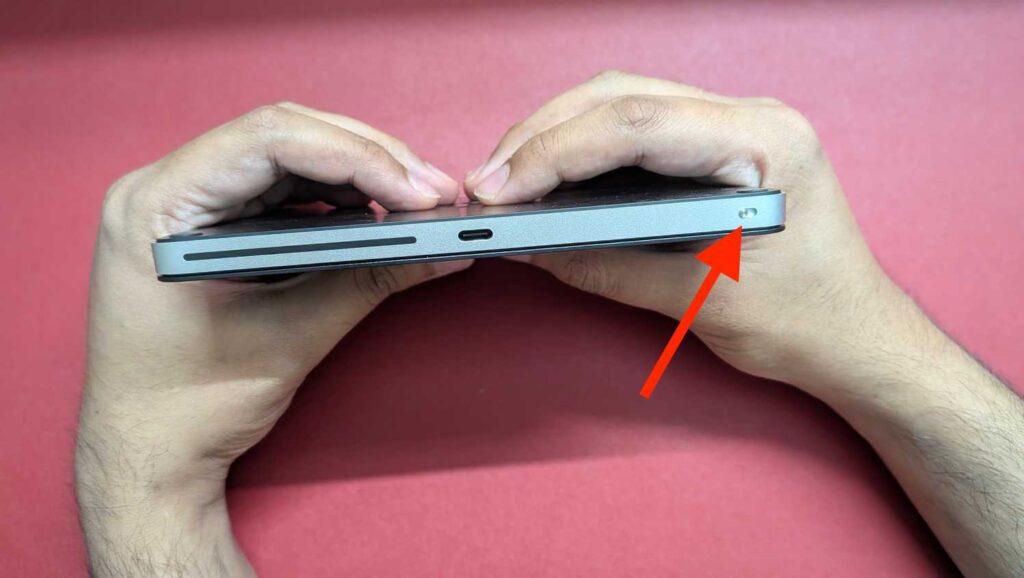
Turn off the trackpad
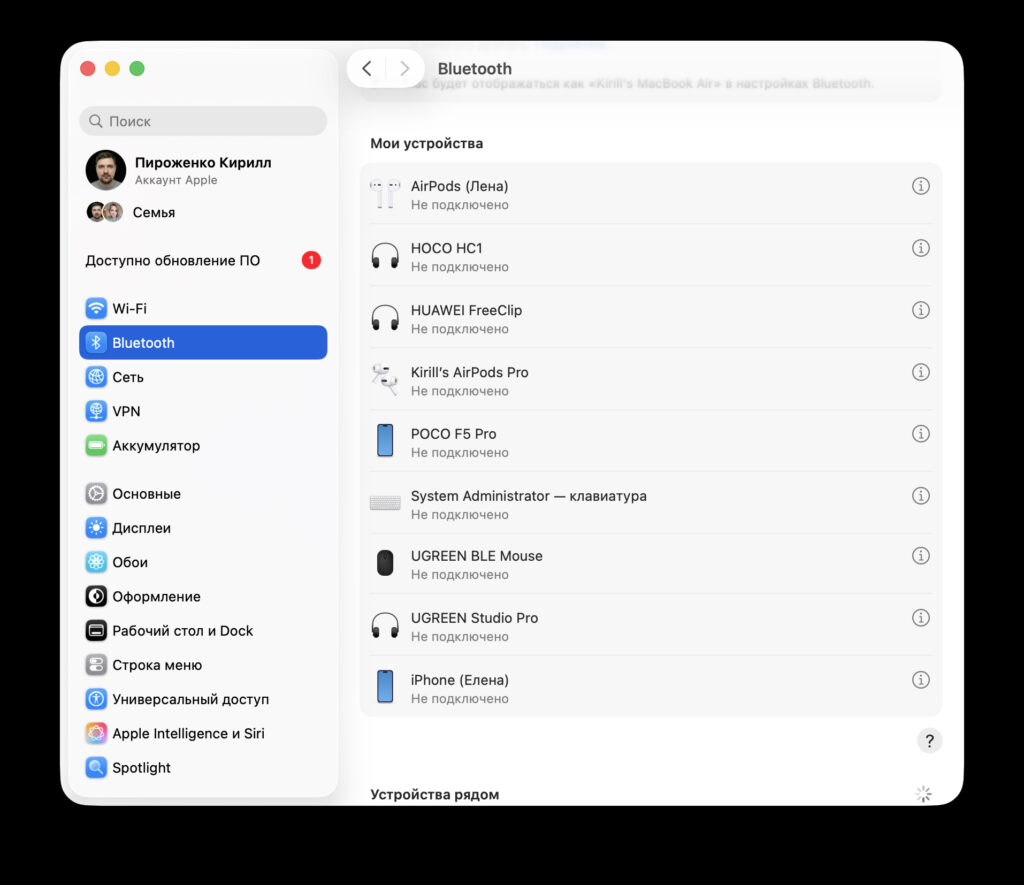
Make sure it shows “Not Connected” status
During this procedure, keep a wired mouse handy or use Apple Watch with the automatic unlock feature to access your Mac, otherwise it will be difficult to control the system without a pointer.