If you’ve ever gone to Settings — General — iPhone Storage, you’ve probably noticed the mysterious “System Data” section. It can take up 10, 15, or even 30 GB for some people. At the same time, iOS gives no recommendations on how to reduce it and doesn’t even show what exactly it includes. But a way to clear it does exist — and it’s simpler than you might think.

System data can be cleared
What Is Included in System Data on iPhone
In the “iPhone Storage” section, you can see how much space is taken up by apps, photos, media files, and iOS itself. But the “System Data” category (previously called “Other”) stands apart. Apple describes it as: caches, logs, and other resources currently used by the system.
In reality, all sorts of things end up in this section: iOS system cache, Safari browser cache, diagnostic logs, temporary update files, downloaded Siri voices, offline translation languages, fonts, dictionaries, keychain data, and even the CloudKit database. Over time, the volume of this data only grows, and iOS doesn’t always manage to clean it up on its own.
The main problem is that you don’t have a “Clear System Data” button. iOS simply doesn’t provide such a tool. Deleting an app or offloading photos — sure, but dealing with caches and logs is something the system expects you to handle yourself. That’s why users have been looking for workarounds for years, and one of them has gone truly viral.
Why Set the Date Forward to Clear iPhone Memory
On social media, this trick has gained millions of views. The idea is simple: you set the date on your iPhone forward, and the system starts treating old caches as expired. iOS sees that temporary files have supposedly been stored for an entire year and deletes them automatically. Essentially, you’re tricking the built-in cache cleanup mechanism, which is tied to time.
I decided to try it, and the result was impressive. The “System Data” section shrank from 17 GB to 1 GB in just a couple of minutes. These are real gigabytes that you can use without deleting apps or photos.
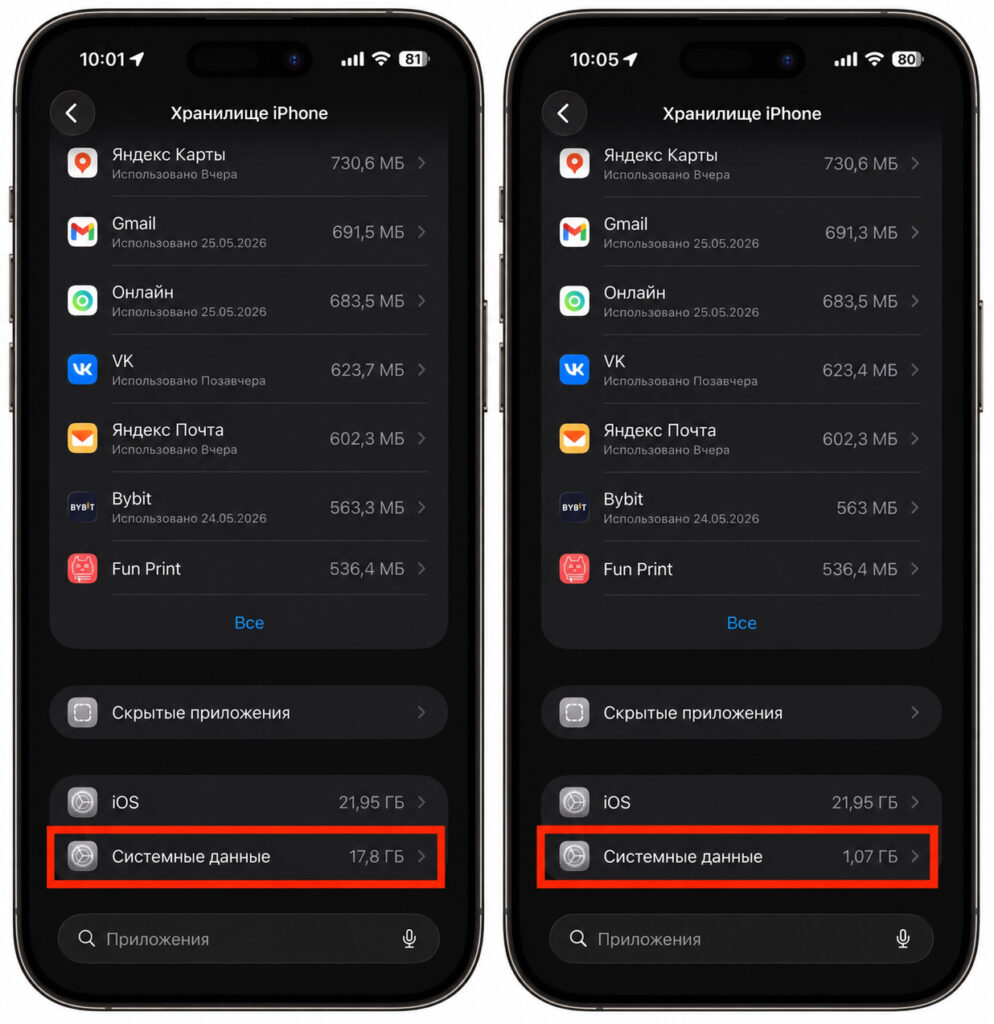
My result. Awesome
But there’s a catch. The method doesn’t work equally well for everyone. Some manage to free up 10 GB, while others — just a couple hundred megabytes. It depends on how much system cache has accumulated on your specific device. The longer you’ve been using your iPhone without restarts or resets, the more temporary files have had time to pile up — and the more noticeable the effect will be. So don’t be surprised if you also start with 17 gigabytes but only get 8–10 free.
How to Reduce System Data on iPhone Through Settings
Before you begin, check the current volume of system data. Go to Settings — General — iPhone Storage and scroll down to the “System Data” section. Remember or write down the number — you’ll compare it with the result later.
Now let’s start the cleanup:
- Open the Control Center (swipe down from the upper right corner of the screen) and turn on Airplane Mode. This is needed so that the iPhone doesn’t sync with iCloud and other services during the procedure.
- Go to Settings — General — Date & Time. Turn off the “Set Automatically” toggle and set the date manually — one year ahead from the current date. For example, if it’s currently May 2026, set it to May 2027.
- Return to the home screen and wait exactly 2 minutes. Don’t open any apps, don’t lock the screen. Just leave the phone alone — the system needs to process the outdated caches.
- Go back to Settings — General — Date & Time and set the date back. Turn on the “Set Automatically” toggle so the iPhone pulls the correct time on its own.
- Turn off Airplane Mode and restart your iPhone. To do this, press and hold the side button and one of the volume buttons, then slide the “Power Off” slider.
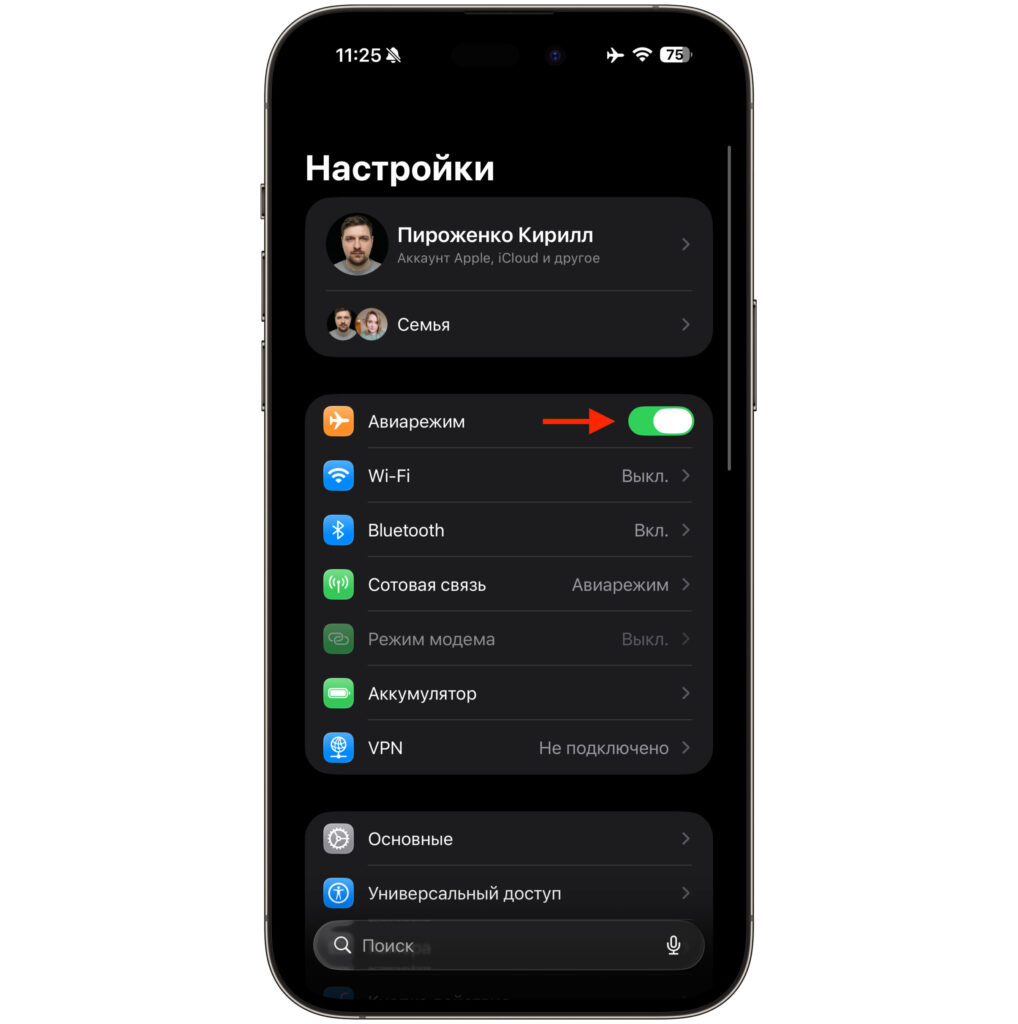
First, turn on Airplane Mode
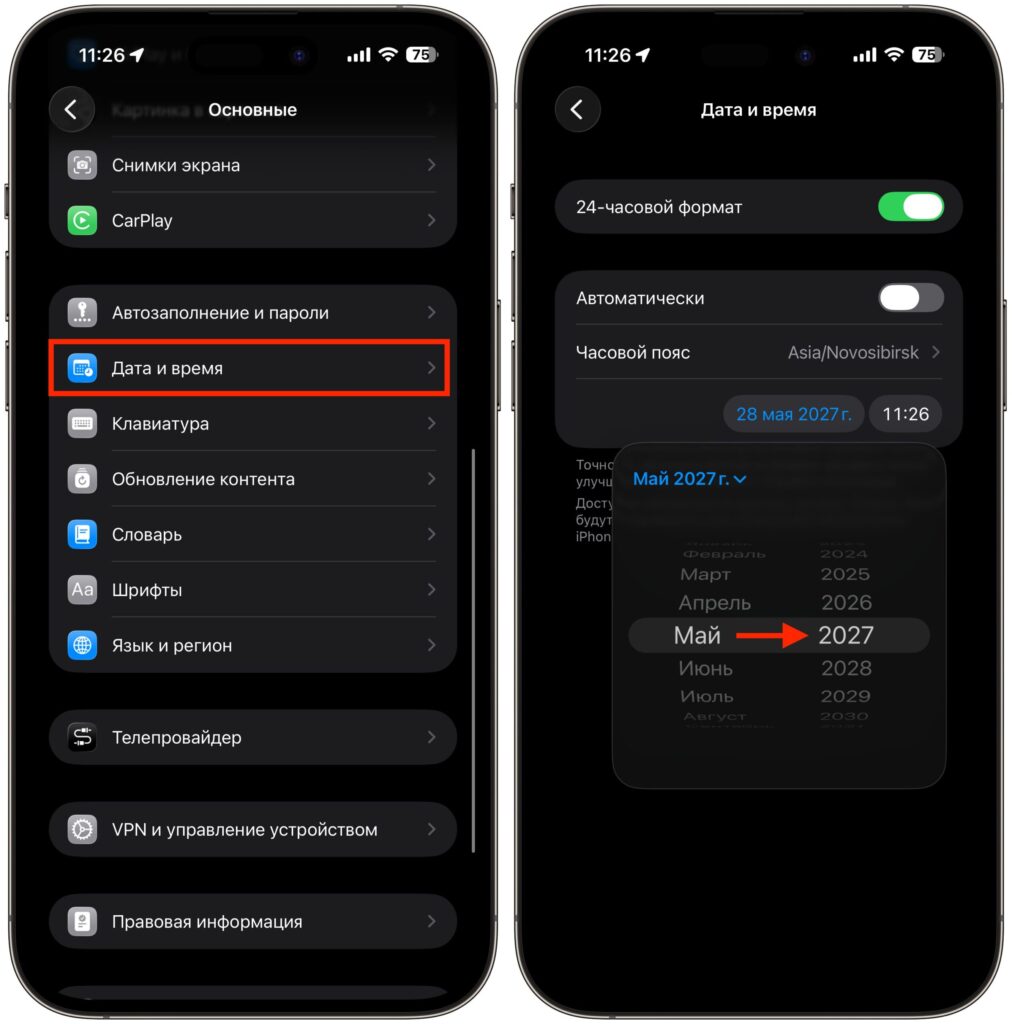
Set the date one year ahead
After restarting, go to Settings — General — iPhone Storage and check the result. If the number hasn’t changed right away, close Settings and open them again — sometimes the statistics need a couple of seconds to update.
What Could Break After Changing the Date on iPhone
The date-forwarding method helps many people, but you should know about possible side effects. The most common one is a glitch in Screen Time statistics. After traveling to the future and back, the feature may show incorrect data: wrong app usage times, strange dates of last sessions. In most cases, this can be fixed by resetting Screen Time settings, but sometimes you have to wait a few days for the statistics to return to normal on their own.
Also, some apps may display dates incorrectly — for example, messengers might show that the last message arrived “in a year.” This is usually fixed after returning the date and restarting, but it’s worth knowing about.
What definitely won’t be affected are your photos, contacts, notes, app data, and everything else. The method only touches temporary files that iOS would have deleted on its own sooner or later. You’re simply speeding up this process.
Additional Ways to Clear Cache and Memory on iPhone
If after forwarding the date the system data decreased only slightly or didn’t change at all, try a few additional steps. Each of them helps reduce the cache volume that iOS categorizes as “System Data”:
- Open Settings — Safari — “Clear History and Website Data”. Browser cache is one of the main sources of system data, and it can take up several gigabytes, especially if you haven’t cleared it in a while.
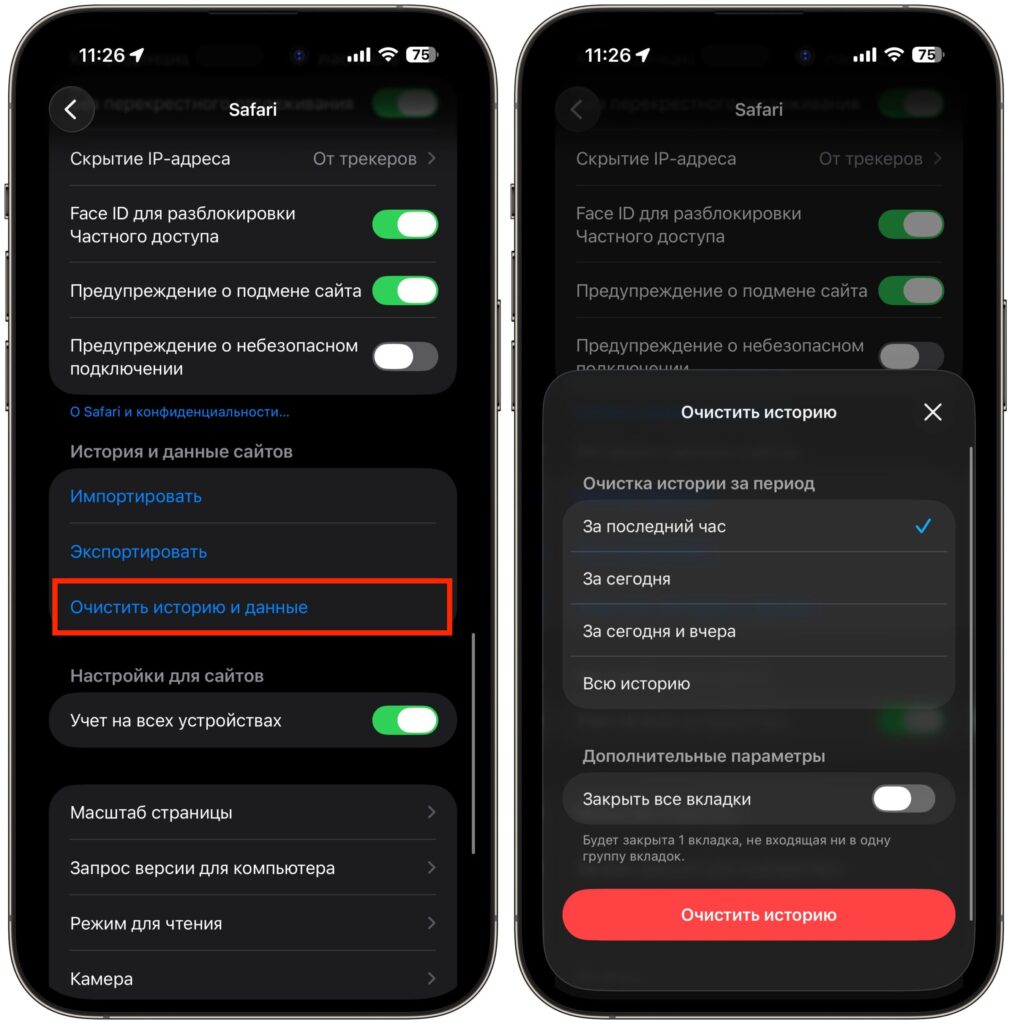
Safari cache fills up like crazy