You enter your Mac password a hundred times a day — opened the lid, woke up after lunch, stepped away for coffee. And yet, you already have a key on your wrist that does all of this for you. Apple Watch can unlock your Mac automatically: you walk up to your computer, lift the lid — and you’re already on the desktop. No touching, no typing, no Touch ID.
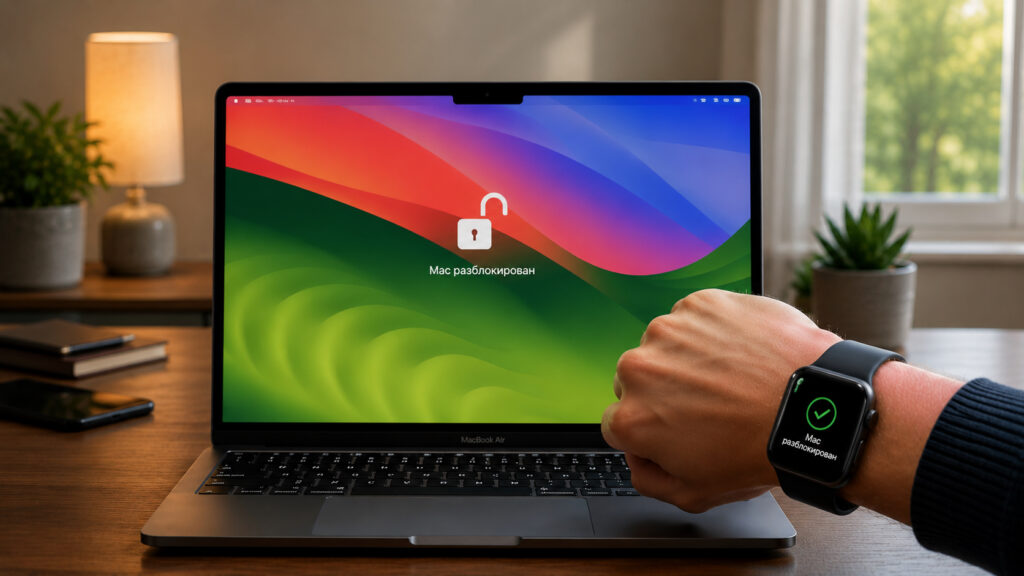
Unlocking Mac with a watch is much faster than reaching for Touch ID
This feature isn’t new. Apple introduced it back in macOS Sierra in 2016 and called it Auto Unlock. Since then, it has carried over from version to version, gaining minor improvements and quietly living on in the current macOS Tahoe. It works silently and seamlessly — exactly the way a convenient feature should work. The main thing is to set it up once.
What You Need for Apple Watch to Unlock Your Mac
Before diving into settings, make sure both devices are ready. There aren’t many requirements, but without them, nothing will work.
First and most important — both devices must be signed in with the same Apple ID. On both the Mac and Apple Watch, you must be logged in with the same account. Second — two-factor authentication must be enabled. Without it, the feature simply won’t appear in settings. Third — Wi-Fi and Bluetooth must be active on both the Mac and Apple Watch, because that’s how the watch and computer communicate.
Next — about the watch itself. Your Apple Watch must have a passcode set: without it, Auto Unlock won’t activate. And the watch needs to be on your wrist — once removed from the wrist, it stops being a key and locks automatically.
As for hardware requirements, they’ve long been minimal. Almost any Mac from mid-2013 or newer and Apple Watch running watchOS 3 or later will work. If you’re reading this on devices from recent years — you don’t even need to check, everything is supported. If in doubt — hold the Option key and open the Apple menu — “System Information,” where you can see whether your Mac supports auto-unlock.
How to Enable Mac Unlock with Apple Watch
The setup itself takes half a minute. All actions are done on the Mac side — you won’t need to touch the watch.
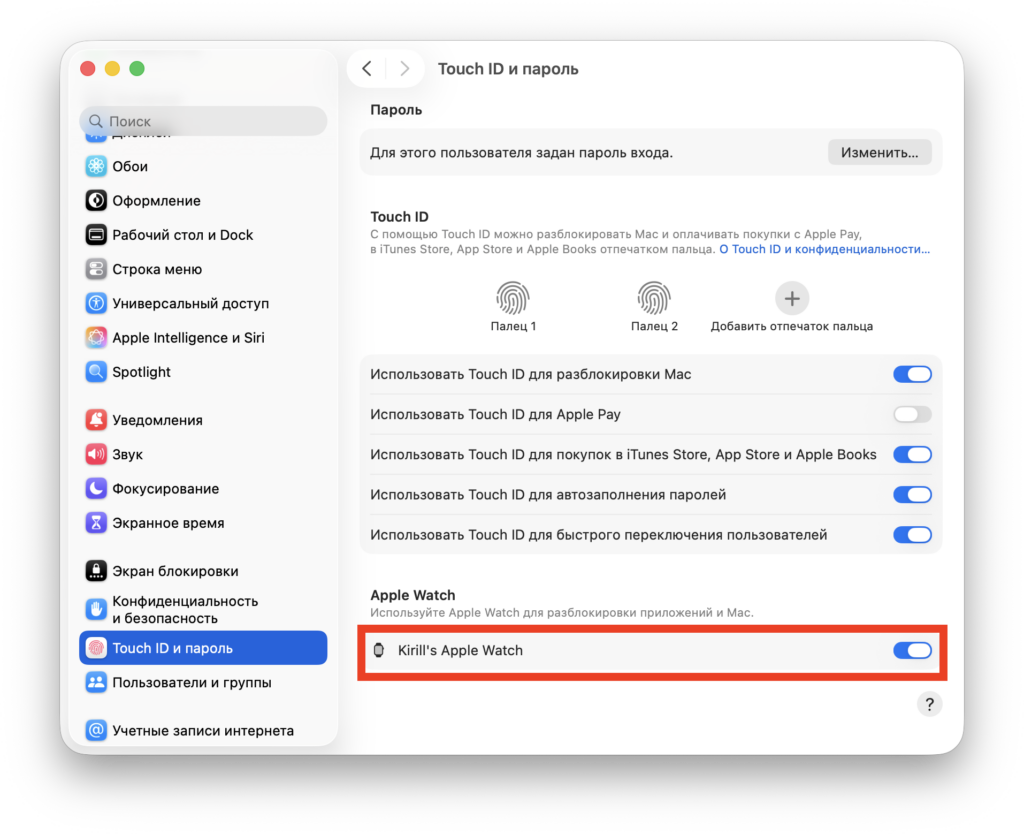
To enable it, you need to activate one toggle
- Open the Apple menu — “System Settings.”
- In the sidebar, find the “Touch ID & Password” section — you may need to scroll down a bit. On models without Touch ID, the option may be called “Login Password” — the concept is the same.
- On the right side of the window, enable the toggle “Use Apple Watch to unlock apps and your Mac.”
- Enter your Mac password — this confirms that you really want to give the watch these permissions.

Mac will notify you that it’s being unlocked by the watch
That’s it. After this, lock your computer, put on your watch, and wake the Mac — press a key or lift the lid. On the screen, a message saying “Unlocking with Apple Watch” will briefly appear, and then you’ll be on the desktop. The watch will receive a notification that it was just used to sign in.
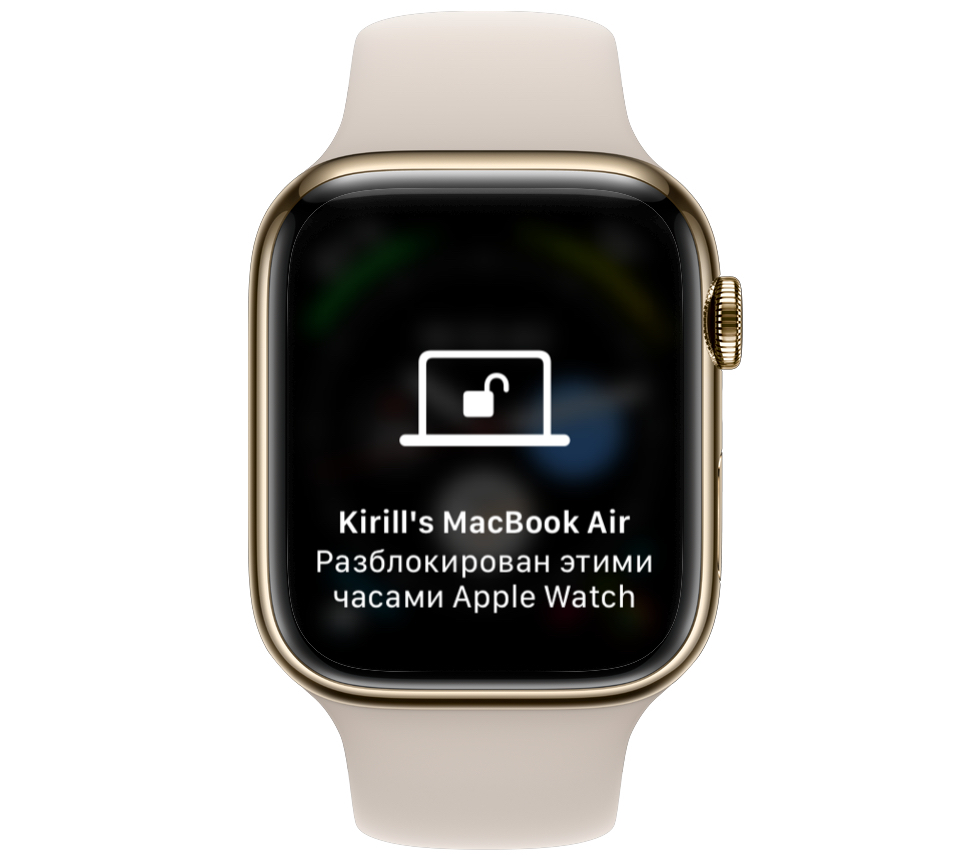
And this notification will appear on the watch itself
A small note: after restarting your Mac, the first login will require a password. This isn’t a bug but a security measure — the system wants to make sure it’s really you at the computer. After that, everything will work automatically until the next restart.
Confirming Actions on Mac via Apple Watch
Auto-unlock is only half the story. The same watch can confirm administrator password requests, and this is arguably even more convenient than daily login.
A familiar situation: you’re installing an app, accessing protected settings, or want to view a saved password in Safari — and macOS asks you to enter your account password. Instead of typing, simply double-press the side button on your Apple Watch. The password will be filled in automatically.
This works everywhere the system asks for an administrator password: installing software, changing system settings, viewing the keychain. It’s a small thing, but it saves dozens of keystrokes a day. Personally, it was this exact scenario that made me enable the feature in the first place — and only later did I come to appreciate the auto-login.
Mac Unlock via Apple Watch Not Working: How to Fix
Sometimes Auto Unlock starts acting up — this has been especially noticeable after major updates like the transition to macOS Tahoe. The good news: almost everything can be fixed with a couple of simple steps.

Make sure to check that the watch is unlocked
First, restart both devices simultaneously. This method worked for me, so I can confidently recommend it. If that didn’t help, turn the toggle off and back on in the “Touch ID & Password” section. This resets the connection between the devices and helps in most cases. If that didn’t work either — restart your Mac and re-enable the feature.
If none of that worked, check the obvious: Wi-Fi and Bluetooth are on, the watch is on your wrist and unlocked, and both devices are on the same Apple Account. Also, install the latest versions of macOS and watchOS — often an update is exactly what fixes the issue. Another working tip from users: sign out of your account on both devices and sign back in simultaneously — this rebuilds the connection from scratch.
And remember: every 48 hours, macOS will still ask for a password, even with the feature enabled. Additionally, auto-unlock doesn’t work when screen sharing or internet sharing is active. This isn’t a malfunction but standard system behavior. Apple describes all the official details on their support page. In the end, the setup takes half a minute, but the benefit lasts every day. You flip one switch once — and forget about typing your password every time you wake your computer. If you already have Apple Watch and a Mac, not using this feature would be a missed opportunity.