If you accidentally deleted WhatsApp* from your iPhone or the app disappeared after a reinstallation, you can restore it in just a few minutes. It’s more complicated with conversations: you can only recover chats from an iCloud backup or with the help of the other person in the chat. Today we’re figuring out how to restore WhatsApp* on iPhone, what you need to recover messages, and in which cases old conversations can no longer be restored.
In most cases, WhatsApp* can be restored
What to Do If WhatsApp* Disappeared from iPhone
Before reinstalling the app, check what exactly disappeared — the messenger itself or just the icon from the home screen. On iPhone, the app may have moved to the App Library or ended up in a hidden folder.
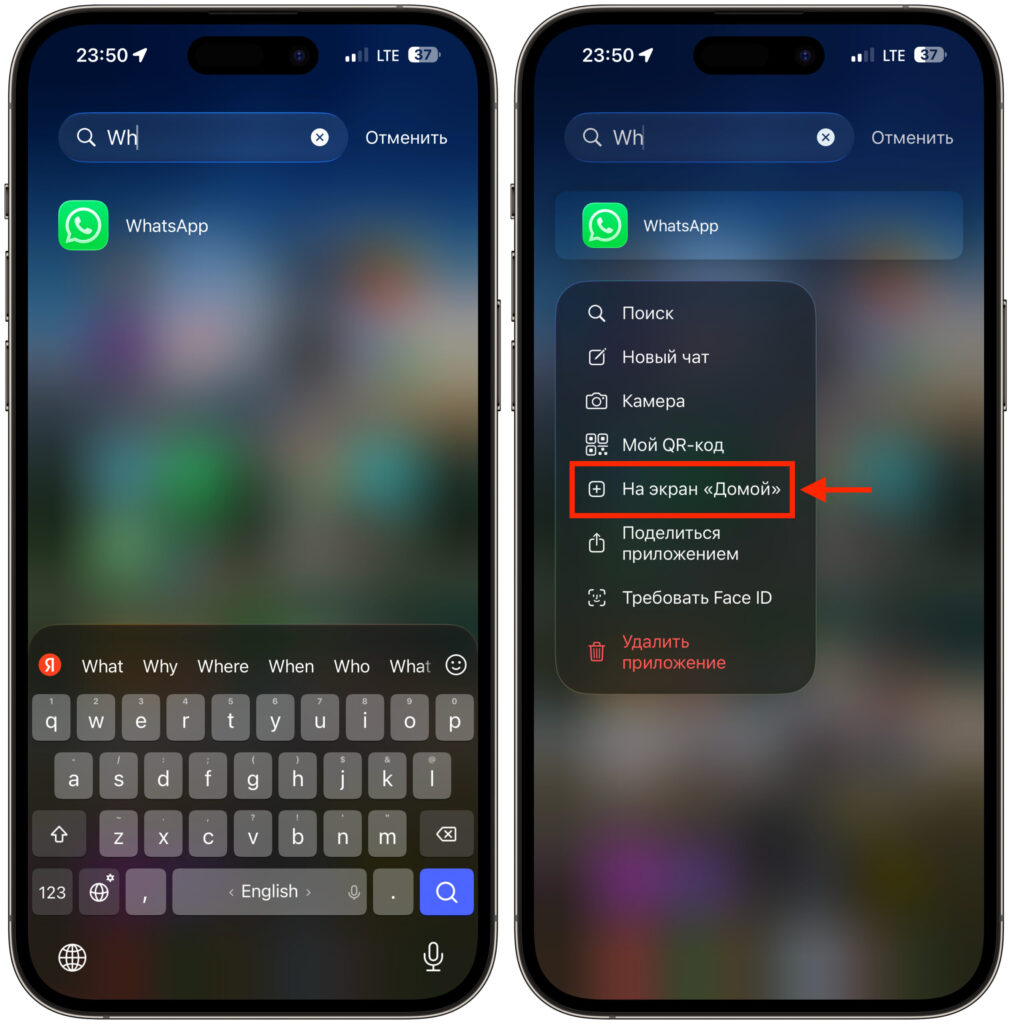
WhatsApp may be hiding in the App Library
- Swipe left on the home screen all the way to the end to open the App Library.
- Pull the screen down and type WhatsApp* in the search bar.
- Check folders on the home screen — the icon may have accidentally been moved into one of them.
- If the app is found, press and hold the icon and select “Add to Home Screen.”
If WhatsApp* has actually been deleted, install it again from the App Store:
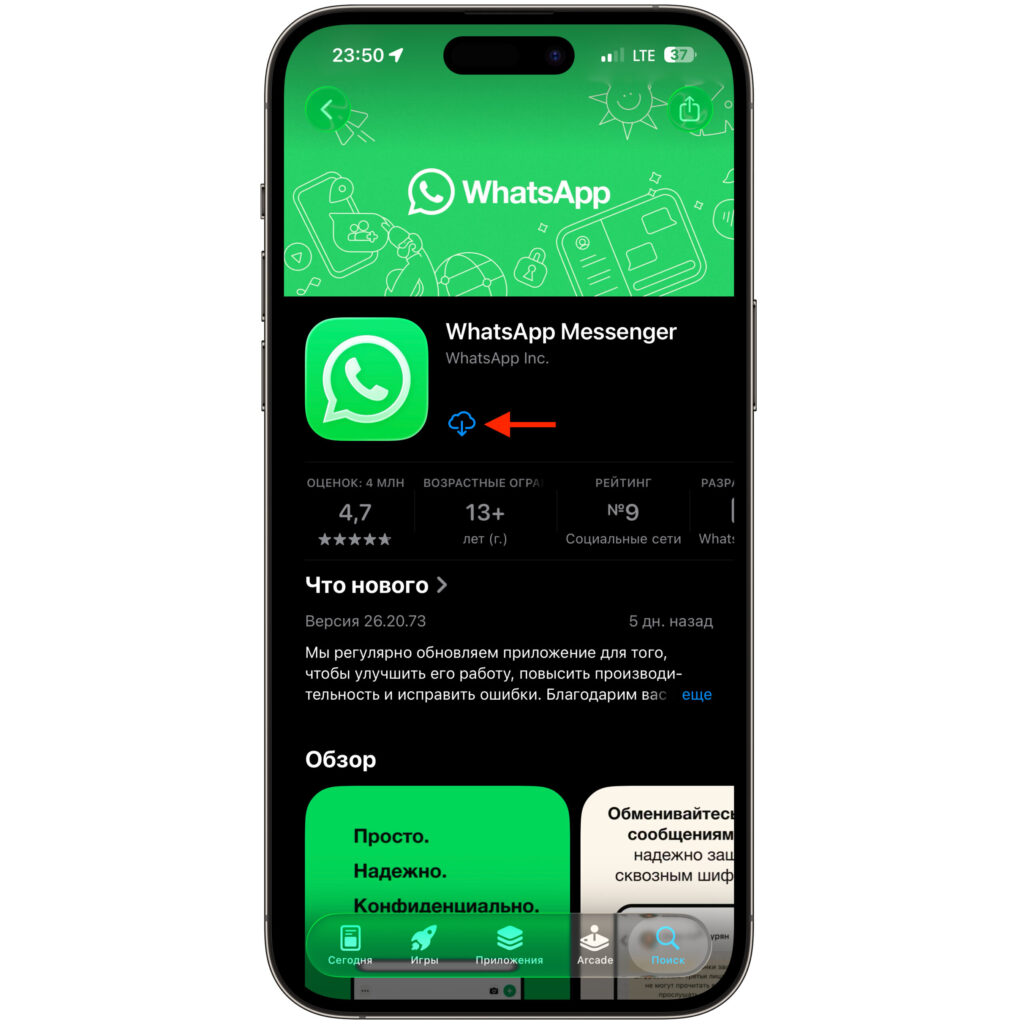
Reinstall the app
- Open the App Store and type WhatsApp* in the search.
- Tap the download button and wait for the installation.
- Open the app and enter the same phone number you used before.
- Confirm login with a code from SMS or a call. If you are logged into WhatsApp* on another device, the code may arrive there.
- When the app finds a backup in iCloud, tap “Restore Chat History.”
For restoration, it is critically important to use the same phone number and Apple ID. If you sign in with a different number, WhatsApp* will create a new profile, and old conversations won’t load. And if a different Apple ID is connected on the iPhone, the messenger simply won’t see the backup in the cloud.
In Russia, SMS and calls from WhatsApp* don’t always go through — carriers and regulators periodically restrict registration. The code may come not from an official account but from a regular number. Never share this code with anyone: scammers can use it. If the SMS doesn’t arrive, request a call — sometimes it’s enough for the phone to simply register the call; you don’t necessarily have to answer it.
Restoring Chats in WhatsApp* on iPhone from iCloud
You can restore chats only if you have a backup. WhatsApp* does not store conversations on its servers — on iPhone, all messages and media files are saved in iCloud, and without a backup, there’s nothing to restore them from.
Before installing, make sure iCloud is set up correctly:
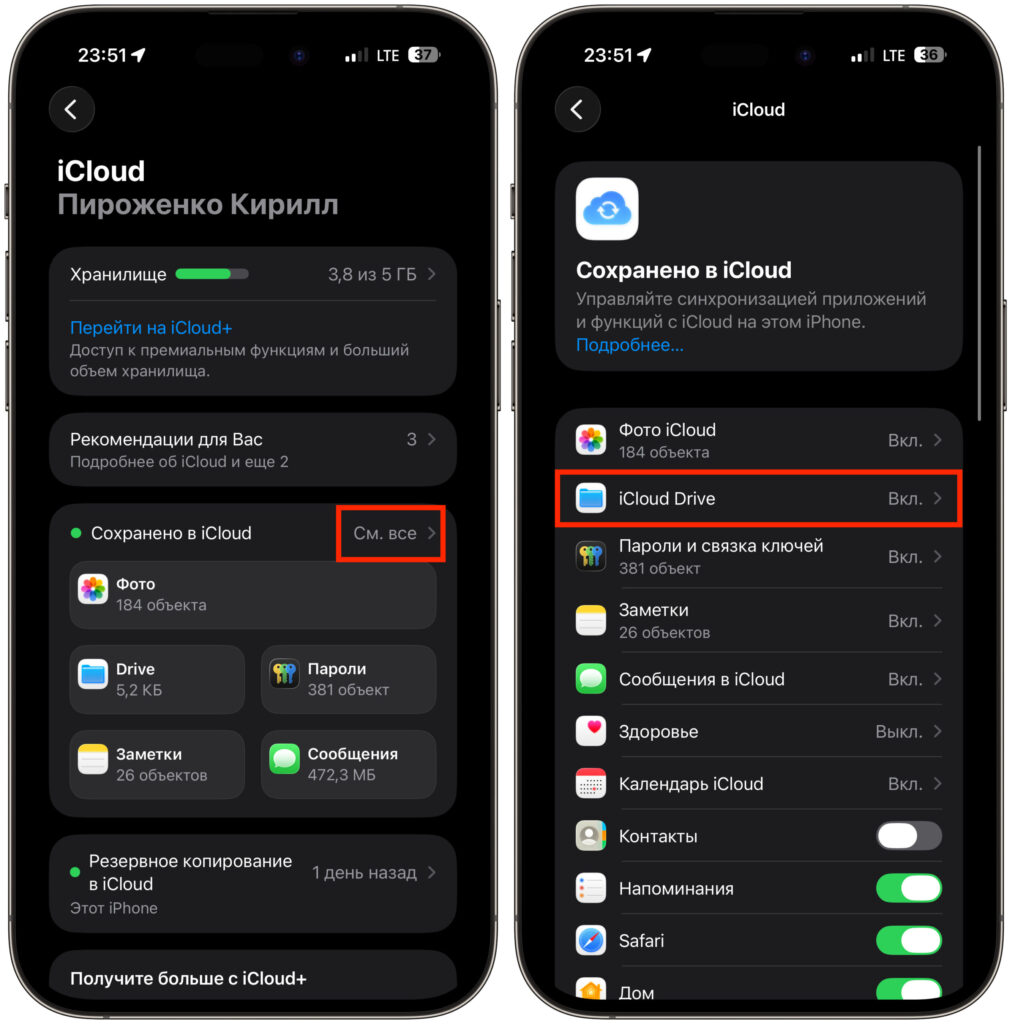
Make sure iCloud Drive is enabled
- Open “Settings” and tap your name at the top.
- Go to the iCloud section.
- Check that iCloud Drive is enabled — without it, WhatsApp* cannot see the archive.
- Make sure you are signed in with the same Apple ID as before.
After checking the settings, start the restoration:
- Install WhatsApp* from the App Store.
- Open the app and enter your previous phone number.
- Confirm login with a code.
- When prompted to restore chat history from iCloud, tap “Restore.”
- Wait for the download to finish and do not close the app.
Text messages usually appear first, while photos and videos take longer to load — especially if the archive is large. It’s important to remember: data is restored only up to the moment the backup was created. If the backup was made on Wednesday and you reinstall the app on Friday, conversations from those two days will most likely be lost. That’s why you should always create a fresh backup manually before deleting the app or switching devices.
Can You Recover a Deleted WhatsApp* Chat Without a Backup
Recovering deleted conversations on iPhone is possible under one condition: they must be saved in an iCloud backup or remain with the other person. If you deleted a chat and after that WhatsApp* created a new backup without it, the previous version cannot be recreated — the new backup overwrites the old one.
If there’s no backup, there’s one working method left — ask the other person to export the conversation. The old chat won’t appear inside your WhatsApp*, but you’ll receive the entire message history as a file.
What the other person needs to do:
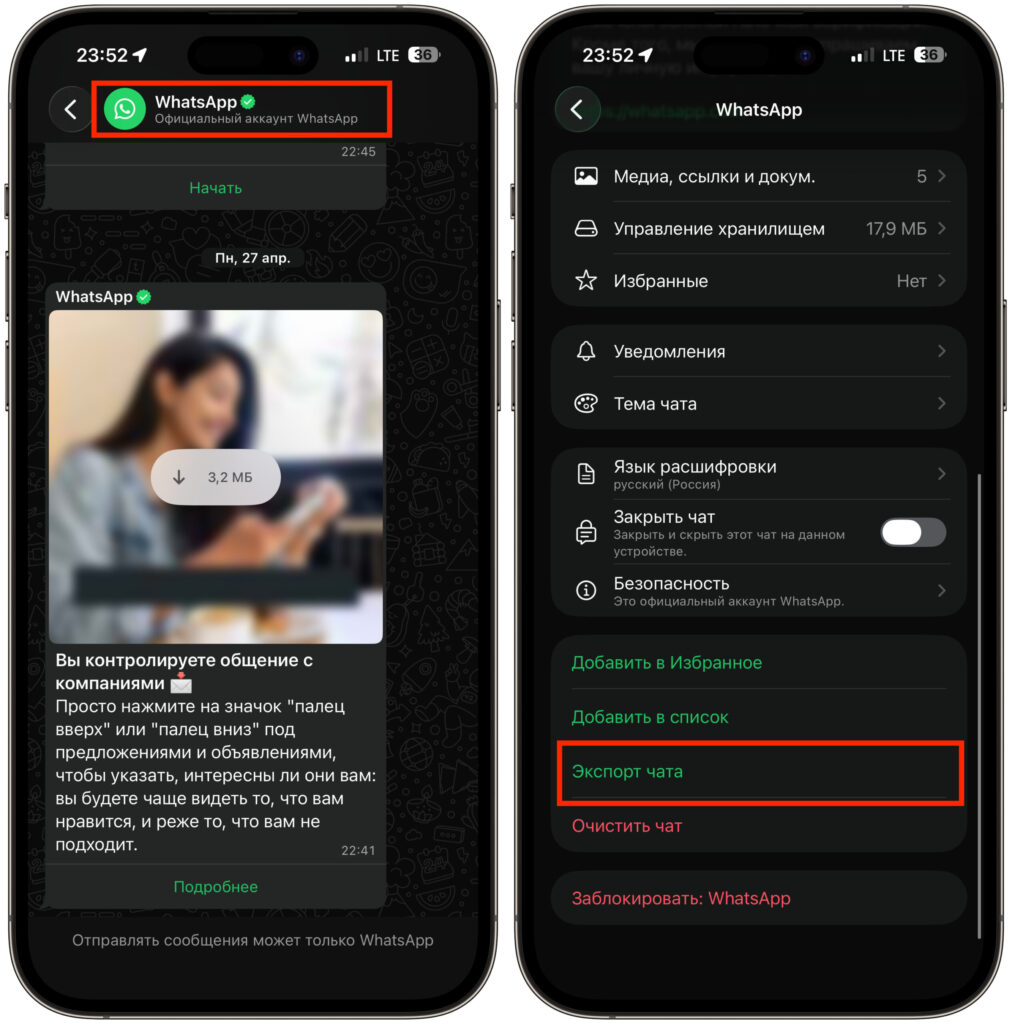
The conversation can be exported
- Open the desired chat.
- Tap the contact name or chat menu at the top.
- Scroll down to “Export Chat.”
- Choose the option with or without media files.
- Send the resulting archive to you via a convenient method — by email or through another messenger.
To prevent messages from being accidentally lost in the future, you can set up automatic deletion by timer for confidential conversations.
How to Manually Create a WhatsApp* Backup on iPhone
The best way to avoid losing your conversations is to create a backup in advance. On iPhone, this takes just a minute:
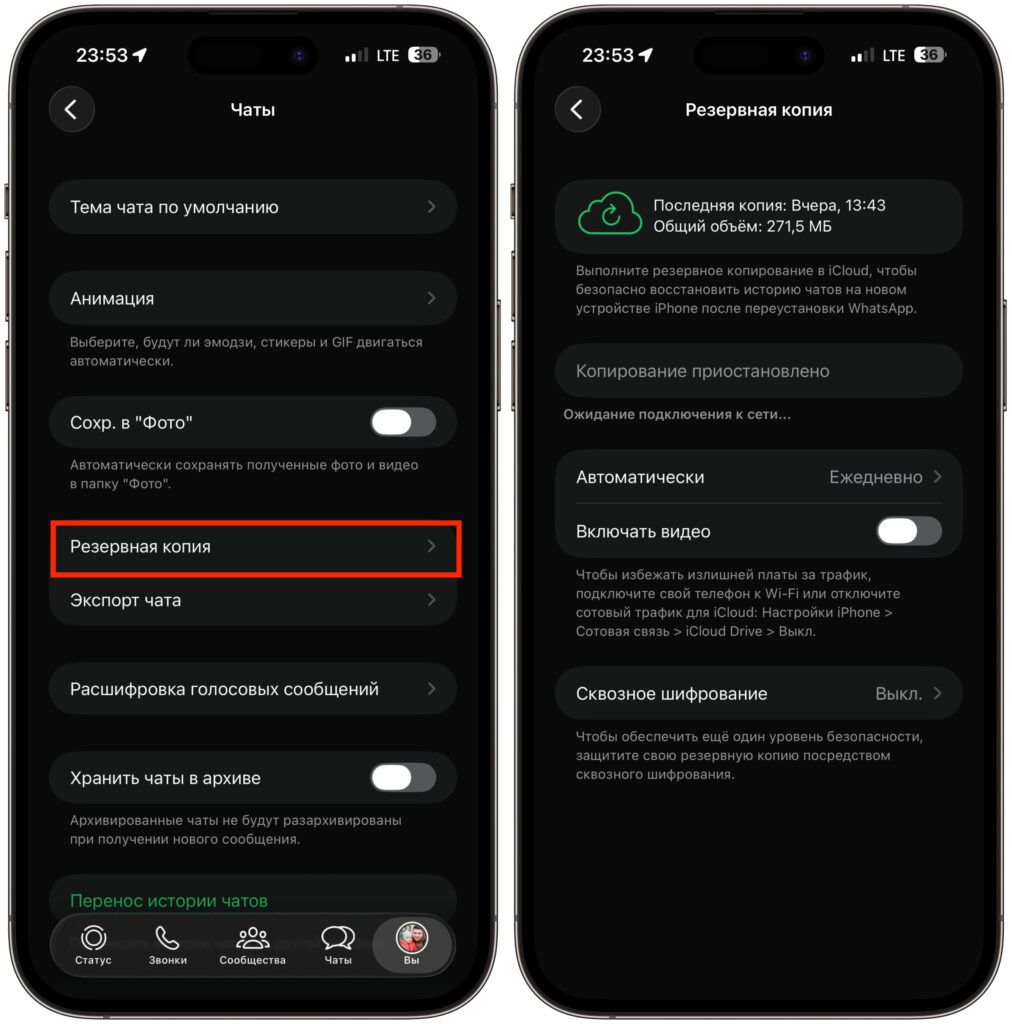
Don’t forget to create backups