Tonight, Apple will unveil iOS 27. And just a couple of hours after the presentation, the first developer beta will appear online. Anyone can install it — you no longer need to register for a paid program; you just need to check a box in settings. We’ve already covered all the new features in iOS 27 separately, and now let’s figure out something else. We don’t recommend rushing to install the beta. We’ll explain why and tell you what to do if you’re not willing to wait.
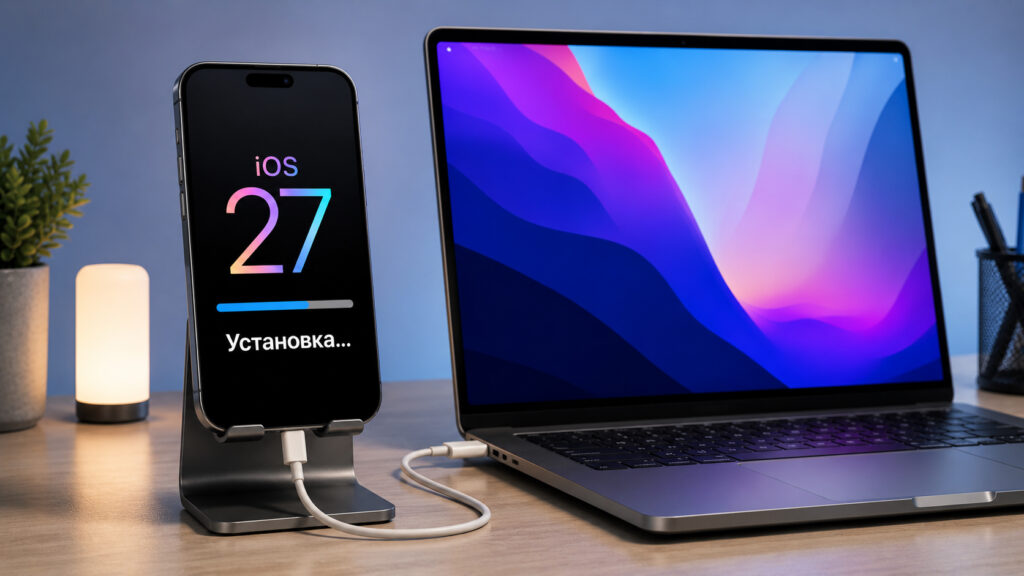
Only a few hours remain until the new OS presentation
Why You Shouldn’t Install Beta Versions of iOS on Your Main iPhone
The first developer beta is the rawest build of all that come out during the year. It’s not the final version, and not even the public beta that gets polished up a bit later. It’s an early build assembled literally for the presentation, and Apple releases it primarily for developers, not for regular users.
Here’s what to expect in practice. Some of the announced features simply don’t work — Apple enables them gradually in subsequent builds. Some of what was shown on stage you won’t see for another month or two. Stability leaves much to be desired: random reboots, interface freezes, rapid battery drain and device overheating even when idle. All of this is normal for a first beta, but it’s very annoying in daily life.
Additionally, unoptimized apps easily crash. Banking apps, government services, work tools, messengers — all of these may stop launching or work with errors until the developers release updates. And while some apps will get a patch within a few days, others will remain broken until the final release in the fall. And sanctioned apps won’t be updated at all.
Rolling back to iOS 26 is possible. But only to the version that Apple is signing at the time of the rollback. Once the company stops signing the old firmware, the way back disappears. And without a backup, you’ll lose some of your data during the rollback. So our advice is simple: it’s better to wait a couple of weeks. By the third or fourth beta, the system becomes noticeably more stable, and most apps have already updated for compatibility.
If you absolutely must install it — follow the instructions below strictly. First backup, then apps, and only then the firmware itself. You cannot skip steps, otherwise a rollback could result in data loss.
How to Create an iPhone Backup on Your Computer Before Updating
An iCloud backup won’t help here. A cloud backup is created for the current system version, and when rolling back from the beta to stable iOS, it simply won’t restore. For a rollback, you need a local backup on your computer — it restores everything, including app data and passwords. Here’s a step-by-step guide.
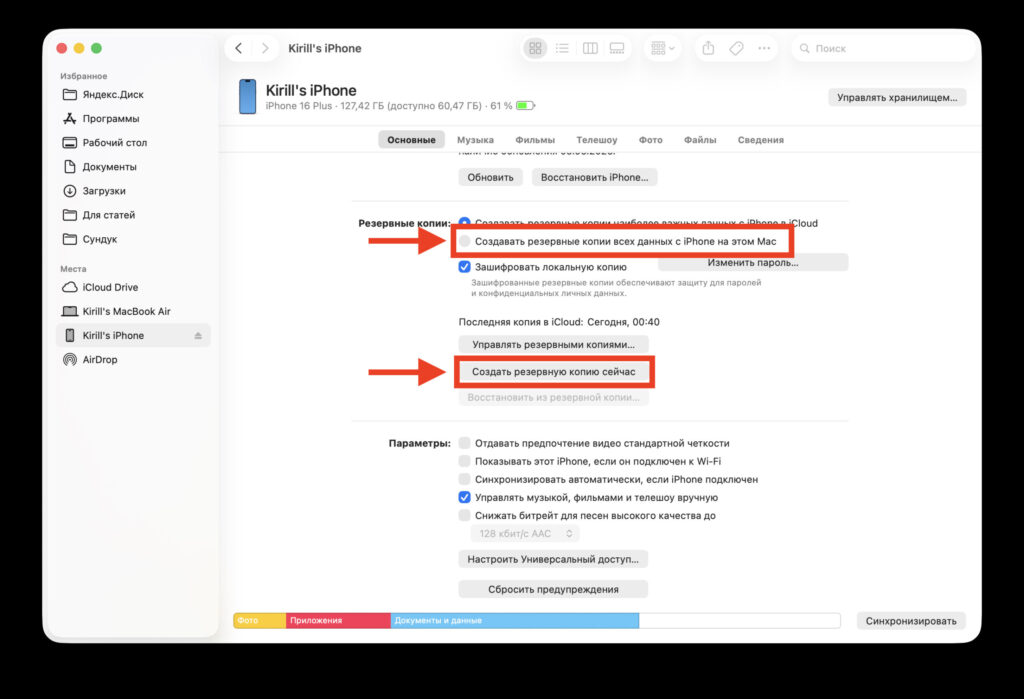
I recommend making a backup on your computer. It’ll be safer
- Connect your iPhone to your computer with a cable. On Mac, open Finder; on Windows, open the Apple Devices app, which replaced iTunes.
- In the sidebar, select your iPhone. If the device asks for a passcode or confirmation to “Trust This Computer” — agree.
- In the backup section, select “This Computer” instead of iCloud.
- Be sure to check “Encrypt local backup” and set a password. Without encryption, passwords, Health data, and app history won’t be saved.
- Click “Back Up Now” and wait for it to finish. For large amounts of data, this takes 20–40 minutes.
- When the backup is ready, duplicate it to a safe location just in case.
Memorize the encryption password firmly. Without it, restoring the backup won’t be possible — Apple won’t reset or hint at it. Save the password in a password manager or at least on a piece of paper you won’t lose. And don’t delete the backup from your computer until you’re absolutely sure that iOS 27 works for you.
How to Save Apps Removed from the App Store on Your iPhone
This is where things get especially important for those living in Russia. Many apps in the Russian App Store are no longer available — banking clients, certain services, apps from companies that have left. After installing the beta and subsequently rolling back, you won’t be able to get them back easily: there’s nowhere to re-download them, and they don’t always restore correctly from a regular backup. The iMazing app saves the day — it can extract app installation files directly from your iPhone and store them on your computer as .ipa files.
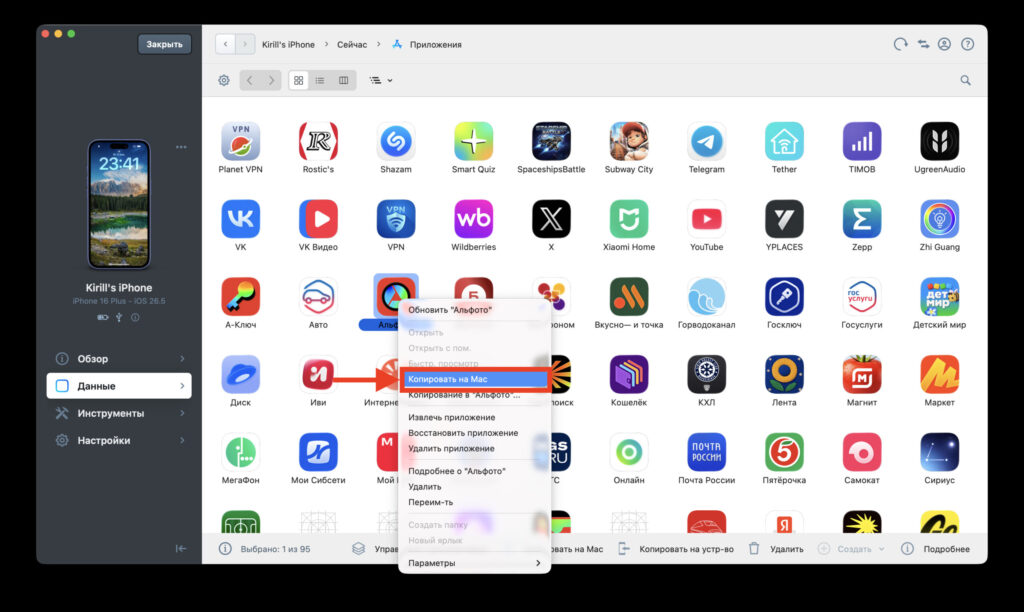
Save installation files for all the apps you need
- Download and install iMazing from the official website on Mac or Windows. There’s a free trial period, which is enough for our task.
- Connect your iPhone with a cable and wait for the program to detect the device and read the list of installed apps.
- Go to the “Apps” section and open the library tab.
- Find the apps you need — primarily those that are no longer in the App Store. Select them; you can select multiple at once.
- Right-click and choose “Copy to Mac” and specify a folder on your computer to save the files.
- Wait for the export to finish. After a rollback, these same .ipa files can be restored to your iPhone using the reverse operation in iMazing.
Tip: save not only rare apps but everything that’s important to you personally. A few extra gigabytes on your drive cost less than the stress of recovery. Also, make sure you have the logins and passwords for important services handy — after reinstalling, apps will ask you to log in again.
What to Check Before Installing the iOS Beta
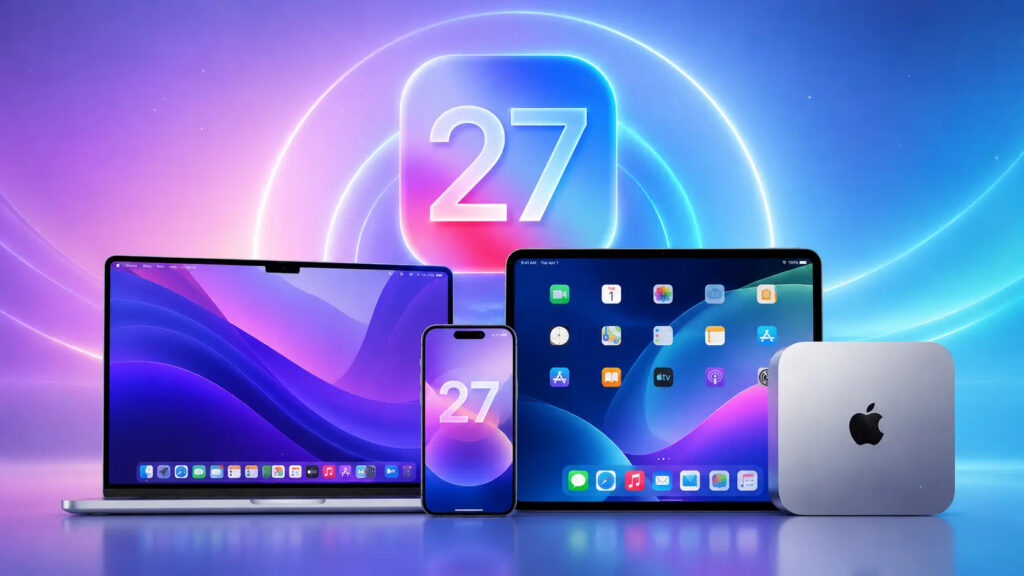
I still recommend thinking carefully and not updating to iOS 27 at least until the public beta
The first iOS 27 beta is about curiosity, not daily use. You shouldn’t install it today on your main iPhone — the one you use for payments, messaging, and work. The ideal option is a separate device you don’t mind risking: an old iPhone sitting in a desk drawer would be perfect.
But if you’ve decided to go ahead on your main device — do two things in advance. Create an encrypted backup on your computer and export apps via iMazing. This is your only way to return to a working state if something goes wrong. And something almost always goes wrong on the first beta — it’s better to be fully prepared than to regret lost data later.