In iOS 26, Apple added the Spatial Scene feature — volumetric wallpapers that react to the tilt of your iPhone. When you pick up the phone and slightly rotate it, the foreground and background of the photo shift independently of each other. The result is a depth effect similar to peering inside a picture. And it works with practically any photo from your camera roll.
Create your own 3D wallpapers and personalize your iPhone
What Are Spatial Scenes on iPhone and How the Depth Effect Works
Apple describes this feature briefly: Spatial Scenes add a 3D effect to wallpapers, bringing them to life as you move your iPhone. Essentially, the system uses AI to analyze a photo, separates objects in the foreground from the background, and then creates an illusion of depth between them.
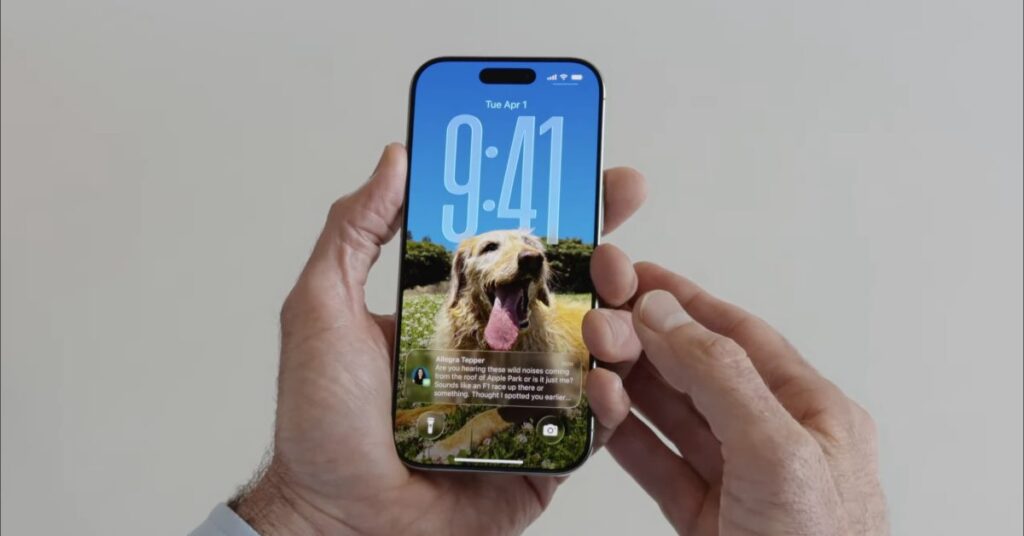
The clearer the foreground object, the cooler the 3D effect will be
The feature turns ordinary photos into dynamic three-dimensional images that respond to your movements. It doesn’t require Apple Intelligence to work — meaning Spatial Scenes is available on iPhone 12 and all newer models. No special subscriptions or additional settings are required either.
The effect is similar to the parallax wallpapers Apple experimented with several years ago, but now it’s more accurate and based on machine learning rather than simple layer shifting.
3D Wallpapers on iPhone Lock Screen: How to Enable
Setting up volumetric wallpapers can be done in two ways: choose one of Apple’s ready-made options or turn your own photo into a 3D scene. Ready-made options are located in the Spatial Scenes section when creating new wallpapers — just tap on the one you like, and the effect turns on automatically.
If you want to use your own photo, here’s what to do:
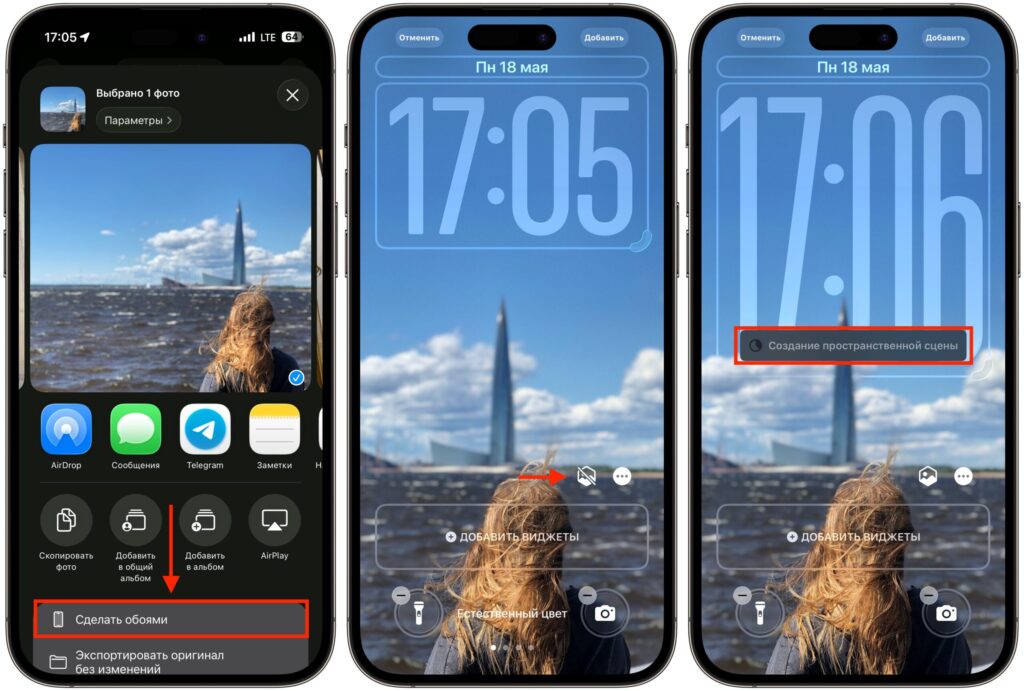
A few taps and the 3D wallpaper is ready
- Open the Photos app on your iPhone
- Find the desired photo in your library
- Tap the Share button
- In the dropdown menu, tap “Set as Wallpaper”
- Tap the hexagon icon in the lower right corner of the screen
- Wait for the Spatial Scene to generate and check the effect by tilting your iPhone from side to side
- Tap “Add” to save the wallpaper
There’s also an alternative way: you can open the Wallpaper section in Settings and set new wallpapers from there. The result will be the same.
Photos That Work Best for 3D Wallpapers on iPhone
Not every photo will look equally good. The best results come from photos with a clear foreground object and noticeable separation from the background — portraits, photos of animals, buildings, and landscapes.
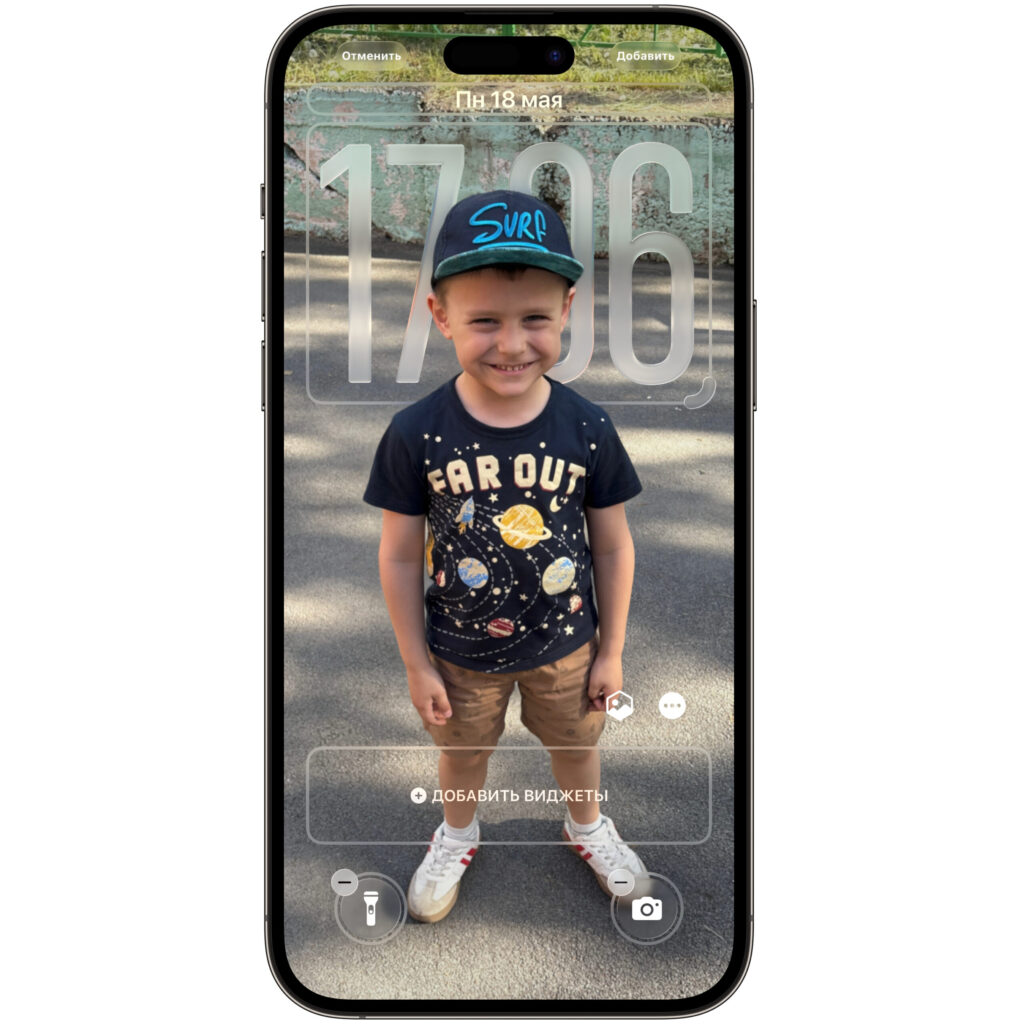
Spatial Scenes pair perfectly with photos that have a clear foreground object like this one
Choose high-resolution photos where the main subject is sharp and clear. Photos with busy backgrounds, heavy filters, or excessive editing can confuse the system, resulting in a less convincing effect.
A separate nuance with the lock screen: the main subject of the photo should be positioned low enough in the frame so it doesn’t get covered by the clock. Landscapes and cityscapes work better than portraits in this regard. Also, if your photos are stored in iCloud with optimized storage enabled, download the full version of the file first, otherwise the effect may not work.
Where to Enable Volumetric Photos in iOS 26 Beyond the Lock Screen
The same 3D effect is built into the Photos app — you can turn any photo into a volumetric scene right in your library without setting it as wallpaper. The original image remains unchanged.
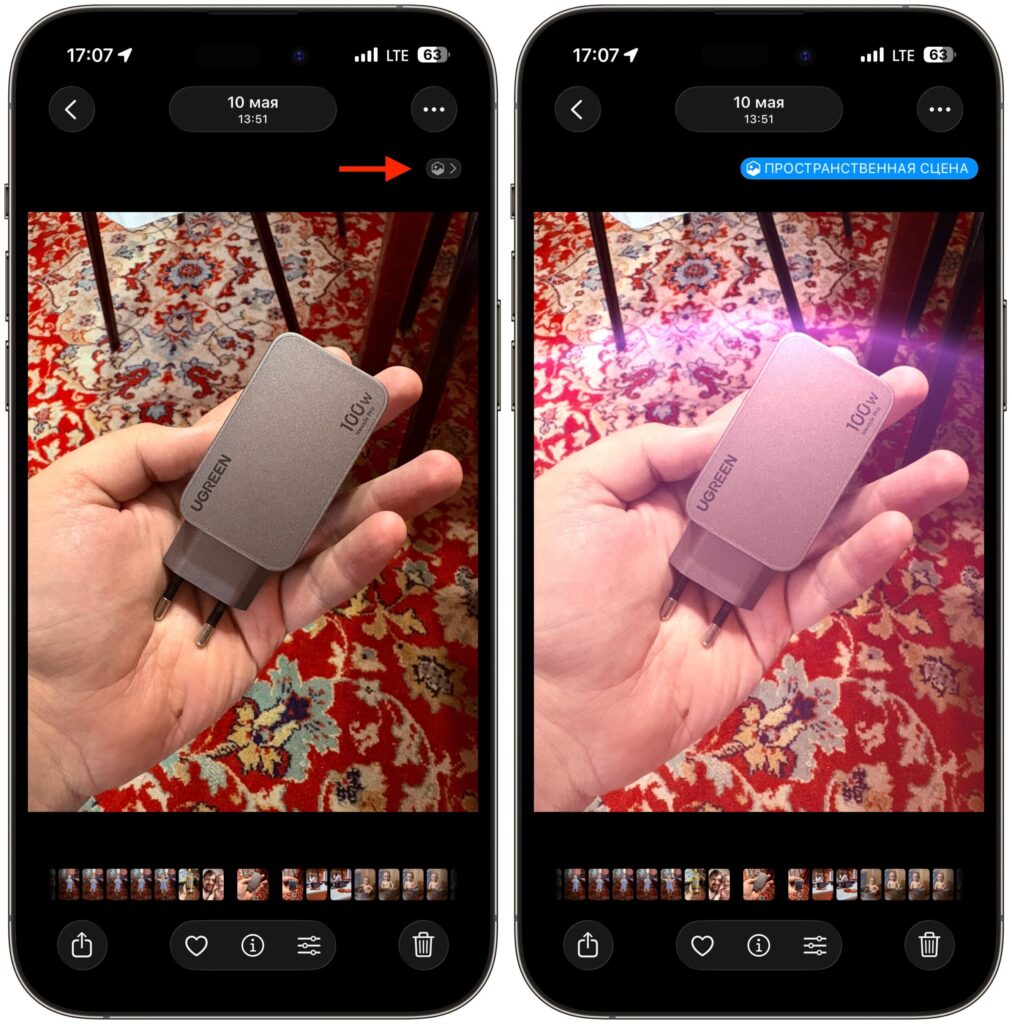
Spatial Scene can also be enabled in the gallery
The Photos widget on the home screen also supports the Spatial Scenes mode. To activate it, long-press on the home screen, edit the widget, and enable the “Spatial Scene Effect” option. However, you can’t choose a specific photo for the widget — the system shows memories and collections selected by iOS itself.
Keep in mind that the effect works fully on the lock screen, while the home screen remains static unless you set up a separate wallpaper pair. So the maximum impact from volumetric wallpapers comes on the lock screen.
iPhones That Support 3D Wallpapers in iOS 26
Spatial Scenes aren’t a mandatory feature or a revolution. But if you enjoy customizing the look of your iPhone and haven’t changed your wallpaper in a while, this is a good reason to refresh your lock screen. The effect is subtle but pleasant: every time you pick up your phone, the picture comes slightly alive.
The main limitation is compatibility. The feature works on iPhone 12 and newer, and iOS 26 itself requires at least an iPhone 11 with the A13 chip. If you have an iPhone 12 or newer — just go to wallpaper settings and give it a try. It’s free, takes a couple of minutes, and can easily be turned off by tapping the same hexagon icon.


