If you’ve lost an item with an attached AirTag or another tracker from the Find My network, put it in Lost Mode — this is the most reliable way to give the finder an opportunity to contact you. In this guide, we’ll cover how to enable Lost Mode on AirTag and third-party trackers, what a person who finds your accessory will see, and how to change contact details or disable the mode when the item has been found.
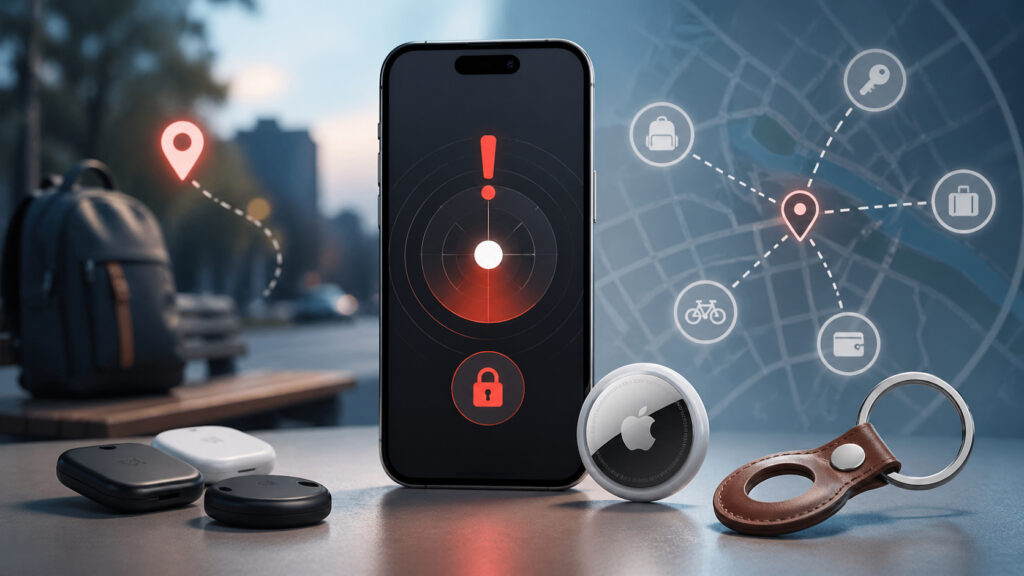
Always enable this mode on AirTag when it’s lost
What Is AirTag Lost Mode and How It Helps Return Your Item
Lost Mode is a special mode in which the tracker starts “reporting” that the item is lost. When an AirTag in Lost Mode comes near any iPhone, iPad, or Mac in the world, its location is anonymously transmitted to you through the Find My network, and your contact details appear on the linked page.
The main benefit of Lost Mode is the ability to display a phone number or email for the finder. Without activating Lost Mode, an honest person simply won’t know who to return the find to, even if they have an iPhone or an Android smartphone with NFC.
It’s important to distinguish between two concepts: Lost Mode for iPhone or Mac locks the device and shows a message on the screen, while Lost Mode for AirTag and trackers simply attaches contact information to it that the finder will see when scanning.
How to Enable Lost Mode on AirTag Through the Find My App
You can activate Lost Mode from any Apple device where you’re signed in to your Apple Account and where the Find My app is running. The steps are the same for AirTag and for third-party trackers added to the Find My network.
Step-by-step instructions:
- Open the Find My app on iPhone, iPad, or Mac.
- Go to the “Items” tab and select the tracker — the lost AirTag or third-party accessory from the list.
- Scroll down and tap “Show Contact Info” in the “Lost AirTag” section.
- Read the information about how the mode works and tap “Continue.”
- Enter the phone number where the finder can reach you. If you don’t want to share your mobile number, select the “Use email address” option and enter your email.
- Make sure the “Notify When Found” toggle is enabled — this is needed so you receive a push notification when the AirTag comes within range of other people’s Apple devices and transmits its coordinates.
- Verify that the contact details are correct and tap “Show Information.”
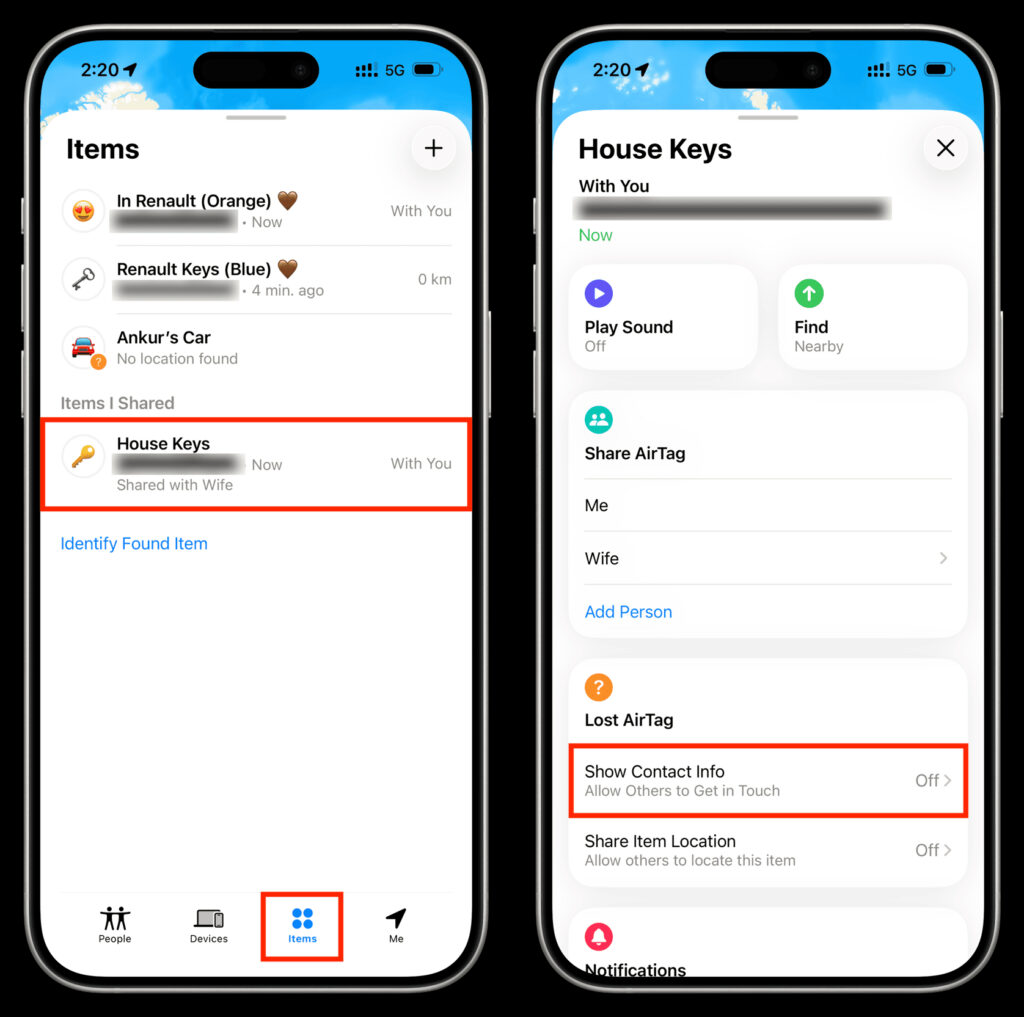
Create a contact for feedback
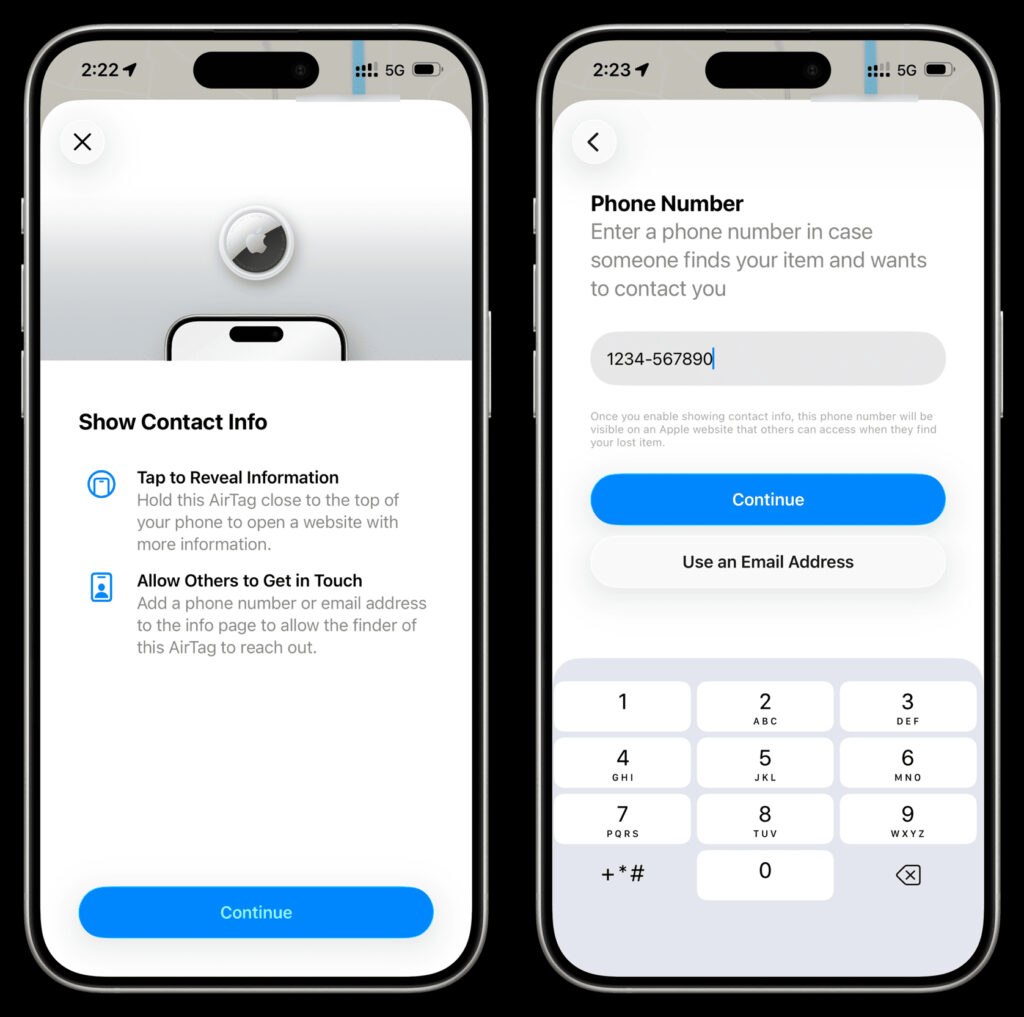
Add your number
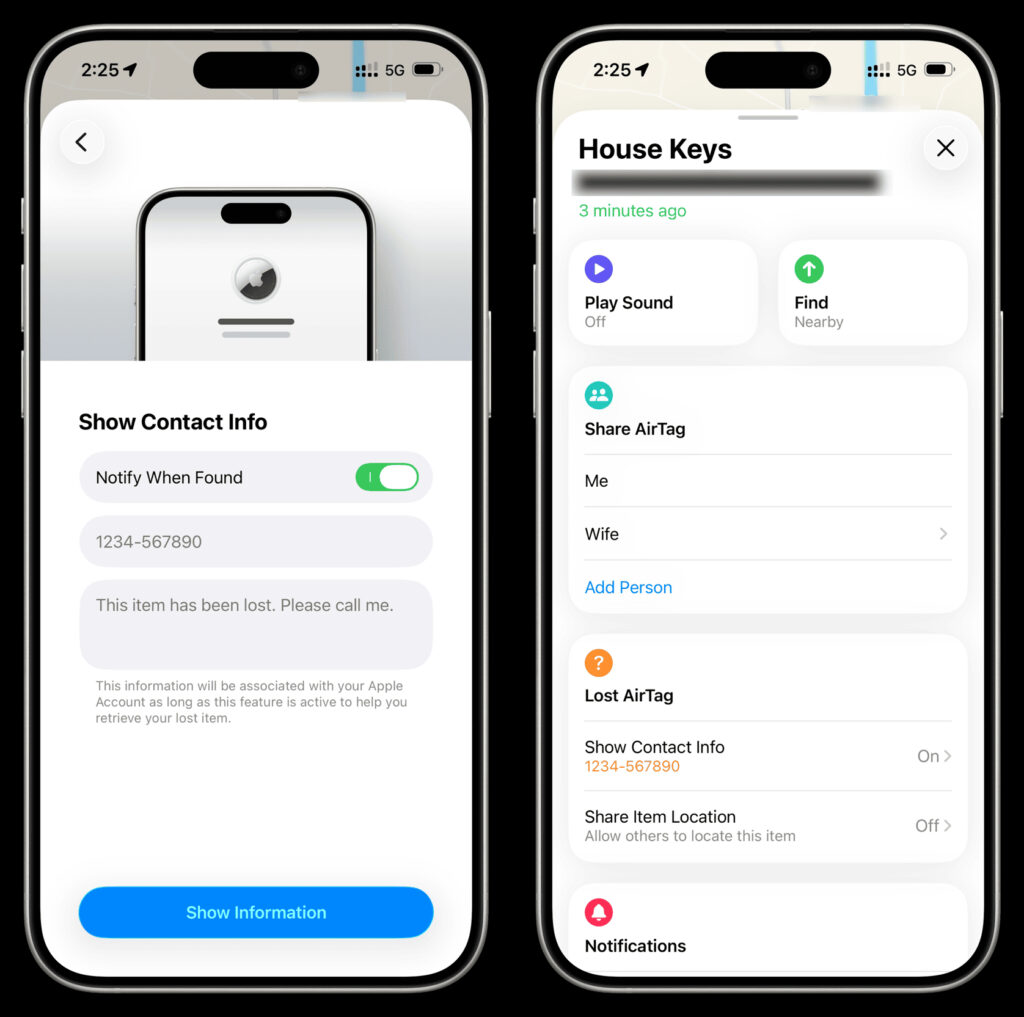
The contact will be linked to your AirTag
After this, Lost Mode will be activated. Unlike iPhone, for AirTag you cannot write a custom message — Apple uses a standard text asking the finder to get in touch using the provided contact details.
How to Find the AirTag Owner via NFC on iPhone and Android
When someone finds a tracker and wants to return it to the owner, they need to hold the top part of their smartphone against the white side of the AirTag. This works on any iPhone and on any Android smartphone with NFC support.
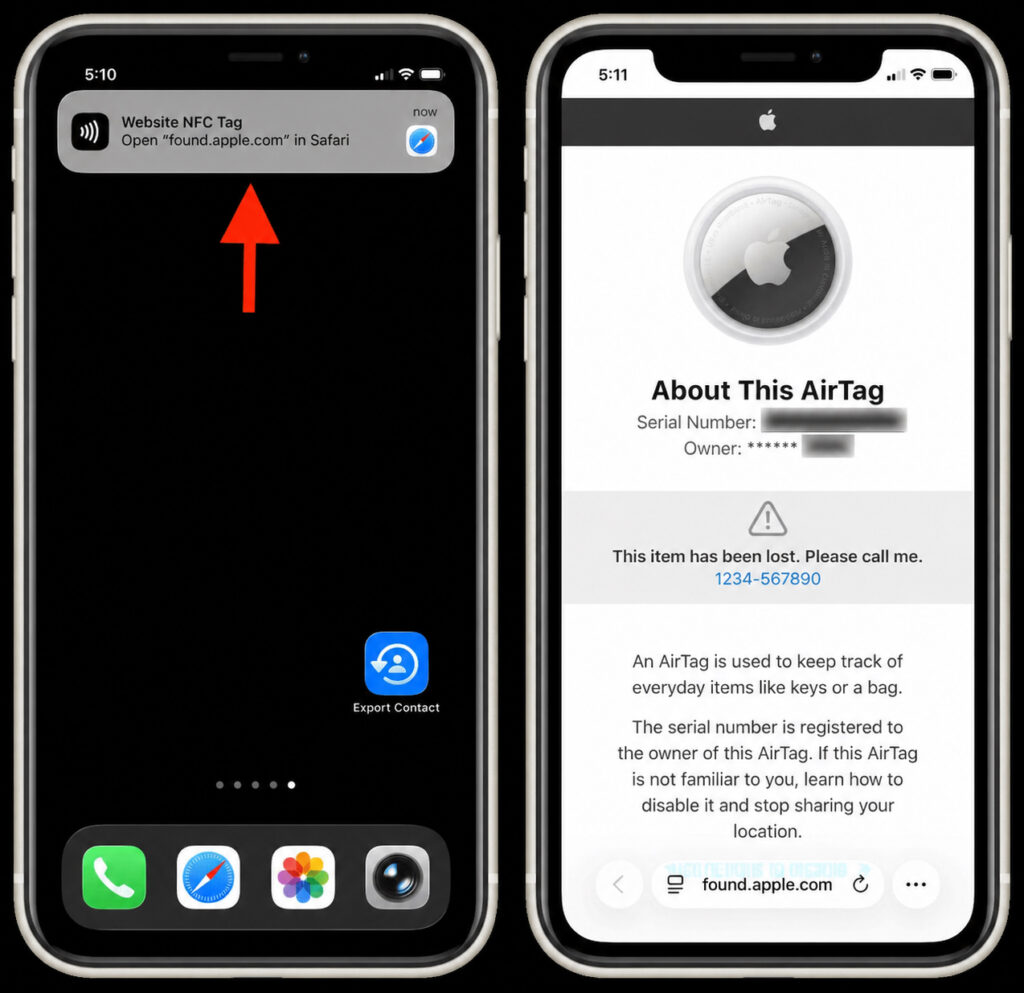
The smartphone will read the AirTag and show all the owner’s details
Here’s what happens next:
- A notification with a link to the found.apple.com page will appear on the smartphone screen.
- By opening the link, the finder will see a message that the item is lost and the owner’s contact details — phone number or email.
- The AirTag’s serial number and basic device information will also be displayed on the page.
On Android, NFC must be enabled for scanning — this is usually done through the quick settings panel. If NFC is turned off, holding the tracker against the phone won’t do anything.
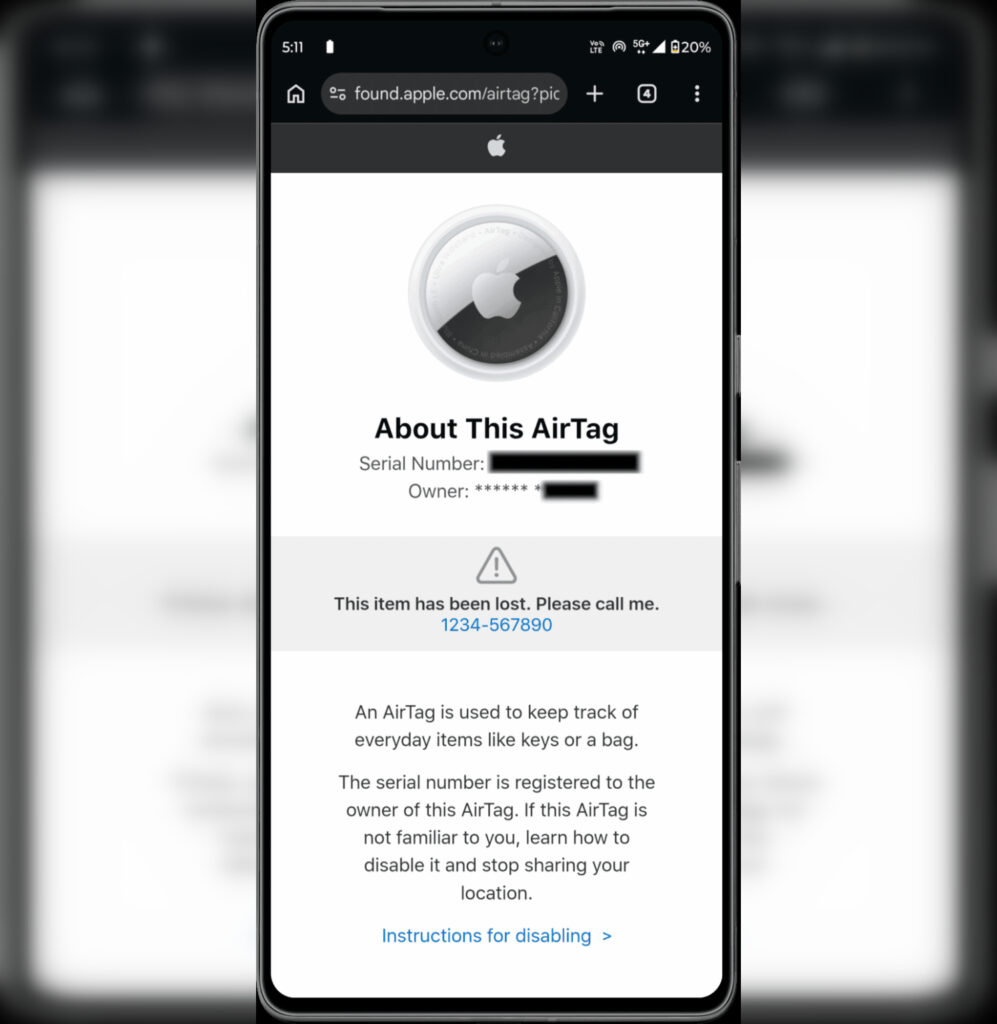
All information will also be displayed on Android
Apple also has a Tracker Detect app for Android on Google Play. It allows you to manually scan the area for nearby AirTags, but it’s not well suited as a “tool for returning found items”: the app is unstable and has low ratings. It’s better to rely on standard NFC scanning.
How to Change or Remove AirTag Contact Details
If you entered the wrong number, want to replace the phone number with an email or vice versa, or you’ve found your item and no longer need Lost Mode — the settings can be changed in just a couple of taps.
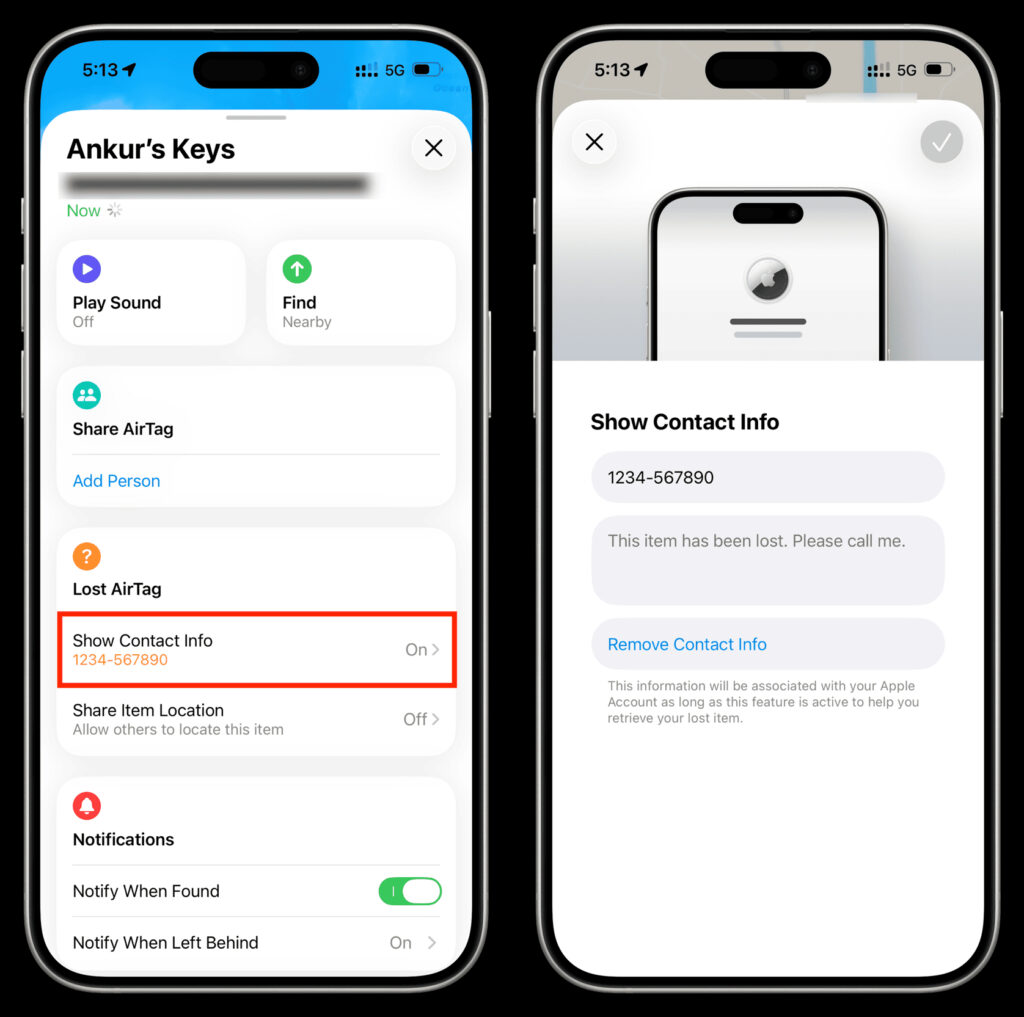
The owner’s contact details can be changed if needed
- Open the Find My app and on the “Items” tab, select the desired AirTag.
- Tap “Show Contact Info” in the “Lost AirTag” section.


