In the iOS 26.4 beta, Apple added detailed traffic usage statistics for Personal Hotspot mode — now you can see exactly which device consumed the most mobile data. Previously, the iPhone only showed the total amount of traffic used through the hotspot. Now it displays a list of devices with specific numbers. This feature is useful for anyone who shares their internet with a laptop, tablet, or other people’s phones and wants to monitor data usage. Just don’t forget to activate the hotspot mode on your iPhone first. Without manual setup, this feature won’t work.
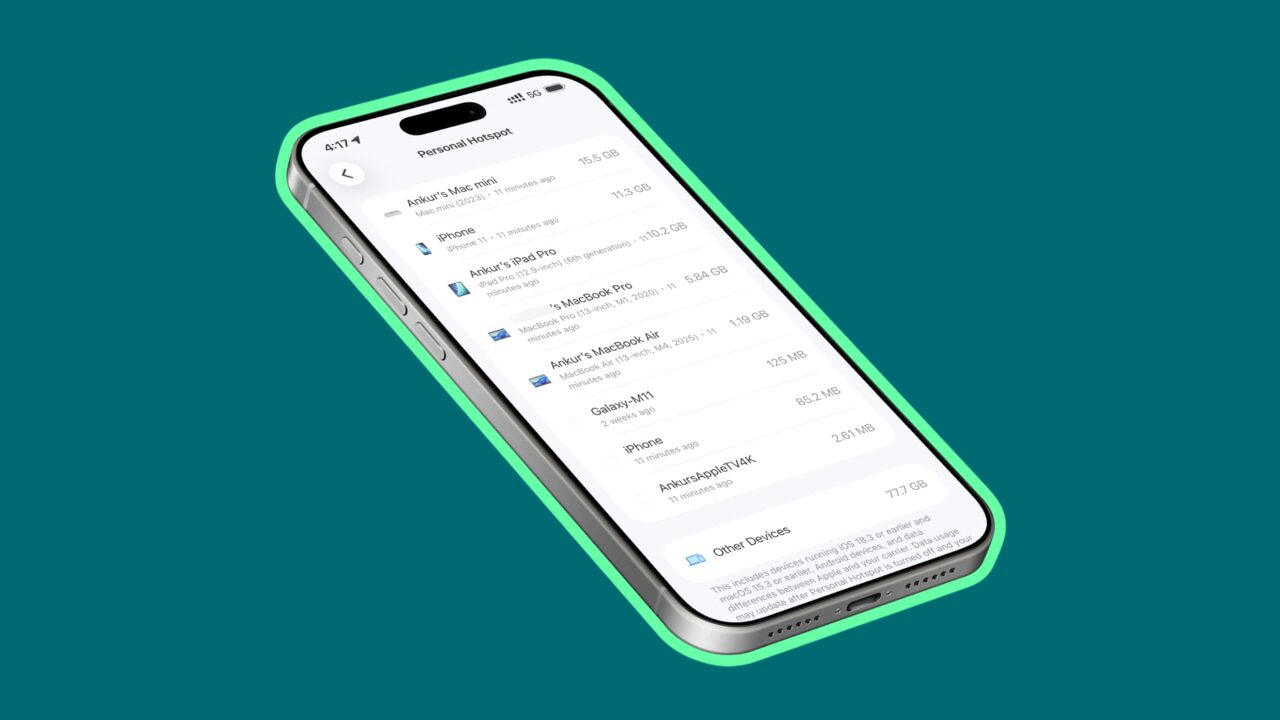
Monitoring data usage by each connected device. Image: idownloadblog.com
What Is Personal Hotspot on iPhone
Personal Hotspot is a feature that turns your iPhone into a Wi-Fi access point. You share your mobile internet with other devices: a laptop, tablet, or a friend’s phone. Until now, iOS only showed the total amount of traffic consumed by all connected devices. It was impossible to tell who exactly “ate up” the gigabytes.
iOS 26.4 solves this problem. The system displays a list of all devices that have connected, showing their name, model, and the amount of data used. The device with the highest usage appears first in the list. This is especially handy for those with a limited mobile data plan or an expensive tariff: you can quickly find the culprit behind the data overuse.
How to Check Hotspot Data Usage
The feature is available starting with iOS 26.4, which is currently in beta testing. Here’s how to access it:
- Update your iPhone to iOS 26.4 or later.
- Open Settings → Personal Hotspot.
- Wait a couple of seconds and tap Data Usage — the option is located below the “Maximize Compatibility” toggle.
- You will see a list of devices with their name, model, and the amount of data consumed.
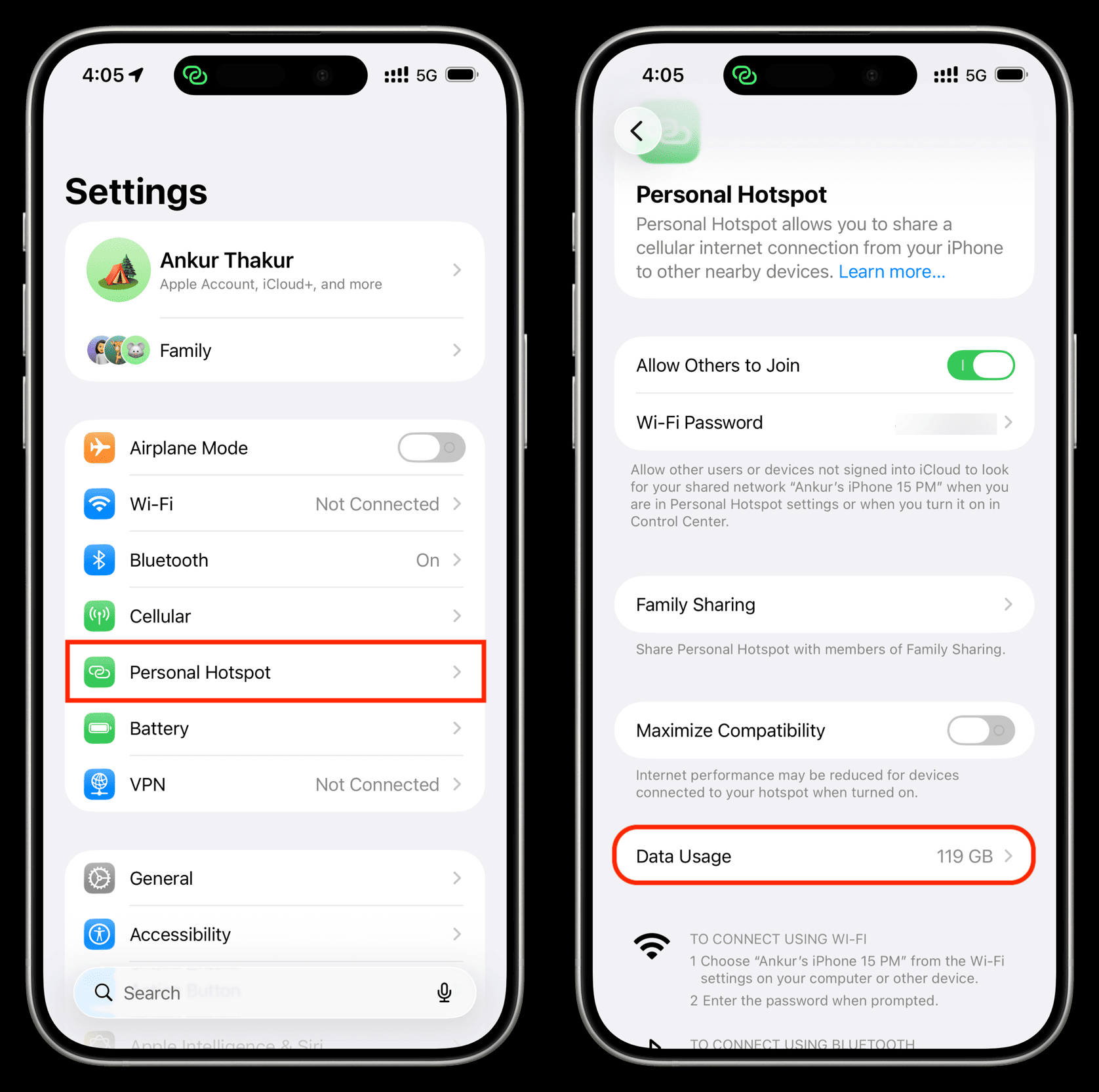
A new option has appeared in the hotspot settings. Image: idownloadblog.com
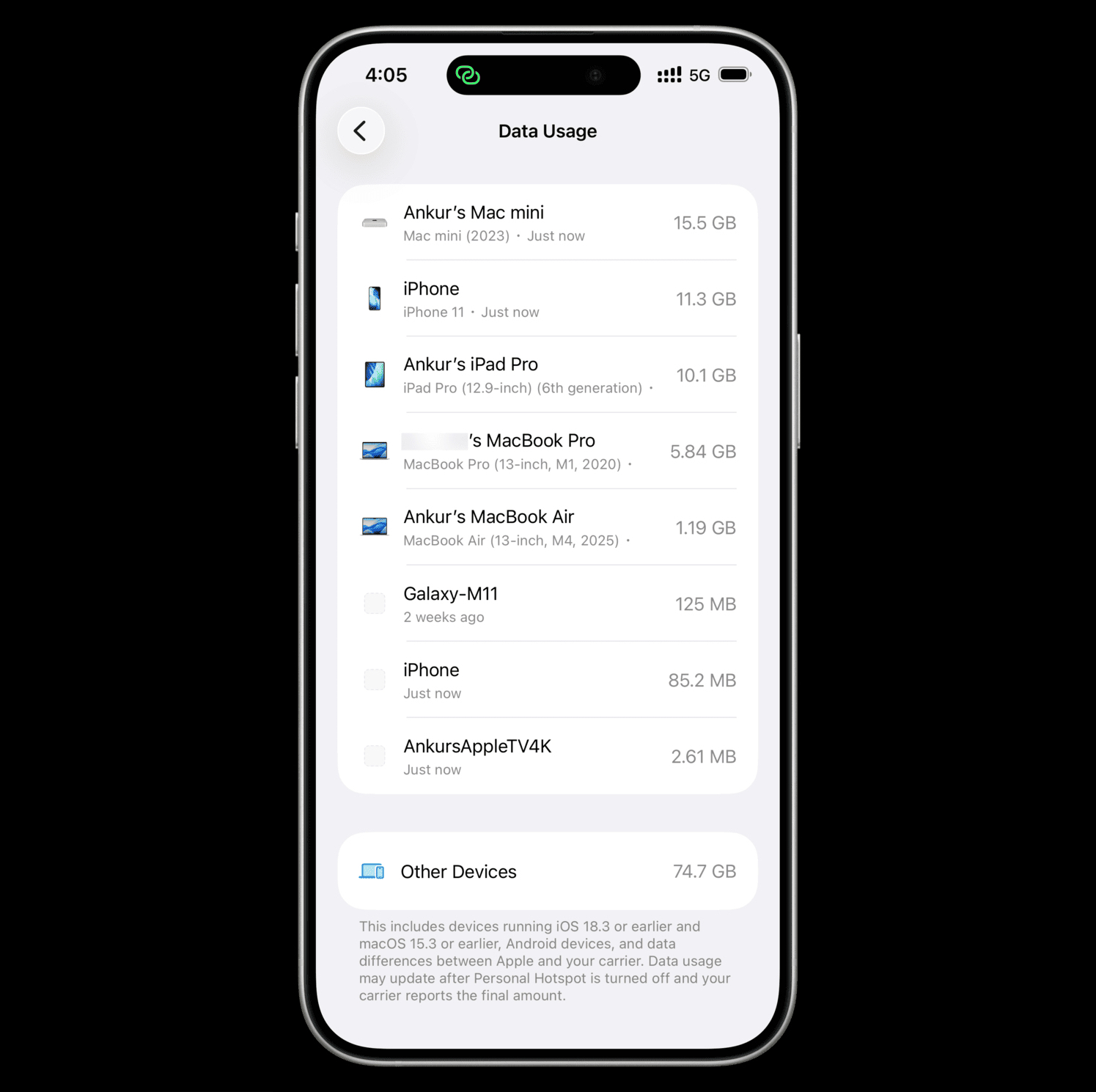
All connected devices will be listed here. Image: idownloadblog.com
It may also display the date of the last statistics update — that is, the moment when the device last connected to your hotspot. There’s an alternative path: Settings → Cellular → Personal Hotspot — the statistics section is also available here.
Who Is Connected to My Wi-Fi
Only devices that connected to your iPhone after updating to iOS 26.4 are displayed by name. Everything from before falls into a general “Other Devices” category. This category also includes:
- iPhones, iPads, and Macs running older system versions — iOS 18.3, iPadOS 18.3, macOS 15.3 and below;
- Android devices and any other gadgets.
In other words, for an iPad or Mac to appear separately in the list, they must also have the latest OS versions installed. Android devices will apparently always fall into “Other Devices,” although in some isolated cases an old Samsung Galaxy did appear as a separate entry.
Why Data Usage Isn’t Updating
Data usage statistics don’t update in real time. According to Apple, the numbers are recalculated when you turn off the hotspot and when the carrier transmits the final data. This means that during active use, you’re not seeing a completely up-to-date picture.
There’s a workaround: you can force-close the Settings app and reopen it — based on observations, the statistics update after doing this. There are also a few things to keep in mind:
- The same device may appear in the list twice — for example, if you “forgot” the network and reconnected.
- You cannot delete an individual device from the list or reset its counter.
- The only way to reset the statistics is to reset all cellular data statistics via Settings → Cellular → Reset Statistics. This will reset not only hotspot data but all other data usage statistics as well.
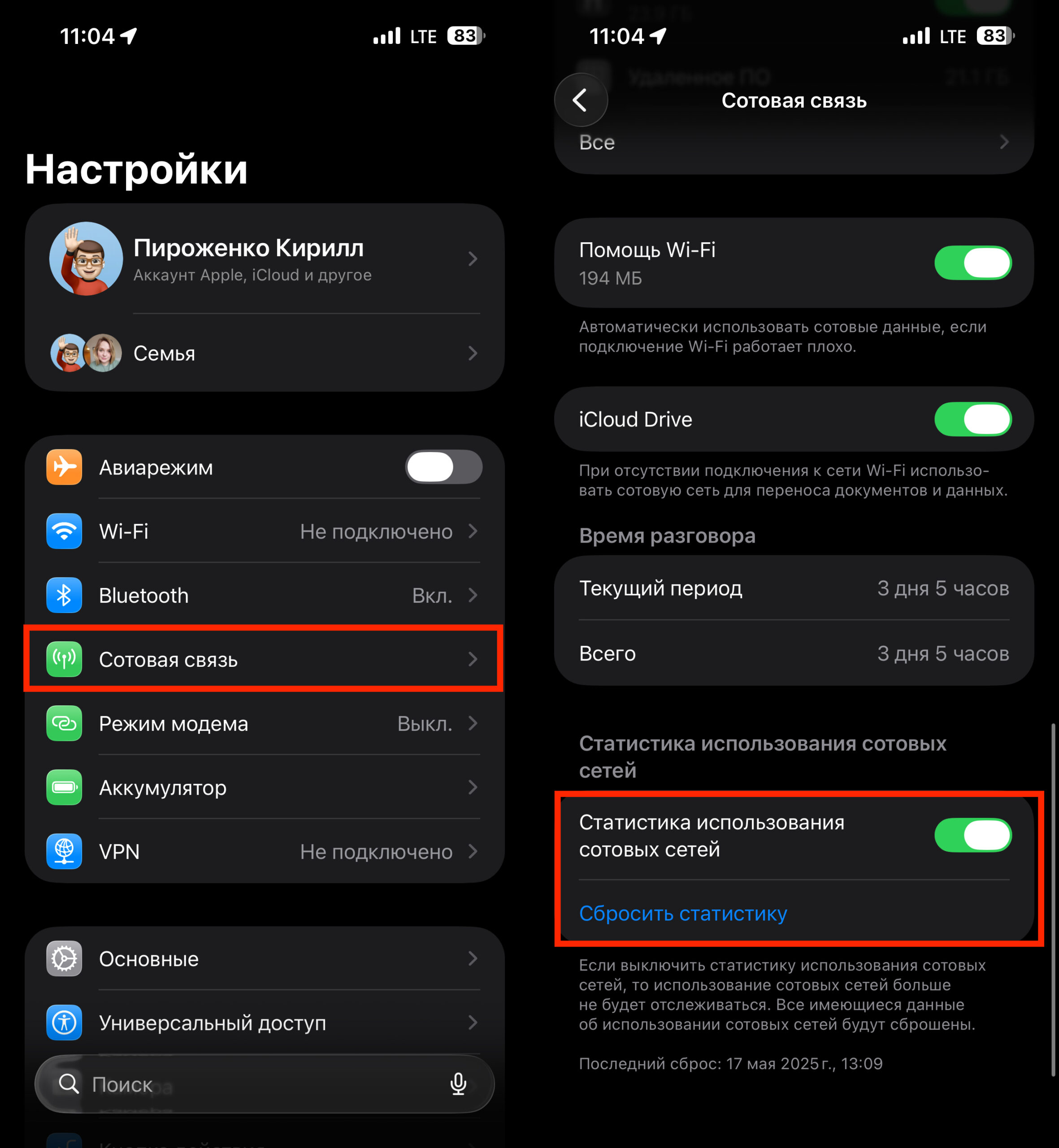
If you want to reset data usage statistics, you’ll have to reset all internet statistics in the system
What to Do If Data Usage Doesn’t Appear in iPhone Settings
Since the feature is currently only available in the iOS 26.4 beta, there may be issues. If you don’t see the statistics option, try the following:
- Make sure your iPhone is updated to iOS 26.4 or later.
- Force-close and reopen Settings — possibly several times.
- Make sure you’ve used the hotspot at least once — the option won’t appear if the hotspot has never been turned on.
- Check that the “Enable Cellular Usage Statistics” option is turned on in Settings → Cellular.
- Restart your iPhone.
- As a last resort — reset all settings and try again.
If nothing helps, it’s worth waiting for the final release of iOS 26.4 — the feature may work unstably in the beta version.
Why You Need Hotspot Usage Statistics
This feature is primarily useful for those who regularly share their internet with multiple devices — for example, a laptop and tablet while traveling, or family members’ phones when there’s no Wi-Fi. If you have a plan with limited data, per-device breakdown will help you understand where your gigabytes are going and limit a “data-hungry” connection in time.
If you use the hotspot rarely or only for a single device, the new feature is unlikely to change your experience. In any case, iOS 26.4 is currently only available in beta, so there’s no need to rush the update just for this one feature — it’s better to wait for the stable release.