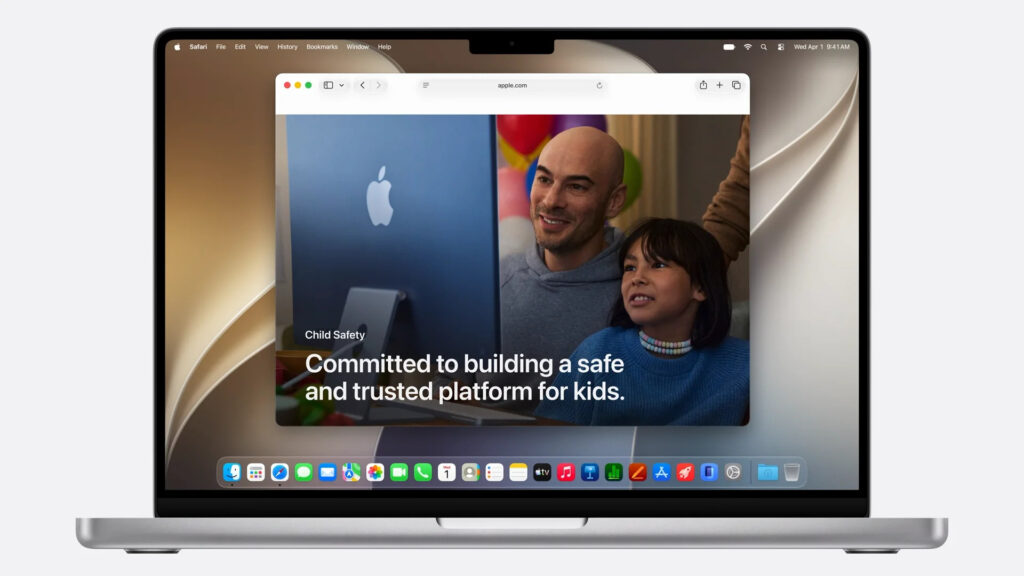
Apple has revealed what’s new in macOS 27 Golden Gate — the next major update for Mac. The main focus is on a revamped Siri and smart search, plus fresh AI features in Safari and Photos. Now that Apple has introduced macOS 27 Golden Gate, it’s the perfect time to compare it with last year’s Tahoe: how the versions differ, which Macs will get the update, and whether it’s worth rushing to install, since the update will arrive later in 2026.
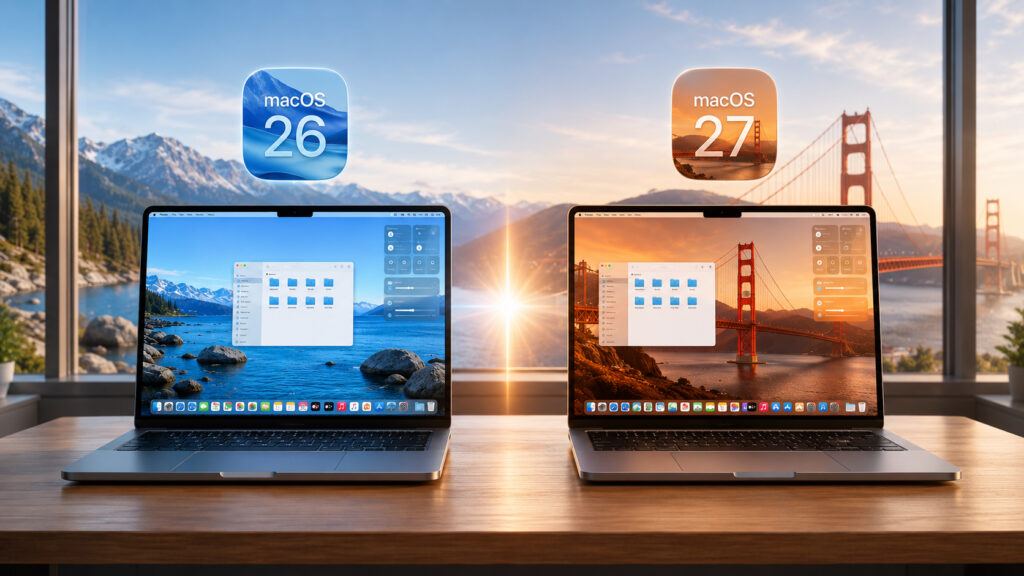
Breaking down the main differences between the old and new operating systems
What Features Are New in macOS Golden Gate
Golden Gate refines what was laid down in macOS Tahoe: Liquid Glass design, basic Apple Intelligence features, and parental tools. But the changes here aren’t merely cosmetic — Apple has reworked several things people use every day.
Key areas of the update:
- Completely redesigned Siri — understands personal context, searches files and photos by description, compares documents, and builds shortcuts
- Faster search — the indexing engine responsible for Spotlight, Mail, and Photos has been rewritten
- Safari now automatically groups tabs, monitors pages, and changes compromised passwords
- New AI tools in Photos: frame expansion, angle changes, removal of unwanted objects
- Enhanced parental controls with website and contact approval
New Siri on Mac: Searching Files, Photos, and Documents
The main change in this version is a complete overhaul of Siri. Previously, it worked with a set of simple commands; now it should understand what you need based on a plain description. You open Spotlight, ask Siri to find a file, photo, or data in your own words — without exact names. Apple builds the logic on two things: personal context (everything related personally to you — your files, conversations, photos) and broad knowledge from the internet. This is what powers answers to questions like “where’s that photo from the trip to Paris.”
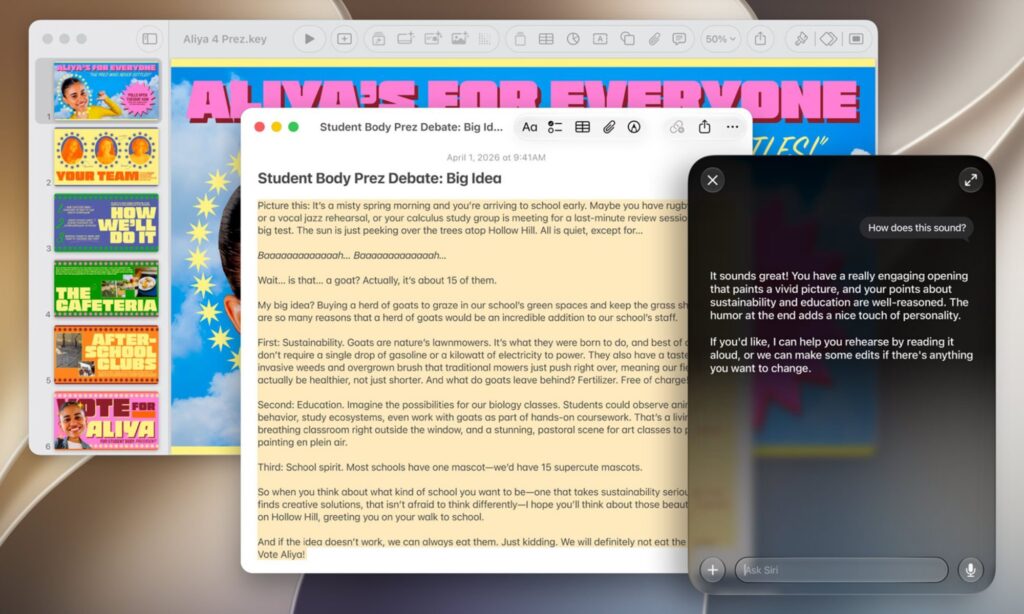
The new Siri is built right into search, has a dedicated app, and can be summoned from anywhere
New scenarios have also appeared: you can select something on the screen and ask Siri what it is (the Visual Intelligence feature), compare two documents, or ask Siri to build a shortcut in Shortcuts based on a verbal description. A dedicated Siri app keeps all your conversations with it in one place — regardless of whether you started them on iPhone, iPad, or Mac.
An important caveat here: these are still promises. Apple has delayed AI features before, so we’ll only be able to assess the real usefulness after release. If Siri truly works as shown in the presentation, it will be the most significant step since its debut.
Apple also rewrote the indexing engine responsible for Spotlight search, Mail, and Photos. In practice, this delivers faster search and more accurate results. People use search on Mac dozens of times a day, so this quiet background improvement could turn out to be one of the most valuable in the update — even without the flashy AI features.
New Safari Features in macOS Golden Gate
Naturally, Safari got updated too
The browser also received AI features, but here they look more practical than many others. Safari can automatically group tabs by topic — handy when you’re researching something and have dozens of pages open.
Another nice touch is the Notify Me feature. You ask Safari to monitor a page, go about your business, and the browser will notify you when something changes on it. Useful if you’re waiting for news, a product launch, or registration opening.

The browser will monitor page updates on its own
Separately worth noting is automatic password changing. Apple promises that Safari will automatically visit sites with compromised passwords, log into your accounts, create new strong passwords, and save them in the Passwords app. If you’re constantly bombarded with notifications about leaked passwords but never get around to fixing them, this kind of automation saves time. If the feature works reliably, it will significantly simplify digital hygiene — though not everyone will be comfortable trusting automatic login to their accounts.
New Photos Features in macOS Golden Gate
Golden Gate adds tools for working with photos. New Apple Intelligence models can expand a photo beyond the original frame — the system fills in the missing edges as if they were always there.
You can also change the angle and perspective of a shot, essentially recompose it after it was taken, more precisely remove unwanted objects, and in Image Playground — generate and refine images based on descriptions. There’s a catch: generation has daily limits, and higher limits will be tied to an iCloud+ subscription.

All these iPhone features will come to Mac as well
The Liquid Glass design first appeared in macOS Tahoe and wasn’t loved by everyone: the refracted light effect looked impressive but sometimes hindered clarity.
In Golden Gate, Apple addressed the complaints — a slider has appeared in settings that lets you adjust the level of transparency and glass tint to your preference. The glass itself now diffuses complex backgrounds behind it more effectively, so text and elements are easier to read. There are other tweaks too: toolbars at the top in apps with many buttons, colored icons on sidebars (making it clearer what’s selected), uniform rounded corners on all windows, and updated icons. As a result, the interface looks more cohesive and unified.
How Parental Controls Work in macOS Golden Gate