The Steam Deck has one sneaky feature that catches up with you about a week into ownership. You realize that you want to play on a big screen. Connect a gamepad and charge the console without stopping your game. And that’s when the quest to find the right accessory begins. I spent a long time looking at different options and eventually got the UGREEN docking station. Here’s what came of it and whether it’s worth the money.
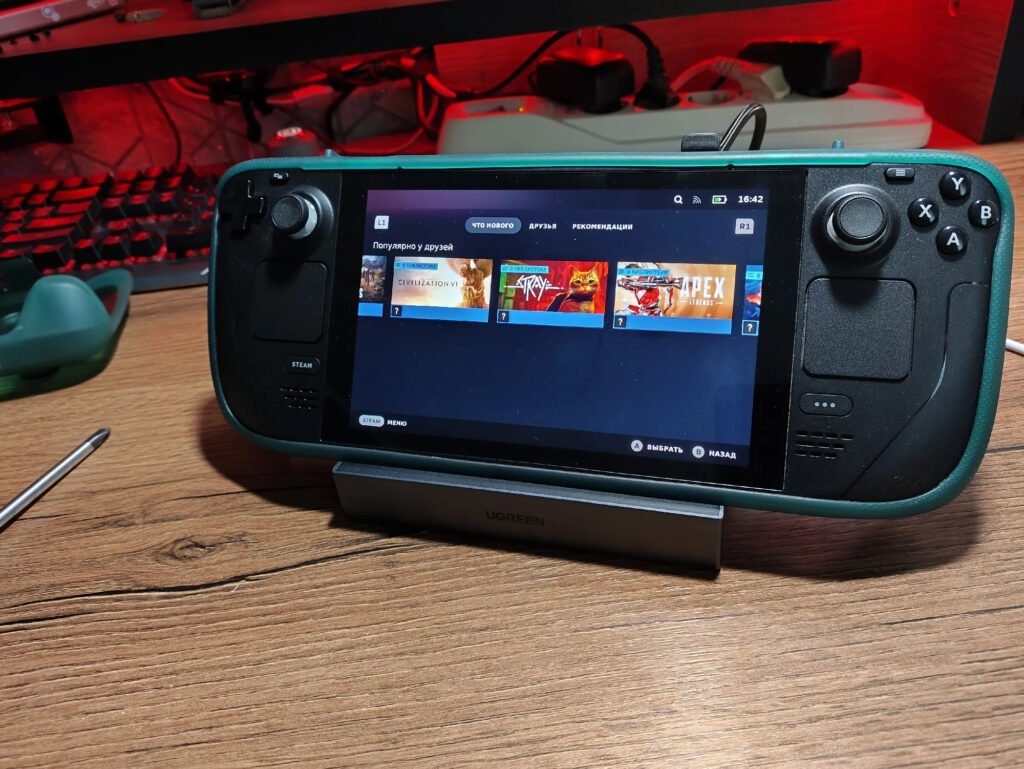
Place the console in the dock, it charges there, and the picture is displayed on a big screen
UGREEN Docking Station for Steam Deck: Build, Cable, and Assembly
The UGREEN box is standard — white and green, recognizable. Inside is the docking station itself, a short USB-C cable for connection, and instructions. There’s no charger included, keep that in mind. You need a PD-compatible adapter — preferably 65W or higher.
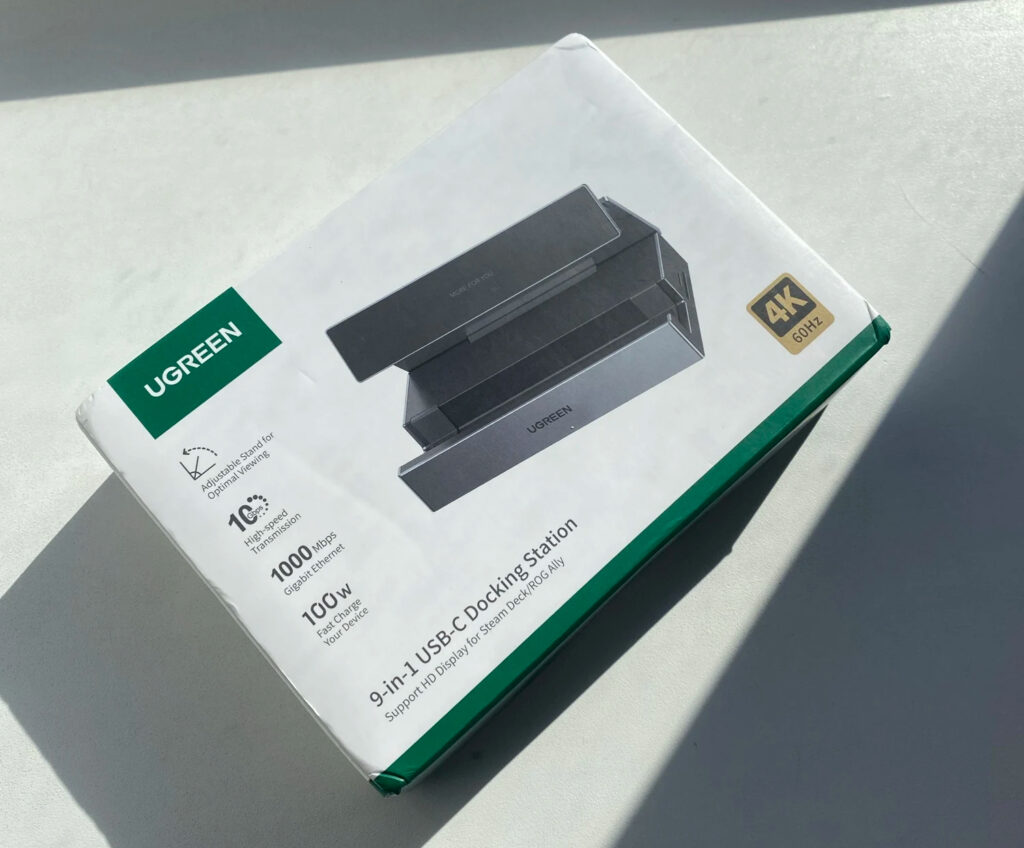
Classic UGREEN box
The first thing that catches your eye is the build quality. The body is made of aluminum alloy, it’s monolithic and weighty. When you pick it up, you immediately feel the solidity. No cheap plastic, no wobble or creaking. On the front — a neat UGREEN logo, on the back the inscription MORE FOR YOU.
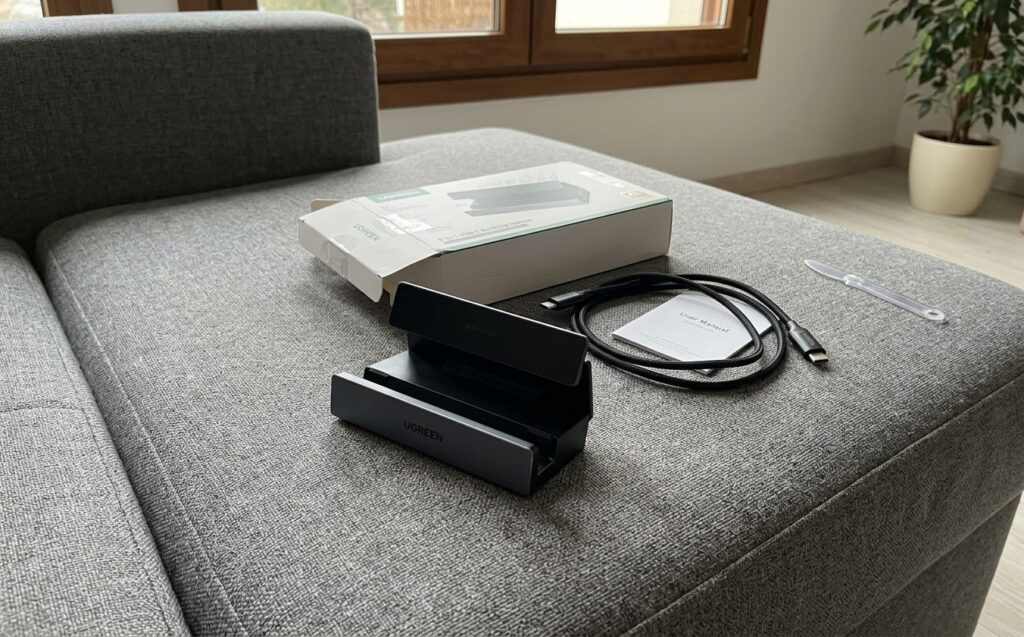
Everything is assembled with maximum quality, and the materials feel pleasant to the touch
The body color is dark gray, space-like. It pairs perfectly with the Steam Deck and any other tech on your desk. Silicone pads on the stand prevent the console from sliding and don’t block the ventilation openings — well thought out.
Size-wise, the station is compact — slightly larger than a credit card in thickness. This, by the way, was the deciding factor in my choice. I wanted something I could toss in a backpack without worrying about extra weight. The UGREEN 9-in-1 is ideal in this regard.
Steam Deck Dock with HDMI 4K and Ethernet: What It Can Do
We’ve looked at the design, now let’s figure out what the docking station can actually do. Here’s what’s on board:
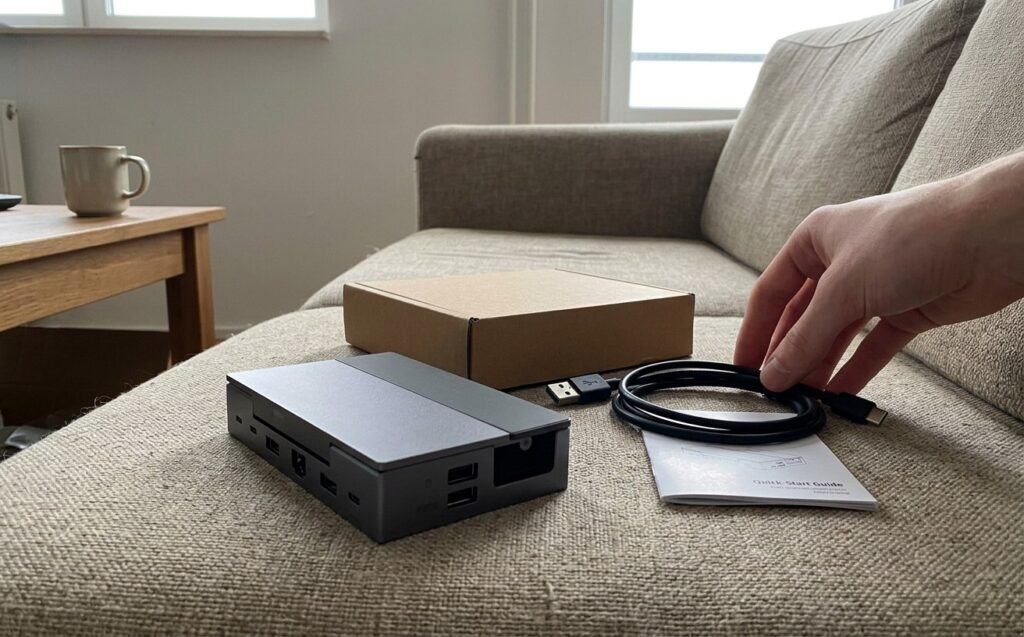
Ports here for every occasion
HDMI 4K — for outputting the picture to a TV or monitor. Several different modes are supported, so everyone can find an option to suit their needs and TV capabilities.
USB-C with PD 100W — pass-through charging. You connect the power adapter to the docking station, and the console charges right during gameplay. Really convenient: no need to choose between charging and connecting peripherals.
USB-A 3.0 at 5 Gbps — you can plug in a mouse, keyboard, gamepad, flash drive, or external storage here. The speed is enough for everything.
Gigabit Ethernet port — wired internet. For online games, this is a crucial point. The Steam Deck’s Wi-Fi is decent, but the stability of a wired connection is unmatched. Lower ping, no disconnects.
On the rear panel, everything is logically arranged: PD port, 2 USB-C for data, HDMI, Ethernet, and USB-A. On one side panel you’ll find 2 more USB-A ports, and on the opposite side a memory card slot. Cables don’t interfere with each other and don’t block adjacent ports. UGREEN’s engineers clearly thought about the layout — plugging and unplugging cables is convenient even blindly.
Steam Deck via Docking Station: Latency, Charging, and Internet
Connecting takes literally a second. You place the Steam Deck on the stand, plug in the USB-C cable from the top — and that’s it. The console automatically detects the external monitor, picks up the resolution and refresh rate. No drivers, no settings. Plug and play in its purest form.
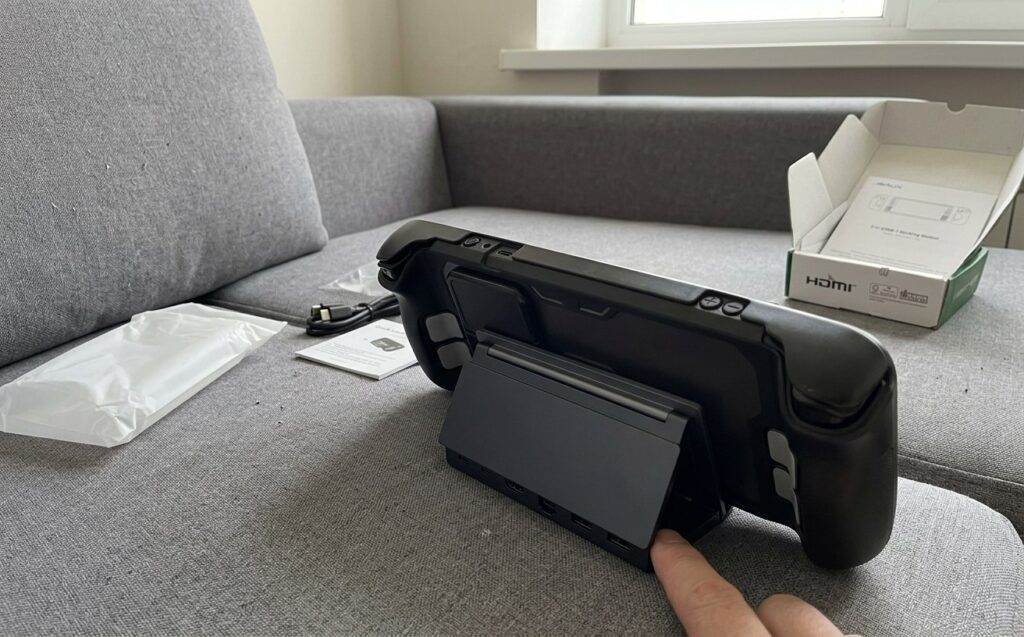
Place the console in the dock, connect all the necessary cables and you’re good to go
I connected the Deck to an MSI monitor and launched a game. The picture switched instantly, I noticed no latency. The system enabled FSR for upscaling, and on the external screen everything looked quite decent — especially for a portable console. The image is sharp, colors are vibrant, no artifacts or flickering.
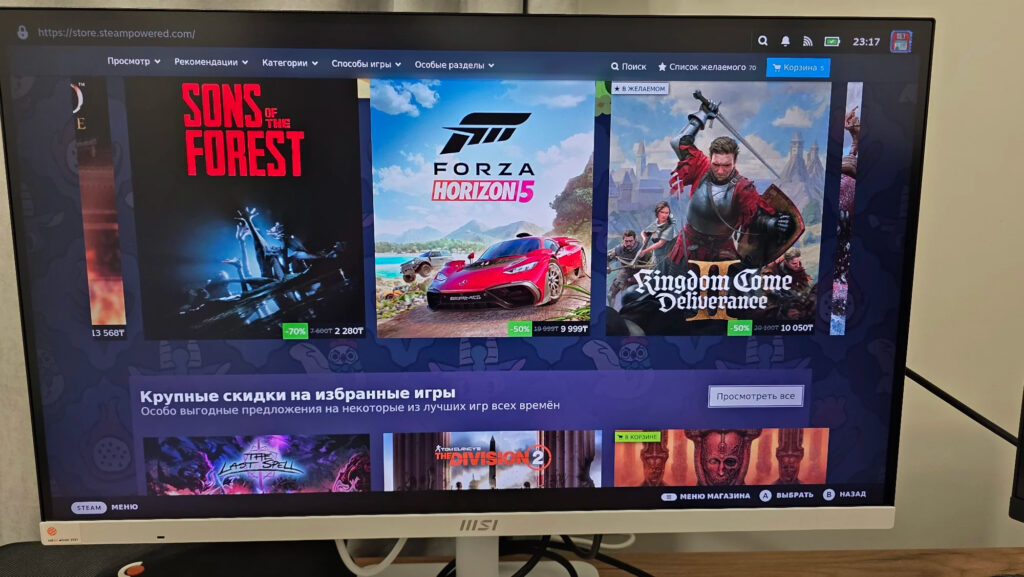
The results don’t take long to appear
The Ethernet port also performs great. Game download speeds from Steam noticeably increased compared to Wi-Fi. Online ping is consistently lower — for multiplayer shooters and co-op, that’s a noticeable difference. I downloaded a 12 GB update in just minutes — over Wi-Fi it would have taken much longer.
I want to separately note the heat management. The aluminum body works as a passive heatsink: during active use it gets warm but not hot. After several hours of gaming with charging, HDMI, and connected peripherals, there was no overheating. This is important because cheap hubs often suffer from exactly this — they start throttling or simply disconnect.
Charging via PD also works reliably. With a 65W adapter, the console gains charge even during resource-intensive games. No more pausing the Deck to recharge the battery — you play and charge simultaneously.