The other day I ordered an Apple Watch from Dubai and was, to put it mildly, surprised when I couldn’t find a schedule for Always On Display. It seems like a basic feature — turn off the screen at night and turn it on in the morning. My old Amazfit GTR 2, purchased in 2021, can even do that. But no, Apple offers only one toggle: turn AOD on or off. No conditions, no schedule. As a result, the first night the watch kept the screen on and used up a significant amount of precious battery (yes, I’m one of those people who sleeps wearing a watch, but I do it because of the alarm). I had to figure it out — and I did find a way after all.
Bought an Apple Watch and was shocked that I couldn’t set up AOD without jumping through hoops
Why the Apple Watch Screen Stays On at Night
Always On Display is one of the key features of Apple Watch, starting with Series 5. The screen always shows the watch face, even when you lower your wrist. During the day, it’s convenient: you don’t need to raise your wrist or tap the display to check the time.
But at night, the feature becomes a problem. You put your hand on the pillow, and the watch keeps the screen lit. The brightness does decrease automatically, of course, but in a dark room even a dimmed screen is noticeable. For some it interferes with falling asleep, for others it’s just a pointless waste of battery.
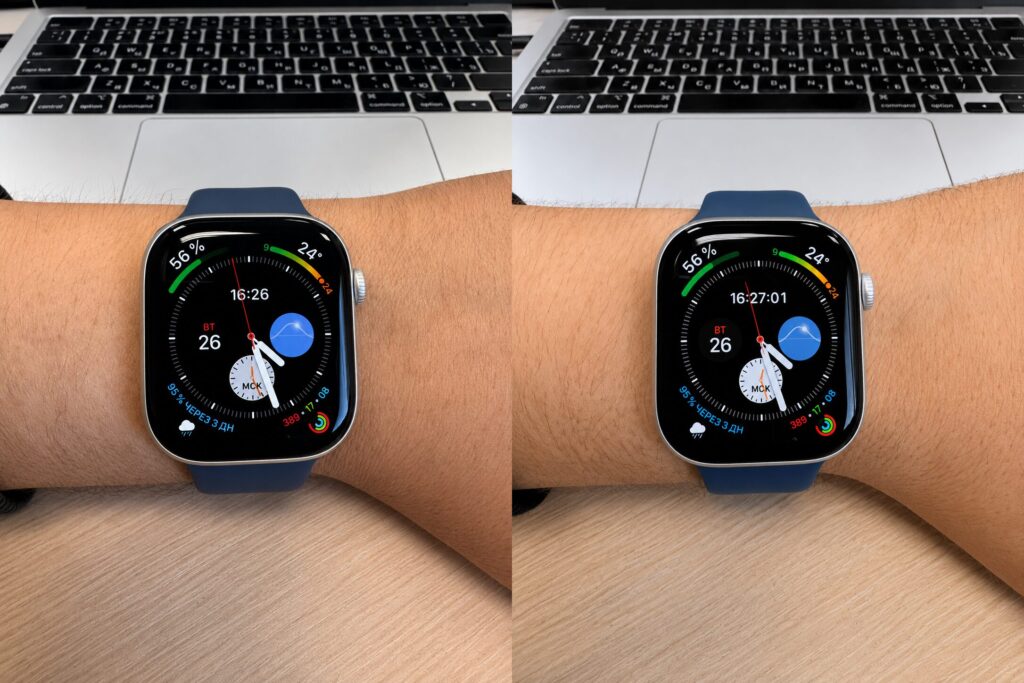
So you understand why I want to turn off AOD at night: on the left is the screen with AOD enabled
The logical solution is to turn off AOD at night. But if you go to Apple Watch settings, you’ll only find one toggle: turn Always On Display on or off completely. No schedule, no conditions. Either the screen is always on, or it’s off entirely. Going into settings every evening and toggling it manually isn’t a great option.
That’s exactly why the Sleep Focus is the only proper solution. It allows you to set a schedule by which the screen will automatically dim. Apple doesn’t market this feature as AOD management, but in practice, that’s exactly how it works.
How to Enable Sleep Focus for Apple Watch
The setup is done through the Watch app on iPhone. Open it and go to the “My Watch” tab. Scroll down the list and find the “Sleep” option. Here you’ll see several toggles: sleep tracking, charging reminders, and sleep estimation. But we’re interested in something else.
Tap the orange text “Manage Sleep Focus in Settings.” You’ll be taken to the iPhone system settings, to the Focus section. This is where all the important stuff is.
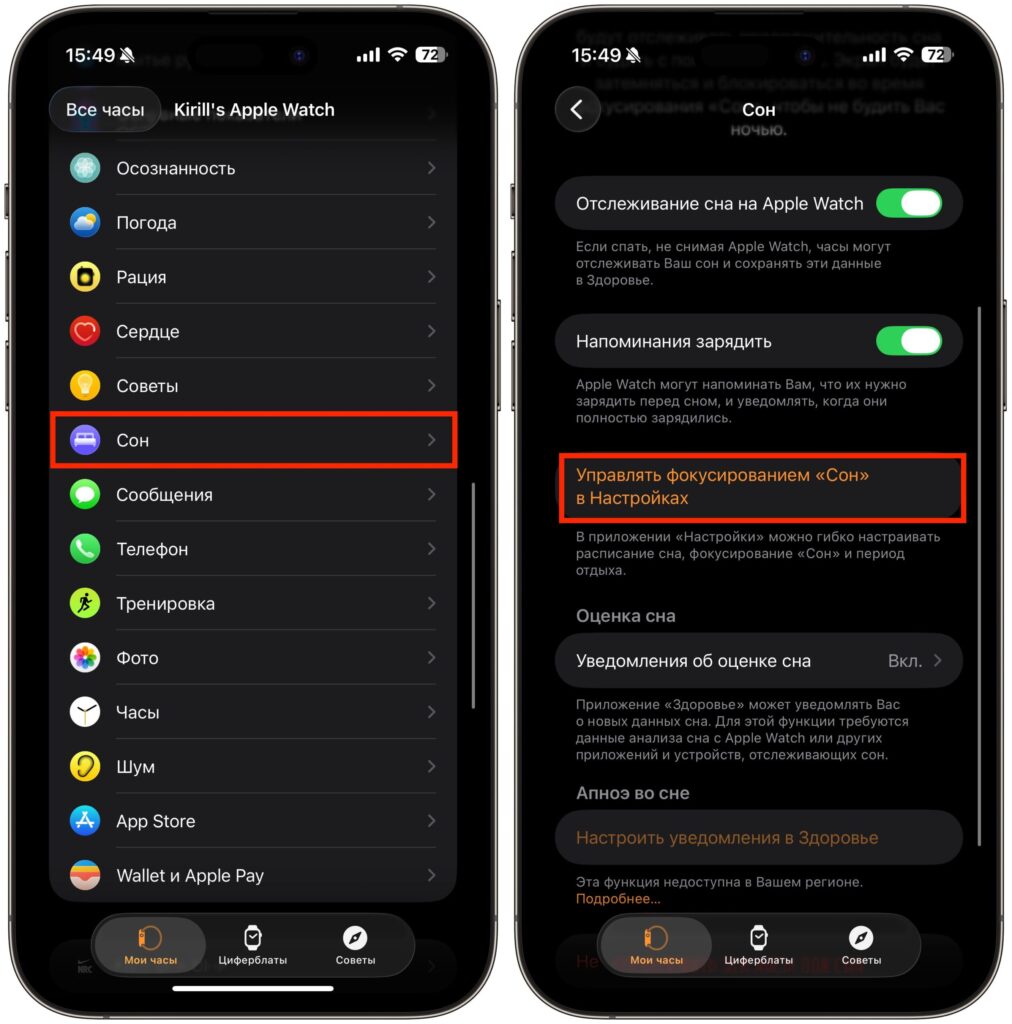
You can navigate to the needed settings from here
On this screen, you’ll see several sections. The first is “Allowed Notifications.” Here you can choose which contacts can message or call you when Focus is active. By default, all notifications are silenced, but you can add exceptions — for example, close family members so their calls still come through.
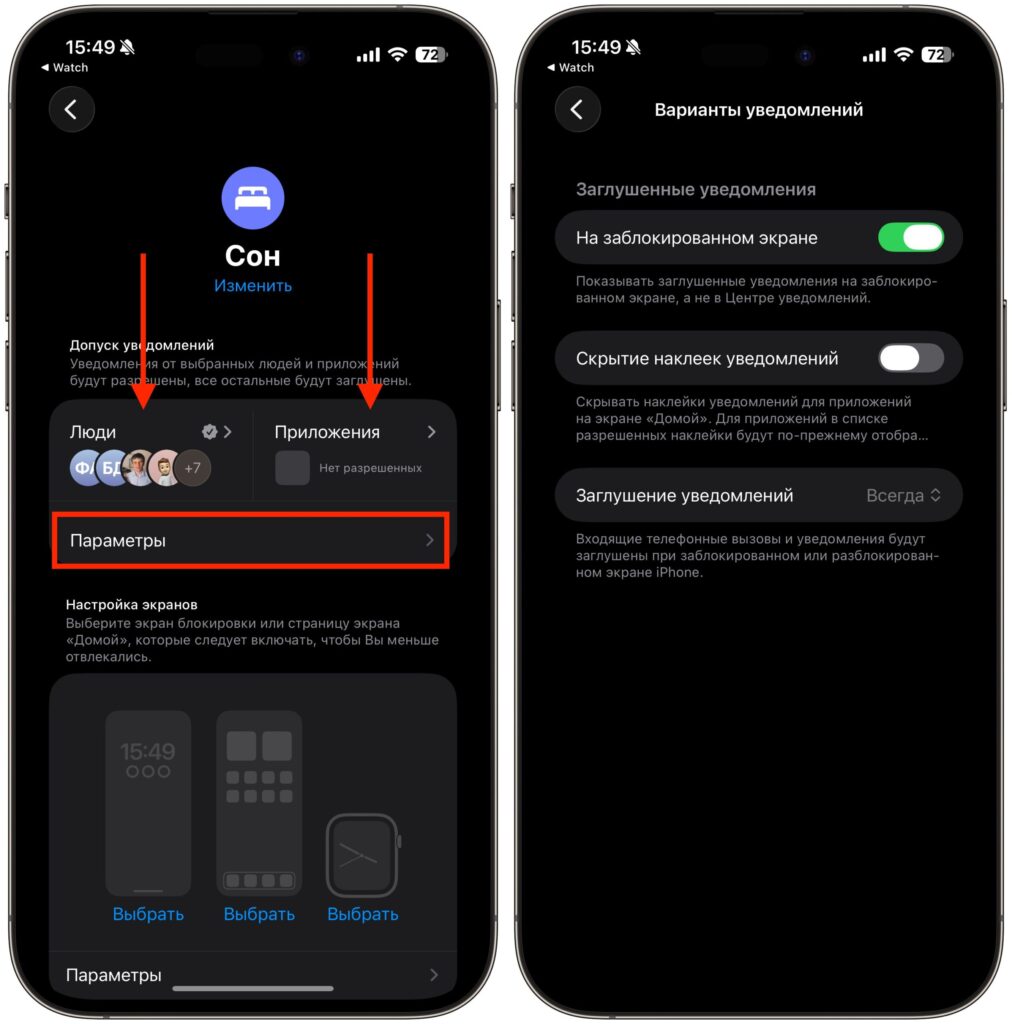
Make sure to set up the people and apps that can break through Focus
Next to it is the “Apps” tab. Here you specify apps whose notifications will be allowed even during sleep. For example, if you’re expecting an important message in a messenger, you can add it here.
How to Automatically Dim the Apple Watch Screen at Night
Scroll down the Sleep Focus screen, and you’ll find the “Schedule” section. This is where you set the time when Focus will turn on and off automatically. Tap “Next Schedule” and specify your bedtime and wake-up time. For example, 11:00 PM — bedtime, 7:00 AM — wake-up.
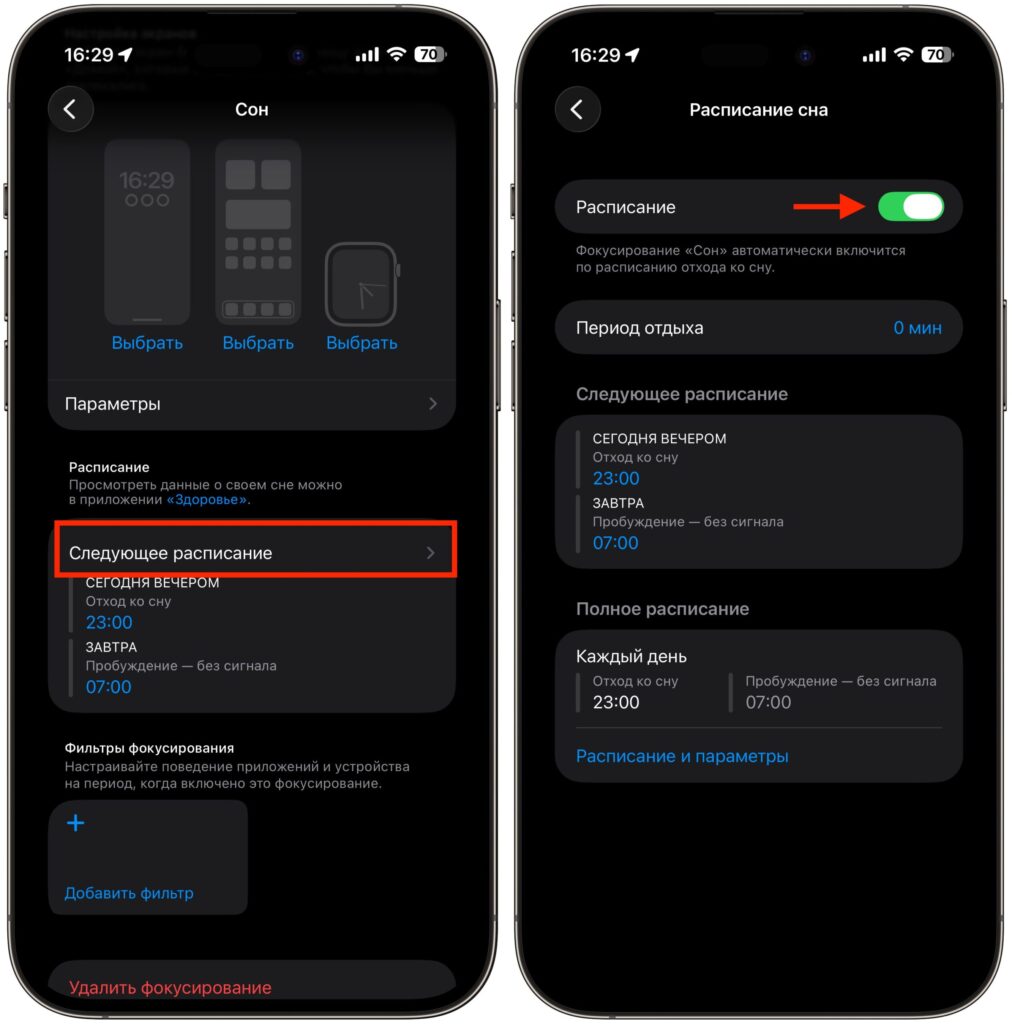
Set up the schedule here
Now the most important part. Go back to the Focus settings and find the “Options” section. There are two key toggles here that you absolutely need to enable.
The first is “Sleep Lock Screen”. When it’s active, all unnecessary elements are removed from the iPhone lock screen and Apple Watch display. The screen becomes as dark and minimalist as possible. This is the exact setting that effectively disables AOD on the watch — the display dims and stops showing the watch face.
The second toggle is “Show Time”. If you turn it on, the dimmed screen on iPhone and Apple Watch will still show the current time. This is convenient: you wake up at night, glance at your wrist — and immediately see what time it is, without any extra elements on screen.
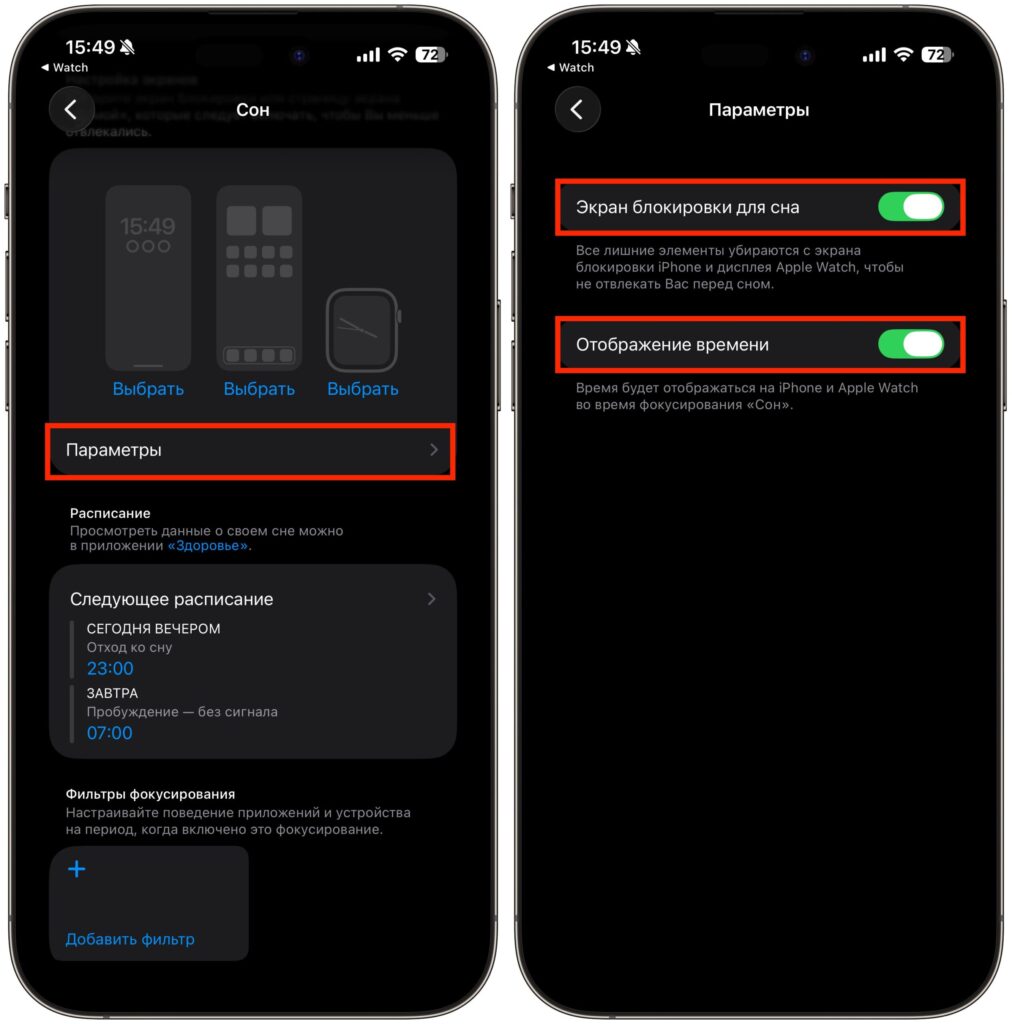
Make sure to activate these toggles
Enable both toggles. Without “Sleep Lock Screen,” the watch will continue to display the full watch face, and the entire purpose of the setup is lost.
How Sleep Mode Affects iPhone and Apple Watch
Here it’s worth mentioning one important nuance. Sleep Focus affects not only Apple Watch but also iPhone. When the mode is active, the smartphone screen also dims. A special lock screen with minimal information appears.
Unfortunately, you can’t disable iPhone screen dimming separately from Apple Watch. This is the main downside of this method. If you’re used to using your phone before bed — scrolling feeds or reading — the dimmed screen might be annoying. You can unlock the iPhone, but the interface will still be slightly muted.