I recently wrote about useful features available on all smartphones — that was about the obvious stuff. But while digging through the settings of my vivo X300 looking for something completely different, I stumbled upon several things that I now use every day but previously had no idea existed. Some of them appeared in recent versions of Android, while others have always been there (nobody just told us about them). I’ve gathered five of the most useful Android features that genuinely change the user experience.
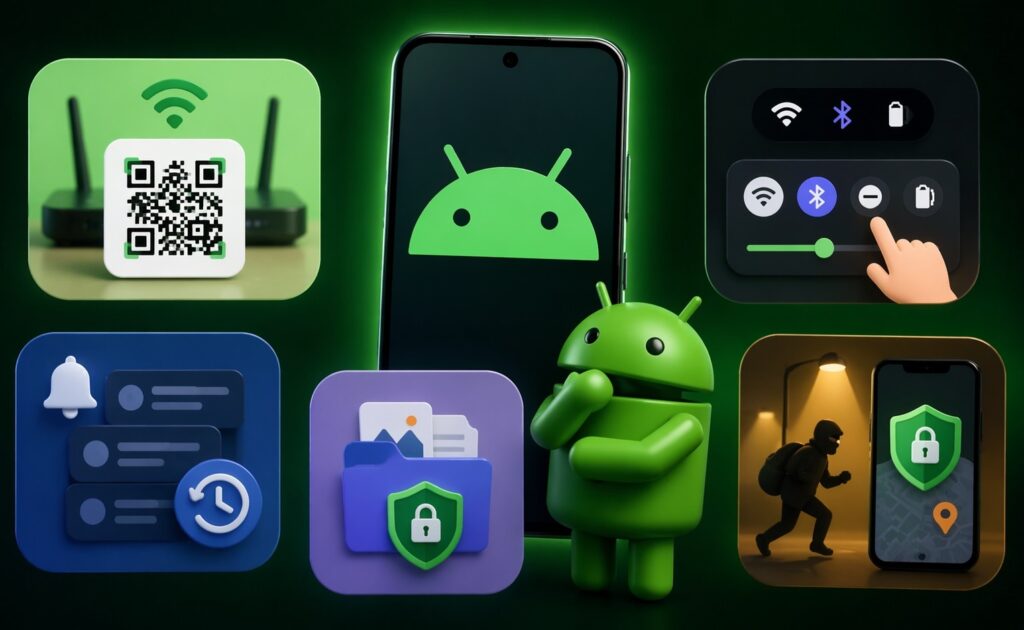
Found 5 interesting Android features
How to Share Your Wi-Fi Password via QR Code
It’s a scenario everyone knows: guests come over, ask for Wi-Fi, and the password is a random string of characters that was created three years ago and nobody remembers it since. You used to have to dig into the router or try to remember where you wrote it down. It turns out Android can generate a QR code right from the network settings: the person simply scans it and connects their phone to Wi-Fi.
How it works:
- Open “Settings” and go to the “Wi-Fi” or “Network & Internet” section.
- Tap on the name of your current network.
- Find the “Share” button or the QR code icon next to the network name.
- A QR code will appear on screen (show it to your guest — they scan it and connect automatically).
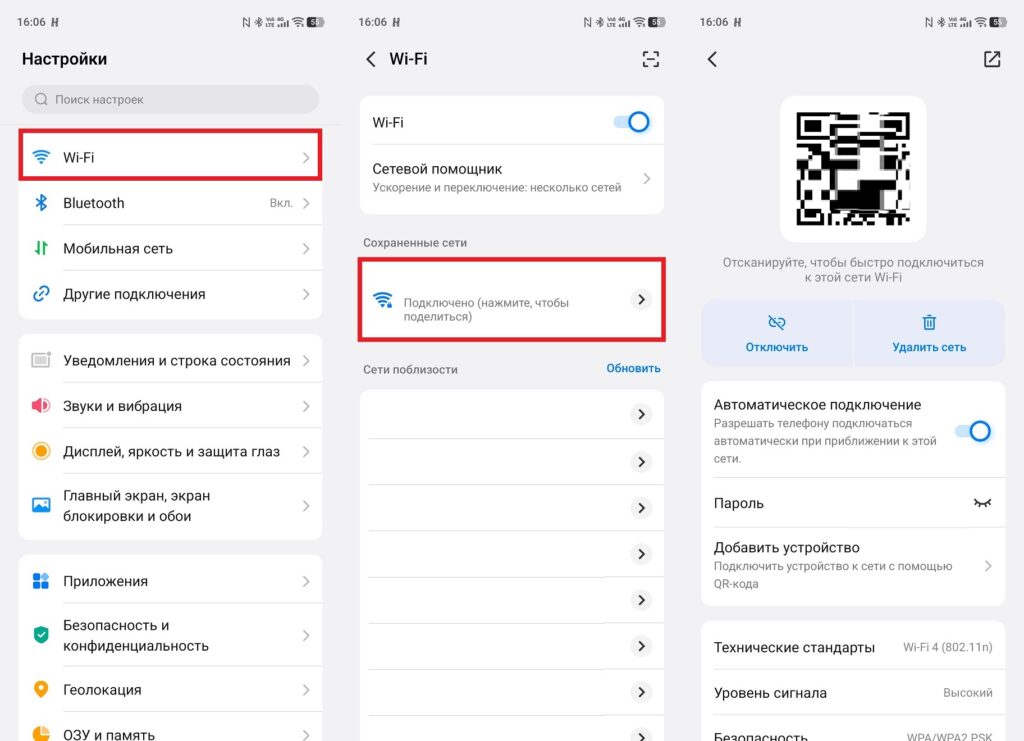
The easiest way to connect guests to Wi-Fi
This same feature solves another pain point: you’ve forgotten the password yourself and want to connect a new device. The QR code is generated without displaying the actual password as text. So finding out how to view your Wi-Fi password is a separate story, but sharing via QR is simpler and faster. It works on Android 10 and above, meaning on any current smartphone.
Customizing Status Bar Icons on Android
This is something I found on my vivo X300, and since then I don’t understand how I lived without it. The Android status bar is cluttered with icons by default: NFC, VPN, power saving mode, Bluetooth, sync — all of it hangs at the top and creates visual noise. On the vivo X300 running OriginOS, there’s a dedicated status bar settings section where you can choose which status bar icons to display and which to hide.
How to find it on popular skins:
- vivo OriginOS / Funtouch OS: Settings — Status Bar — select the icons you need.
- Xiaomi HyperOS / MIUI: Settings — Status Bar — toggle icons on/off.
- Samsung One UI: Settings — Notifications — Status Bar — manage icons.
- HONOR MagicOS / realme UI: Settings — Status Bar & Notification Shade.
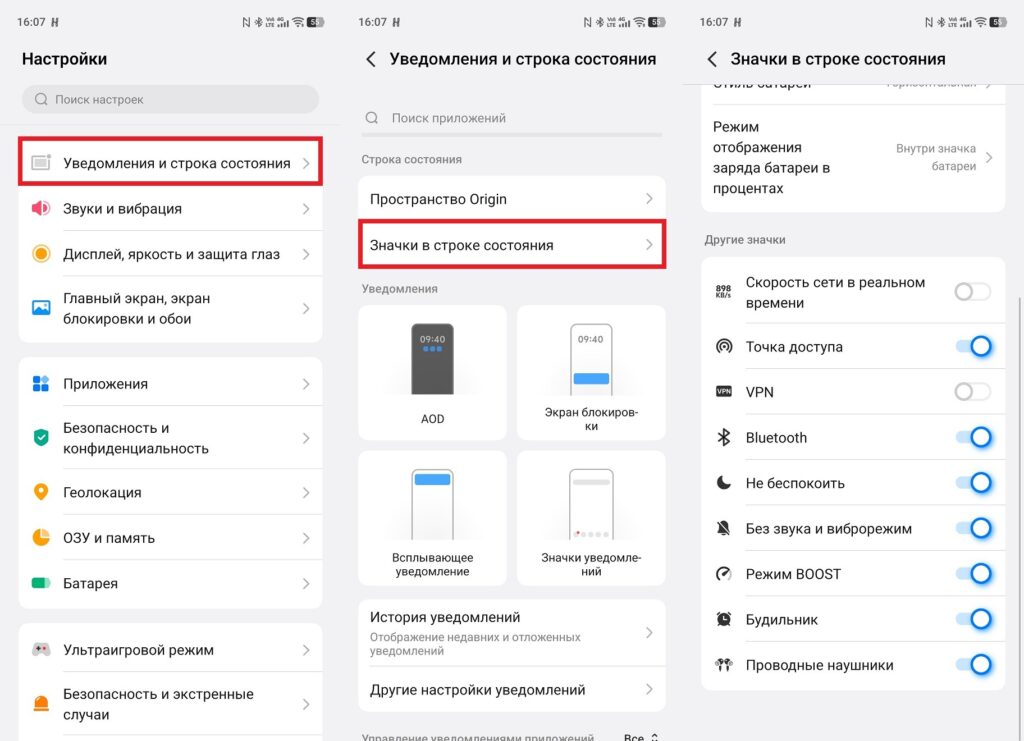
This is how icons are customized on my vivo X300
A fair disclaimer: this is a feature of manufacturer skins, not stock Android. On Google Pixel and other devices running the stock system, this setting doesn’t exist. But if you have a Xiaomi, Samsung, vivo, or HONOR — the option is almost certainly there, you just need to find it. The effect of cleaning up unnecessary smartphone settings in the status bar is immediately noticeable, and the top part of the screen stops being annoying.
Notification History on Android
You swiped away a notification and immediately realized you hadn’t read it. A code from an SMS, a transfer amount, an address from a message — all gone. Most people in this situation open the app itself and search there. But Android has a notification history feature. It’s a hidden log that stores all notifications from the last 24 hours, including ones you swiped away or that came from already closed apps.
How to enable and find it:
- Go to “Settings” and select “Notifications” or “Apps & Notifications.”
- Find the “Notification history” option and turn it on (it’s off by default).
- Now to view deleted notifications, open this section again (there will be a full list for the past 24 hours).
- For quick access: long-press an empty spot on your home screen, add the “Notification history” widget, or set up a quick tile in the notification shade.
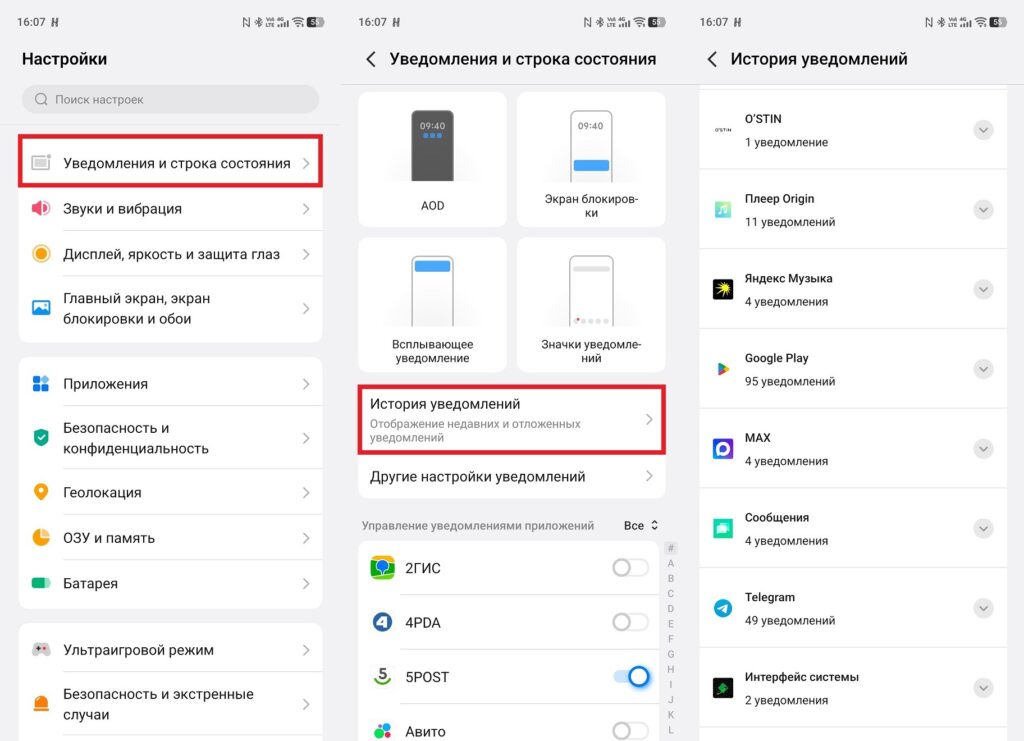
Here you can find any notification
The feature works on Android 11 and above, meaning on the vast majority of current smartphones. Android notifications no longer vanish without a trace. It’s one of those things that seems like a small detail until it saves you from an unpleasant situation one day.
Limited App Access to Files on Android
When you think about how dangerous apps can be in terms of access to personal data, it gets uncomfortable. By default, many apps request access to your entire gallery and get it. But Android has limited file access: you can grant an app permission to only specific photos and videos that you choose yourself, rather than your entire storage.
How to set it up:
- Open “Settings” — “Apps” and find the app you need.
- Go to the “Permissions” section — “Files and media” or “Photos and videos.”
- Select “Only selected photos” or “Limited access” instead of “All files.”
- The system will open the gallery: choose the specific files you want to grant access to.
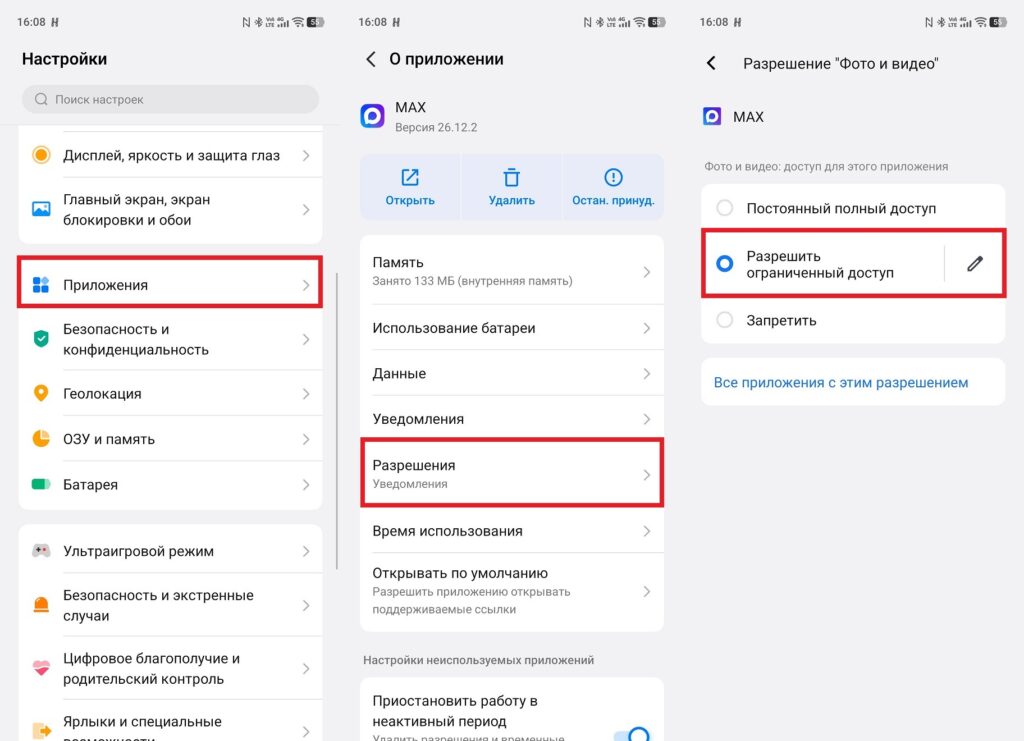
Use limited access when you need to share a specific file
The feature appeared in Android 13 and works on all smartphones running a current version of the system. File access for any messenger can now be restricted with just a few taps. This isn’t paranoia — it’s a basic phone setting that protects personal data from apps with questionable privacy policies.
How to Protect Your Phone from Theft on Android
Most people learn about