Right after the WWDC 2026 keynote, Apple released the first beta of the new desktop system, and now anyone can download macOS 27. This is a raw developer build, but nothing stops a regular user from installing it to try the 2026 macOS update before everyone else. What’s new in the system, which computers will receive it, and when to expect the final release — we covered all of that in detail in a separate article, and here we’ll focus on how to update first.
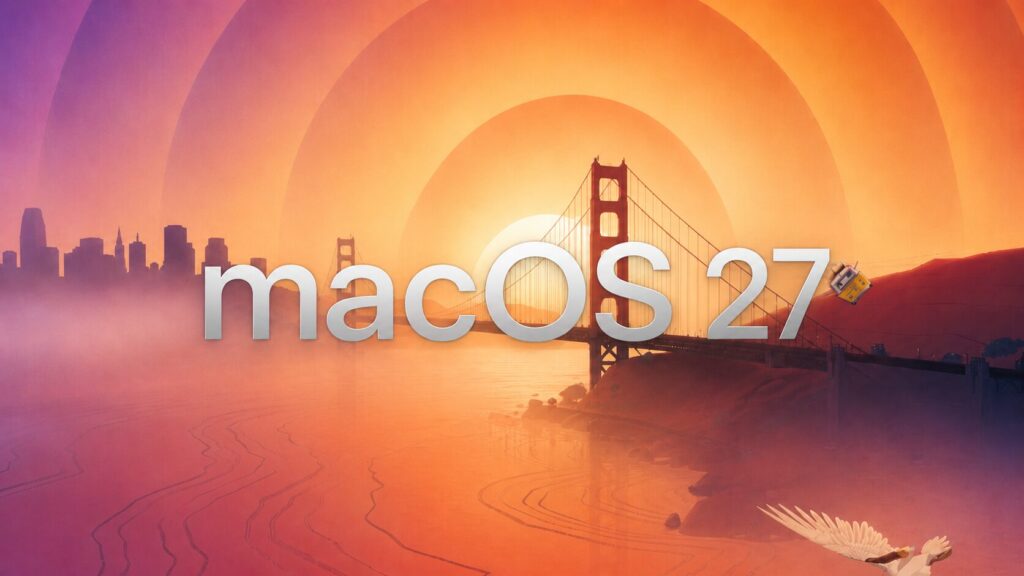
First beta of macOS 27 has been released
What’s New in macOS 27
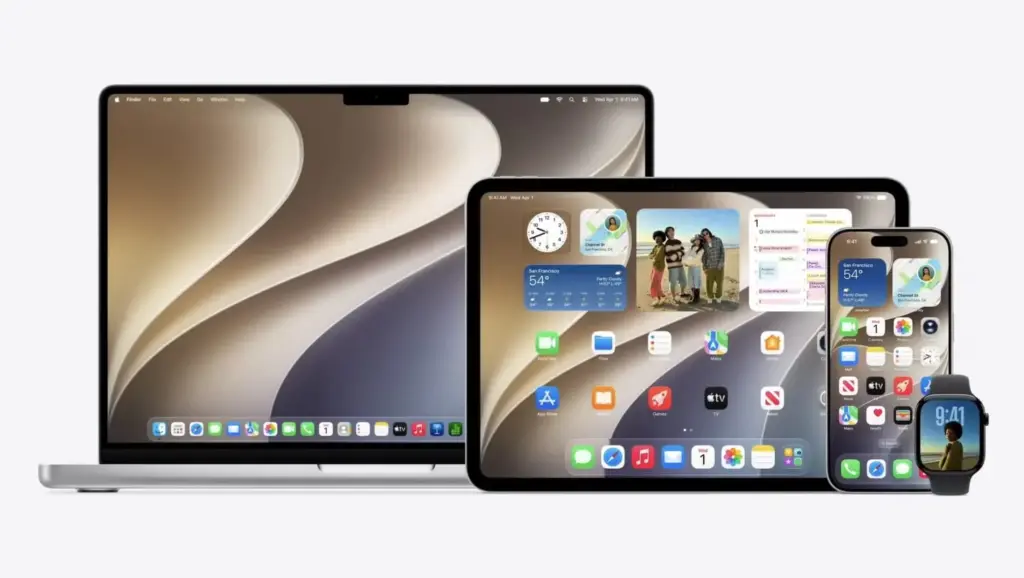
In spirit, the 2026 Mac update resembles the legendary Snow Leopard: the focus is not on a mountain of features, but on stability, speed, and order under the hood. However, there are a couple of major changes, and they’re worth checking out the macOS 27 Golden Gate beta for.

A lot of attention was given to refining the interface
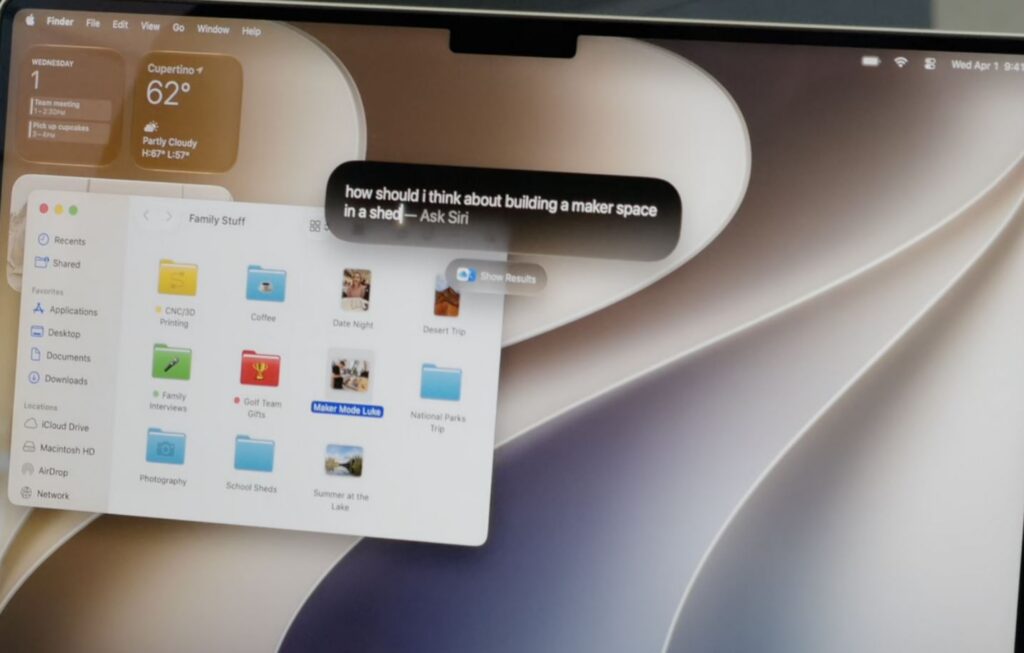
- completely new Siri — a conversational AI assistant in a standalone app, unified across iPhone, iPad, and Mac;
- refined Liquid Glass with a transparency slider — now you control the strength of the “glass” effect yourself;
- unified window corner radius for all apps, even non-adapted ones;
- updated Spotlight and built-in apps;
- some AI features run offline directly on the device;
- battery life and system responsiveness optimizations.
The same changes with the signature assistant also arrived on tablets. I’d like to note separately that the new Siri in macOS 27 can see open windows and documents and work with them directly, which changes the usual workflows on a computer. It’s precisely because of the smart assistant that the upgrade to macOS 27 looks like the most significant one in the past couple of years.
How to Update to macOS 27 Right Now
To update to macOS 27, you’ll need to register your Apple ID as a developer account, after which the Mac update installs like a regular system update. The process is quite familiar.
There’s no rush to update
- go to the Apple Developer portal and sign in with your Apple ID;
- accept the license agreement;
- open System Settings on your Mac and select the “General” section;
- go to “Software Update”;
- in the “Beta Updates” line, click the “i” icon in the circle;
- select the “macOS 27 Developer Beta” profile and wait for the computer to find the update;
- start installing macOS 27 on your computer.
Before you install macOS 27, be sure to make a backup. The macOS 27 beta is still raw, and rolling back the system without a backup will be problematic, and you may lose some data.
Which Macs Can Run macOS 27
Remember the key point: you can only download the macOS 27 beta on computers with Apple Silicon chips, as this is the first version of macOS without Intel support. The update is available for all Macs with M-series chips, from M1 to M5, as well as the new budget MacBook Neo with the A18 Pro.
The last four Intel-based computers that were still supported on macOS Tahoe will not receive the new system, and you won’t be able to download macOS 27 on them. Apple promises security updates for them for about three more years, so these machines will remain functional. Also keep in mind that the macOS 27 update will be the last one with Rosetta 2 support, so older Intel-based software may stop launching afterward.
Should You Update to macOS 27 Now
If your Mac is your primary work machine, I wouldn’t rush with the beta. The first macOS 27 beta is intended for developers, many apps haven’t been optimized for it yet, and you could easily find yourself without an essential program at the worst possible moment. For everyday tasks, it’s better to install macOS 27 in its stable version rather than in a raw build.
Don’t rush: the first beta version may contain many bugs
However, if you have a spare computer or you simply enjoy testing new things, there’s no reason to wait, and you can update to macOS 27 right now. A slightly more stable public beta will be released by Apple in July, and the final release of macOS 27 will come out in fall 2026 alongside iOS 27 and the rest of the systems.