Believe it or not, one setting in Developer Mode can help free up 2 GB of RAM and speed up your smartphone. We found this life hack online and tested it. Now we’re telling you what this setting is, who it will help, and what trade-offs you’ll have to accept in everyday use.

Here’s a life hack on how to free up RAM on your phone
What Is the Background Process Limit in Android
The trick is simple: the Android background process limit is set to zero. I’ve tried a bunch of ways to extend my smartphone’s battery life, from battery settings to removing power-hungry apps, but this particular setting saved the day again. It’s not in plain sight — it lives in Developer Mode, so many people simply don’t know about it.
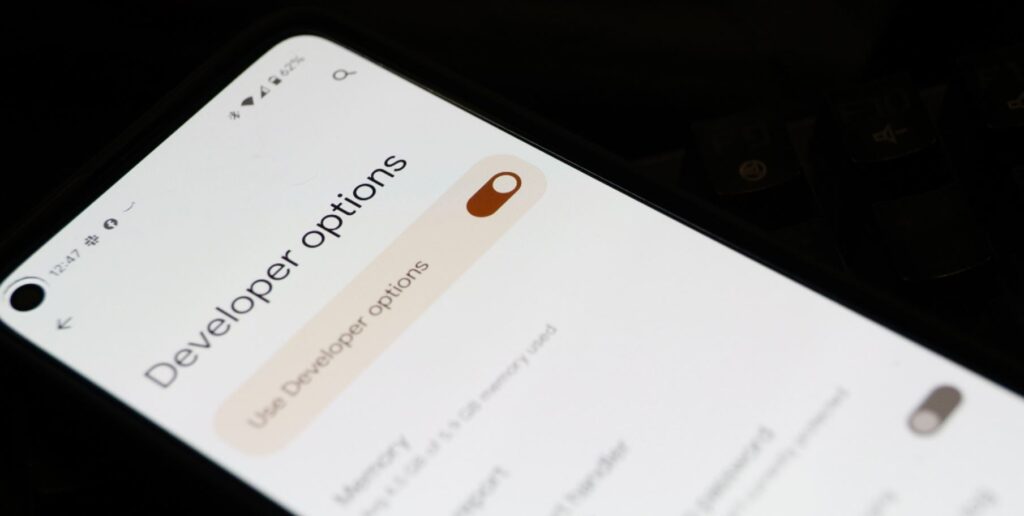
You’ll need to dive into Developer Mode for this setting
And let’s immediately dispel the main fear. Disabling background processes doesn’t break most notifications. Messengers, email, and social networks receive pushes through Google’s notification delivery service, which runs on the company’s servers, not on the phone itself. In other words, this setting only clears unused data from memory rather than turning off message delivery.
How to Limit Background Processes on Android in One Minute
First, you need to enable Developer Mode, which is hidden by default. Essentially, there’s nothing dangerous about activating it — at least if you don’t mindlessly change various parameters. So follow our instructions.
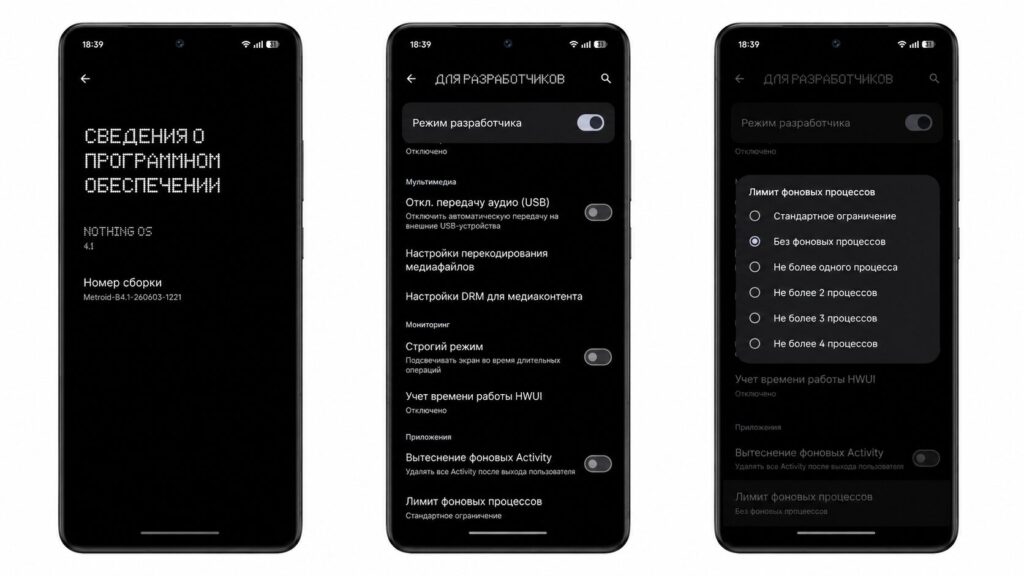
Here’s how to enable the background process limit
- Open the “Settings” app.
- Scroll down and tap “About Phone.”
- Find “Build Number” and tap it seven times until you see a confirmation.
Next, go to the Developer Options section and find the background process limit option. By default, it’s set to the standard limit, which varies by manufacturer but averages around 20 processes. Change it to “No background processes.” In my experience, the speed and battery life improvement is noticeable almost immediately.
How to Check How Much RAM Was Freed
The effect of settings that impact battery life is usually hard to measure — it’s easy to mistake a placebo for a real result. But here there’s a way to verify. In Developer Mode, open the Running Services section and look at the value next to “Cached” under the memory bar — that’s what gets freed up.
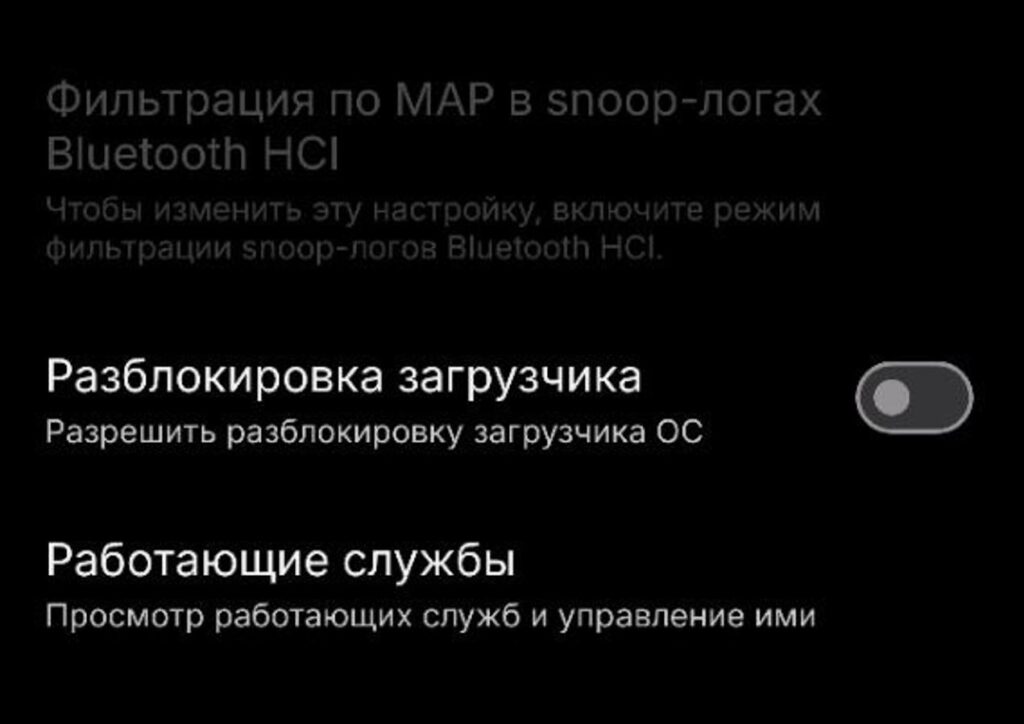
The setting is easily found through search
The rest is simple: take a screenshot, apply the background process limit, restart your phone, and return to the same screen. The number of cached processes will drop sharply, sometimes down to zero. Users gain 2 GB of RAM by reconfiguring the limit.
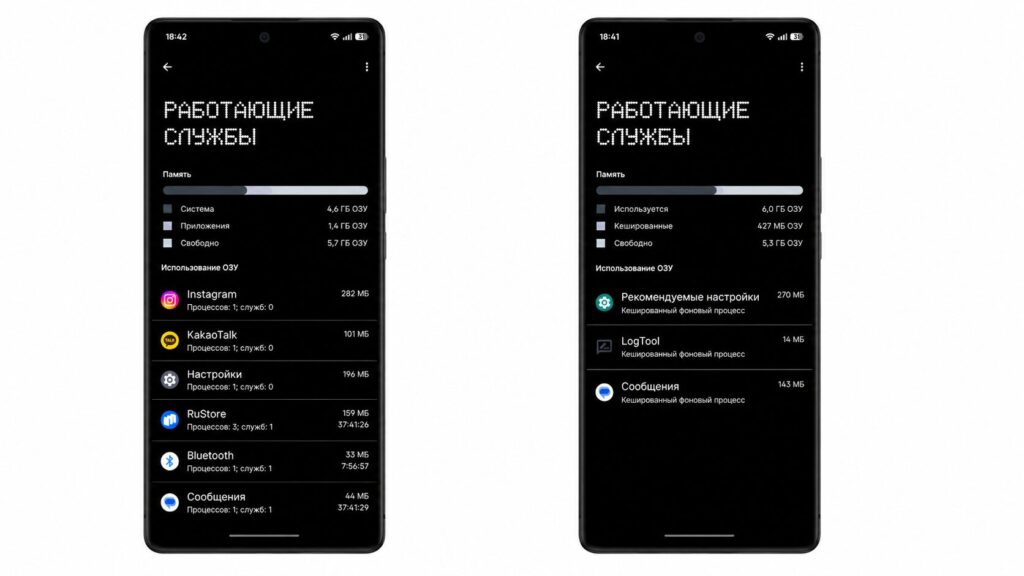
If you’re lucky, up to 2 GB of RAM will be freed
However, it’s worth noting: the amount of memory occupied by background processes constantly fluctuates, so those 2 GB are a snapshot at a specific moment, not a stable figure. This same screen is also handy for finding apps that consume the most memory in the background.
Background Process Limit — Drawbacks
There’s no such thing as a free lunch — there are downsides here too, though they’re not as scary as they might seem. I lived with this setting for a week and noticed the following drawbacks after limiting background processes:
- Notifications arrive slower. In a test with emails to my own inbox, the delay was approximately 10–15 seconds compared to before.
- Some apps take longer to open.
- Location-based features get finicky. The weather app, for example, had to be manually launched to pull up the location.
Still, the overall verdict favors the setting: the improvement in battery life and speed is worth these compromises. The assessment is subjective, so base your decision on your own usage scenario. If instant notification delivery or constant geolocation is critical for you, the downsides may outweigh the benefits.
Is It Worth Clearing RAM on Your Smartphone
This trick makes sense if you’re not bothered by notification delays in exchange for battery life and want to squeeze the most out of aging hardware. But for those who live in work chats and email expecting instant pushes, or constantly use navigation, it’s better to leave the default value.
Want to tidy up not just your RAM but your storage too? There’s another trick: the author disabled a system app for local AI and freed up about 7 GB of storage, sacrificing only features they never used. The process limit itself isn’t dangerous and can be enabled in less than a minute — reverting everything back is also a matter of seconds.