After the blocking of Telegram and WhatsApp, many people switched to iMessage, since Apple’s messenger can’t be blocked as easily. When trying to sign into the Messages app on Mac, errors like “An unknown error occurred” or “Authentication error” sometimes appear. Errors when signing into Messages on Mac prevent you from using iMessage and syncing conversations with iPhone. In this article, we’ll cover all working methods to fix the problem — from the simplest to the most radical.
Unexpected problems can arise with iMessage on Mac
Can’t Sign Into iMessage on Mac Due to Apple Account
The first thing to check is whether your login and password are correct. Especially if you recently created a second Apple ID, make sure you haven’t mixed them up. If the credentials are entered incorrectly, the app doesn’t always tell you directly — instead, it may show a generic “An unknown error occurred” error in red text.
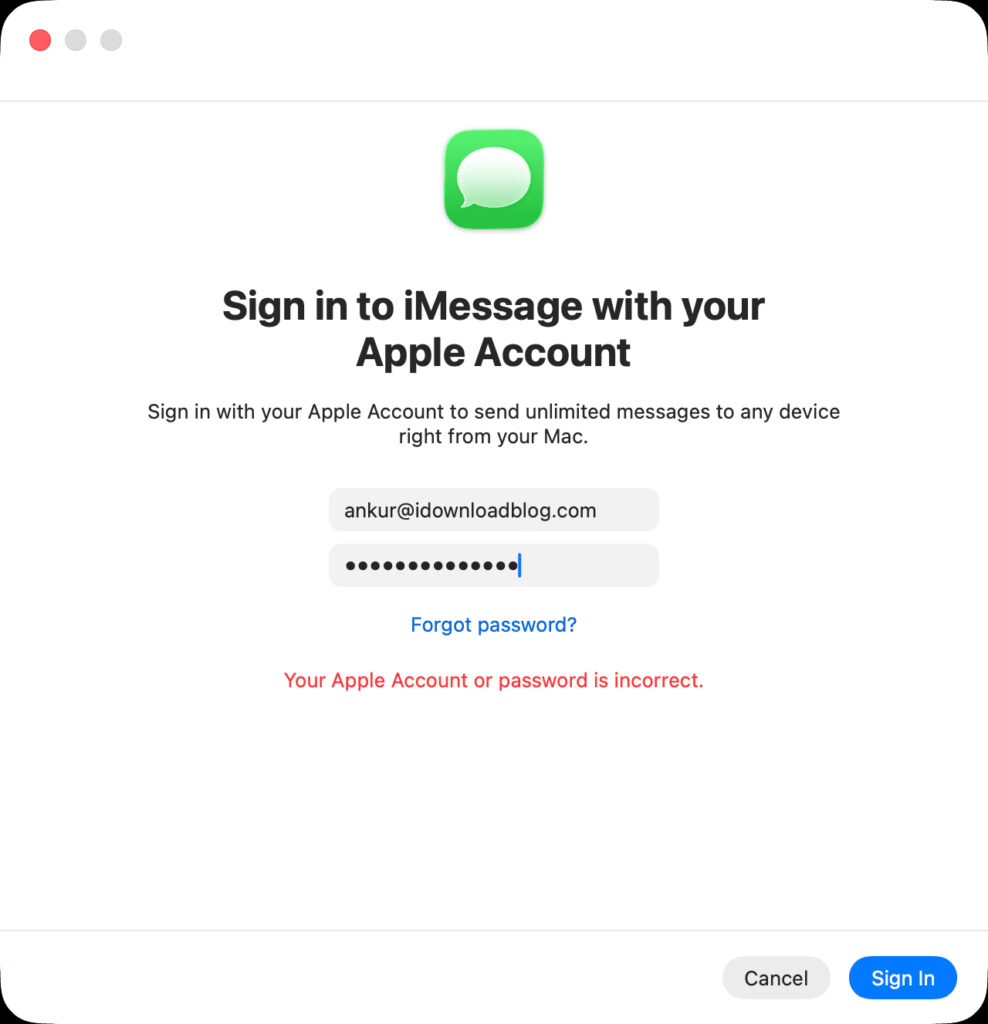
Sign-in may simply not work, even though you’re entering everything correctly
Double-check your email address and password. If you’re unsure about your password, reset it through “System Settings” on Mac or through “Settings” on iPhone. You can also go to account.apple.com and check if you can sign in there. If the website login works but Messages doesn’t, the problem isn’t with your password, and you need to move on.
Force Restart Messages on Mac
Sometimes the app gets “stuck” on a previous failed login attempt and keeps showing an error, even if you’re doing everything correctly. In this case, force quitting and restarting will help.
How to force quit Messages:
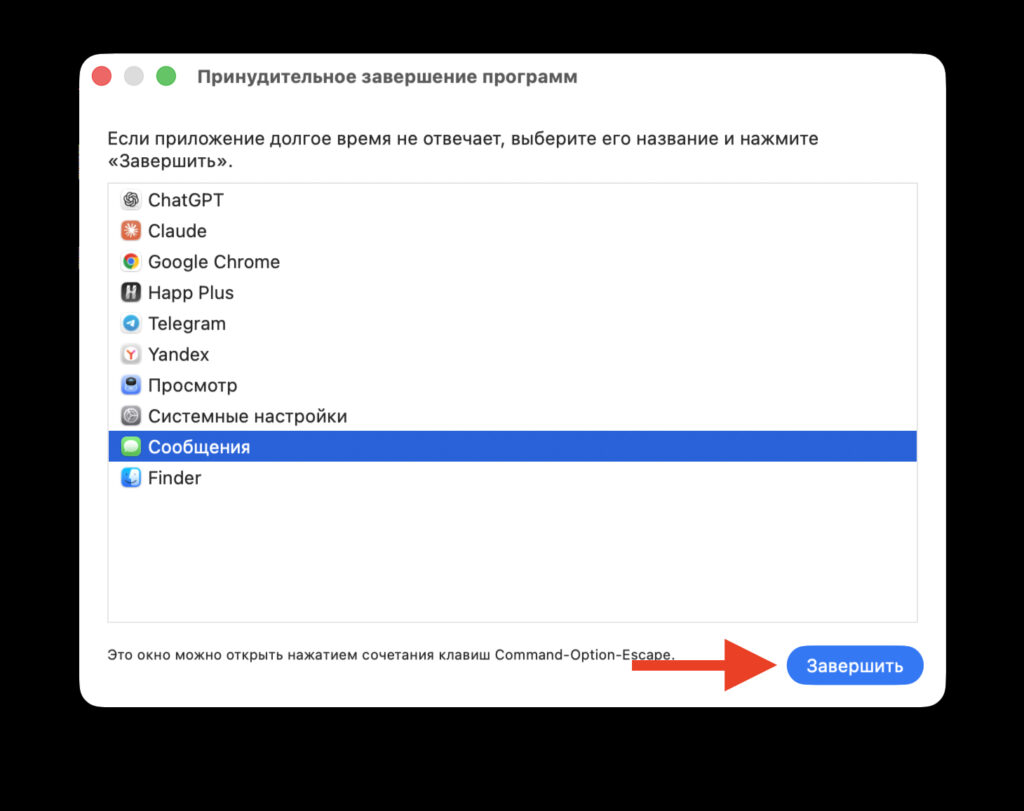
Close and reopen
- Click on the Apple icon in the upper left corner of the screen.
- Select “Force Quit.”
- In the window that opens, find “Messages” and click “Quit.”
- Reopen the app and try to sign in.
If the first attempt didn’t help, force quit Messages again, then restart your Mac through the Apple menu and the “Restart” option. After the system loads, open “Messages” and try signing in again.
Apple Services Status
The iMessage sign-in error on Mac may be caused by an outage on Apple’s side. Before changing any settings, make sure the servers are working properly.
Open the page apple.com/support/systemstatus in your browser and check the status of the following services:
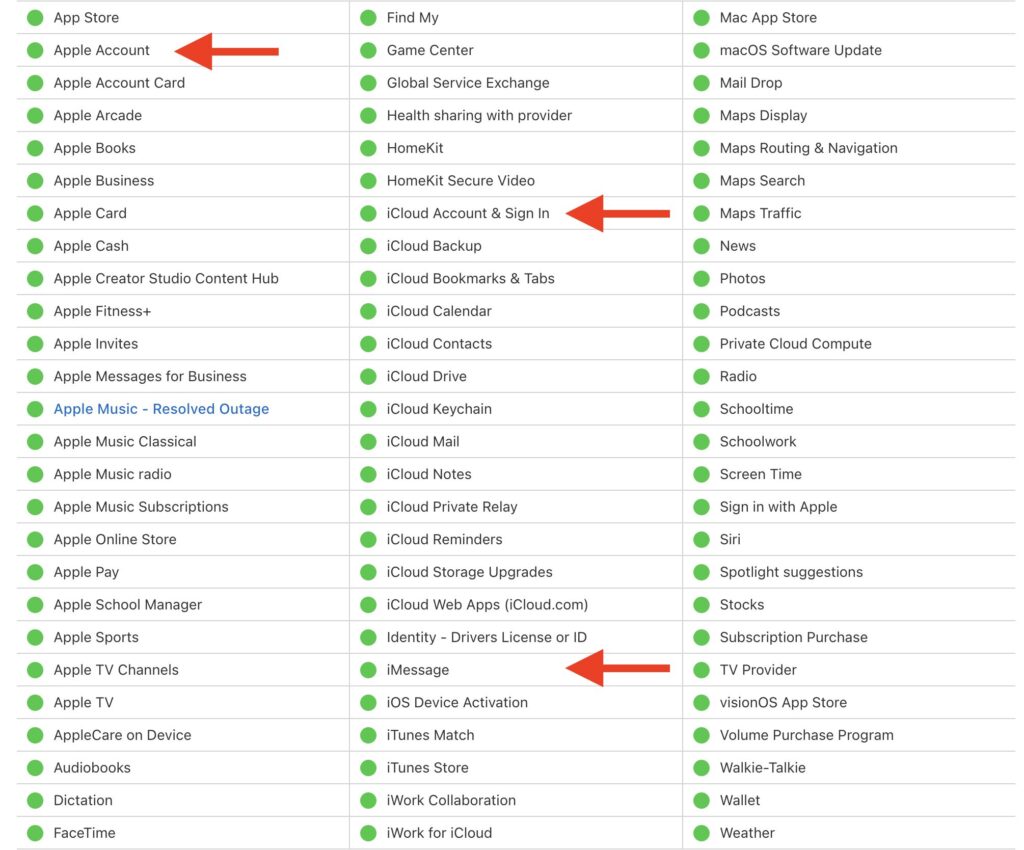
Check the status. Apple might be having issues
- Apple Account
- iCloud Account & Sign In
- iMessage
A green dot next to a service means everything is working normally; a yellow or orange indicator means there’s a problem on Apple’s side. If one of the listed services is unavailable, you’ll just have to wait: Apple usually resolves such outages within a few hours.
Additionally, check the date and time on your Mac. Incorrect date settings can interfere with authentication. Open “System Settings,” go to the “General” section, then “Date & Time,” and make sure automatic date and time setting is enabled.
iMessage Doesn’t Work on an Old Version of macOS
An outdated system version or a beta version of macOS is a common cause of sign-in problems with Messages. At the time of writing, the current version is macOS Tahoe 26.4.1, released on April 9, 2026. If your Mac is running an earlier build, updating may solve the problem.
How to update macOS:
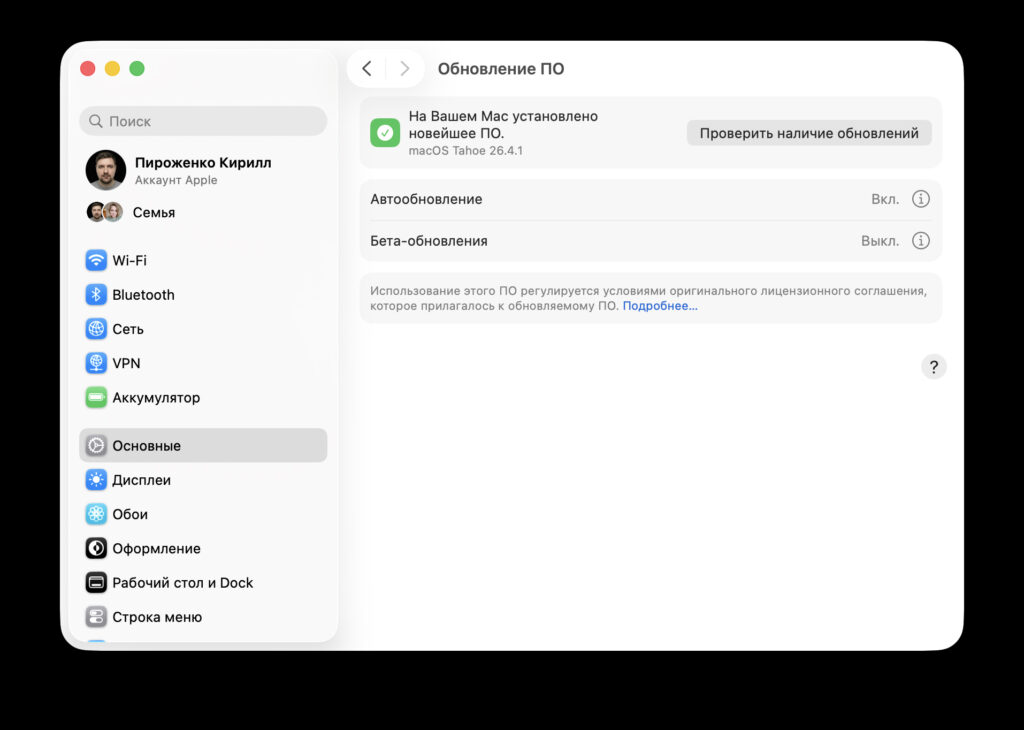
Check here that you have the latest software version
- Open “System Settings.”
- Go to the “General” section.
- Click “Software Update.”
- If an update is available, click “Update Now” and wait for the installation.
Before updating, be sure to make a backup via Time Machine. If you’re using a beta version of macOS and encountering sign-in errors, try switching to the stable release.
How to Delete Messages Cache and Files on Mac
If the previous methods didn’t help, try deleting the local files of the Messages app and letting the system recreate them. This is safe if you haven’t signed into your account yet — you’ll only be deleting cache and settings, not the conversations themselves (they’re stored in iCloud).
Step-by-step instructions for deleting Messages system files:
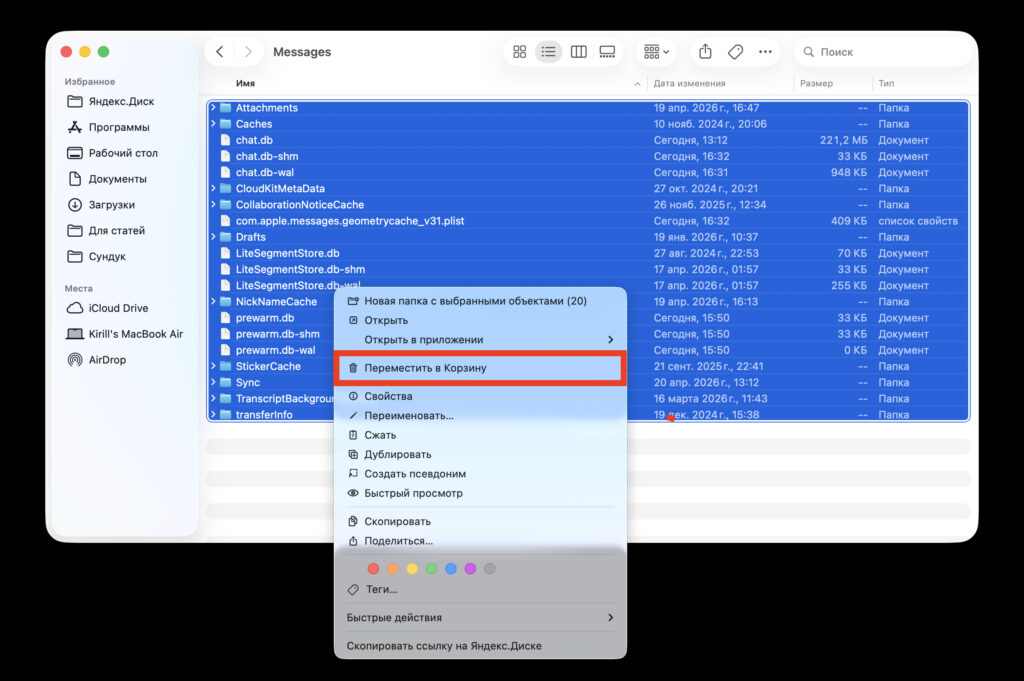
Delete everything from this folder and restart your Mac. Just in case, make a copy of these files in another folder
- Open Finder.
- Hold the Option (Alt) key and click “Go” in the top menu. A “Library” option will appear in the dropdown list — click on it.
- Find and open the Messages folder.
- Select all files and folders inside it and move them to the Trash. As a precaution, you can copy them to another folder first.
- Restart your Mac.
- Open the Messages app and try to sign in again.
After restarting, macOS will automatically create new files needed for Messages to work. In most cases, this method resolves the sign-in error.
iMessage Doesn’t Work Through VPN on Mac
VPN clients, antivirus software, and network filters can block the network ports required for iMessage to work. If you’re using such software, try temporarily disabling it and attempting to sign in again.
Another quick way to check if the problem is network-related is to connect to a different Wi-Fi network.


