Previously, iPhone owners lived by a simple rule: one volume for everything. You’d turn the ringtone down so it wouldn’t startle anyone in a meeting, and in the morning the alarm would ring just as quietly, and you’d happily sleep right through it. In iOS 27, this link has finally been broken. Now the alarm, ringtone, and notifications can each have their own volume level, and this is just one of dozens of new iOS 27 features. Everything is switched in just a couple of taps.
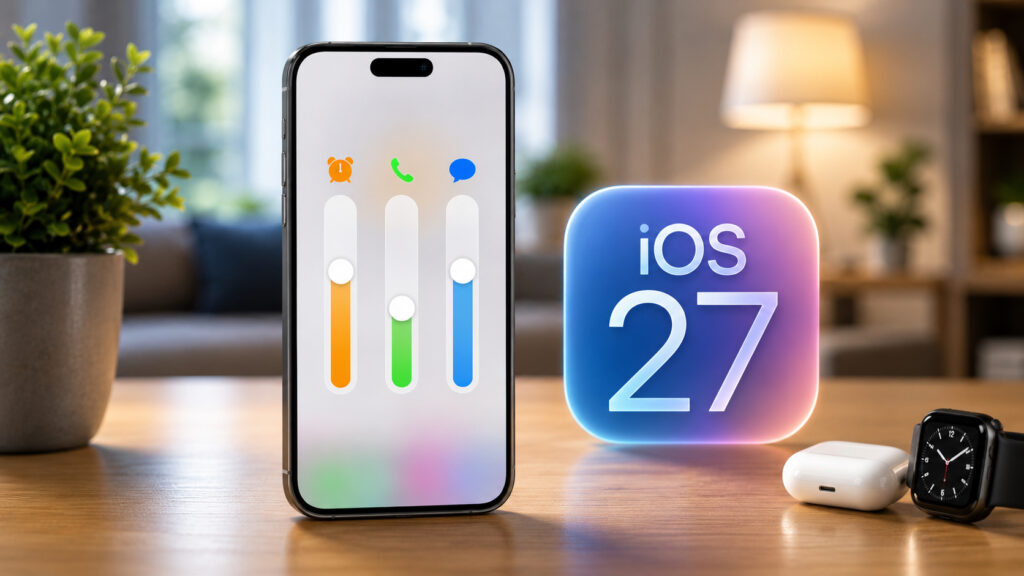
Now the iPhone has several different volume levels
Separate Alarm and Ringtone Volume on iPhone in iOS 27
Before this version, the system used a shared sound setting for ringtone and alerts. If you set the slider to minimum for the ringtone, alarms, timers, keyboard sounds, and the camera shutter all went quiet along with it. Finding a balance that worked both during the day and at night was nearly impossible: either the ringtone blasts through the whole room, or the alarm is barely audible.
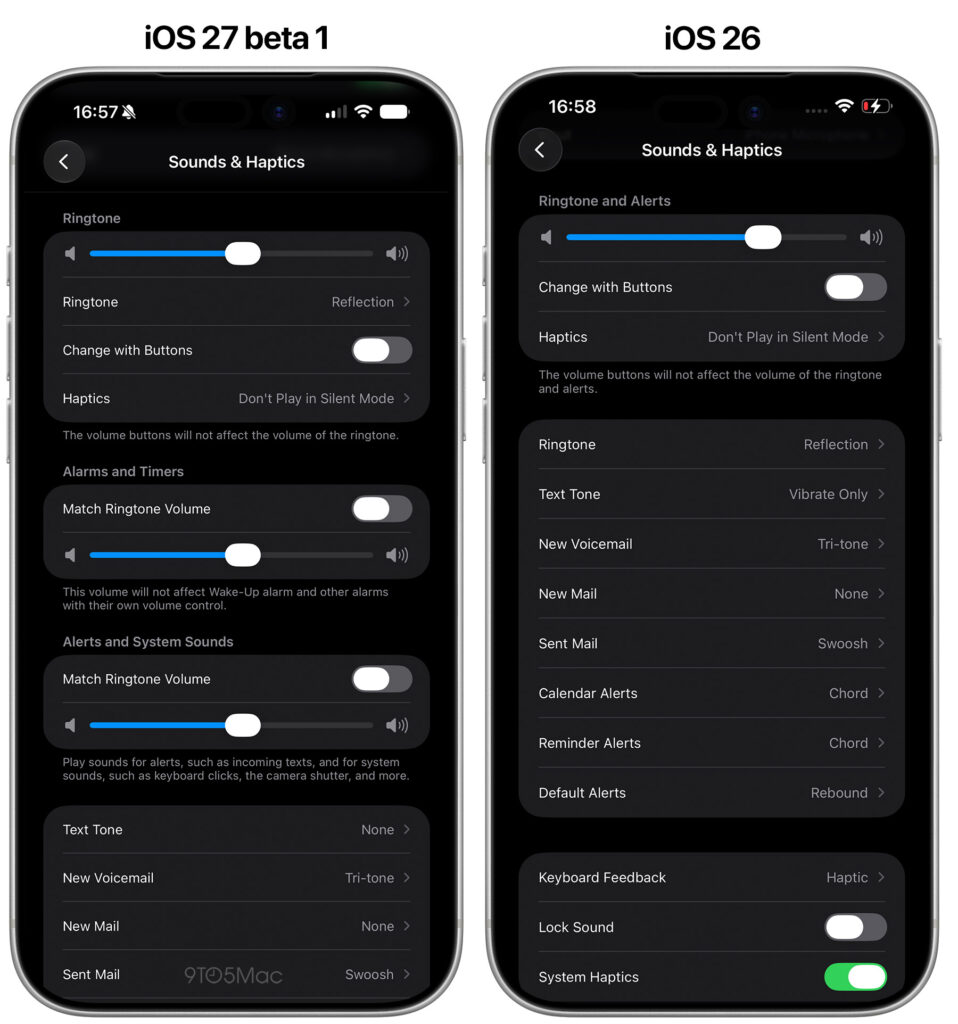
Here’s what the volume settings interface looks like in iOS 27 and iOS 26
In iOS 27, volume has been split into separate groups. The ringtone stays on its own. Alarms and timers get their own slider. Notifications and system sounds are also separated into their own block. This means you can have a quiet ringtone, a loud alarm, and medium-volume notifications all at the same time, and they no longer drag each other along.
An important note from Apple: the Wake Up alarm and some other alarms have their own volume control. The new slider doesn’t affect them — they play by their own rules. This is explicitly stated in the tooltip under the setting.
How to Change Alarm Volume on iPhone Separately from Ringtone
Let’s start with alarms, because they’re the most common reason people fuss with volume in the first place. The relevant section is hidden in the iPhone sound settings. From there, everything is done in just a few taps.
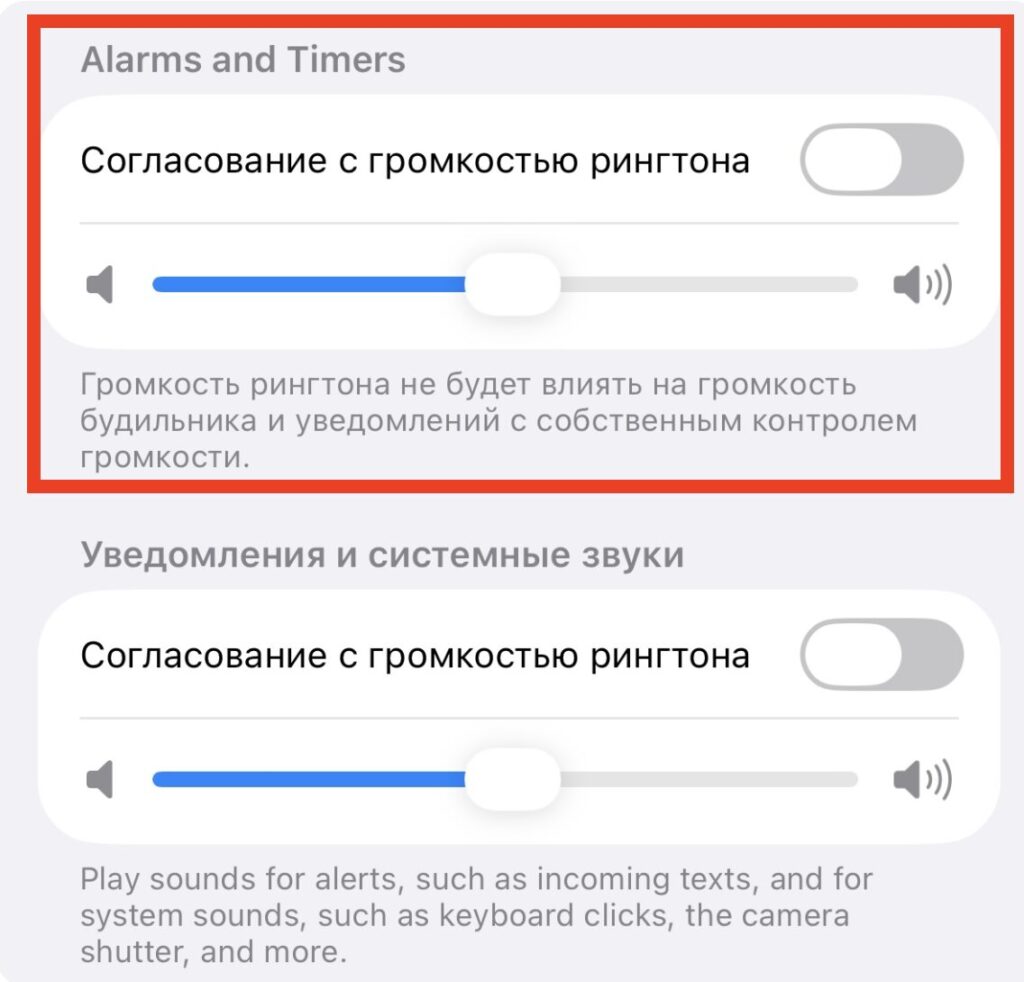
This is the volume for alarms and timers
- Open “Settings” on your iPhone.
- Go to the “Sounds & Haptics” section.
- Scroll down to the “Alarms and Timers” block (in the iOS 27 beta, this heading is still in English; in the final release it will be localized).
- Make sure the “Match Ringer Volume” toggle is turned off. As long as it’s in this position, the slider below works independently.
- Move the lower volume slider right or left to set your desired level for alarms and timers.
The logic is simple. As long as the toggle is off, the lower slider sets an independent alarm volume for alarms and timers. Slide it to the right, and your morning “ding-ding” gets louder, while the ringtone stays exactly where you set it.
Below this block, the system explains: ringtone volume will not affect alarm volume or notifications with their own volume control. This is the very break from the old linked system. Set the alarm slider close to maximum if you’re a heavy sleeper, and don’t worry about an incoming call deafening you during the day.
A practical tip: if you’re used to putting your phone on silent mode at night, remember that the alarm will still go off because it now has its own independent volume. So you no longer need to separately check the Ring/Silent switch just for the alarm.
How to Change Notification Volume on iPhone Separately from Ringtone
A bit further down in the same “Sounds & Haptics” section, you’ll find the “Notifications and System Sounds” block. This is where the second independent slider lives, and it controls everything else: incoming messages, app notifications, keyboard clicks, camera shutter sound, and other system effects.
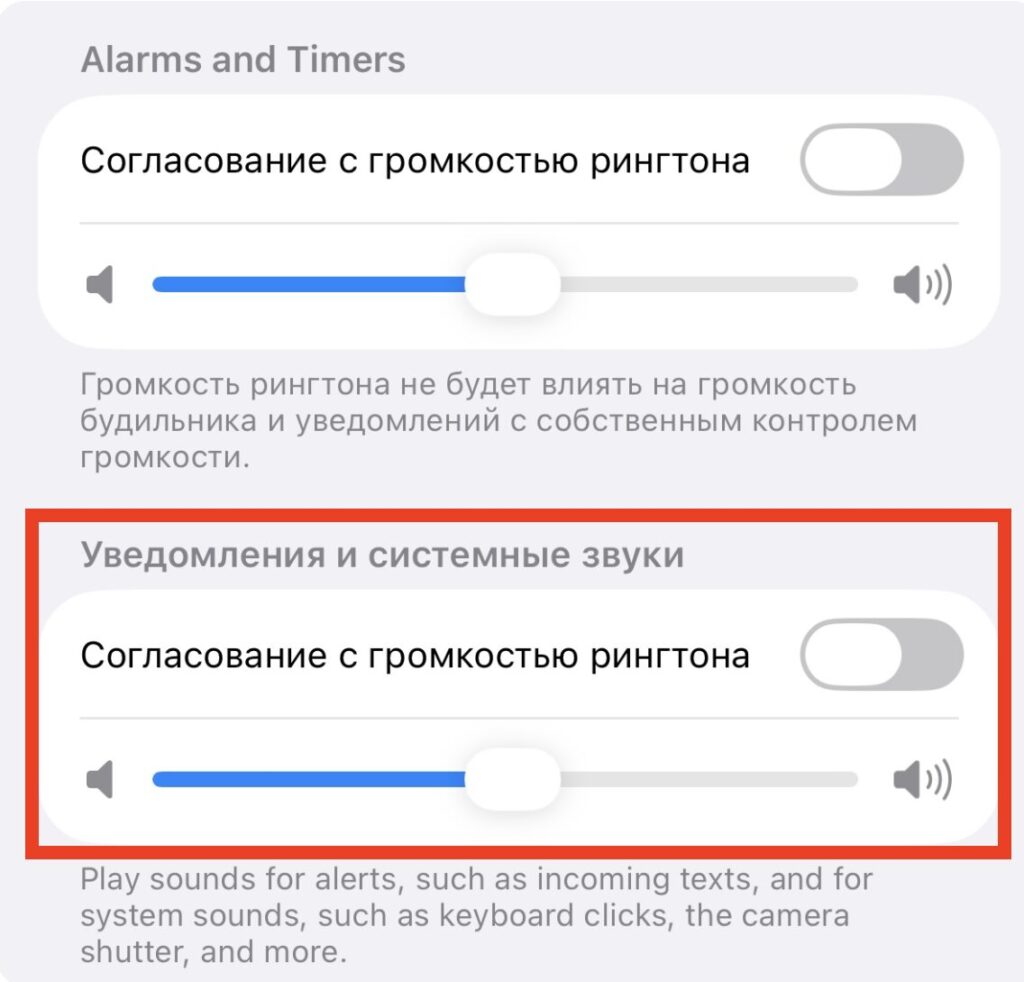
Separate volume for notifications
- While still in the “Sounds & Haptics” section, scroll to the “Notifications and System Sounds” block.
- Make sure the “Match Ringer Volume” toggle above the slider is turned off.
- Move the lower slider to a comfortable level. It controls messages, app notifications, keyboard clicks, and the camera shutter.
Below the block, Apple explains that this setting controls sounds for alerts like incoming messages, as well as system sounds like keyboard clicks and the camera shutter. In the beta version, this text is also still in English — don’t be alarmed.
A scenario where this is especially convenient: you want to hear new messages but are tired of a loud ringtone. You make the ringtone quiet and set the notifications slider to a comfortable level. Now the phone sits calmly on the table, the ringtone doesn’t irritate you, and you react to important messages right away.
Why You Need the “Match Ringer Volume” Setting in iOS 27
Let me focus separately on the toggle, because the entire new system revolves around it. By default, you get three independent volume levels, and this is the main feature of the update. But if you prefer the old logic where everything works together, the developers have left a way back.
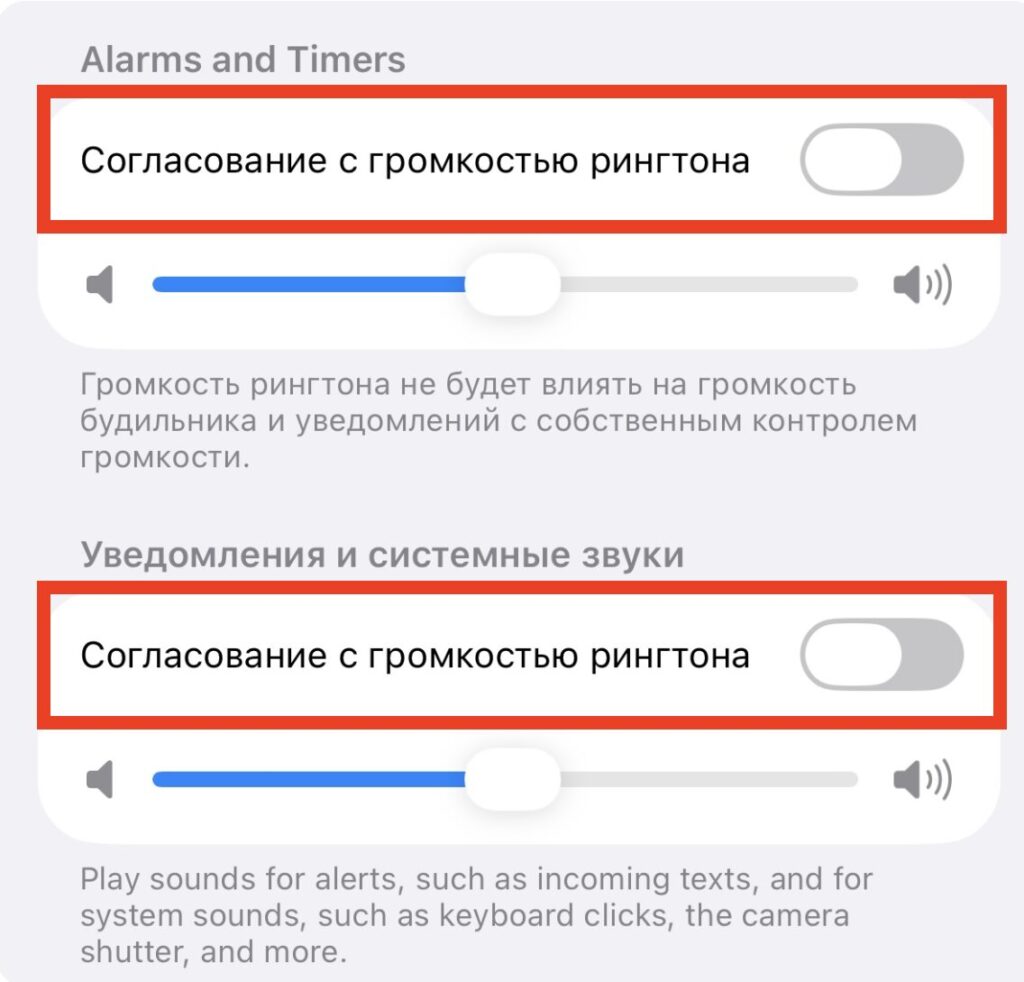
You can sync a specific volume with the ringtone
Turn on the “Match Ringer Volume” toggle in the desired block, and that group of sounds will once again follow the ringtone volume. This means alarm or notification volume will automatically follow the ringtone, just as it did in previous iOS versions. The separate slider disappears since its value is taken from the ringtone.
The result is a flexible scheme. Want to completely separate all sounds? Keep both toggles turned off and adjust the sliders manually. Want to restore the familiar behavior for just one group — for example, notifications — turn on the toggle only in that block and leave the alarms independent. No “all or nothing” — you configure each category to suit yourself.
For now, iOS 27 doesn’t offer the ability to set different volumes for each individual alarm — everything works at the level of general groups. But even in this form, it solves an old pain point: you no longer have to choose between not oversleeping and not being deafened by a ringtone. Spend a minute on these two sliders after installing the update, and your iPhone will sound exactly the way that’s convenient for you.