Apple recently added a bunch of new features to the iPhone with the release of iOS 26.4. But many smartphone owners don’t even know about all the old ones. You probably only turn on airplane mode before takeoff and turn it off right after landing. That’s it. But this simple button on the iPhone has at least six non-obvious uses that come in handy on the ground. Some of them can save you money, others — your nerves.
Airplane mode can be useful not only on a plane
Quick Network Reset on iPhone
It happens: the signal drops, the internet won’t load, and the network icon shows one bar. Many people in this situation restart their iPhone entirely. They wait a minute or two for it to boot back up. That’s unnecessary.
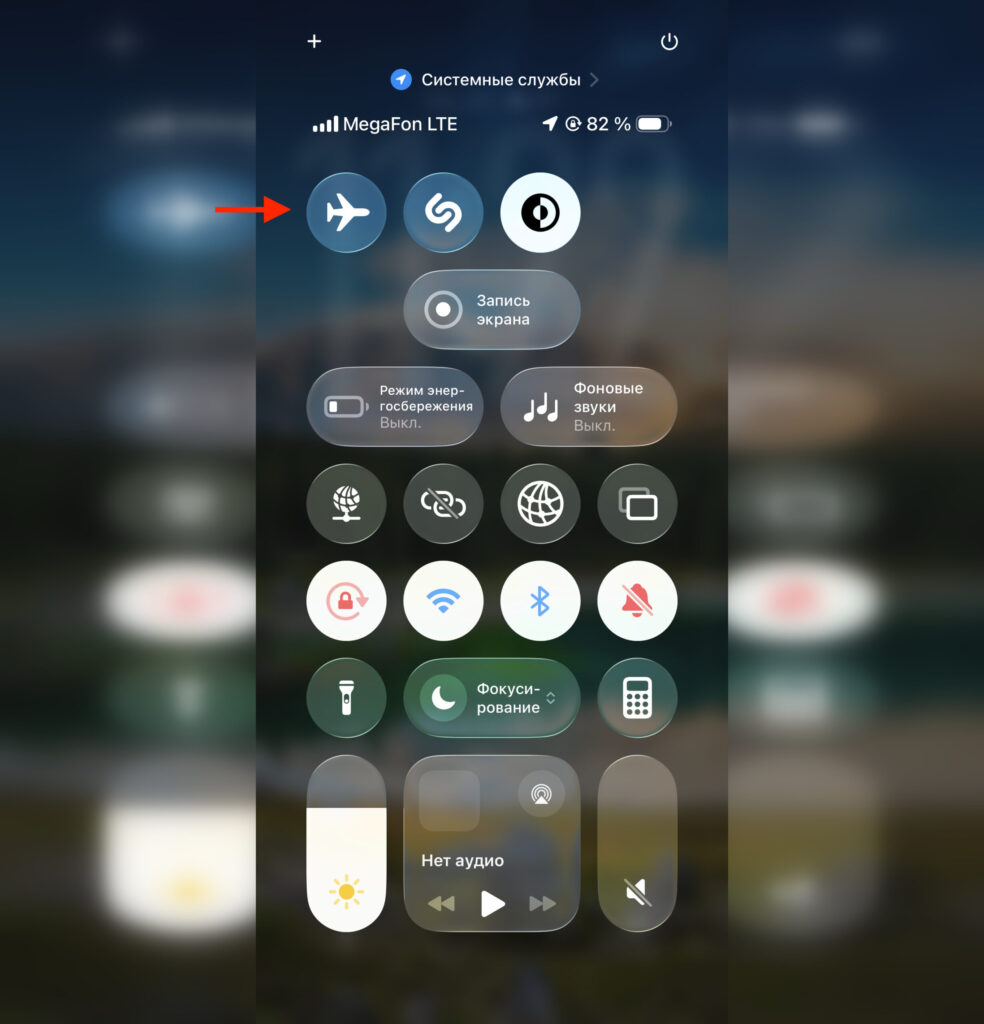
You can turn it on through Control Center with a couple of taps
Open Control Center and turn on airplane mode. Wait 10 seconds. Turn it off again. Done: the iPhone’s radio module has gone through a hard restart, and the phone reconnected to the nearest cell tower. Often this is enough to restore a normal signal.
Why does this work? Airplane mode completely disables all wireless modules: cellular, Wi-Fi, and Bluetooth. When you turn the iPhone back on, it searches for a network from scratch, as if you just inserted a SIM card. This is much faster than a full reboot, and the effect is the same. It’s especially useful when the iPhone is “stuck” on EDGE or shows a network but data isn’t flowing. Ten seconds — and the problem is solved.
Saving iPhone Battery in Areas with Poor Signal
If you’re outside the city, in a basement, in the subway between stations, or just in a dead zone, the iPhone spends a huge amount of energy searching for a network. You can try turning on the new power saving mode in iOS 26, but it’s not a cure-all either. The radio module works at maximum power, trying to latch onto anything. The battery drains many times faster than usual in this mode.
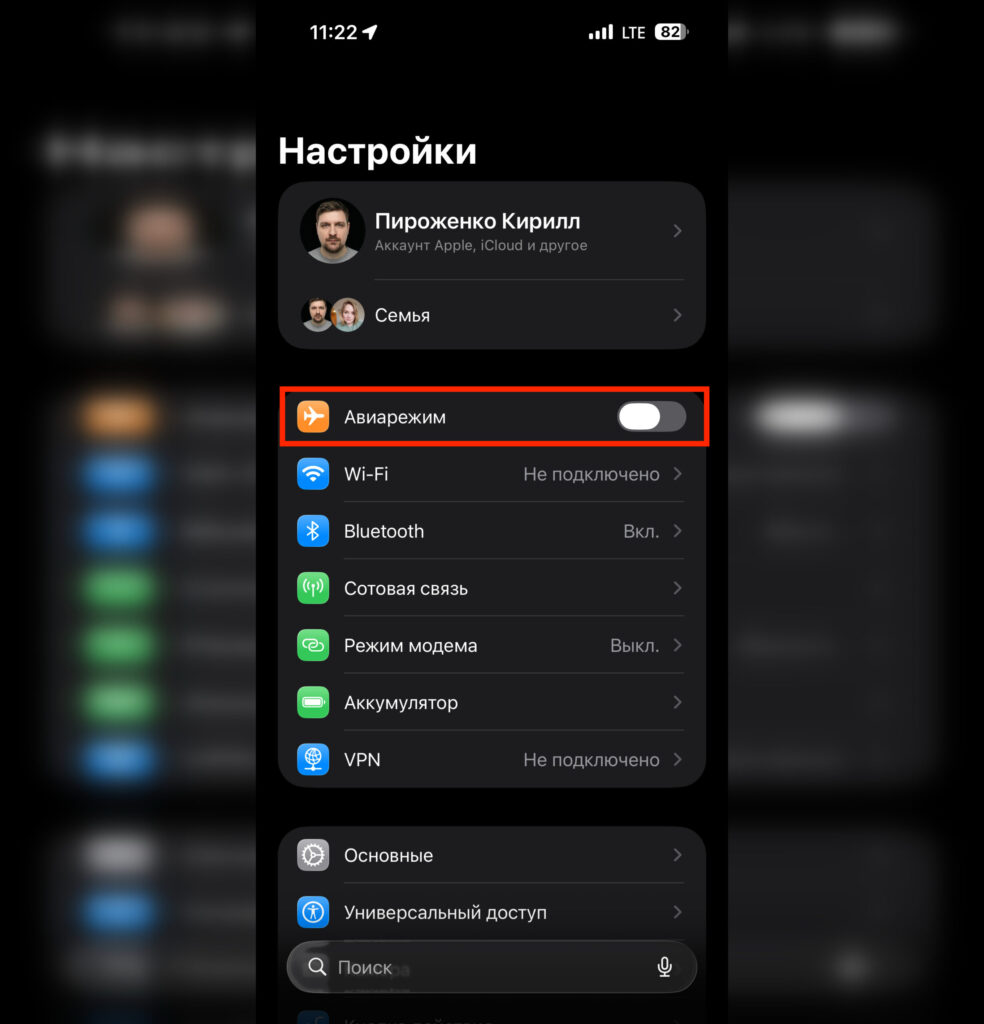
If needed, airplane mode can be turned on right in Settings
It’s easy to check: look at your battery usage at the end of a day spent outside the city. You’ll be surprised how many percent went to signal searching alone. The solution is simple: if you know there’s no signal here and won’t be for the next hour, turn on airplane mode. The phone will stop wasting charge for nothing.
At the same time, Wi-Fi and Bluetooth can be turned on separately. They will continue to work even in airplane mode. So your headphones won’t disconnect, and when a familiar Wi-Fi network appears, you’ll stay connected.
Speed Up iPhone Charging with Airplane Mode
Running late and need to charge your iPhone at least a little? Turn on airplane mode before plugging in the cable. Without active wireless modules, the phone consumes significantly less energy during charging.
The difference is especially noticeable if you don’t have the most powerful adapter. With a 5W charger, every percent counts. In airplane mode, the iPhone charges noticeably faster: you can save 10-15 minutes on a full cycle. When you only have half an hour before heading out, that’s significant.
After charging, simply turn off airplane mode. All missed calls and messages will arrive within a few seconds.
How to Protect Yourself from Roaming on iPhone Using Airplane Mode
On an international trip, one accidental call or automatic update download can result in an unpleasant bill. Apps update in the background, iCloud syncs photos, messengers pull media files. All of this happens over the mobile network, and every megabyte in roaming costs many times more.
Airplane mode solves this problem radically: the phone simply doesn’t connect to local cellular networks. At the same time, you can still use Wi-Fi in a hotel or café. Turn on airplane mode, then manually enable Wi-Fi. Calls and messages will go through messengers, and your carrier won’t charge a single cent for roaming. This is especially relevant in the first minutes after landing, when the iPhone automatically latches onto the local network before you’ve even bought a local SIM card.
Blocking Ads in Games on iPhone Using Airplane Mode
Airplane mode can also disable ads in games, but not all of them
Free games on iPhone come with an endless stream of ads. After every level, after every action, before every bonus. It’s especially annoying when you’re waiting to board at the airport and just want to kill time, not watch thirty-second video ads.
Turn on airplane mode before launching the game. Without internet access, ad banners and video ads simply won’t load. The game will continue to work in offline mode, but without the annoying ads. This doesn’t work with all games: some require a constant server connection. But most casual titles — puzzles, runners, arcades — launch without any issues.
How to Discreetly Drop a Call on iPhone
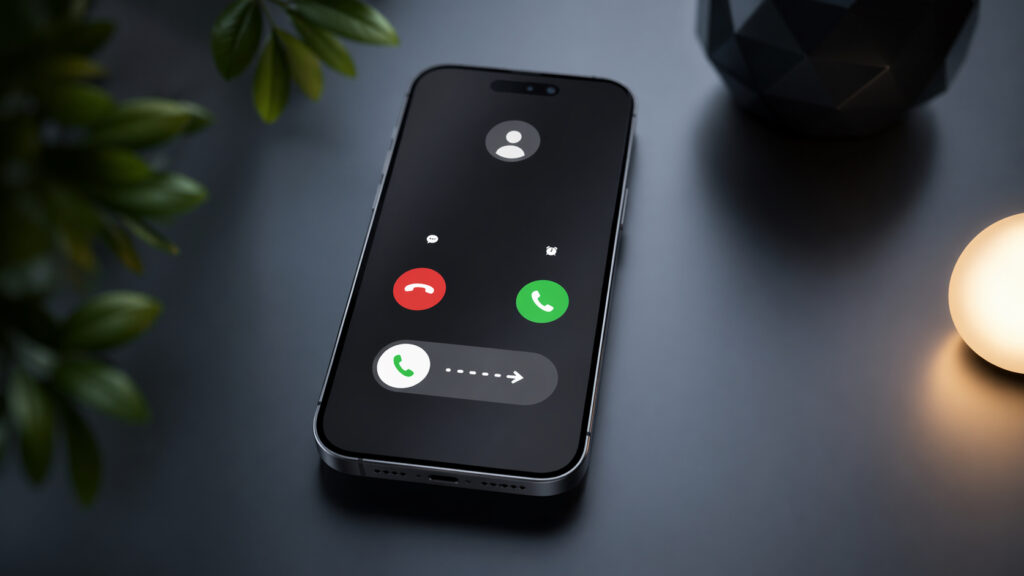
Airplane mode is a great way to drop a call from a pushy person
Sometimes there’s a conversation you want to end, but hanging up feels awkward. A pushy acquaintance, a drawn-out discussion, or just an inconvenient moment. There’s an elegant solution: turn on airplane mode right during the call. The connection will drop as if you drove into a tunnel or entered a dead zone.
The other person will hear silence, then dial tones. No suspicion: just poor signal, it happens. Then you can call back in a couple of minutes saying “sorry, lost signal” or send a message. Of course, you shouldn’t overuse this: if you use the trick too often, people will start noticing a suspicious pattern. But in extreme cases, the method works flawlessly. Airplane mode is one of the most underrated iPhone features. Make use of it.