Apple promised at WWDC 2026 that AirDrop in iOS 27 would be 80% faster. That’s an impressive number, but marketing slides and real-world file transfers often don’t match up. AirDrop acceleration turned out to be among the main new features of iOS 27, so the new version was put to a practical test by transferring a large video between two iPhones.
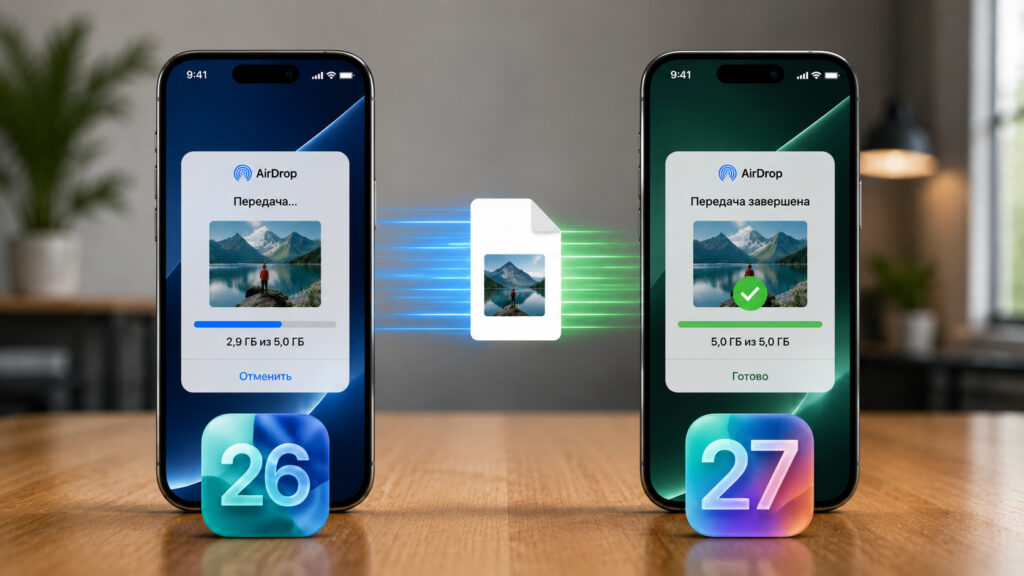
iOS 27 significantly sped up AirDrop
AirDrop Comparison: iOS 27 vs. iOS 26
For the test, a video 7 minutes 30 seconds long and 3.5 GB in size was used. The file is heavy, so the speed difference is visible without any stopwatch. A lightweight photo can be transferred in a second, but on a large video, any optimization immediately becomes apparent.
First, the video was transferred from an iPhone running iOS 27 to a device with the older iOS 26. The transfer took 2 minutes and 11 seconds. Then the same file was sent from iOS 27 to iOS 27, and this time it only took 41 seconds.
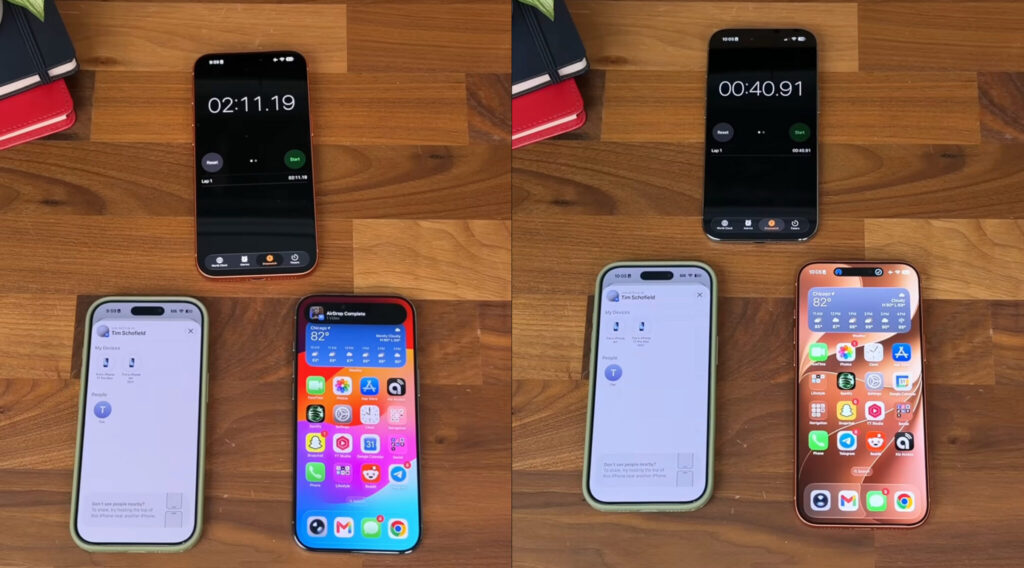
Test results: iOS 26 on the left, iOS 27 on the right
In percentage terms, that’s a 69% speed improvement. It didn’t quite reach Apple’s promised 80%, but 41 seconds versus over two minutes feels completely different, especially when you need to quickly send a recorded video or a large photo archive.
The main takeaway from the experiment is simple: AirDrop delivers full speed only when both iPhones are running iOS 27. If the receiving device has an older system, there will still be some improvement, but it won’t be nearly as noticeable. And this makes sense: the acceleration is built into the new version of the system, and the old one simply doesn’t know how to work with the new rules.
Why AirDrop Works Faster on iOS 27
AirDrop in this case doesn’t use the internet. The technology finds a nearby device via Bluetooth and then establishes a direct Wi-Fi connection between the two gadgets. Files travel through this channel, so the final speed depends on the quality of the wireless module and how efficiently the system manages the connection.
Apple seriously reworked AirDrop in the new operating systems
In iOS 27, Apple reworked specifically the software side of the process. The hardware inside the iPhone remained the same, but the transfer logic became more refined: less idle time during the connection phase, and the channel is filled more densely. Previously, a noticeable portion of time was spent on the connection moment itself between the two devices, when the file hadn’t started transferring yet. Apple trimmed precisely these delays, and on a long video, the savings add up to tens of seconds.
There’s a nuance that many people miss. Both sides need to understand the new algorithm. When an iPhone on iOS 27 sends a file to a device running iOS 26, the new system has to work by the old rules, and the whole point of the optimization is lost. That’s why maximum improvement is only visible within a pair of updated smartphones. For a large family or team where everyone has iPhones, this is one more reason to upgrade to the new system together. One lagging smartphone drags the entire transfer back to iOS 26 speeds.
It’s also worth keeping in mind that the result was obtained on a specific pair of devices. On a different iPhone combination, the numbers will vary, but the overall character of the improvement will remain.
AirDrop Settings for Fast File Transfer
Even without iOS 27, transfer speed can be improved if you follow a few simple conditions.
- Keep devices close together. AirDrop is designed for short distances, and the closer the iPhones are to each other, the more stable the Wi-Fi connection. A wall or a room between devices already impacts speed.
- Turn on Wi-Fi and Bluetooth on both devices. Without them, the transfer either won’t start or will fall into a slow mode. Low Power Mode should also be turned off, as it can throttle the wireless modules.
- Unlock the screen of the receiving iPhone. A locked device sometimes refuses to accept files or does so sluggishly.
- Don’t burden your smartphones with heavy tasks during the transfer. If an App Store download or an active game is running in the background, some resources go there instead of to the file transfer.
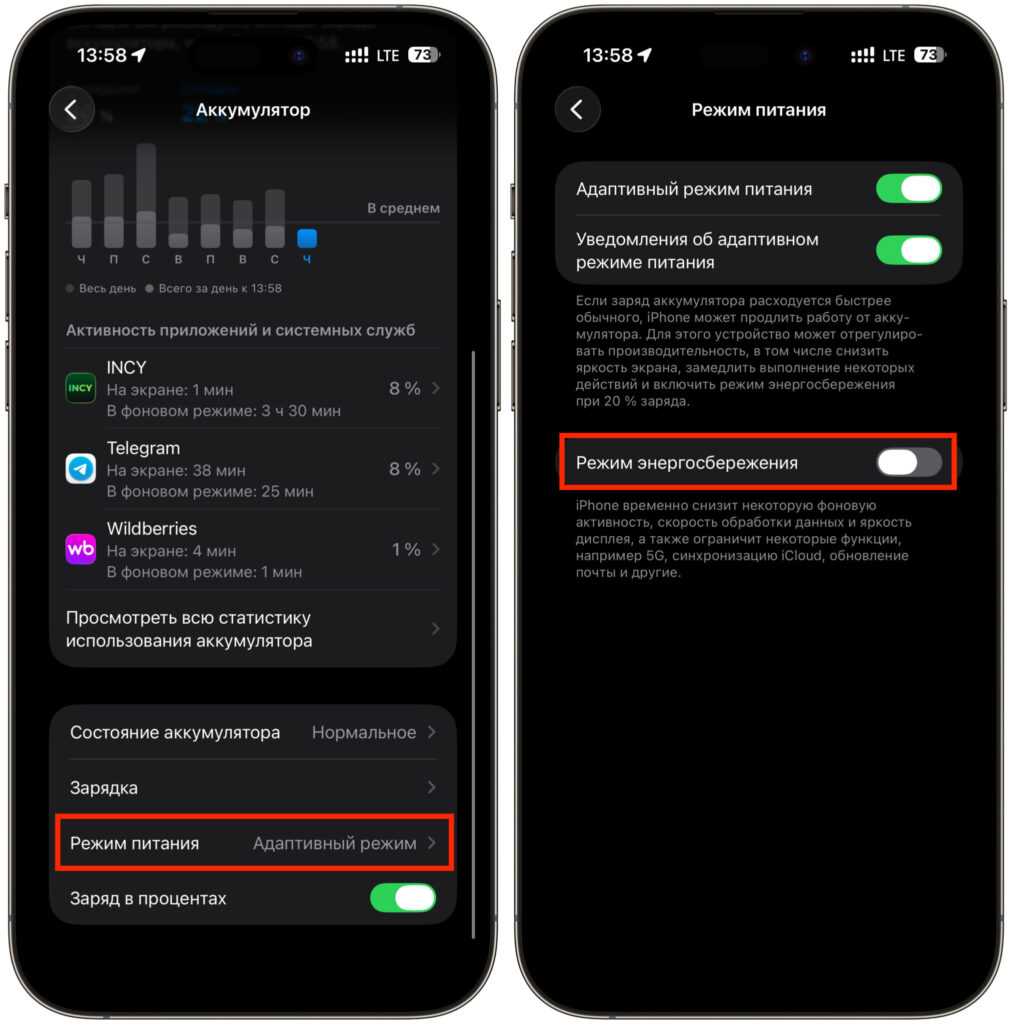
Make sure to disable Low Power Mode. It will slow down the process
These tips won’t turn iOS 26 into iOS 27, but they’ll help you squeeze the most out of the hardware you already have. They also explain why the same file sometimes flies in seconds and sometimes hangs longer than usual. Often the issue isn’t with AirDrop itself, but with the surrounding environment and the state of both devices.
Will AirDrop Get Faster in the Final iOS 27?
The test was conducted on the very first beta version of iOS 27, and the system still has many stages to go through before the public release. Apple traditionally fine-tunes performance from beta to beta, so the final numbers may well get closer to the claimed 80%. The opposite also happens: early builds sometimes work faster than final ones because not all background services are enabled yet. So the definitive picture will only emerge with the fall release.
Speed also heavily depends on the environment: iPhone model, wireless congestion in the area, and interference from other routers and devices. In a crowded place with dozens of active networks, AirDrop is almost always slower than in a quiet apartment. Under ideal conditions and on the latest flagships, the gap with iOS 26 could be even larger than in this test.
The interim conclusion is clear: AirDrop in iOS 27 has become noticeably faster, and for those who regularly transfer large files between their devices, this is one of the compelling reasons to upgrade. And when everyone around you moves to the new system, the speed difference will become even more obvious.