We previously briefly covered Galaxy Modes and Routines — a built-in automation tool in One UI that many owners don’t even know about. It allows your phone to do everything automatically: change settings based on time, location, Bluetooth or Wi-Fi connections. A journalist from Android Authority compiled five routines that genuinely changed their everyday Galaxy experience. Let’s break down each one and explain who might find them useful.
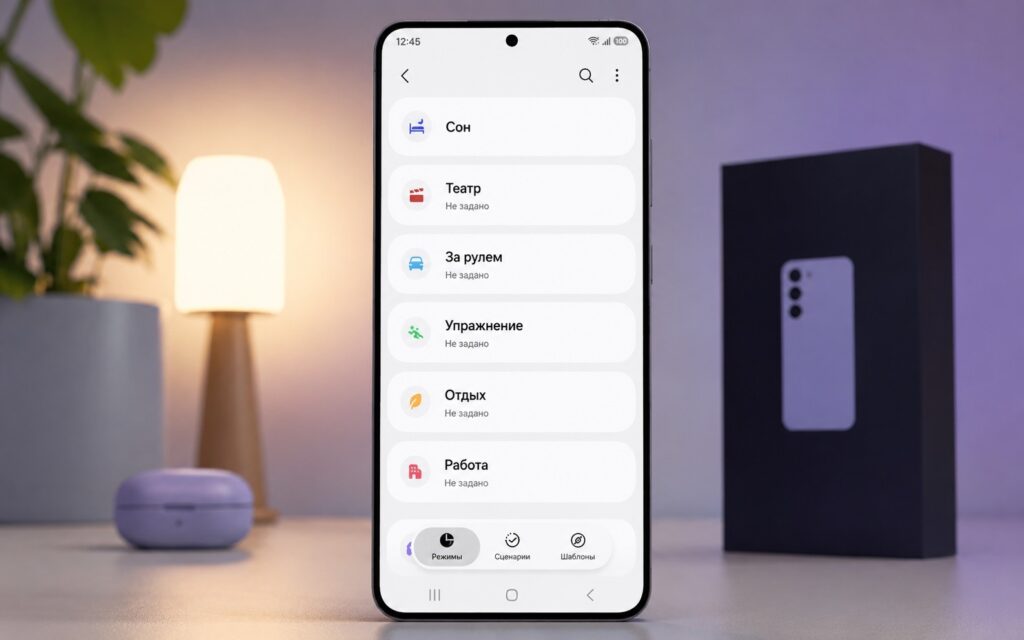
We explored Samsung’s Modes and Routines feature
Where to Find Samsung Routines and How They Work
Samsung Routines are located in “Settings,” then “Modes and Routines,” under the “Routines” tab. The logic is simple: you set a condition — “if” (time of day, connection to a specific Bluetooth or Wi-Fi, app launch), and then an action — “then” (change volume, enable dark theme, open an app, and so on). The phone performs these actions automatically, without any input from you.
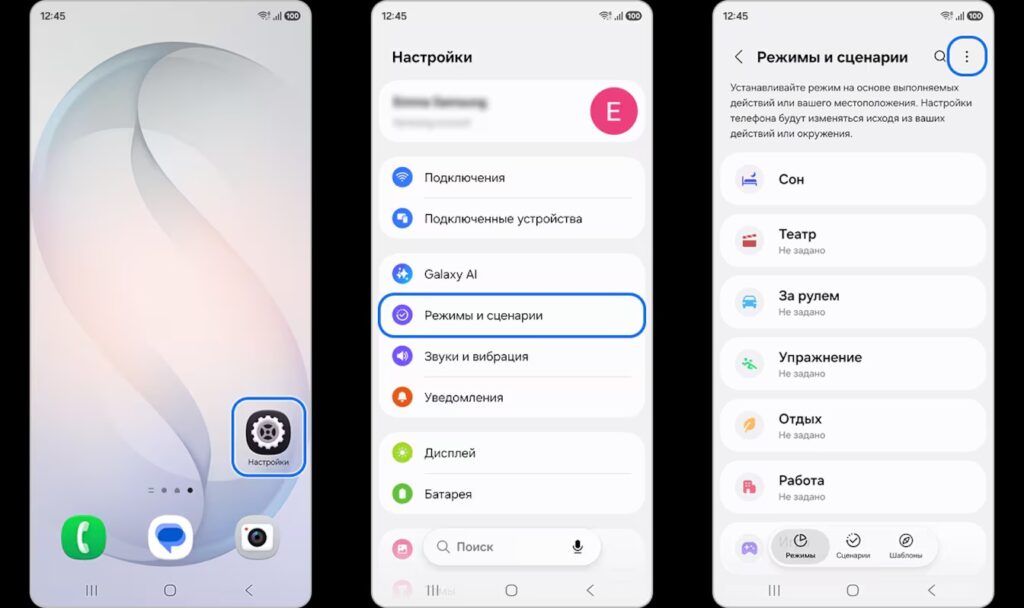
Modes and Routines are hidden in Galaxy settings
The feature is available on most current Galaxy smartphones running One UI 5 and above. And in One UI 8.5, Samsung added even more flexibility: you can now set an end date for a routine or run it as a one-time event. No third-party apps need to be installed — everything is built into the system.
Samsung Morning Routines: Alarm, Sound, and Daily Briefing
The first Samsung routine is one of the simplest yet most useful. After dismissing your morning alarm, the phone automatically switches to normal sound mode. It seems like a small thing, but it saves you from the situation where you miss calls for half the day because you forgot to turn off silent mode after sleeping.
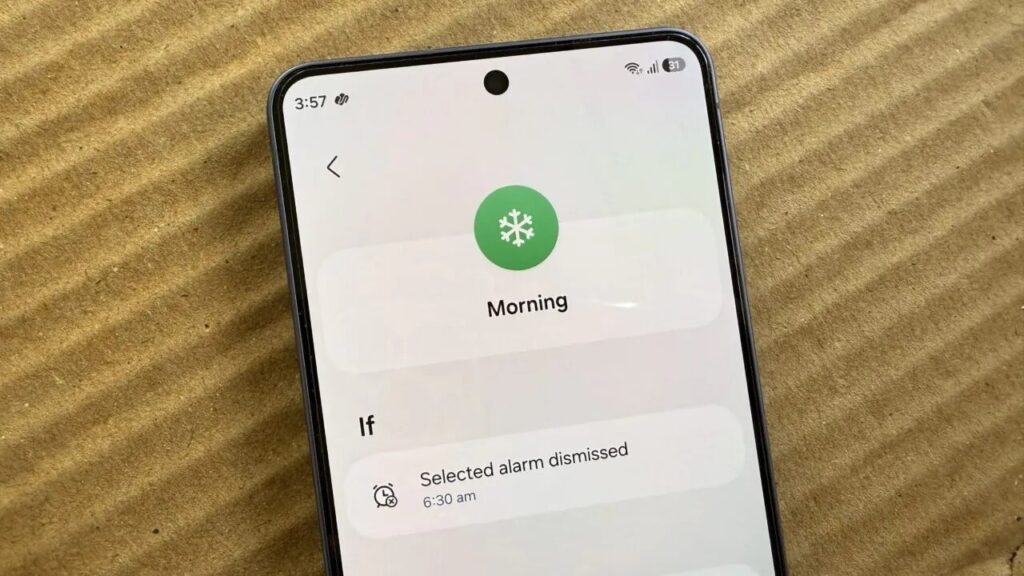
A special routine for starting the workday. Image: androidauthority.com
The second morning routine opens Now Brief — “My Day,” a Galaxy AI feature that shows a personalized briefing: weather, calendar events, and important news. Essentially, you get everything you need on one screen without switching between apps. There’s another bonus: you can add a condition so that if the morning temperature is below 5°C, the phone will use voice to remind you to grab a jacket. A small thing, but on a cold morning — genuinely helpful.
Driving Mode on Galaxy Without Android Auto
The source’s author doesn’t use Android Auto, even though their car supports the system. Instead, they set up a routine that triggers when connecting to the car’s Bluetooth. The phone automatically opens Google Maps — even for familiar routes, since maps show traffic, travel time, road closures, and let you remember where you parked.
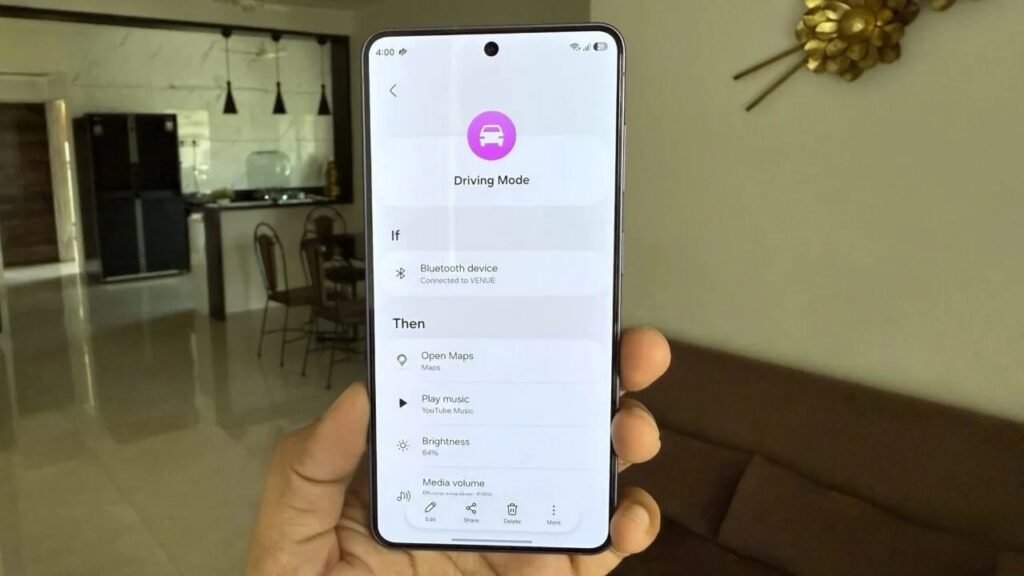
A special mode for drivers. Image: androidauthority.com
At the same time, the routine starts YouTube Music playback, increases screen brightness, raises media volume to a comfortable level, and extends the screen timeout. Each of these settings individually takes a few seconds, but together they save a noticeable amount of time and attention every day.
Galaxy Battery Saving Without Power Saving Mode
The standard power saving mode on Galaxy is too aggressive: it noticeably reduces performance, and the phone stops feeling like a flagship. The Galaxy S26, for example, is equipped with a 4,300 mAh battery. That’s enough for regular days, but with active navigation, shooting, and streaming, the charge drains quickly.
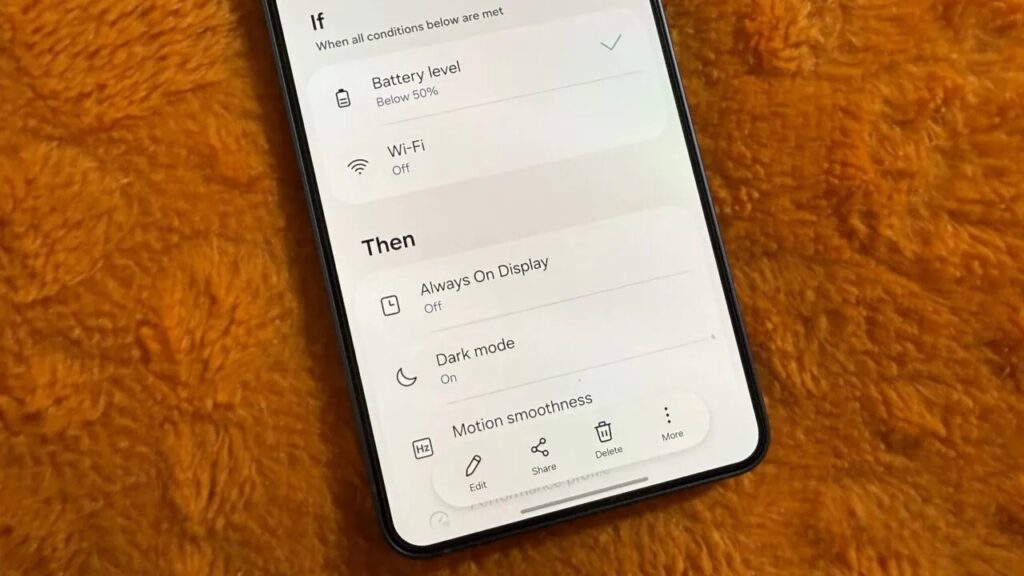
A routine for optimal battery saving. Image: androidauthority.com
Instead of the built-in mode, the author created a custom routine. When the charge drops below 50% and the phone isn’t connected to Wi-Fi (meaning you’re likely outside), soft restrictions kick in: dark theme activates, screen refresh rate drops to 60 Hz, the performance profile switches to light mode, and Always-on Display turns off. The phone doesn’t lag. You simply slow down battery drain without compromising everyday tasks.
Samsung Screen Setup for Night Reading
Reading on a smartphone before bed requires a whole set of adjustments: lower brightness, enable blue light filter, switch to dark theme. Doing this manually every evening is a routine you can easily eliminate.
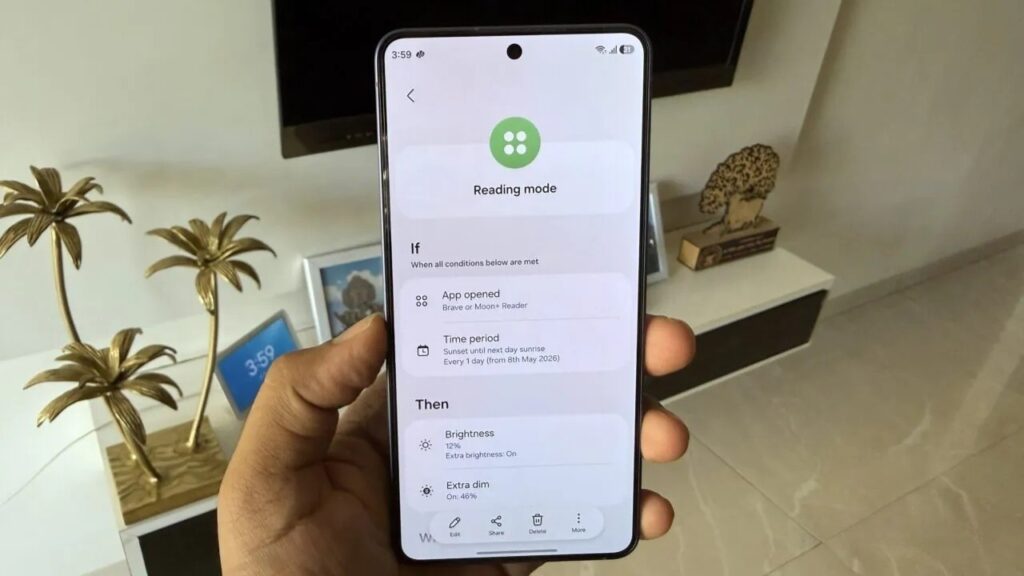
This routine will help you fall asleep faster. Image: androidauthority.com
The routine works like this: if a browser is opened after 9:00 PM, the phone activates Extra Dim, Eye Comfort Shield, and dark mode. The screen becomes as comfortable for your eyes as possible in the dark.