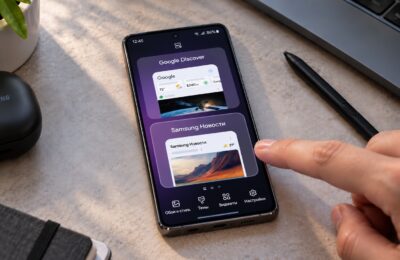
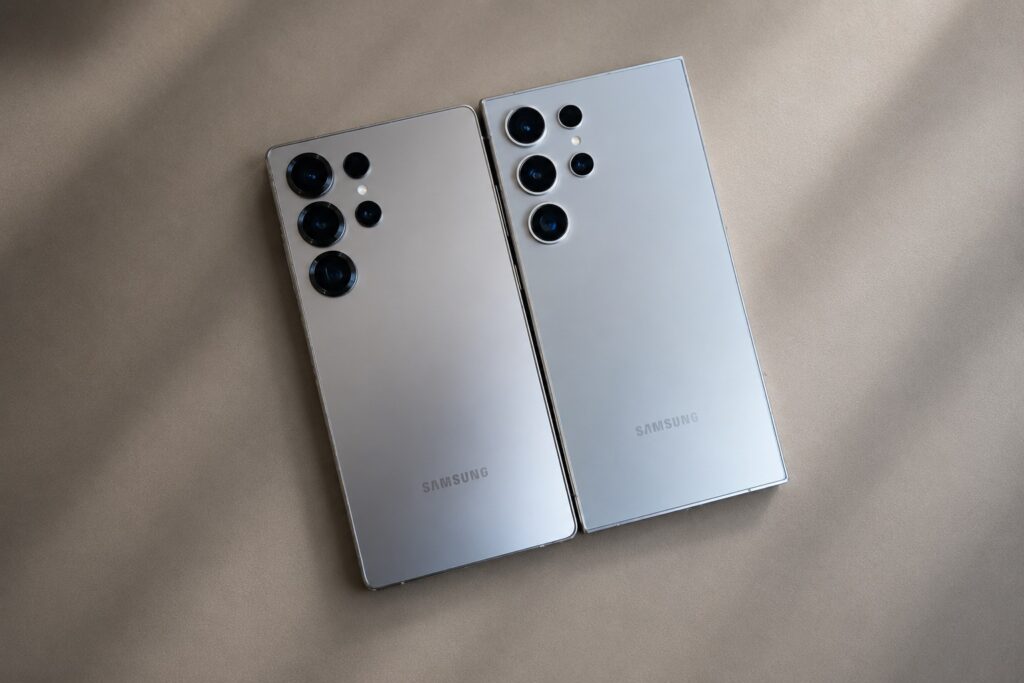
After Samsung began public testing of the One UI 9 shell and revealed new features, I once again remembered why I love this company’s smartphones. Of course, it’s not for the modest by today’s standards batteries and average specs, but for that very shell that stands out from the rest. The One UI firmware is an indicator of how much Samsung smartphones have grown over the years. If you’re choosing between devices from Korea, China, and the USA, I’d go with the first option.
Features that make One UI worth loving
Good Lock Customization on Samsung
One UI on Samsung offers a lot of freedom by default, and after installing the proprietary Good Lock suite, customization reaches another level. It’s a free official set of modules, each responsible for its own part of the system.
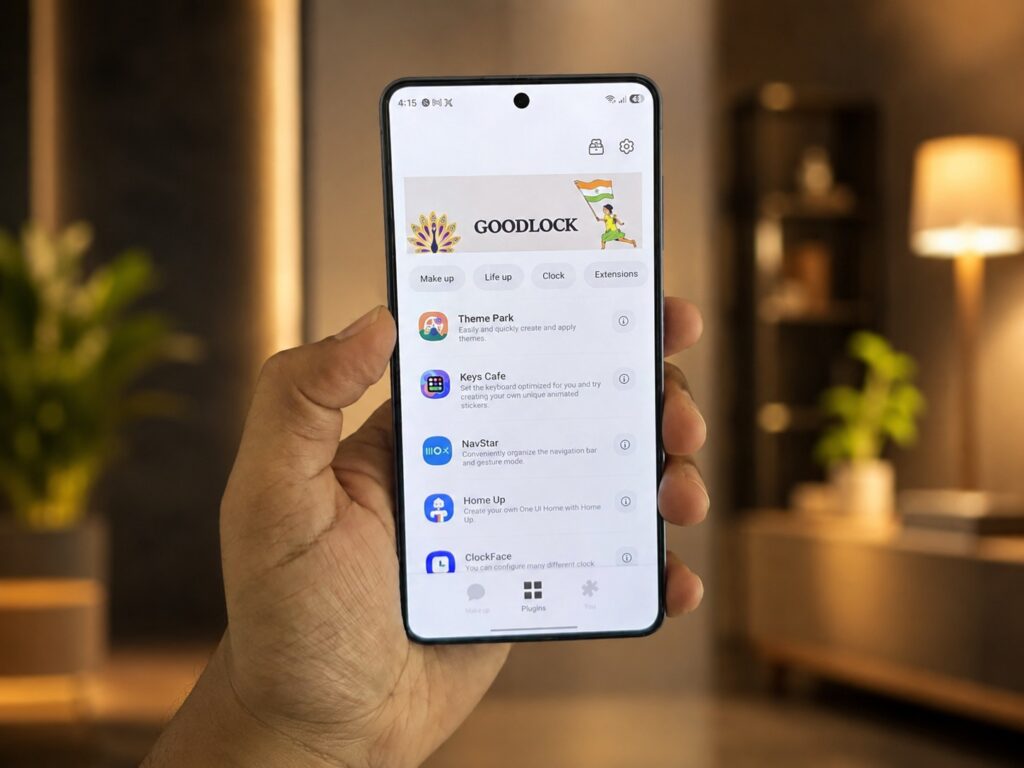
Samsung’s customization capabilities are the envy of all other manufacturers
For example, the Keys Cafe module lets you build a keyboard from scratch: custom colors, typing sounds, and gestures. The LockStar module changes the clock style, adds widgets, and rearranges shortcuts on the lock screen. Similar modules exist for the home screen and quick settings panel. Beyond aesthetics, Good Lock adds handy little features: improved gestures, one-hand mode, and notification history search.
Convenient Samsung Apps
Galaxy phones are often criticized for the abundance of pre-installed apps, and there’s some truth to that: the phone comes with a browser, notes, and a file manager from Samsung on top of Google apps. But more choice isn’t always bad if you know how to use it.
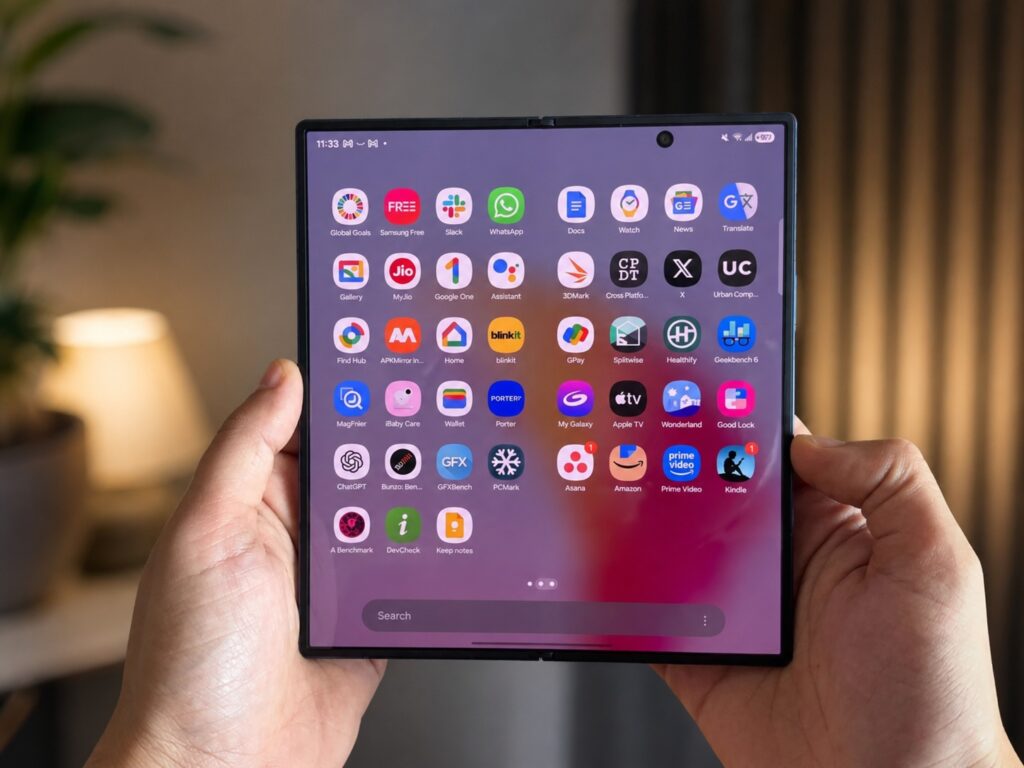
Samsung’s built-in apps are very convenient
Samsung Notes is more convenient than Google Keep for many users thanks to its deep system integration: you can create a note right from the lock screen or from the side panel. Inside, there’s auto-formatting, note summarization, drawing assistance, and PDF support including reading and annotations. Samsung Gallery is also closer to a classic app that doesn’t push cloud uploads. Its search works across all photos on the device, while Google Photos only searches through images uploaded to the cloud. This doesn’t mean Google apps are worse (Chrome, Gmail, and Gemini remain some of the best in their categories). The beauty of Galaxy is that you don’t have to choose just one ecosystem: you can take the best from both.
Android Automation on Samsung Smartphones
Modes and Routines are perhaps the most underrated part of Galaxy. They let the phone automatically perform routine actions based on conditions. For example, a morning scenario triggers when you dismiss your alarm: the phone returns to normal mode with sound and opens the Now Brief summary with weather, calendar events, and news.
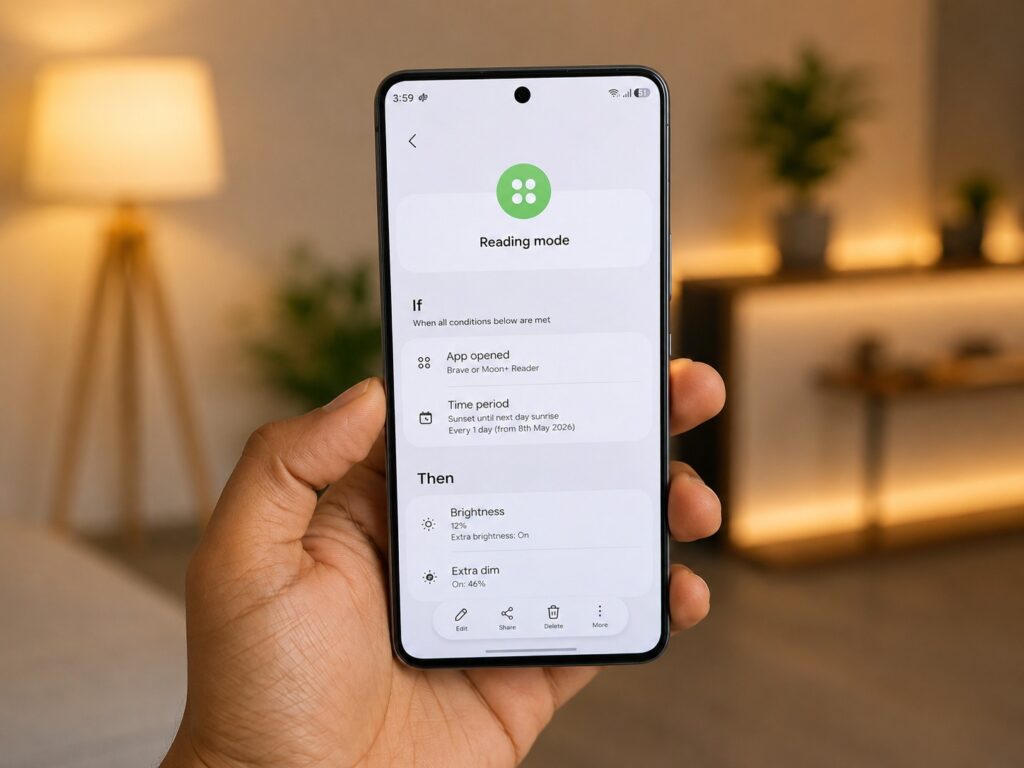
On Samsung, you can automate virtually any action
Another scenario activates when the battery drops below 50% and you’re not at home or work: the phone reduces the screen refresh rate to 60 Hz, enables dark theme, disables the always-on display, and switches to power-saving mode. Pixel also has automation — Pixel Rules, but it has significantly fewer conditions and actions, so you can automate much less.
Samsung and Windows Interconnectivity
Galaxy’s integration with Windows computers is something Samsung rarely gets credit for, though it deserves it. Several Samsung mobile apps have PC versions: Gallery, Notes, Internet browser, and Smart Switch. This means notes, browser tabs, and backups are available on your computer too.
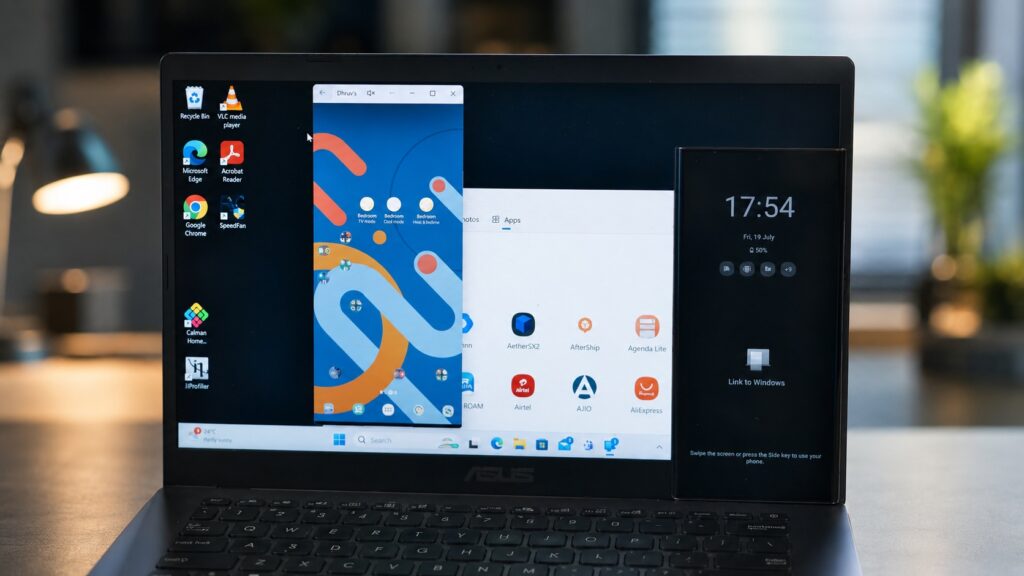
Samsung smartphones are perfectly compatible with PCs
The connection works even better through the Phone Link app. It supports any Android smartphone, but some features are Galaxy-exclusive: RCS messages, a shared clipboard between phone and PC, and Instant Hotspot, where the computer uses the phone’s mobile internet without enabling a hotspot or entering a password. If you spend all day at a Windows computer, the difference is noticeable. Other smartphones simply don’t have such tight integration with Windows.
How Samsung DeX Turns Your Phone into a Computer
Samsung DeX is a feature that turns your phone into something resembling a PC: a taskbar, resizable app windows, keyboard shortcuts, and drag-and-drop file management. The phone can work as a touchpad and keyboard, but with a Bluetooth mouse and keyboard, the experience is closer to an actual desktop.
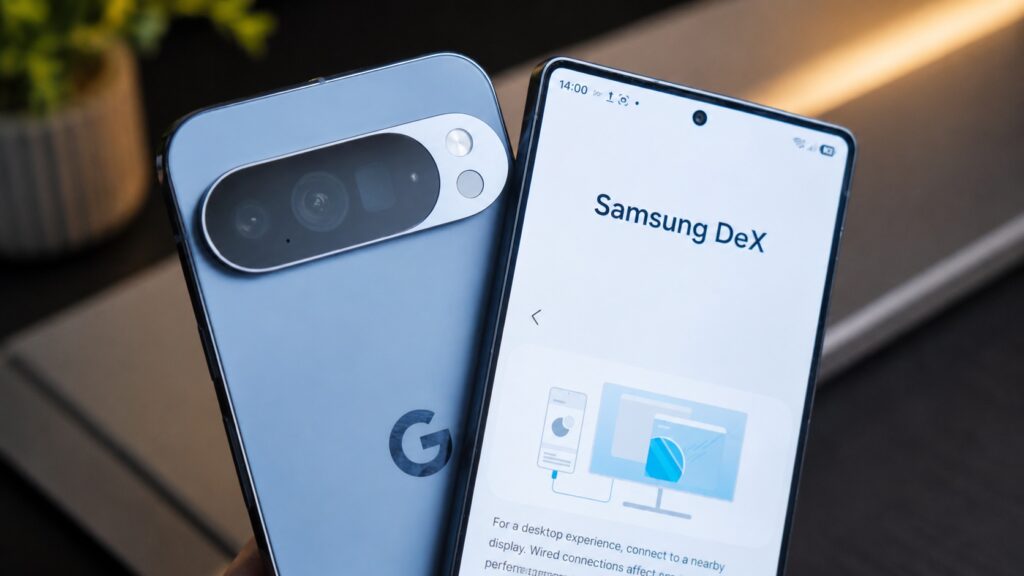
A unique feature that only Samsung has
In DeX, regular phone apps launch on the big screen, and if your work mainly involves a browser, this mode can easily replace a laptop on a trip. Pixel has an alternative — Desktop Mode on Pixel 8 and newer. But it’s more modest: it doesn’t work wirelessly, requires an HDMI adapter, and the interface itself is less polished. To be fair, Pixel’s desktop mode only appeared in March 2026, while DeX has existed since 2017, so the gap may narrow over time.