Updated to iOS 26 and feel like your iPhone has become unfamiliar? Screenshots now take up the entire screen, the Phone app has been redesigned beyond recognition, and the alarm still makes you spin those endless wheels. Sound familiar? Then this article is for you. I’ve gathered four non-obvious settings that will make your iPhone convenient again. In just a couple of minutes.
Most people don’t know about these tricks, test yourself
How to Enter Alarm Time with Digits on iPhone
You’d think the alarm is the simplest app. What could possibly be new? Well, here’s the thing. Most iPhone owners still set alarm times by scrolling through wheels with hours and minutes. Your finger slips, you scroll past, go back — and so on in circles. It’s especially “fun” when you’re half asleep and need to quickly set a morning alarm.
Meanwhile, iOS has long had a way to enter the time with digits, like on a regular keyboard. Nobody just talks about it. It’s incredibly simple:
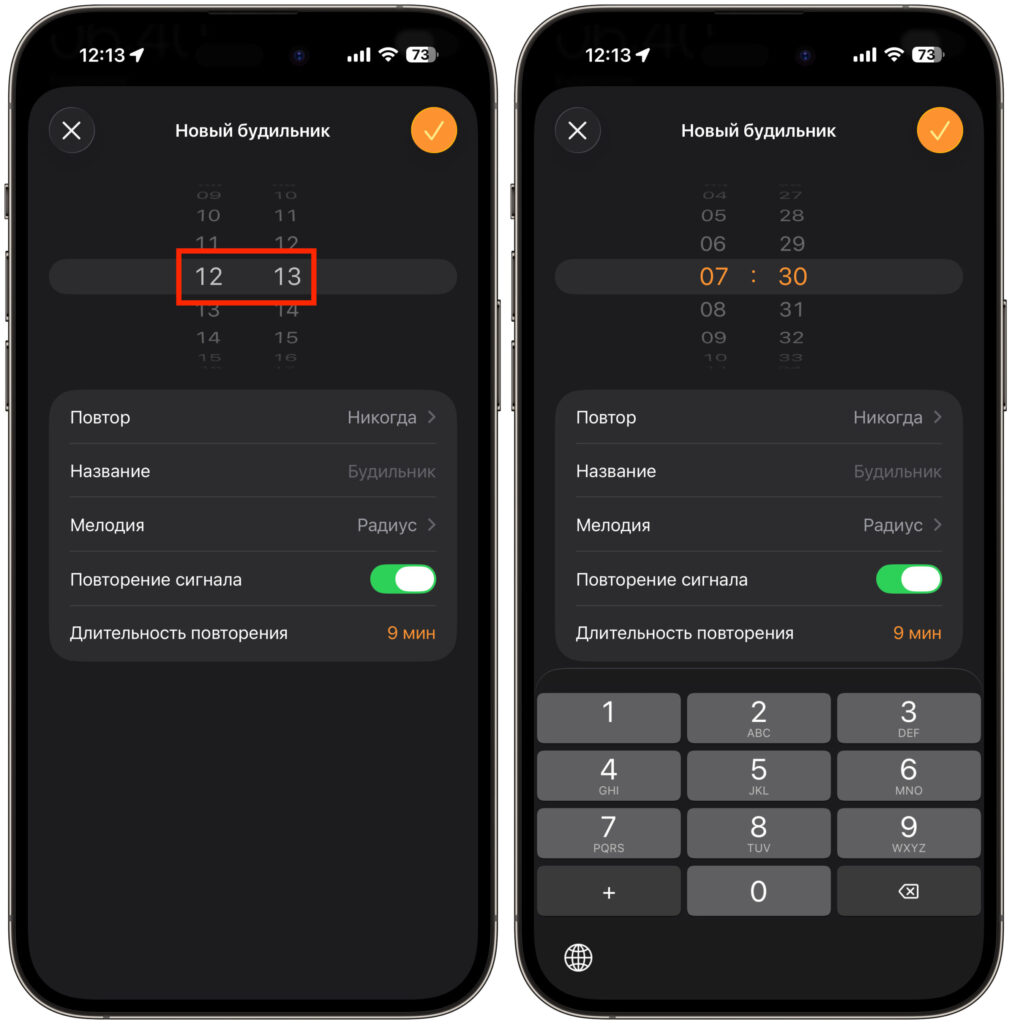
Just tap the time and enter digits from the keyboard
- Open the Clock app and go to the “Alarm” tab.
- Create a new alarm or tap “Edit” and select an existing one.
- When the scroll wheels with hours and minutes appear — don’t scroll them. Instead, tap on any digit (on hours or minutes).
- A numeric keyboard will immediately pop up at the bottom. Type in the desired time — for example, 7:30 — and you’re done.
No scrolling, no missed taps. One second — and the alarm is set. This feature appeared back in iOS 17, but Apple for some reason never highlighted it. As a result, very few people know about it. Yet it saves a ton of time, especially if you set different alarms every day. Try it once — and you’ll never go back to the scroll wheels.
Why Screenshots on iPhone Open in Full Screen
This is perhaps one of the most annoying “innovations” of iOS 26. After the update, screenshots started opening in full screen with an editing panel. Apple intended this as a convenient feature: you can immediately crop, annotate, or highlight something using Visual Intelligence. But in practice, it slows down working with screenshots.
It used to be simple. Take a screenshot — a small thumbnail appears in the bottom-left corner. Want to edit it — tap it. Don’t want to — just wait a couple of seconds and it disappears. Now the entire screen gets locked, and until you close this panel, you can’t do anything. It’s especially frustrating when you need to take several screenshots in a row — each time you have to wait and close the preview. Fortunately, Apple provided a way to bring everything back to how it was:
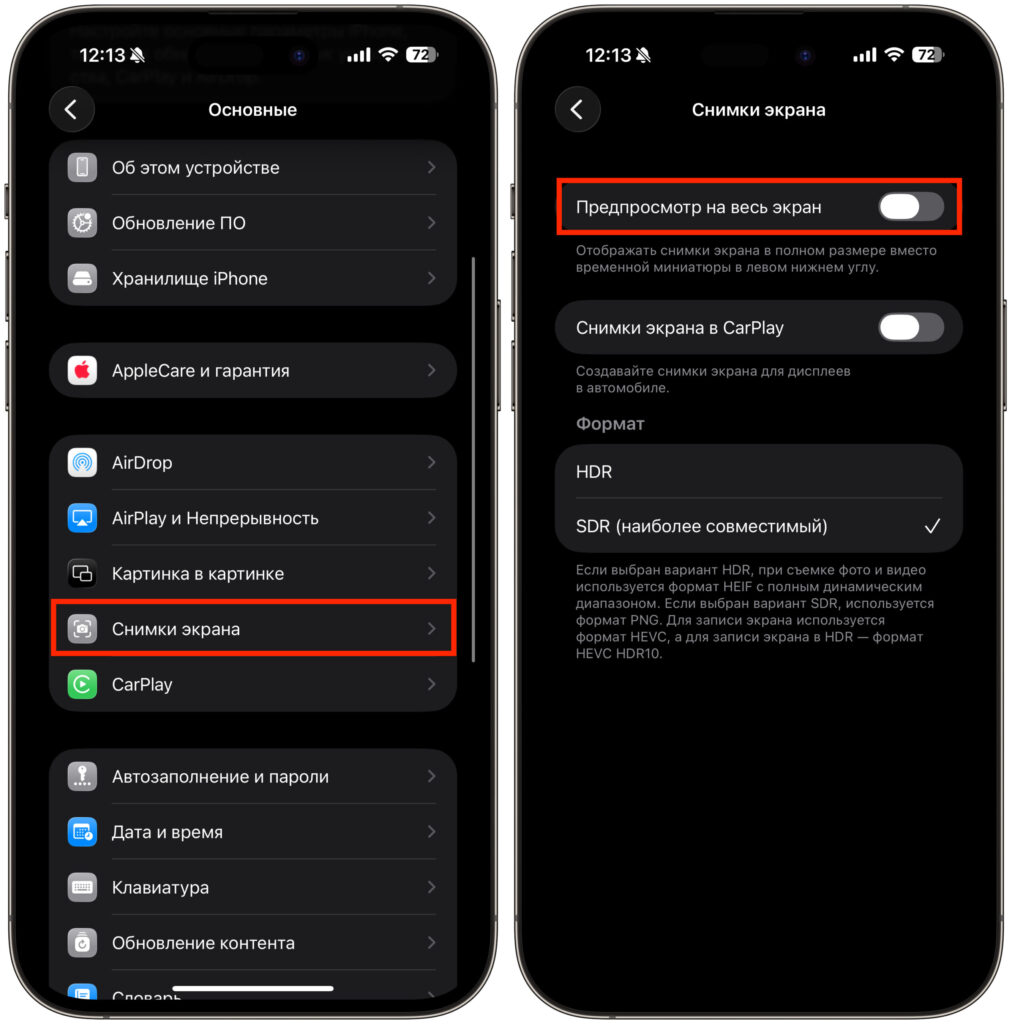
One toggle, and the screenshot will stay as a thumbnail in the corner of the screen
- Open “Settings” on your iPhone.
- Go to the “General” section.
- Find and open “Screenshot” — this option appeared specifically in iOS 26.
- Turn off the “Full Screen Preview” toggle.
After that, screenshots will neatly collapse into a small thumbnail in the bottom-left corner again, just like in the good old days of iOS 18.
Honestly, I don’t understand why Apple made full-screen mode the default. Perhaps it makes sense for those who actively use Apple Intelligence and Visual Intelligence — working with a large preview is indeed more convenient there. But in Russia, where these features are still unavailable, the full-screen preview is just an extra step that adds nothing. Turn it off without hesitation.
Background Image in Safari: How to Customize the Start Page
Safari in iOS 26 received an updated design in the Liquid Glass style — translucent panels, compact tabs. It looks fresh. But few people know that you can go further and fully customize the browser’s start page. Want to set a bright photo as the background? Go ahead. Want to remove everything unnecessary and get the purest minimalism? That works too.
To access this, do the following:
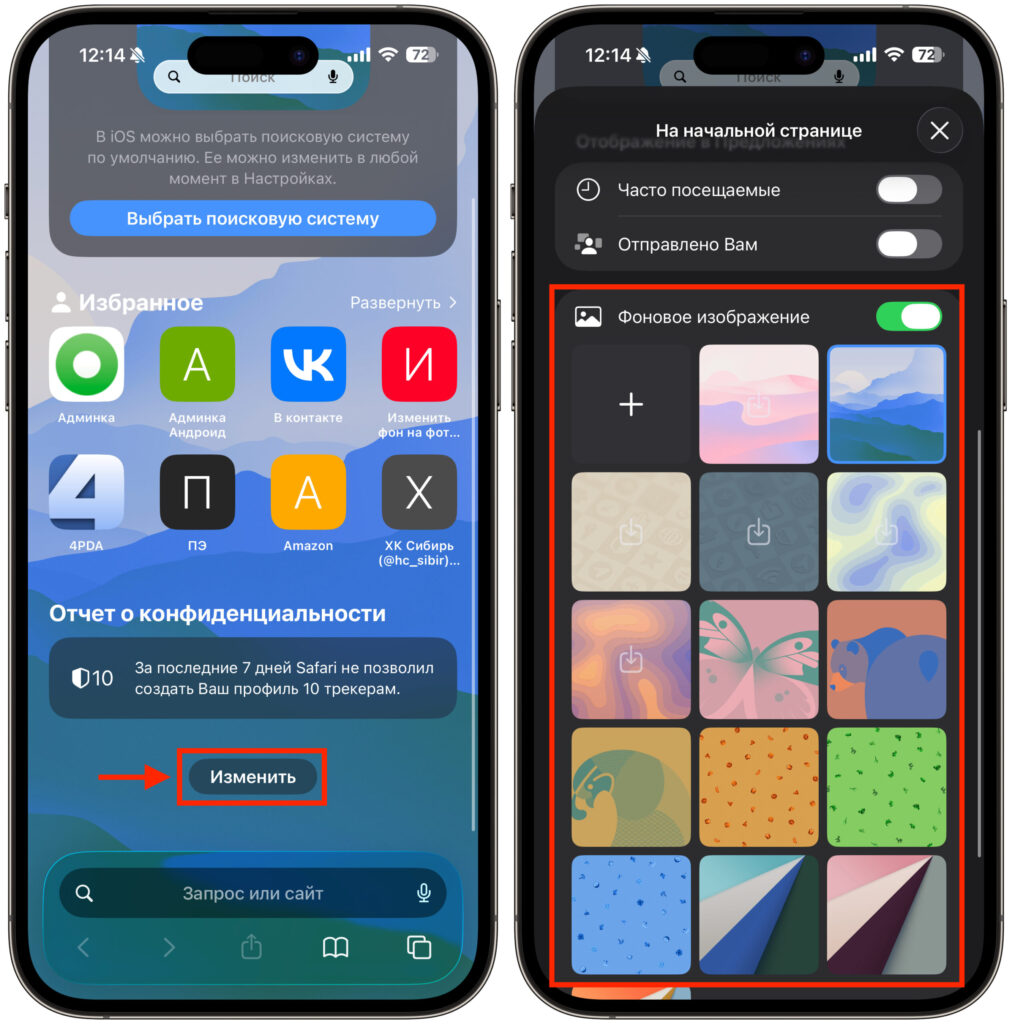
It doesn’t make iPhone more convenient, but it definitely becomes more pleasing to the eye
- Open Safari on your iPhone.
- In the bottom-right corner, tap the three dots and select “New Tab”.
- On the start page, scroll all the way down and tap the “Edit” button.
- Turn on the “Background Image” toggle and choose any picture from your gallery.
You can set a photo from your last vacation, a favorite landscape, or just a beautiful texture. The browser will immediately look vibrant and personalized — not like everyone else’s.
And if you prefer maximum cleanliness, disable all the toggles in the same menu: favorites, Siri suggestions, reading list, privacy report. As a result, the Safari start page will turn into a completely clean screen — nothing extra, just the address bar. Minimalism at its finest. Some may find this approach radical, but it’s definitely worth trying.
Phone App in iOS 26: How to Restore the Old Design
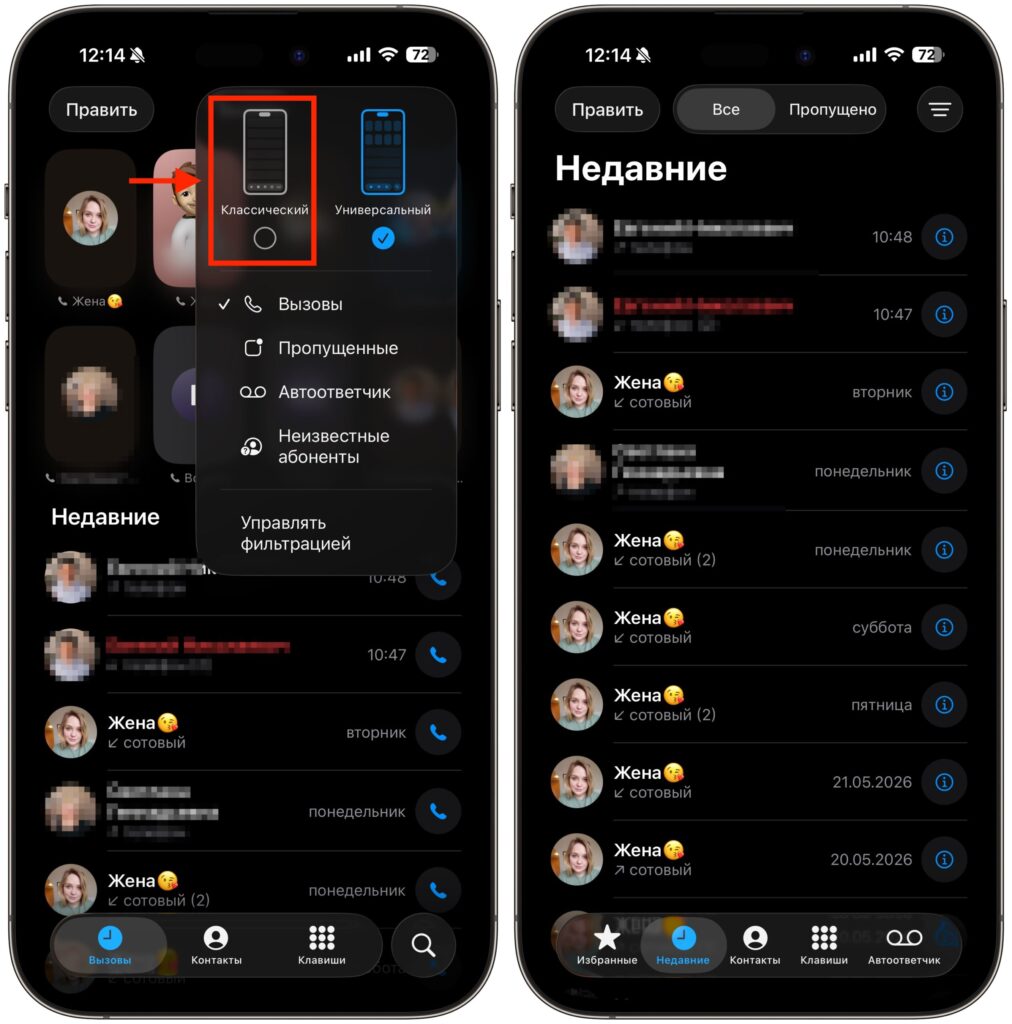
In iOS 26, Apple significantly redesigned the Phone app. Favorite contacts are now displayed at the top in a horizontal strip, the bottom tabs have been rearranged, and search has been moved to the bottom-right corner. It might look trendy. But using the new interface is quite an ordeal.
The main problem is inaccurate tapping on contacts. Previously, to call someone from favorites, you just had to tap a name — and the call started. Now if you tap slightly off target, you end up in the contact card instead of making a call. And if you were used to searching for contacts via the search bar at the top — you’ll have to retrain yourself, because the search bar has been moved to the bottom.
Good news: Apple provided the ability to restore the classic dialer look: