The iPhone is packed with features that Apple doesn’t put on the first page of settings, but these are the ones that change everyday experience. While we wait for new features in iOS 27, I’ll tell you about the tricks I use every day. Below is a collection of capabilities with explanations of who they’re actually useful for and how to enable them. All of these features are free and available without third-party apps.
Telling you about really useful iPhone features and capabilities
Text Replacement on iPhone: How to Enable and Set Up
The “Text Replacement” feature lets you set a shortcut that automatically expands into a long phrase — an email, a link, a template response. Shortcuts sync via iCloud and work on iPhone, iPad, and Mac under the same account. This is convenient for those who frequently send the same details, email templates, or links.
Here’s how to set up text replacement on iPhone:
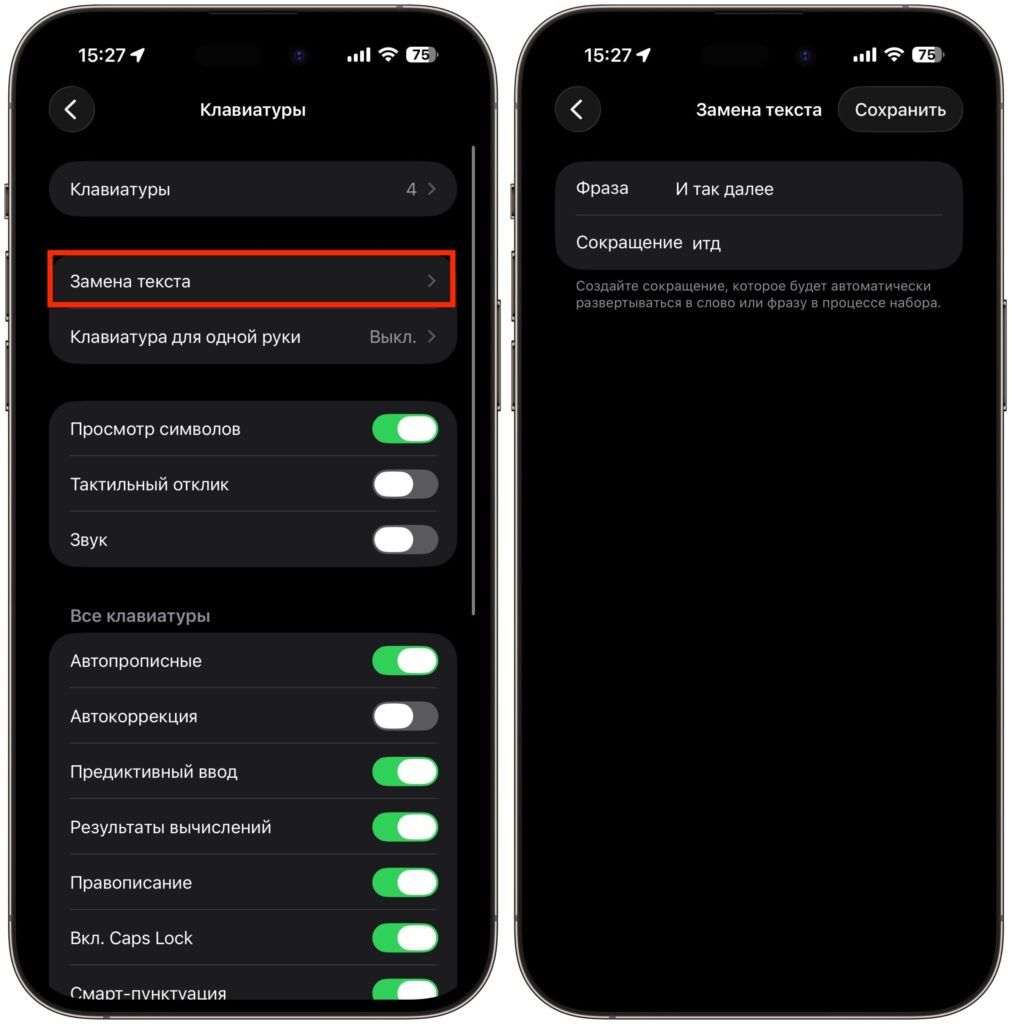
You can enter any phrases and shortcuts for typing them
- Open “Settings” — “General” — “Keyboard.”
- Tap “Text Replacement” and then “+” in the upper right corner.
- In the “Phrase” field, enter the full text you want to be inserted — for example, your email address.
- In the “Shortcut” field, set a short letter combination — for example, omw.
- Tap “Save” — now when you type the shortcut, iPhone will automatically insert the needed phrase.
After setup, the shortcut will work during any text input on all Apple devices linked to your account. Especially useful for long addresses, bank details, and standard client responses.
Convenient Keyboard on Large iPhones for One-Handed Typing
If you have a Pro Max or Plus, typing with one hand is uncomfortable — and it’s easy to drop the phone. Considering that the iPhone 18 Pro Max will be even bigger, this is only becoming more relevant. iOS has a built-in mode that solves the problem in a couple of seconds.
To enable the one-handed keyboard:
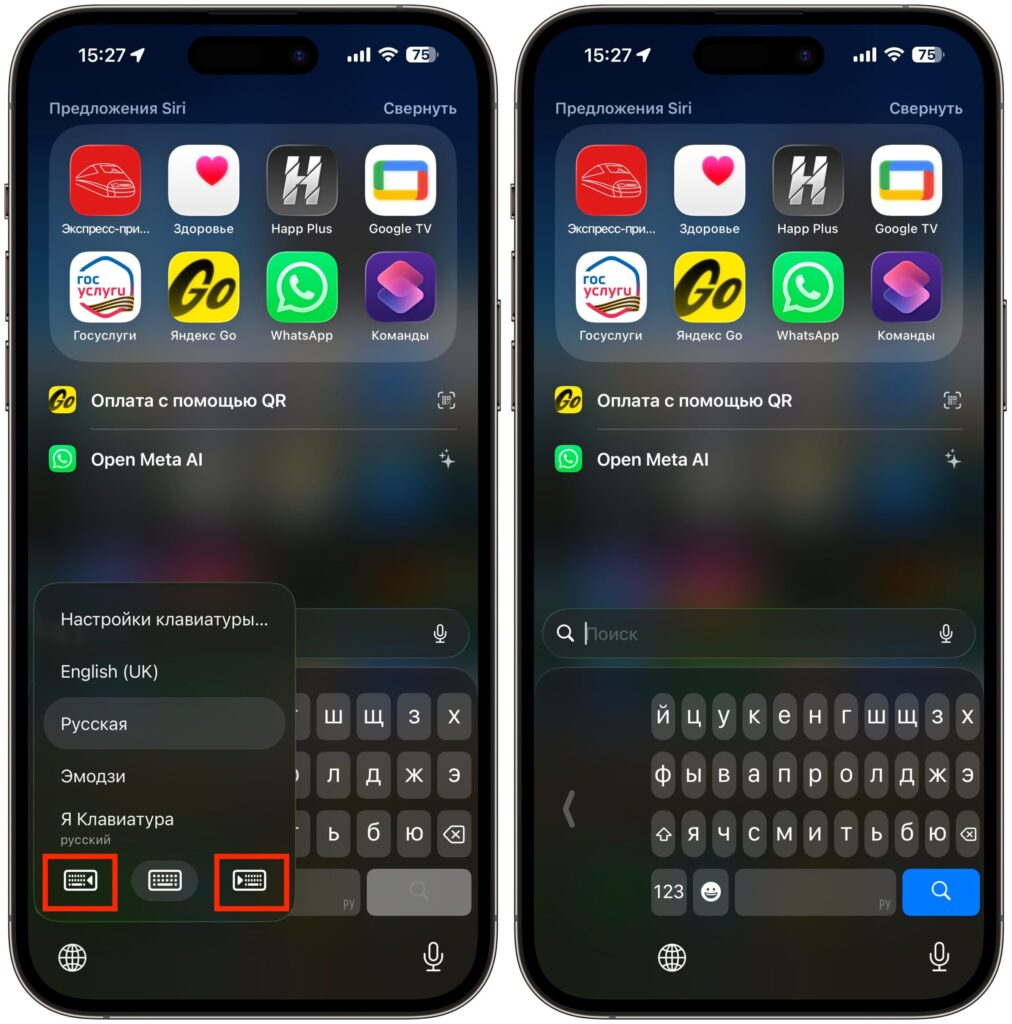
The one-handed keyboard really helps sometimes
- Open any app with a text field and bring up the keyboard.
- Press and hold the globe or emoji icon in the lower left corner of the keyboard.
- In the menu that appears, select the option to shift left or right — depending on which hand you’re holding the phone with.
The keyboard will become narrower and shift to one side of the screen. Especially useful for iPhone Pro Max owners — on the go, in transit, or when your other hand is busy. To return to the standard size, tap the arrow on the side.
How to Quickly Clear Notifications on iPhone
If notifications pile up in bunches, you don’t need to swipe each one away individually. The Notification Center has a quick way to deal with everything at once. This feature saves time, especially if you’re subscribed to multiple group chats or news feeds. How to clear all notifications at once:
- Swipe down from the upper left corner of the screen to open the Notification Center.
- Find the X icon (×) at the top of the notification list.
- Press and hold the X — a “Clear All Notifications” button will appear.
- Tap it — and the entire list will disappear.
Works well with the “Deliver Quietly” mode for social media and news apps: notifications arrive silently, accumulate in the center, and you deal with them in one motion when it’s convenient.
Sleep Timer on iPhone for Music and Video
A useful yet hidden feature of the Clock app. In the “Timer” section, at the very bottom of the sound list, there’s an option called “Stop Playing” — it doesn’t play a sound when the timer ends but instead stops the current playback. Perfect for those who fall asleep to a podcast, music, or YouTube.
To set up automatic music shutoff:
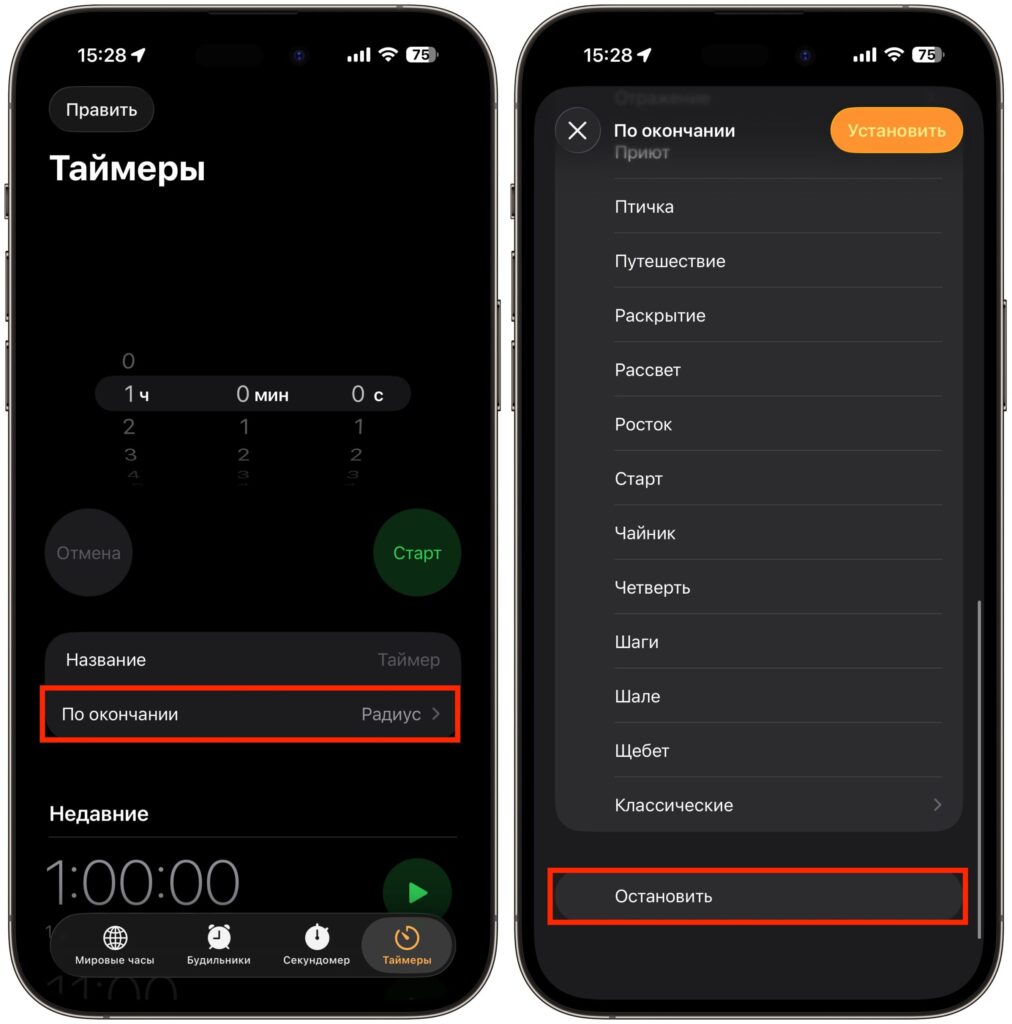
Music will turn off automatically with this setting
- Open the Clock app and go to the “Timer” tab.
- Set the desired time — for example, 30 or 40 minutes.
- Tap “When Timer Ends” and scroll the sound list all the way to the bottom.
- Select “Stop Playing” and tap “Set.”
- Start the timer — after the set time, iPhone will stop playback on its own.
Works with most audio and video apps, including background playback. Set 30-40 minutes, and the phone will stop the sound on its own — no need to wake up for it.
Universal Clipboard on iPhone and Mac
The Continuity feature lets you copy text or an image on one Apple device and paste it on another — without AirDrop or messengers. There’s one condition: Wi-Fi and Bluetooth enabled on all devices under the same account. It works instantly and requires no additional setup. How to use the universal clipboard:
- Make sure Wi-Fi, Bluetooth are enabled on all devices and you’re signed into the same Apple account.
- Enable Handoff: on iPhone — “Settings” — “General” — “AirPlay & Continuity”; on Mac — “System Settings” — “General” — “AirDrop & Continuity.”
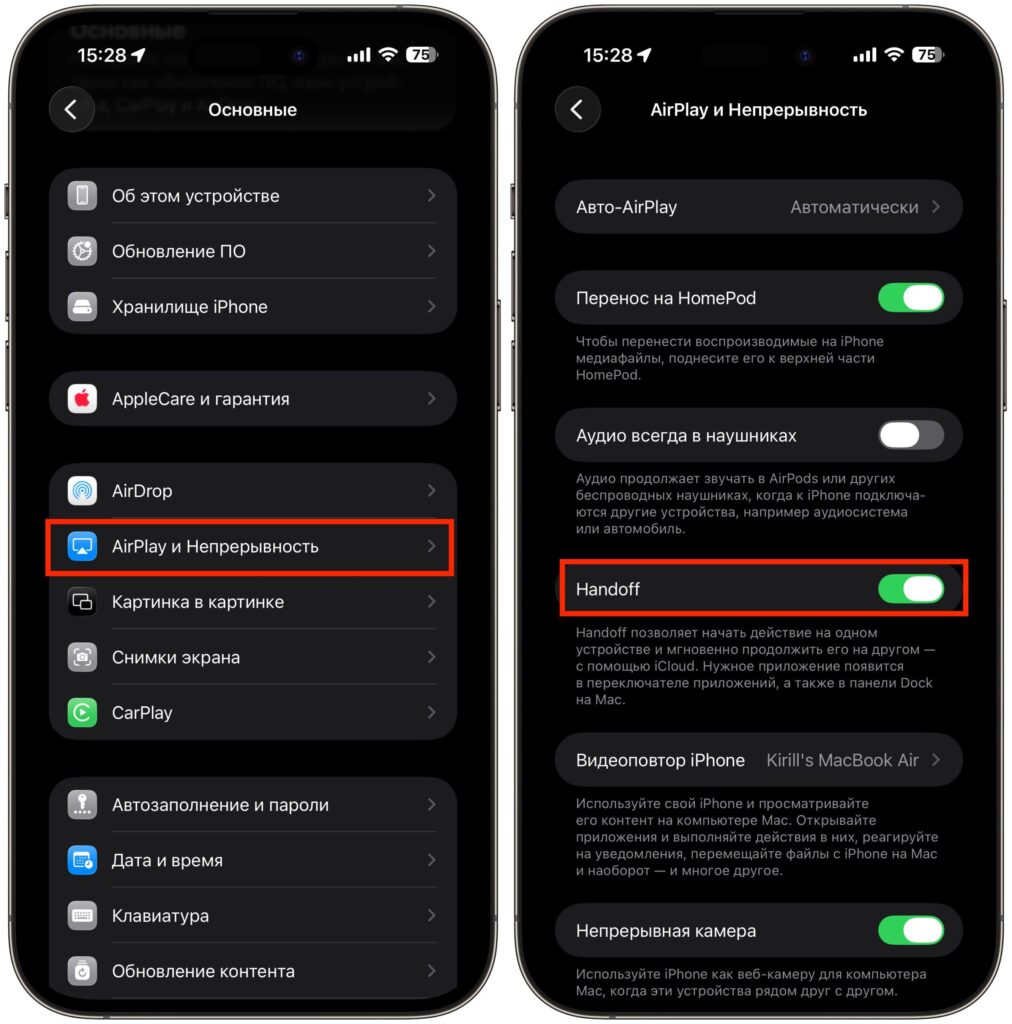
First, enable Handoff on iPhone
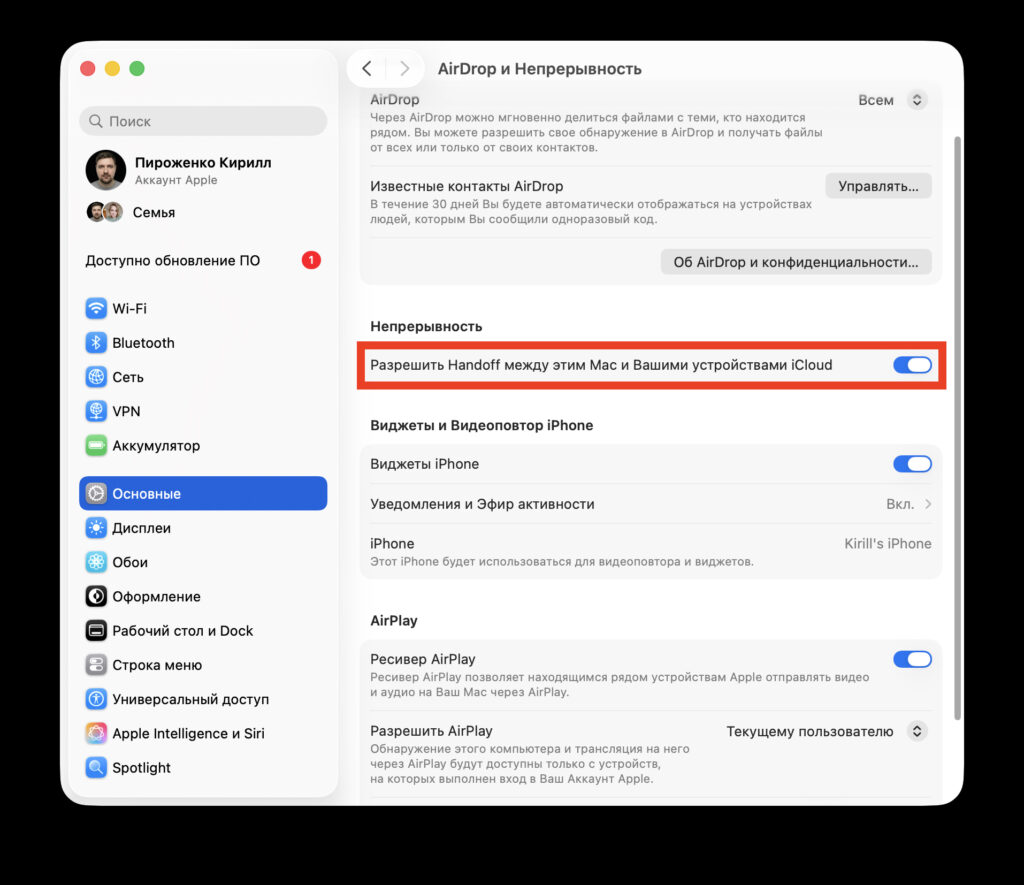
Then do the same on Mac