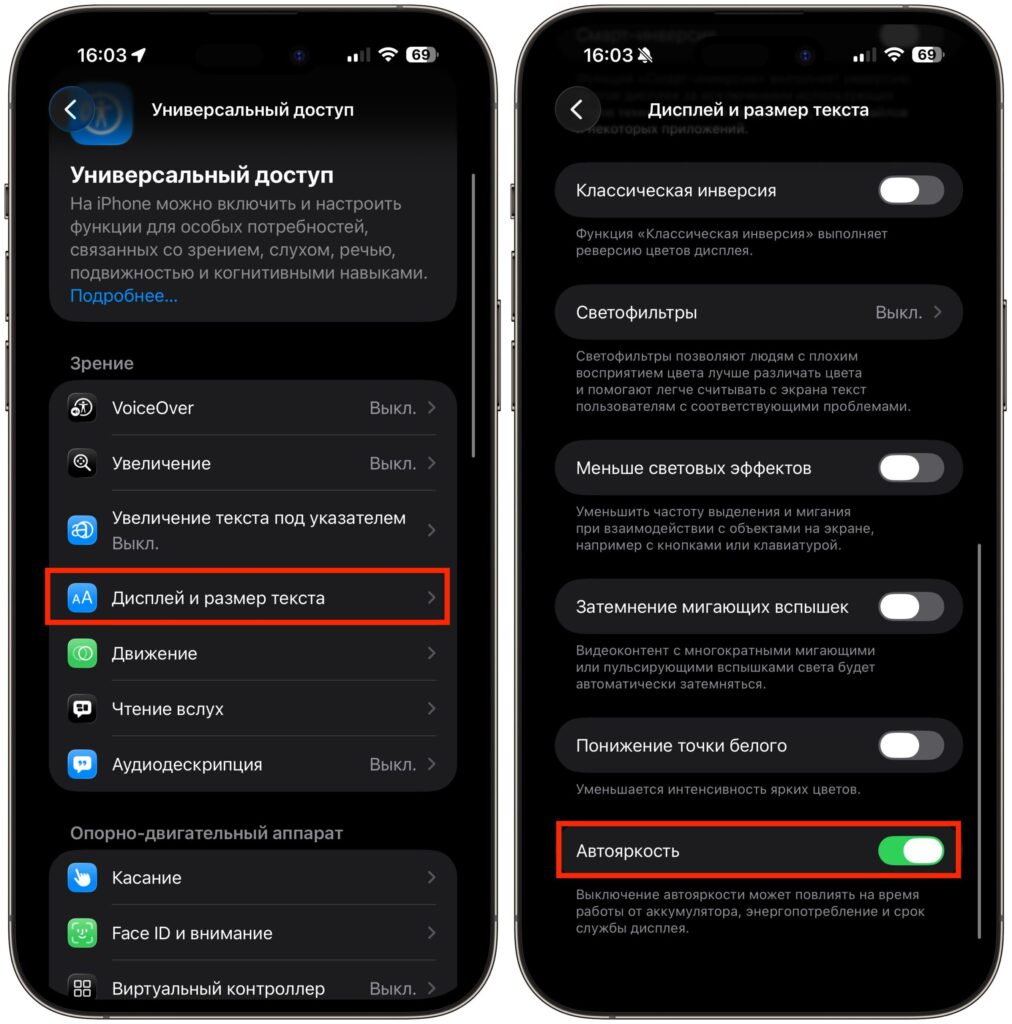
A new iPhone out of the box is configured according to Apple’s logic, not your needs. A few settings changes right after purchase will help extend battery life and remove annoying notifications, while also protecting you from scam calls and data loss. If your iPhone drains quickly even overnight — the reason might be the default settings. Below are 10 items worth going through on the very first day. Five features are better turned off, five — turned on.
The most important settings that will make your iPhone more convenient
Which iPhone Features Are Better to Turn Off Right After Activation
These features are active by default, but for most users they cause more inconvenience than benefit. Some of them drain the battery in the background, some distract or are impractical in Russian conditions. So first, let’s disable everything unnecessary.
Screen Time on iPhone: When It’s Better to Turn It Off
Screen Time tracks how much you use your device and individual apps. The feature turns on during the initial iPhone activation, but most people never actually look at it.
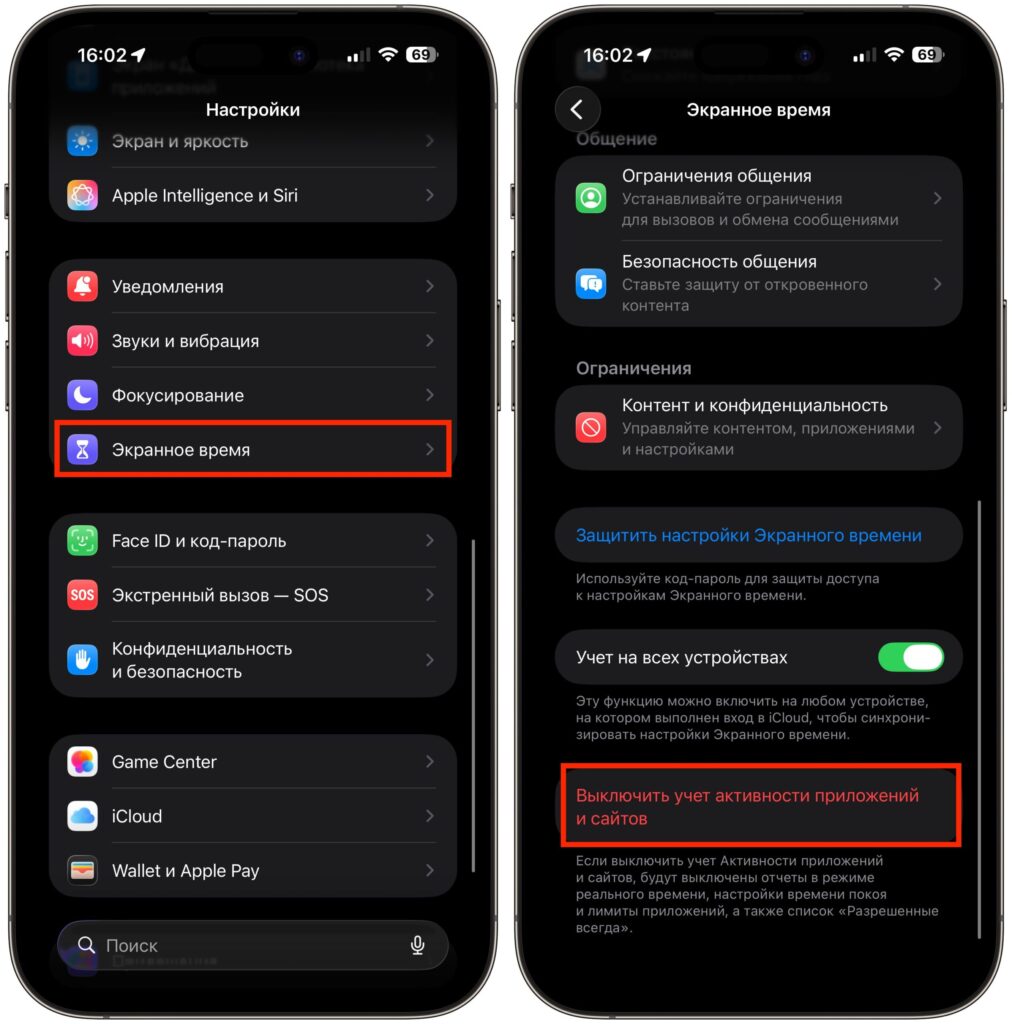
Screen Time makes no sense if you didn’t buy the iPhone for a child
To disable it, open Settings — Screen Time and tap the “Turn Off App & Website Activity” button at the bottom of the screen. There’s no definitive proof that the feature noticeably drains the battery, but an extra background process and regular report reminders are unnecessary for most users.
Offload Unused Apps: Why It’s Better to Turn It Off
This feature automatically removes rarely used apps to free up storage. Sounds convenient, but there’s a catch: a deleted Russian app can’t be re-downloaded, because many apps have already disappeared from the App Store.
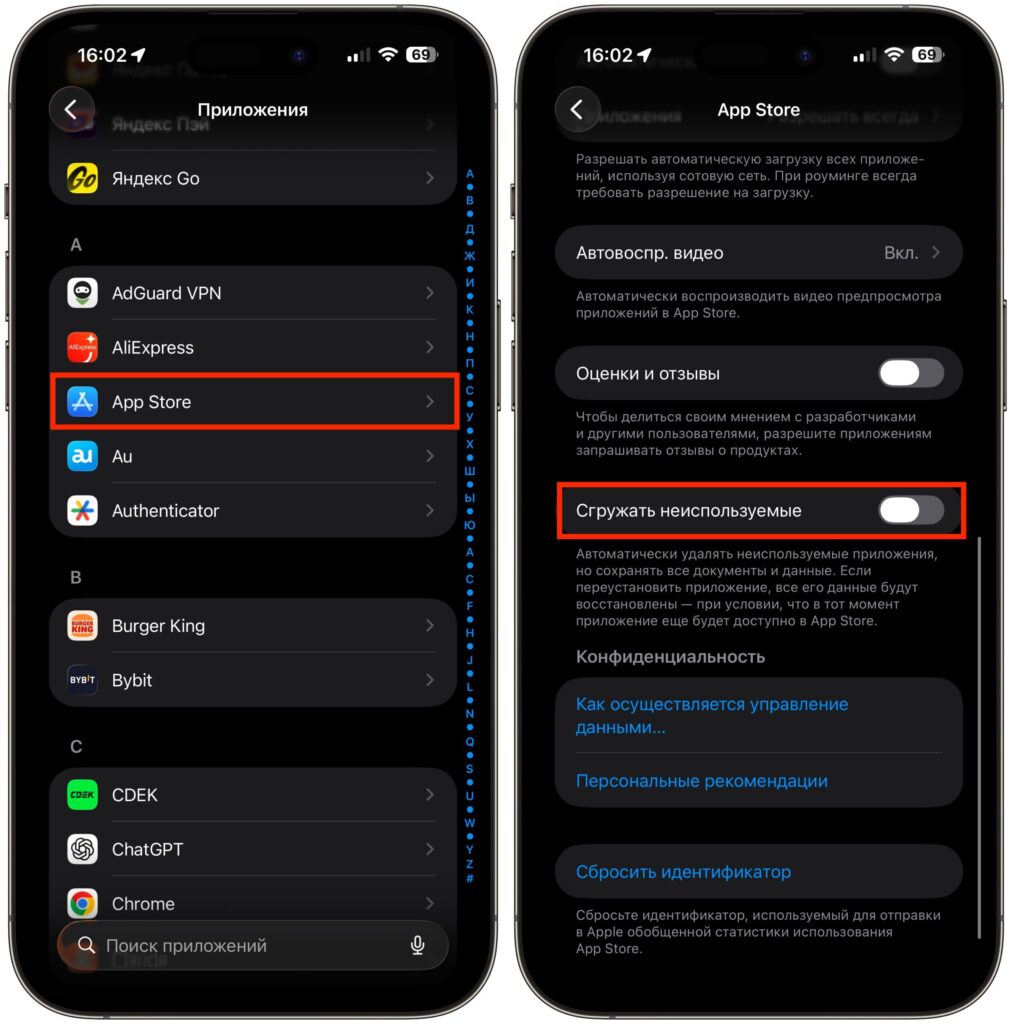
In Russia this is a dangerous setting and it must be disabled
To disable: Settings — App Store — toggle off “Offload Unused Apps.” If your iPhone is running out of storage, it’s better to manually go through the app list and delete unnecessary ones — that way you won’t lose a banking app or a service that’s no longer available in the store.
How to Disable App Tracking on iPhone
Apple requires developers to ask for permission to collect data for advertising. By default, every new app will show a pop-up window with such a request. To have iOS automatically decline, open Settings — Privacy & Security — Tracking and turn off “Allow Apps to Request to Track.”
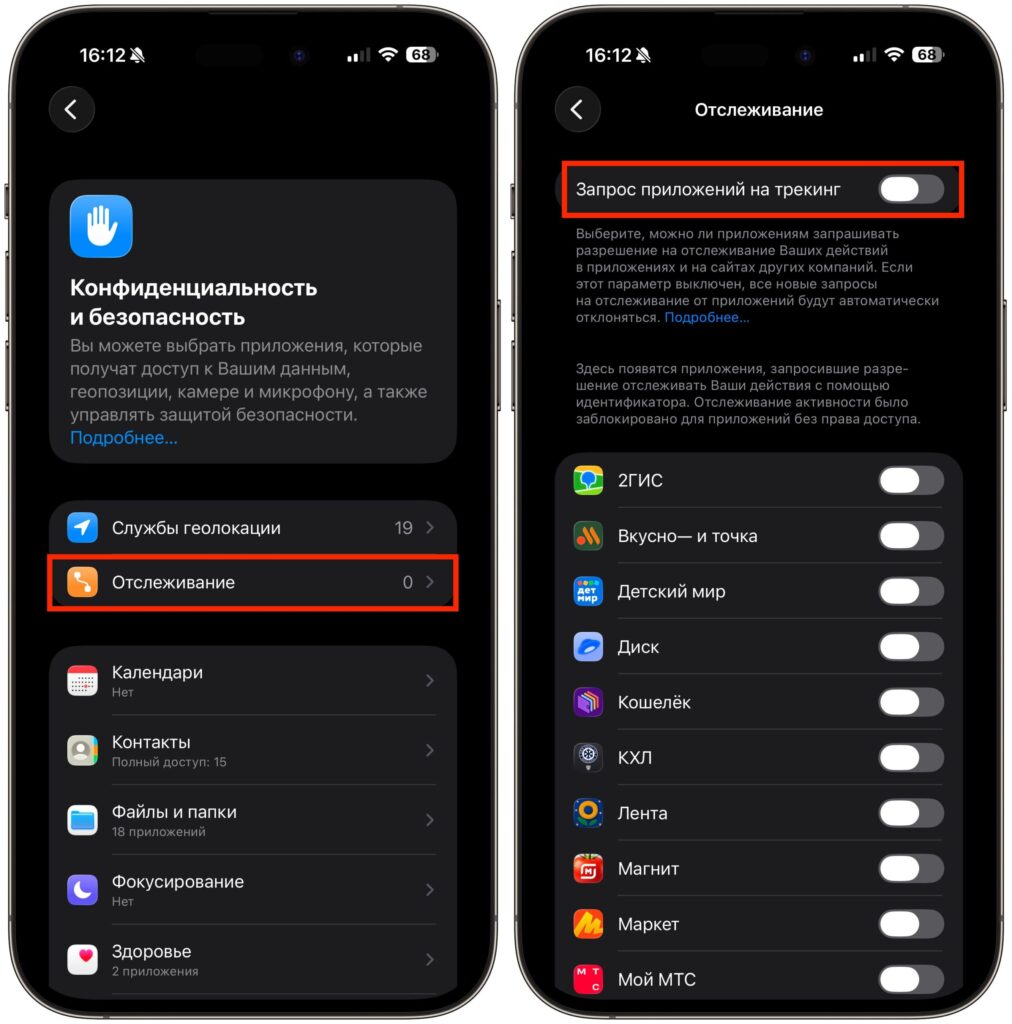
Don’t let apps track your activity
After this, apps won’t even be able to ask for permission — the system will respond for you. Fewer pop-up windows on first launch and less data shared with advertising networks.
App Store Ratings and Reviews Requests — How to Disable
“Rate this app” requests usually pop up at the worst possible moment — in the middle of a game, ordering a taxi, or reading. In Settings — App Store there’s a “Ratings & Reviews” toggle that completely disables such requests.
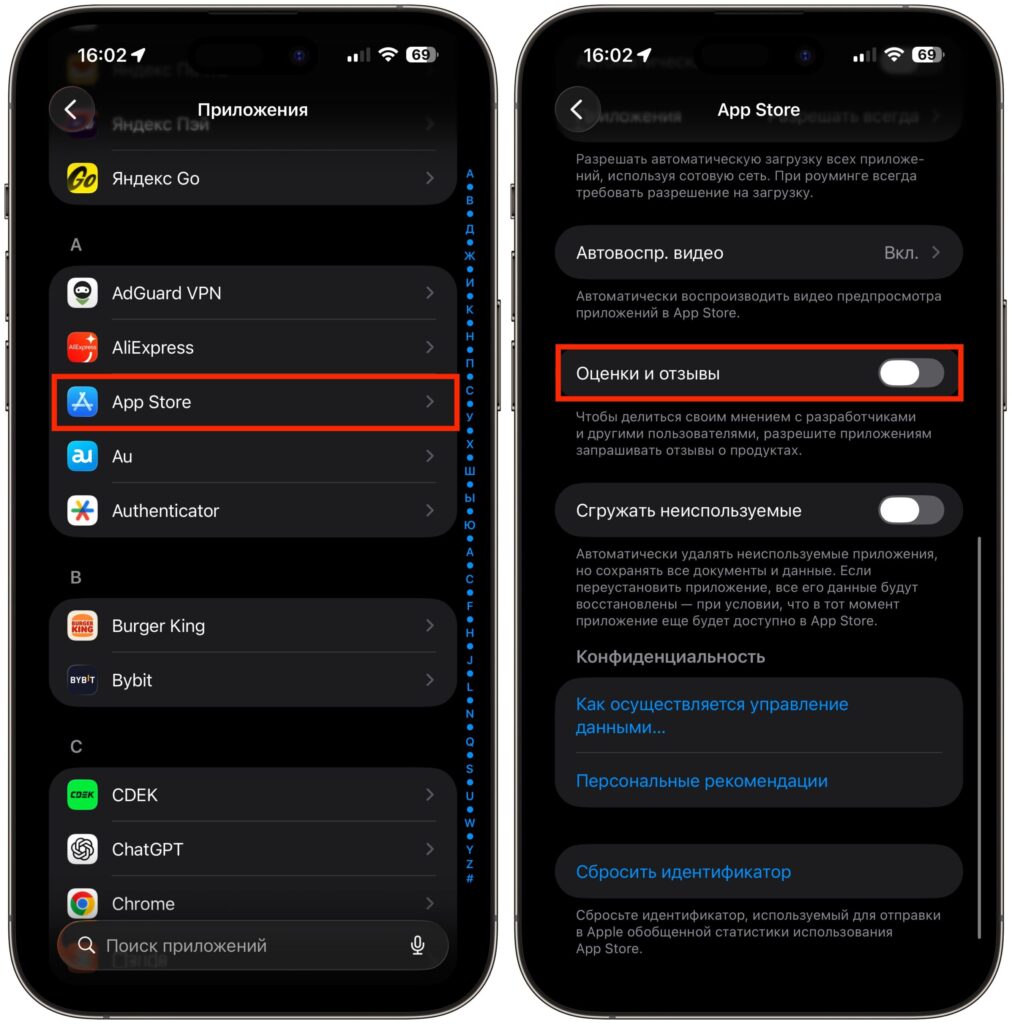
You can manually rate an app in the App Store
Manually rating an app through its page in the store is still possible. But now you also won’t receive annoying notifications while using an app. I recommend disabling them for practical reasons as well.
Background App Refresh on iPhone: What to Turn Off
Background App Refresh allows apps to load fresh data even when you’re not using them. Convenient for messengers and email, but it noticeably drains the battery, especially if dozens of apps are running in the background.
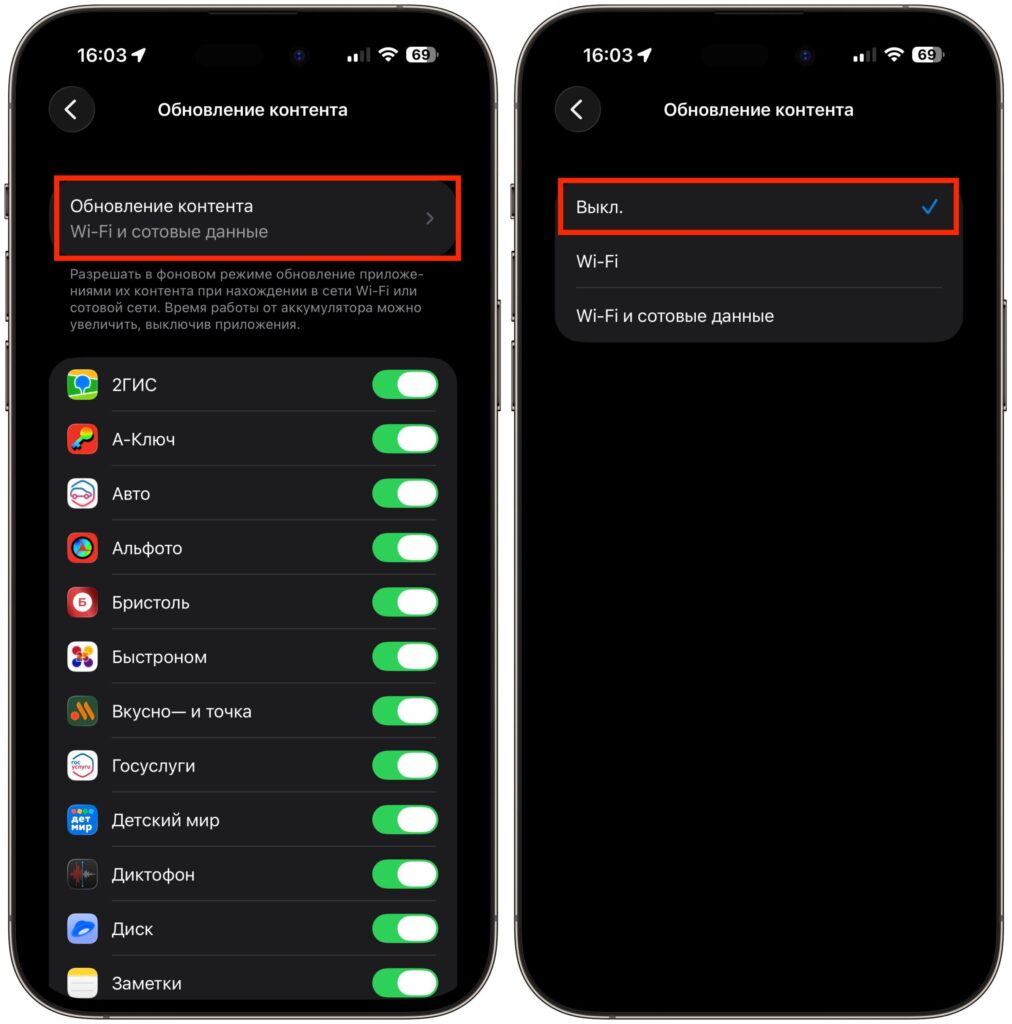
One of the most annoying iPhone features you can safely disable
Path: Settings — General — Background App Refresh. You can disable the feature entirely or leave it only for the apps you need — such as messengers — and turn it off for games, marketplaces, and rarely used programs. This is one of the most noticeable ways to improve iPhone battery life without buying additional accessories.
What to Enable in iPhone Settings for a Comfortable Experience
These settings are turned off by default or buried deep in menus. They make using your smartphone more comfortable, so now let’s look at what needs to be enabled on your iPhone.
Auto-Brightness on iPhone: How to Set Up Your Screen Properly
This feature automatically adjusts display brightness based on ambient lighting. Outdoors the screen gets brighter, in the dark — dimmer. It’s both convenient and helps save battery: the display is the biggest battery consumer on an iPhone.