A few weeks ago, Apple added a useful protection to macOS Tahoe 26.4: when suspicious commands are pasted into Terminal, the system shows a warning and blocks execution. This was aimed against so-called ClickFix attacks — currently the main method of delivering malware to Mac. But attackers have already found a way to bypass this protection, using another built-in Apple application.

Apple only just added new protection, and it’s already been bypassed
What Is ClickFix and How It Infects Macs with Viruses
ClickFix is not a specific virus but a method of delivering malicious code. The trick is to deceive the user into running a malicious command on their own computer. Typically, the victim is convinced to copy text from a website and paste it into Terminal under the guise of “fixing a problem” or “cleaning up the disk.”

The idea is to get you to essentially launch the virus on your computer yourself
According to researchers, in 2025 ClickFix became the most popular Mac infection mechanism. The reason is simple: after the release of macOS Sequoia, Apple made it harder to run unsigned programs — previously you could just right-click and bypass Gatekeeper, but now you need to go into settings and manually allow installation. This hurt fake installers, but ClickFix survived because it doesn’t require a signature and works through commands that the user enters themselves.
New Virus Protection in macOS 26.4
In the macOS Tahoe 26.4 update, released on March 24, 2026, Apple added a mechanism that analyzes commands pasted into Terminal. If the system considers a command suspicious, it shows a warning: “Potentially malicious software, paste blocked” — and offers to cancel the action or paste the text anyway.
This is a good measure, but attackers have already adapted — literally within a couple of weeks. Researchers at Jamf Threat Labs discovered a new ClickFix variant that completely bypasses Terminal and its warning.
How Viruses Get on Mac Through Script Editor
Instead of asking the user to copy commands into Terminal, the new scheme uses another built-in application — Script Editor (the AppleScript editor, also preinstalled on every Mac).
The attack mechanism works like this:
- The victim lands on a fake page designed to look like Apple. For example, the page offers to “free up space on your Mac disk.”
- The page has an “Execute” button. When clicked, the browser calls a special system link applescript://, which opens Script Editor with a ready-made script.
- The user just needs to press one button — and the script runs.
- The script downloads and installs malware — most often Atomic Stealer.
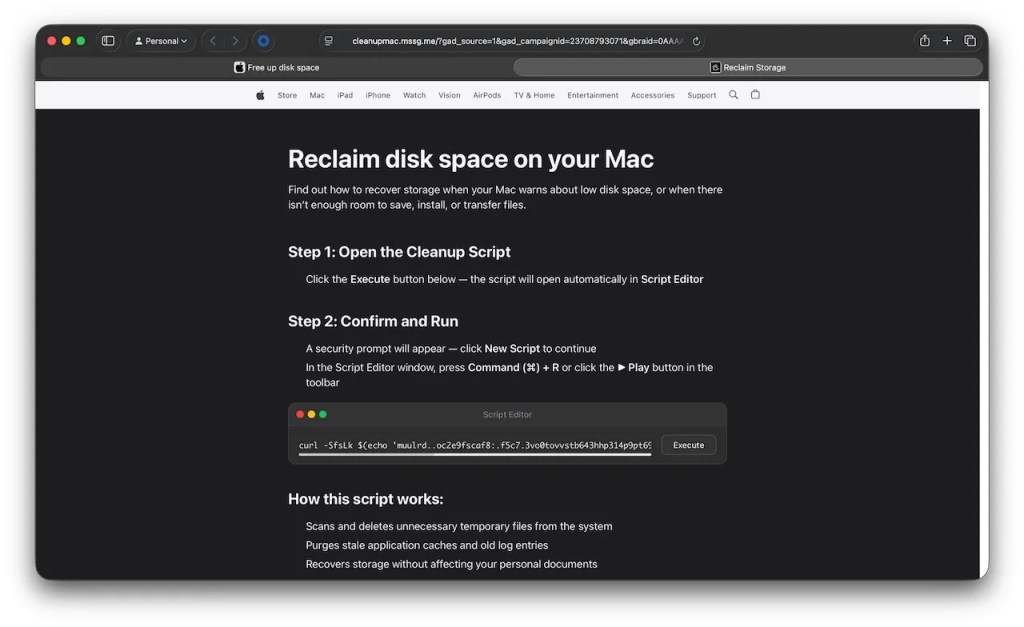
This is what the fake page looks like
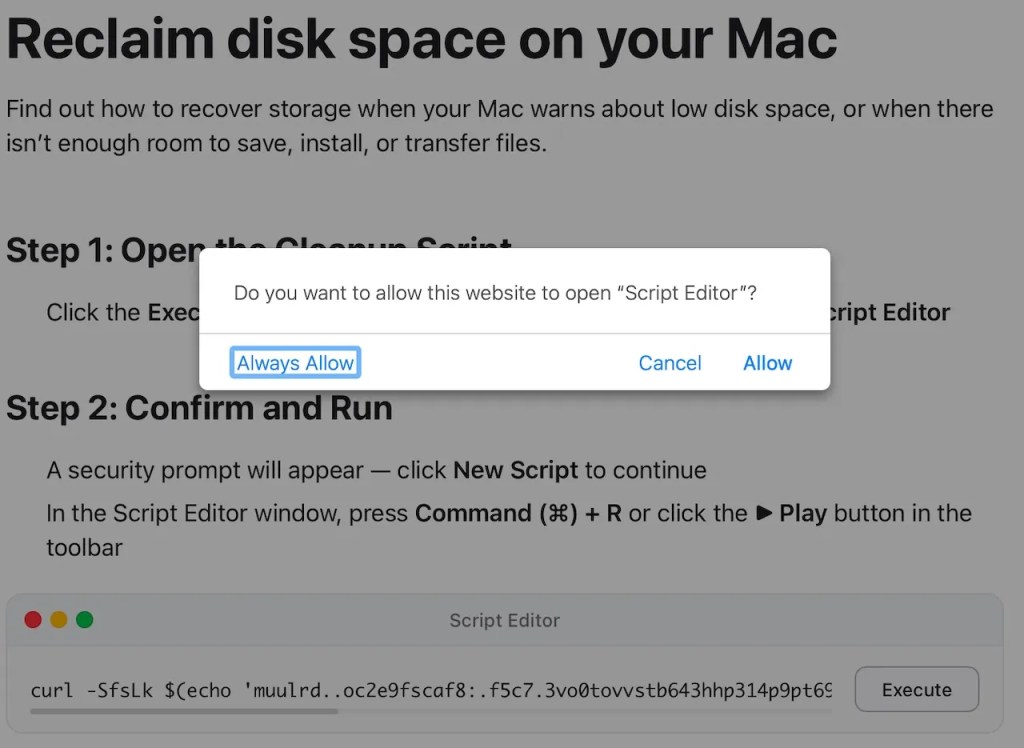
Agree — and that’s it, the virus is on your computer
Since the command doesn’t go through Terminal, the macOS 26.4 warning simply doesn’t trigger. Script Editor has its own warning about an “unknown developer,” but if the user clicks “OK,” the script will execute.
What Is Atomic Stealer and Why It’s Dangerous for Mac
Atomic Stealer (AMOS) is not just a virus but a commercial data theft tool sold to attackers on a subscription basis. Its goal is to collect the maximum amount of valuable information from a Mac in a single run.
Here’s what it steals:
- Passwords from the macOS Keychain — meaning virtually all saved passwords
- Browser data: saved passwords, cookies, autofill data, bank card numbers
- Contents of crypto wallets and cryptocurrency extensions
- Files from the Desktop and Documents folder
- System information about the computer
Everything stolen is packed into an archive and sent to the attackers’ server. New versions of Atomic Stealer can also install a backdoor — a hidden channel for repeated access to the computer.
How to Protect Your Mac from Viruses
The main thing to understand: macOS does not use the browser for system maintenance. If a website offers to “clean your disk” or “speed up your Mac” and asks you to run a script, open Terminal, or Script Editor — it’s always a scam.
Practical rules:
- If the browser asks permission to open Script Editor or Terminal — don’t agree. This is not normal system behavior.
- Don’t copy and paste commands from unfamiliar websites into any application.
- For disk cleanup and Mac maintenance, use only the built-in System Settings and the Storage section.
- Keep macOS updated — despite the bypass of this specific protection, updates still close other vulnerabilities.
- Use antivirus software with real-time protection — it can intercept Atomic Stealer before it starts working.
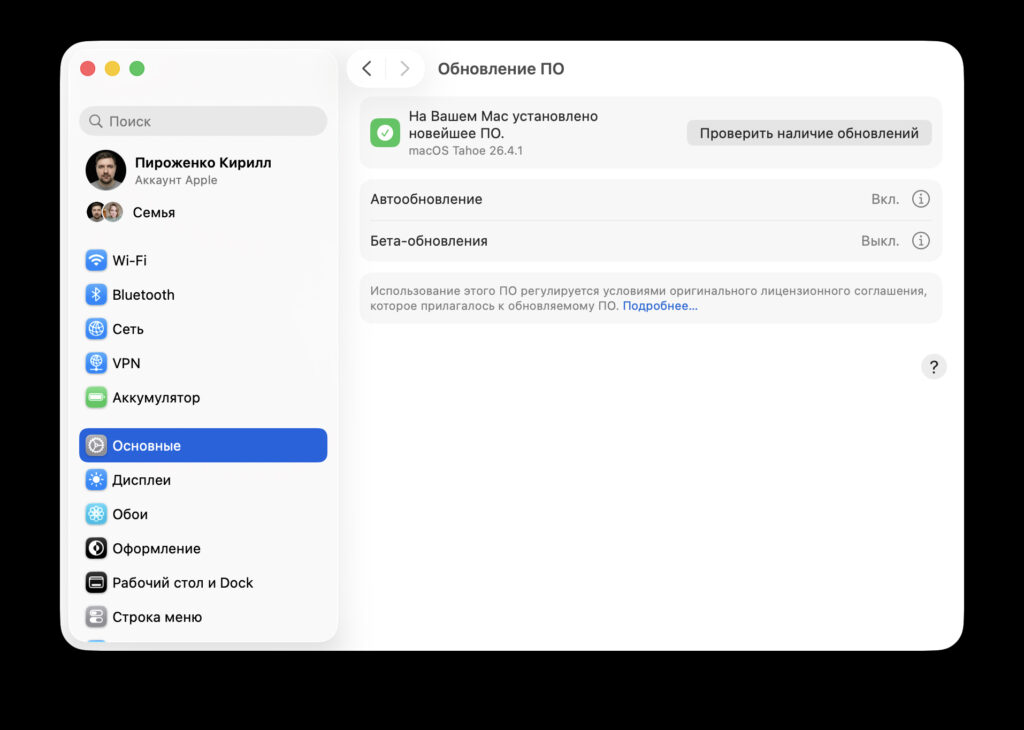
Always keep macOS updated, it’s important
The macOS 26.4 update with Terminal protection is the right step, but it only closes one door. Attackers have already found another — through Script Editor. You can wait for Apple to close that one too, but it’s more reliable to simply not click suspicious buttons on websites that promise to “fix” your Mac. If a website asks you to open any system application through the browser — close the tab. This rule works against any ClickFix variant, current and future.


