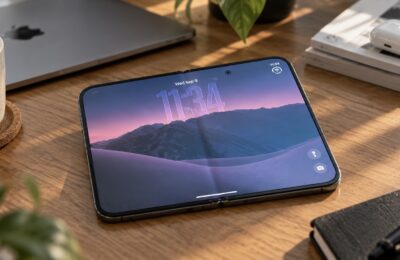
You’ve just unboxed your brand-new MacBook Neo and see two identical USB-C ports on the side. They seem to be no different — plug in whatever you want, wherever you want. But in reality, one port is 21 times faster than the other, and if you mix them up, you could waste a lot of time working with external drives and monitors. Apple didn’t exactly shout about this in big letters — especially since the MacBook Neo has been cut back in several areas, and the ports are just one item on a long list of compromises.

The ports look identical on the outside but have completely different specs
How the USB-C Ports on MacBook Neo Differ
The difference between the MacBook Neo’s ports is enormous. The rear port, located closer to the display hinge, operates on the USB 3 standard at 10 Gbps. It supports connecting external monitors via DisplayPort, as well as fast data transfer — ideal for SSD drives, USB hubs, and card readers.
The front port is far more modest. It’s USB 2 with a throughput of just 480 Mbps. For comparison, that’s 21 times slower than the rear port, 83 times slower than Thunderbolt 4, and 160 times slower than Thunderbolt 5. Simply put, we’re looking at a twenty-year-old standard.
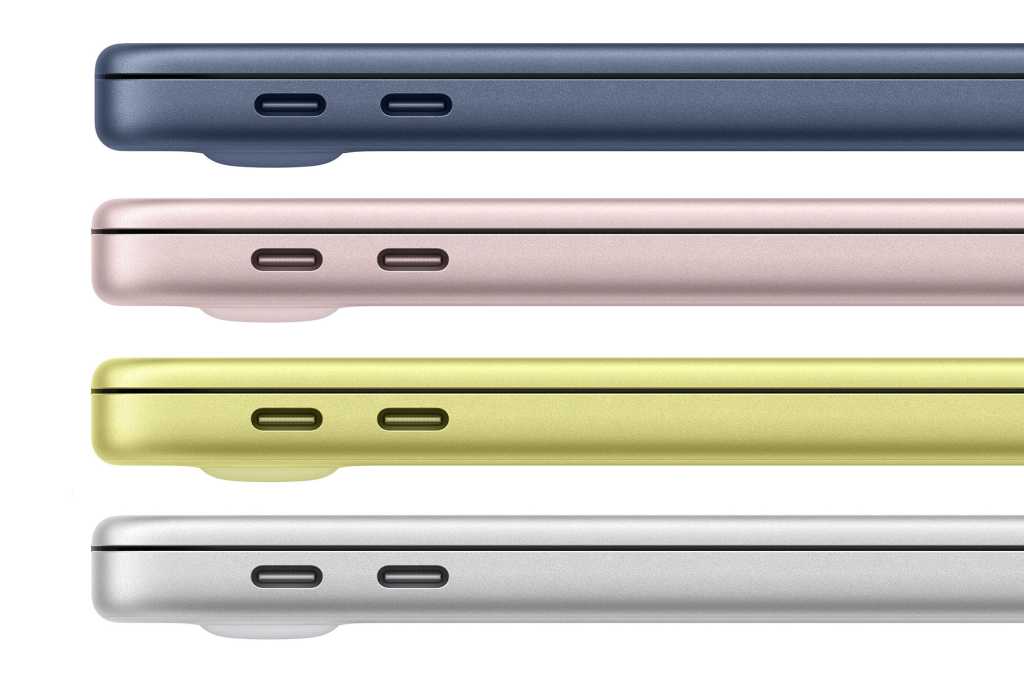
The ports look the same, but mixing them up means losing 21x the speed. Fortunately, the rear port is closer to the screen — easy to remember
Both ports are equally suitable for charging. That’s why Apple recommends using the front (slow) port for connecting the power adapter, leaving the rear (fast) one free for accessories and peripherals. The logic is simple: charging doesn’t care about port speed, but an external monitor or storage drive does.
Fortunately, these unusual changes only affect the MacBook Neo. For example, the MacBook Air with the M5 got two full-fledged Thunderbolt 4 ports — and that’s an entirely different conversation in terms of speed and capabilities.
What to Connect to the Fast USB 3 Port
The rear MacBook Neo port at 10 Gbps is the main workhorse of the entire laptop. This is where you should connect a USB-C hub (such as the Anker 555), which can add up to 12 additional ports through a single connection. This is especially important if you plan to work with an external monitor, storage drive, and wired network simultaneously.
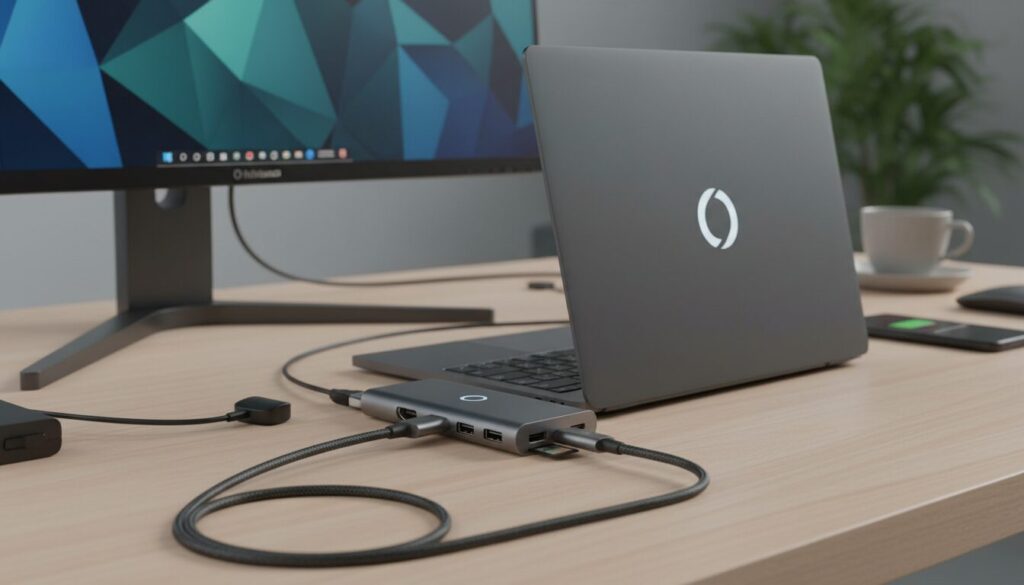
One port isn’t a death sentence. With the right hub, MacBook Neo transforms into a full-fledged workstation
Through this same port, you can connect an external display directly via USB-C or through a USB-C to HDMI adapter. And if your monitor doesn’t support direct USB-C connection, an adapter cable will solve the problem. It also makes sense to connect external SSDs, flash drives, and card readers here to get maximum data transfer speeds.
But there’s a catch: there’s only one such port. That’s why a good USB-C hub becomes practically a mandatory accessory for the MacBook Neo.
What to Connect to the Slow USB 2 Port
The front port at 480 Mbps is best used for charging — this way you free up the fast port for more demanding tasks. When the laptop isn’t charging, you can connect low-power accessories to this port: a mouse, keyboard, or other peripherals that don’t require high speed.
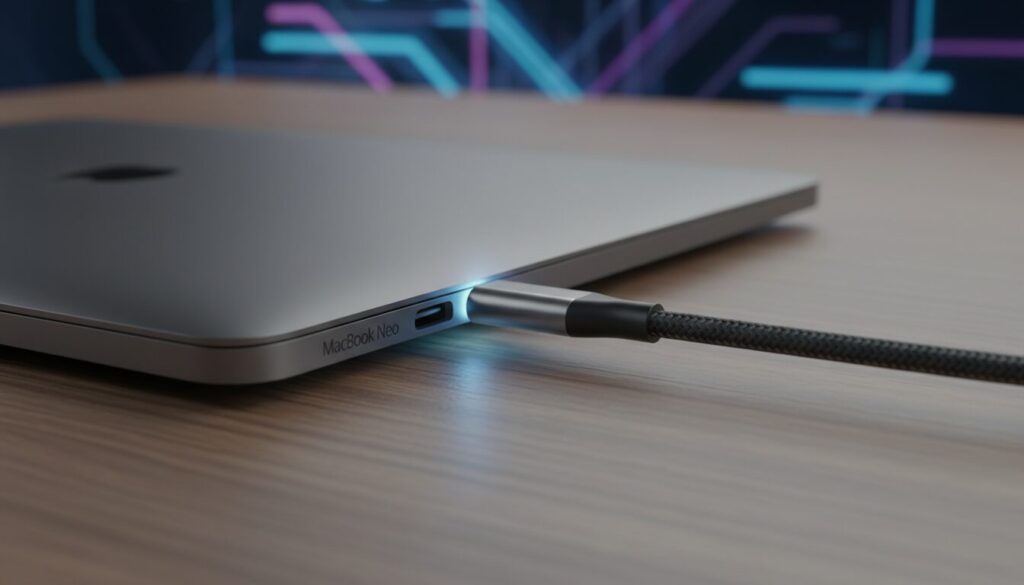
The best fate for the slow port is to always be busy with charging. Let the fast port handle the serious work
You can technically connect an external drive here, but data transfer speeds will be significantly lower. And you cannot connect a monitor to this port — Apple explicitly warns that this port does not support video output. For some, this might be a reason to pass on the MacBook Neo, although in terms of other specifications it outperforms Windows laptops.
How MacBook Neo Ports Compare to Other MacBooks
If you think 10 Gbps seems a bit low, take a look at the more premium siblings. The MacBook Air is equipped with two Thunderbolt 4 ports with 40 Gbps throughput each. The standard MacBook Pro with the M5 chip also got Thunderbolt 4, with three ports instead of two.
And the MacBook Pro models with M5 Pro and M5 Max chips offer three Thunderbolt 5 ports with 80 Gbps throughput and the ability to boost up to 120 Gbps for connecting professional video devices. Against this backdrop, the Neo’s 10 Gbps looks modest: four times slower than Thunderbolt 4 and eight times slower than Thunderbolt 5.
However, for most everyday tasks not involving professional video editing, 10 Gbps is more than enough. Additionally, both the MacBook Air and MacBook Pro have a dedicated MagSafe 3 charging port, which frees up Thunderbolt ports for data transfer. The Neo doesn’t have that luxury.
Thunderbolt 5 is 12 times faster than USB 3. But the MacBook Pro with that port costs a whole different kind of money.
Why You Should Buy a More Powerful Charger Right Away
The MacBook Neo ships with a power adapter of just 20W. Moreover, buyers in the UK and EU countries don’t even get that — there’s simply no charger in the box. Apple is so unproud of this adapter that it doesn’t even sell it separately in its store.
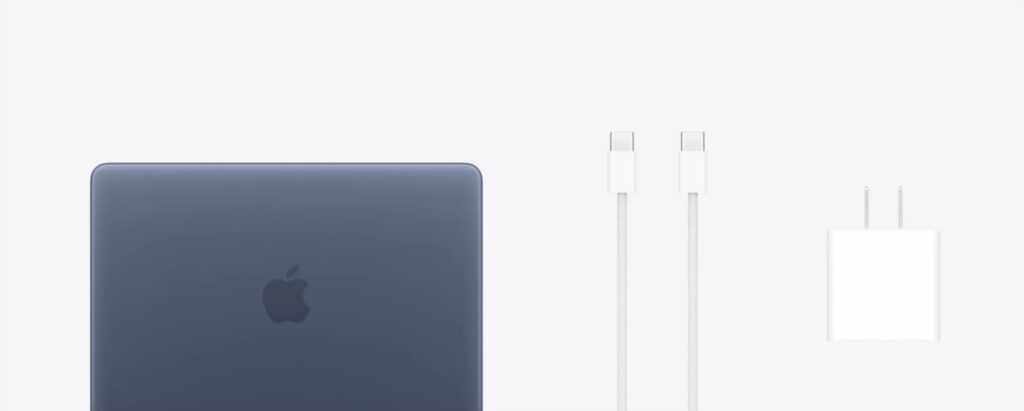
The tiny “cube” — looks like an iPhone charger. Image: Apple
It makes sense: 20W is frankly not enough. Although Apple doesn’t officially list a fast charging feature for the Neo, the laptop can almost certainly accept more power. That’s why buying a good USB-C charger should be one of your first purchases alongside the new MacBook Neo.
The MacBook Neo at $599 has become the most affordable Apple laptop in history, and for its price, it offers more than decent functionality. The main thing is to remember a simple rule: the rear port is for work, the front port is for charging. And a good USB-C hub paired with a powerful charger will turn this budget Mac into a full-fledged workstation for everyday tasks.