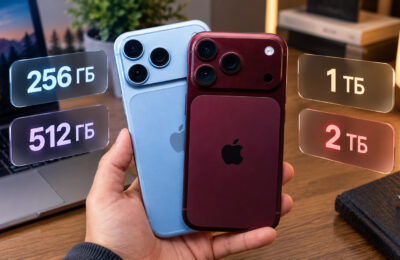
Many people regularly encounter non-working buttons on their iPhones. Some have a non-functioning lock button, while others experience problems with volume buttons. You press the volume up or volume down button during a call, but nothing happens: the volume slider doesn’t appear, and the sound stays at the same level. Meanwhile, the same buttons work fine for music, video, and notifications. In this article, we’ll cover all the causes of this behavior and provide specific fixes — from quick tricks you can use during a call to more drastic measures.
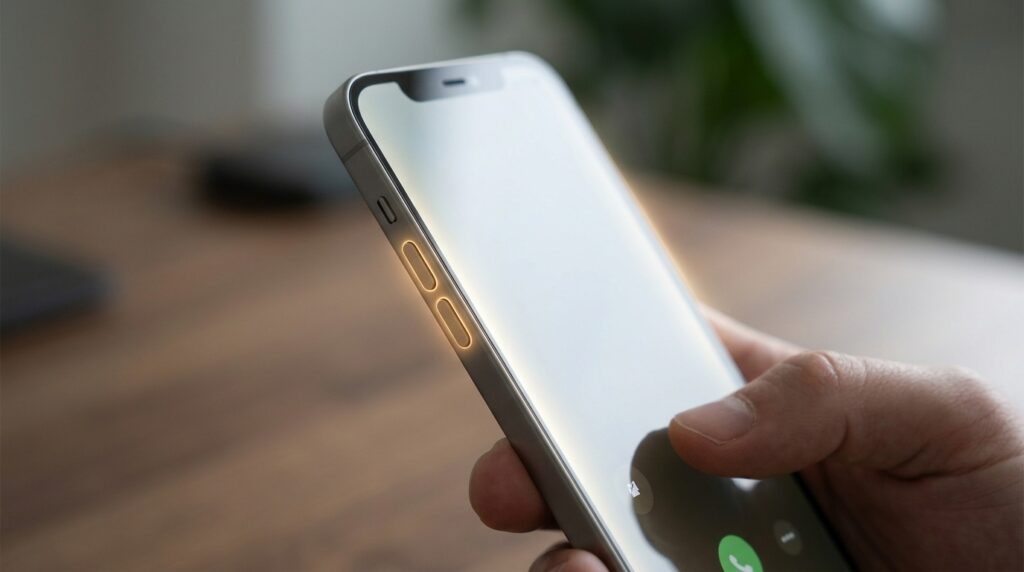
iPhone Volume Buttons Not Working During Calls: What to Do
Why iPhone Volume Buttons Don’t Work During a Call
The problem is usually not related to a physical button malfunction. If volume adjusts when playing music or video, it means the buttons are physically functional. There are several reasons for a software glitch:
- An iOS bug where the system “loses” the connection between the physical buttons and the call audio stream. This error has been reported on Apple forums for several years and affects various iOS versions.
- Audio routing conflict — the iPhone thinks sound is going through Bluetooth headphones, CarPlay, or an external speaker, even though you’re actually holding the phone to your ear.
- The “Change with Buttons” setting is disabled in the “Sounds & Haptics” section. If it’s turned off, the buttons won’t control call volume.
- Physical contamination of the buttons — dust, dirt, or case residue interfering with normal pressing.
Understanding the cause helps choose the right solution. Below are all the methods, from the quickest to the most thorough.
Adjusting iPhone Volume During a Call
These methods can be applied without interrupting your conversation. Start with these — in most cases, one of the two tricks solves the problem instantly.
Mute the Microphone During a Call
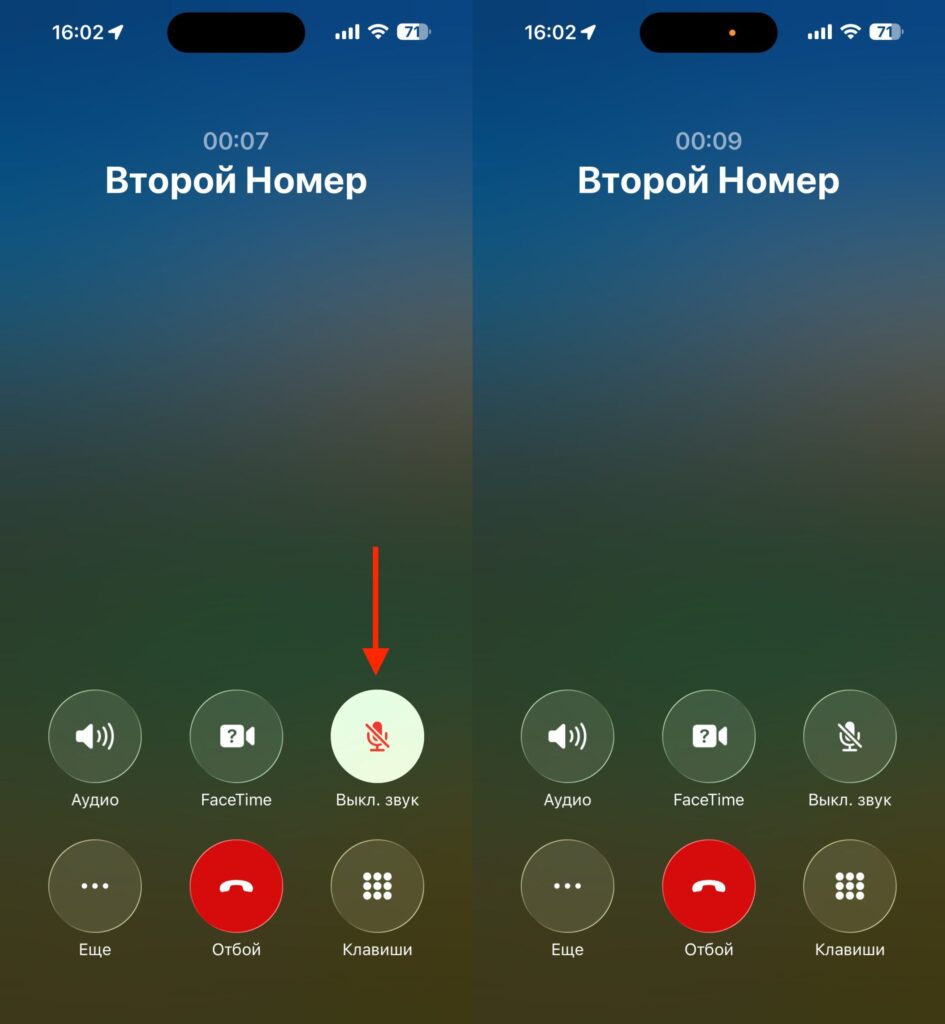
Toggle this switch back and forth, and most likely everything will start working
The simplest trick: during a call, tap the on-screen “Mute” button (microphone mute), wait a couple of seconds, and tap it again to unmute. Then try adjusting the volume with the buttons. Many users report that the buttons start working right after this action. The mechanism isn’t entirely clear, but toggling the microphone apparently forces iOS to somehow revive the buttons.
Switching Audio Output During a Call
If the microphone trick didn’t help, try switching the audio source. During a call, tap the audio output button on the screen (speaker icon) and choose a different option:
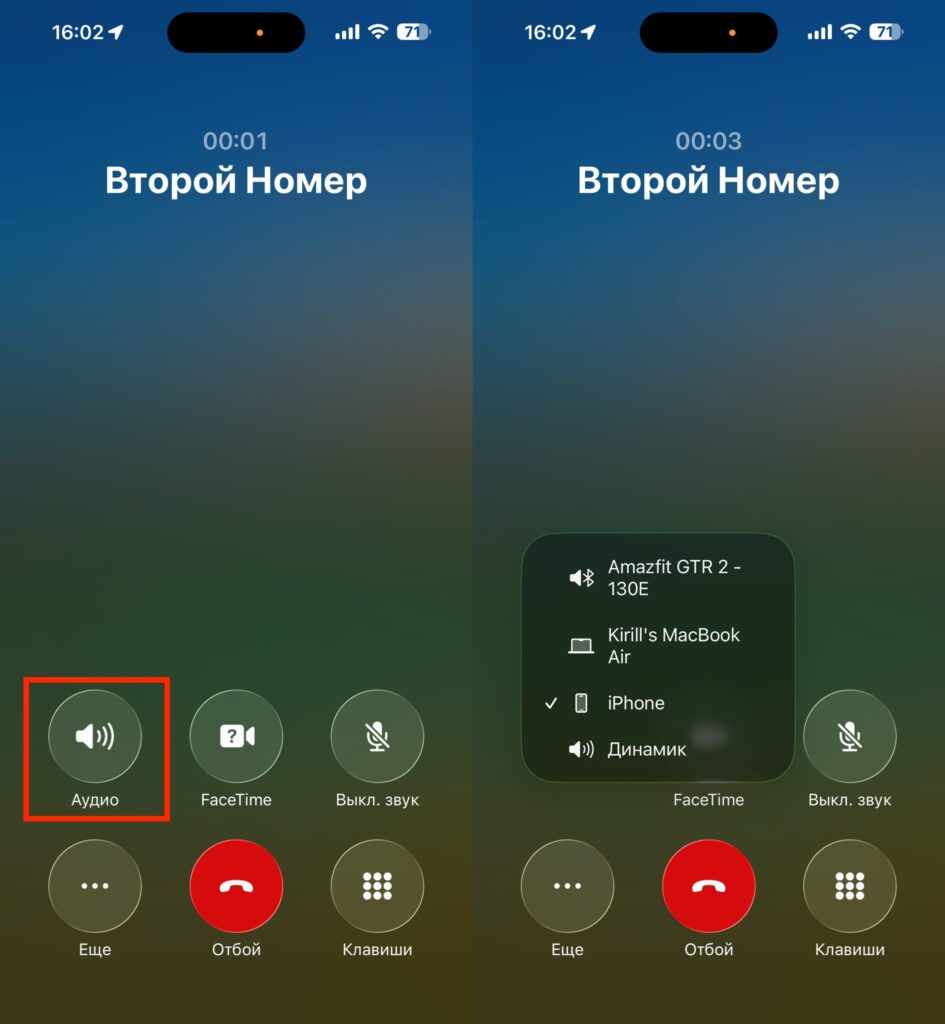
Try switching the audio source. This also helps
- Turn on speakerphone (“Speaker”).
- Wait a few seconds.
- Switch back to “iPhone” (the regular earpiece).
- Try adjusting the volume with the buttons.
If AirPods or other Bluetooth headphones are connected to your iPhone, switch to them and then back to the built-in speaker. This round-robin switching resets the audio routing error and restores button volume control.
Change iPhone Volume During a Call Using Buttons
iOS has a setting that determines whether physical buttons can control the volume of calls and notifications. If it’s disabled, the buttons won’t work during a call.
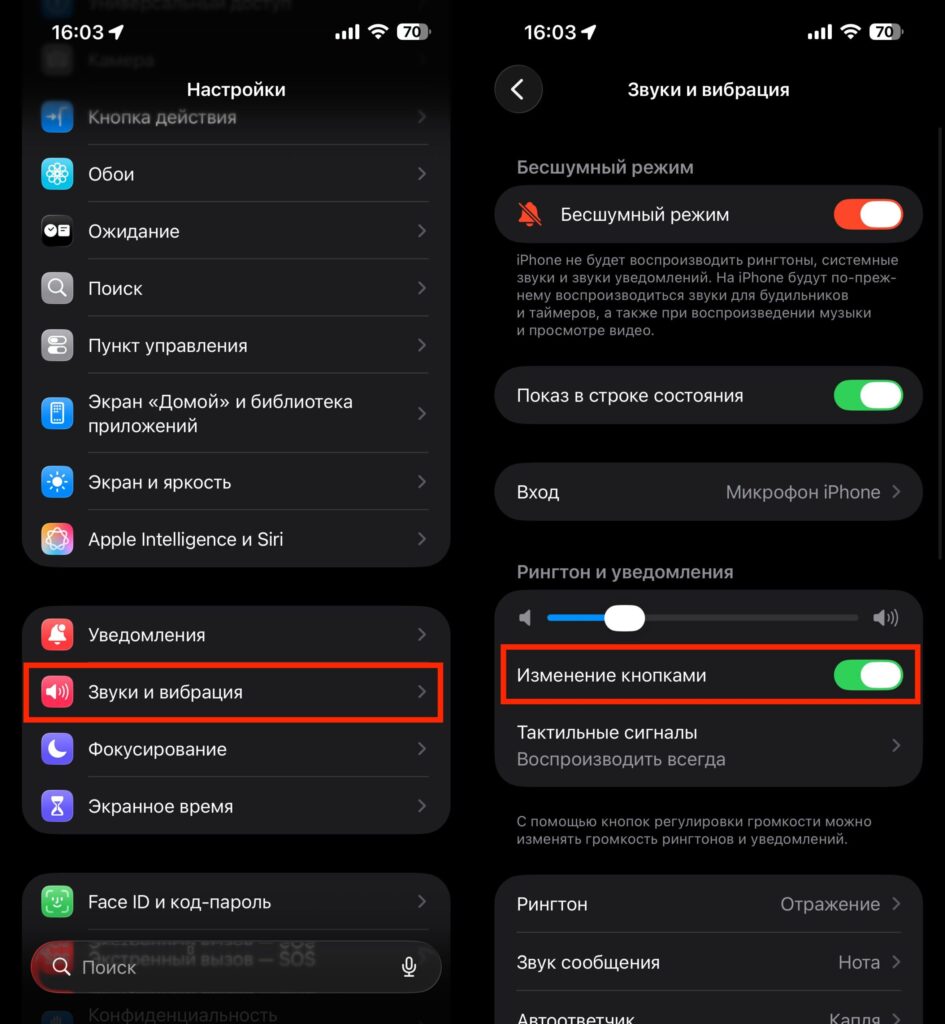
Don’t forget to enable volume adjustment with buttons
- Open the Settings app.
- Go to the “Sounds & Haptics” section.
- Find the “Change with Buttons” toggle under the ringer and alerts volume slider.
- If the toggle is off — turn it on.
- If the toggle is already on — turn it off, wait 5–10 seconds, then turn it back on.
Toggling this setting back and forth resets the button binding to the audio stream and often fixes the issue even when the setting was already active.
Restarting iPhone If Volume Buttons Aren’t Working
A restart is a universal way to fix software glitches, including the volume button problem during calls. The obvious downside: you can’t restart your iPhone during an active call, so this method is best used as a preventive measure between calls.
A standard restart is done as follows: press and hold the side button (power button) and one of the volume buttons simultaneously, wait for the “Slide to Power Off” slider to appear, swipe it, wait 10–15 seconds, and turn the iPhone back on with the side button.
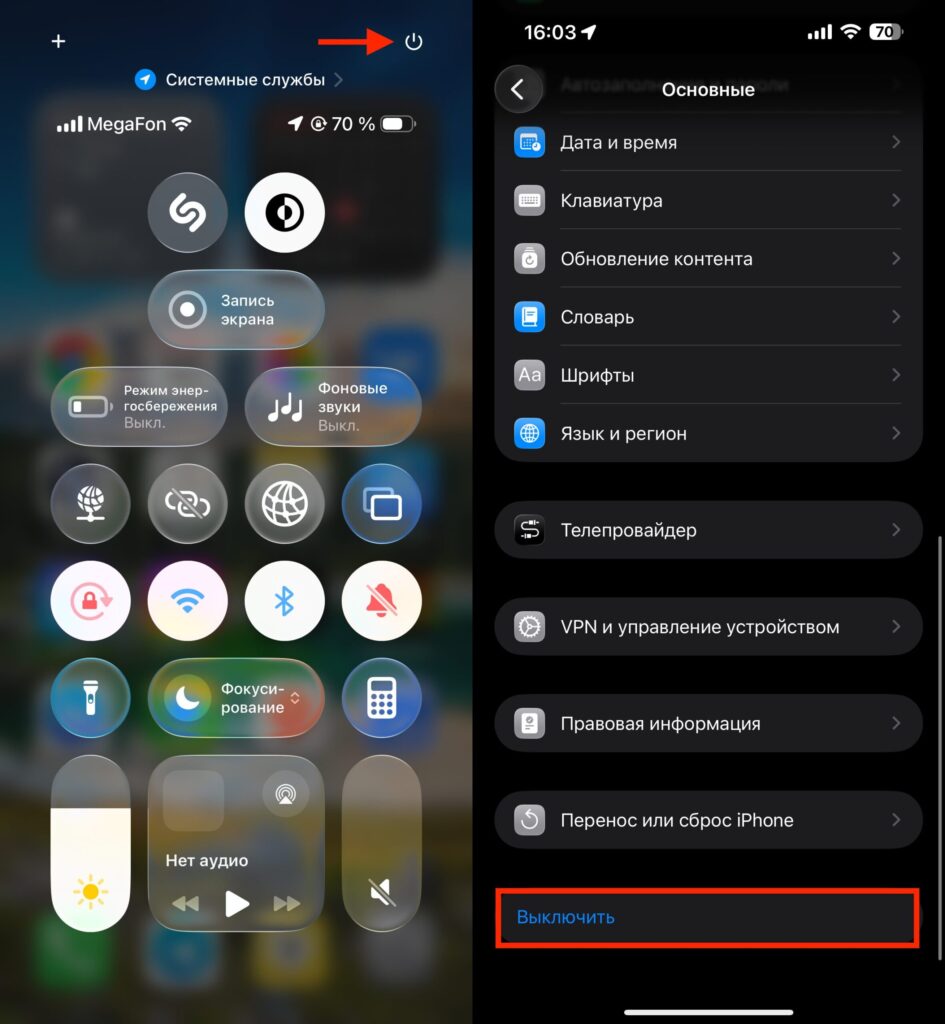
You can restart through Control Center or through Settings
If the volume buttons are completely unresponsive physically, you can turn off the iPhone through settings: open “Settings,” go to “General,” scroll down, and tap “Shut Down.” After shutting down, press and hold the side button to turn it back on. Or do the same through Control Center.
Open Control Center and hold your finger on the power off button. All that’s left is to swipe the slider from left to right, and after the iPhone is fully off, turn it back on.
Clean iPhone Volume Buttons If They’re Hard to Press
If the buttons not only don’t adjust sound during calls but are also physically hard to press, feel “mushy,” or stick — the issue might be case contamination. Dust, pocket lint, food residue, and other small particles get wedged into the gap around the buttons and prevent normal contact.
What you can do:
- Remove the case and wipe the button area with a dry lint-free cloth (such as microfiber).
- Carefully blow out the gaps around the buttons. Don’t use high-pressure compressed air from a canister — it can push dirt deeper inside.
- If you can see contamination around the buttons, slightly moisten a cotton swab with isopropyl alcohol and clean the gaps. Don’t allow liquid to get inside the case.
- Try pressing the buttons rapidly several times — sometimes this helps loosen a stuck contact.
After cleaning, check whether the buttons now press with a familiar, crisp click. If so — the problem was mechanical.
Adjusting Volume During a Call After an iOS Update
The problem with non-working volume buttons during calls, based on discussions on the Apple forum, appears to be a recurring issue.