Even despite the disabling of normal iCloud payment in Russia, many people continue to use Apple’s cloud as their primary solution for storing and transferring files. Every time you drag a file from the iCloud Drive folder to another folder on your Mac, the system shows a pop-up window: “Are you sure you want to remove the item from iCloud Drive?” This is annoying if you know exactly what you’re doing. Below are two ways to remove this warning and one useful trick for copying.
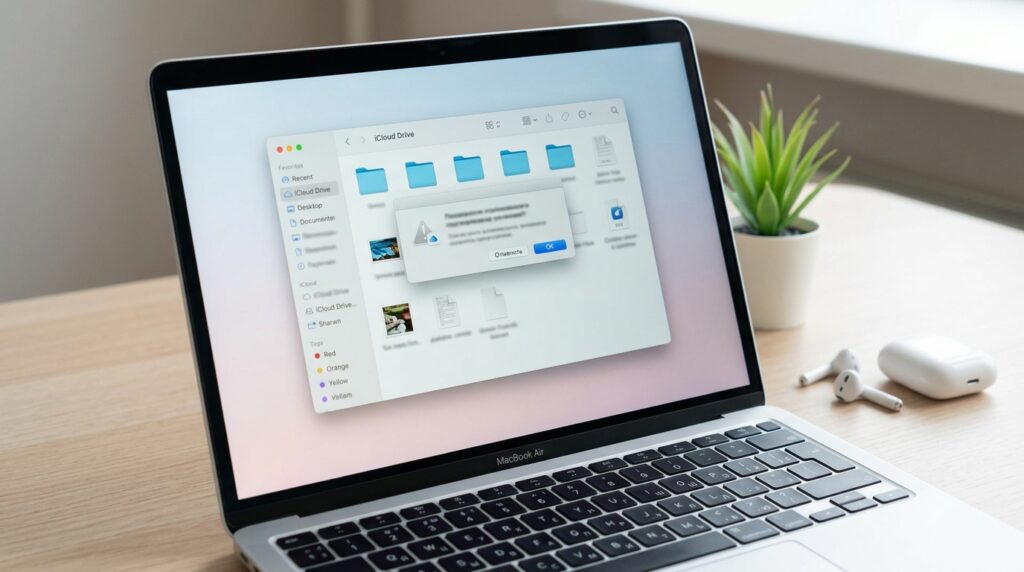
How to copy files from iCloud Drive on Mac without errors and delays
“Are you sure you want to remove the item from iCloud Drive”: What It Means
As a reminder, every Apple device has an iCloud Drive section for file storage. Apple added this dialog box for a reason: files in iCloud Drive are stored on Apple’s servers and synced across all your devices — iPhone, iPad, other Macs, and even Windows computers. If you move a file from iCloud Drive to a local folder, it disappears from all other devices. The warning protects against accidental loss of access. But when you do this deliberately and regularly, the constant confirmations only get in the way of your work.
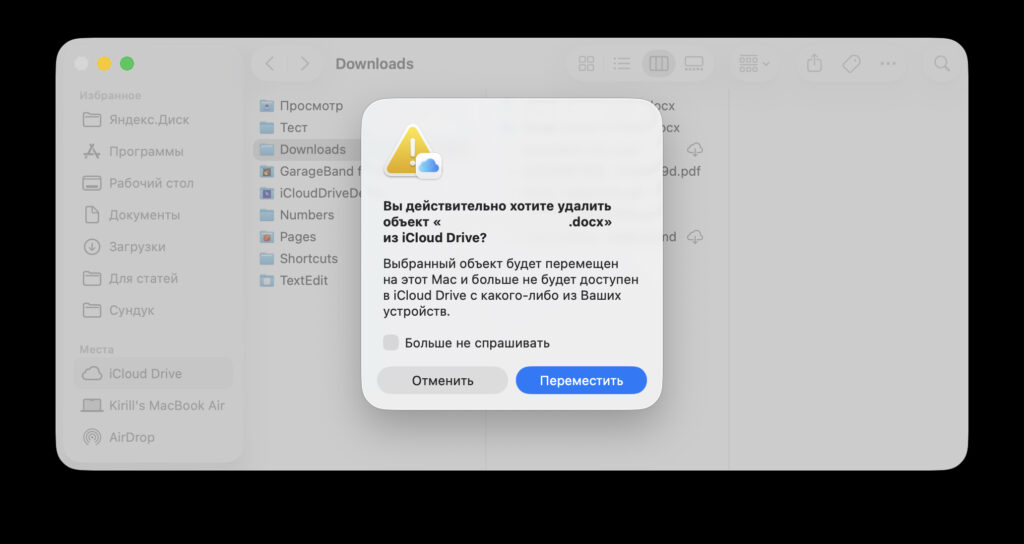
If you frequently use iCloud Drive, you’ve definitely seen these notifications
The users who suffer the most from this are those who store their “Documents” and “Desktop” folders in iCloud Drive. This is a standard macOS setting — many people don’t even remember turning it on. As a result, almost any file move from these folders triggers a pop-up window asking you to confirm the action.
If you frequently sort documents, move files to the “Downloads” folder, or to an external drive — each such action is interrupted by an extra click. It’s a small thing, but over the course of a day, it adds up to a noticeable number of unnecessary actions.
How to Disable the Warning When Moving Files from iCloud Drive
If your Mac is running the latest version of macOS Tahoe, you can disable the warning directly from the pop-up window:
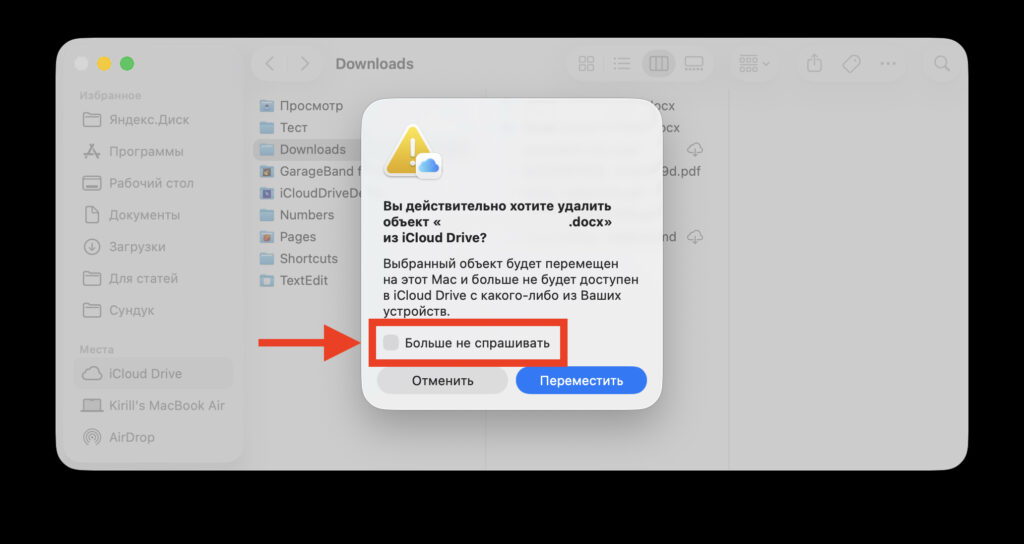
Check this box and you won’t see this window anymore
- Open Finder and navigate to iCloud Drive.
- Open a second folder — for example, “Downloads.”
- Drag any file from iCloud Drive to the local folder.
- In the pop-up window, check the box “Don’t show again” and click Continue.
After this, files will be moved without any extra questions — in one motion. If the “Don’t ask again” checkbox isn’t available — for example, on an earlier version of macOS — you can disable the warning through Finder settings:
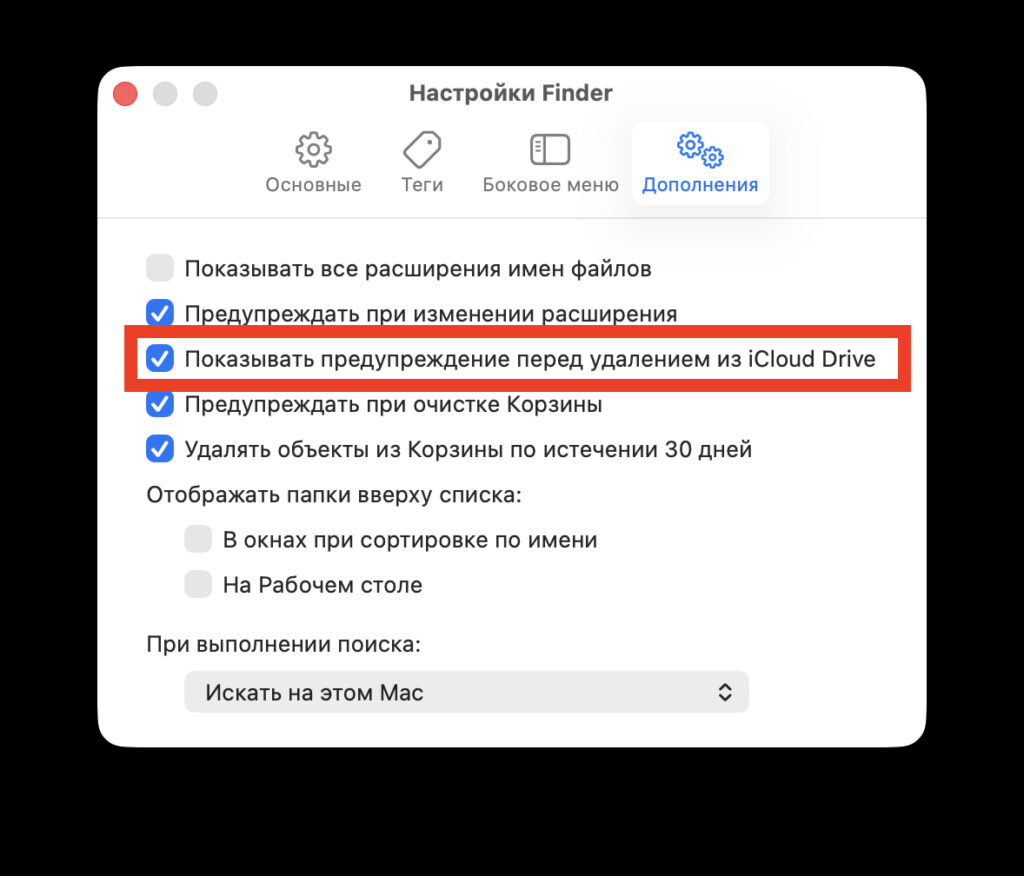
Uncheck this option and the problem will be solved
- Open Finder and select Finder from the menu, then Settings.
- Go to the Advanced tab.
- Uncheck the option “Show warning before removing from iCloud Drive.”
Close the settings window — the changes will take effect immediately. If the warning still appears, restart Finder or reboot your Mac.
How to Copy a File from iCloud Drive to Mac Without Deleting the Original
There’s another trick that’s useful to know. If you need to keep a copy of a file in another folder rather than removing it from iCloud Drive, hold down the Option (Alt) key while dragging. In this case, the file is copied rather than moved, and no warning appears at all.
This is convenient when you want the original to remain accessible on all devices via iCloud, while a local copy sits, for example, on an external drive or in a specific work folder.
Should You Disable the Warning When Copying from iCloud Drive?

Apple cares about the safety of your files and therefore adds extra warnings
If you understand well how iCloud Drive works and are used to controlling where your files are stored — disable it without hesitation. It saves time and eliminates unnecessary annoyance.
But if you’re unsure about your actions and are afraid of accidentally losing access to a file on your iPhone or iPad — it’s better to leave the warning enabled. It exists specifically to protect against such situations. In any case, the trick with the Option key for copying will be useful for everyone — it works without warnings and doesn’t delete the original from the cloud.