A silent ringtone on iPhone is an audio file with no sound that you assign as a call melody for a specific contact, SIM card, or all incoming calls. The call comes through as usual and remains in the call log, but the phone doesn’t ring or vibrate. In this article, we’ll cover why this is useful, how this method differs from silent mode and blocking, and how to set a silent ringtone on iPhone in a couple of minutes — for free and without third-party apps.
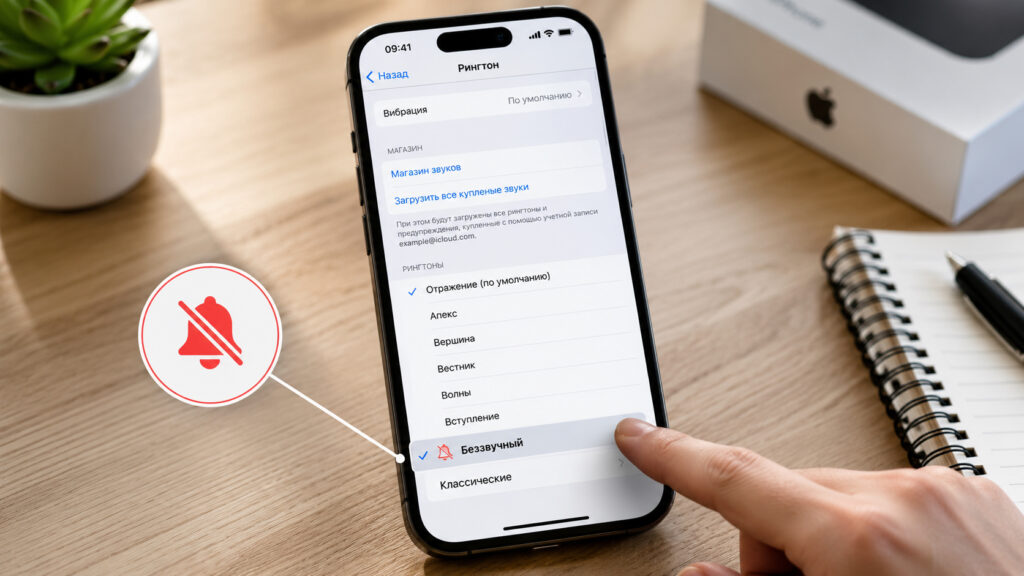
Sometimes this ringtone saves you better than any silent mode
Why You Need a Silent Ringtone on iPhone
The main purpose of a silent ringtone is to mute the call sound for specific people or numbers without affecting the entire phone. This is convenient when there are calls you don’t want to hear, but blocking them isn’t appropriate. For example, spam, annoying robocalls, work numbers during off-hours, or a contact whose call you can’t awkwardly decline but don’t want to react to either.
This trick is especially useful for dual SIM card owners. If your second number is used only for internet or, say, for banking, it often gets spam calls. You can assign a silent ringtone specifically to that SIM card — then such calls come in silently, and you can calmly check missed calls later.
The key difference from other methods is that a silent ringtone doesn’t mute the entire iPhone but allows you to target specific contacts or situations — unlike system tools like silent mode, Do Not Disturb, or Focus mode.
How to Mute a Call on iPhone Without Blocking the Contact
iPhone has several built-in ways to mute sound, but none of them solve the problem precisely. Here’s the difference.
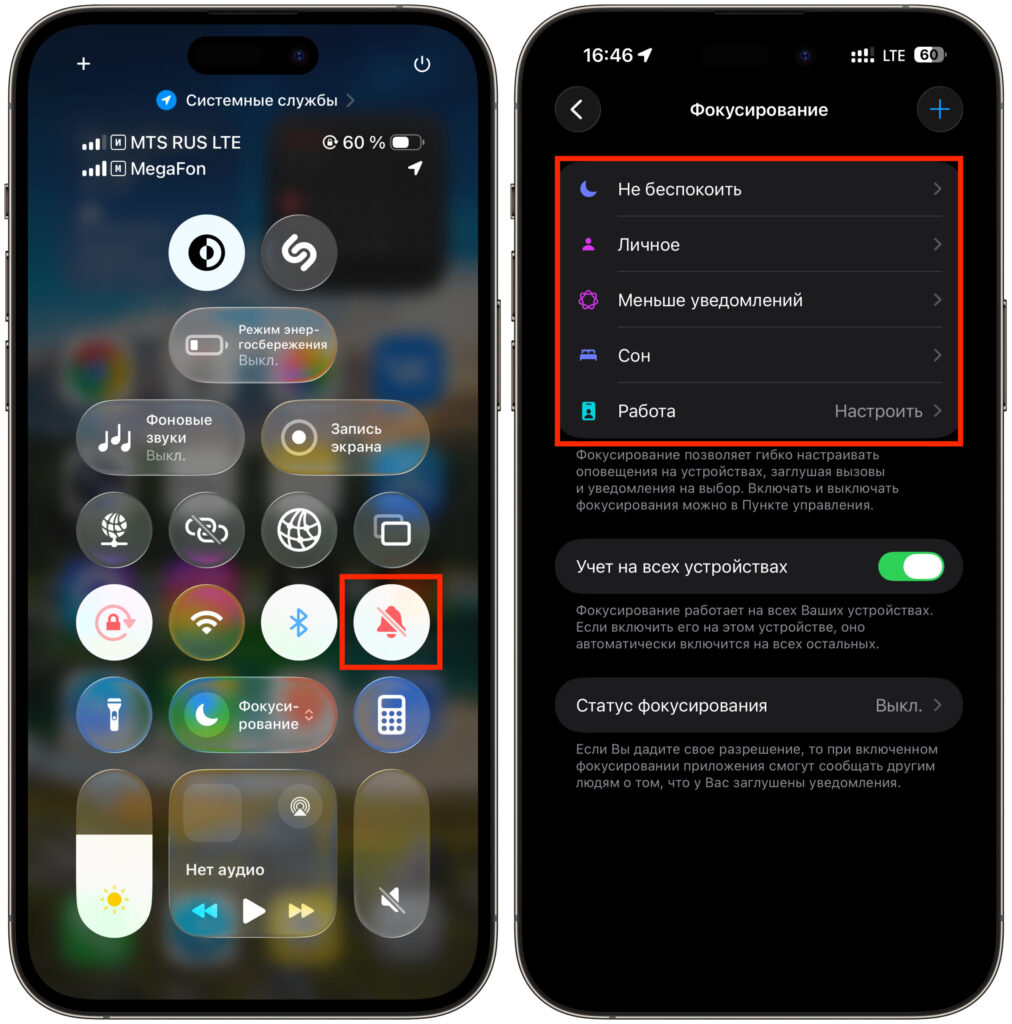
You can enable silent mode or Focus, but sometimes a ringtone is better
- Silent mode (toggle switch or action button). Mutes the sound of all incoming calls, messages, and notifications — including messengers and FaceTime. You stop hearing everything, not just the desired numbers.
- Focus mode. Allows calls only from a specific line, but you have to keep it enabled all the time. Additionally, filtered calls may not appear in the Phone app, and you risk missing something important.
- Number blocking. Completely hides calls from a contact. Suitable for obvious spam but not for people whose calls you can’t cut off entirely.
- Silent ringtone. Works at the level of a specific contact or SIM card. The call goes through and appears in the Phone app, but you won’t hear any melody. All other calls and notifications continue working as usual.
In short: silent mode and Do Not Disturb are great for “mute everything for an hour” situations, while a silent ringtone is a permanent solution for “don’t ring me from this number, but don’t disappear.”
Where to Get a Silent Ringtone for iPhone
First, you’ll need the file itself — a short audio recording of silence. Important condition: the file duration must be less than 30 seconds, otherwise iOS won’t accept it as a ringtone. Popular formats work — MP3, M4A, or M4R.
Where to get a silent ringtone:
- Find it online. Enter a search query on your iPhone like “silent ringtone” and download a file that’s 29 seconds or shorter. Save it to the Files app.
- Buy a ready-made one from the iTunes Store. The pre-installed iTunes Store app has paid “Silent Ringtone” options for about 99 cents. This is the laziest route, but paying for silence isn’t necessary.
- Make it yourself. If the downloaded file is longer than 29 seconds and iOS gives an error, you can easily trim it right on the phone in the Files app or using standard audio editing tools — it takes a couple of minutes.
After downloading, the file will appear in the Files app — in the downloads folder or on the “Recents” tab. Then all that’s left is to turn it into a ringtone.
How to Add a Custom Ringtone on iPhone via Files
In iOS 26, the process has been significantly simplified: you no longer need GarageBand or a computer. Apple removed the cumbersome track export process and now offers a simple method directly from the Files app. Here’s how to do it.
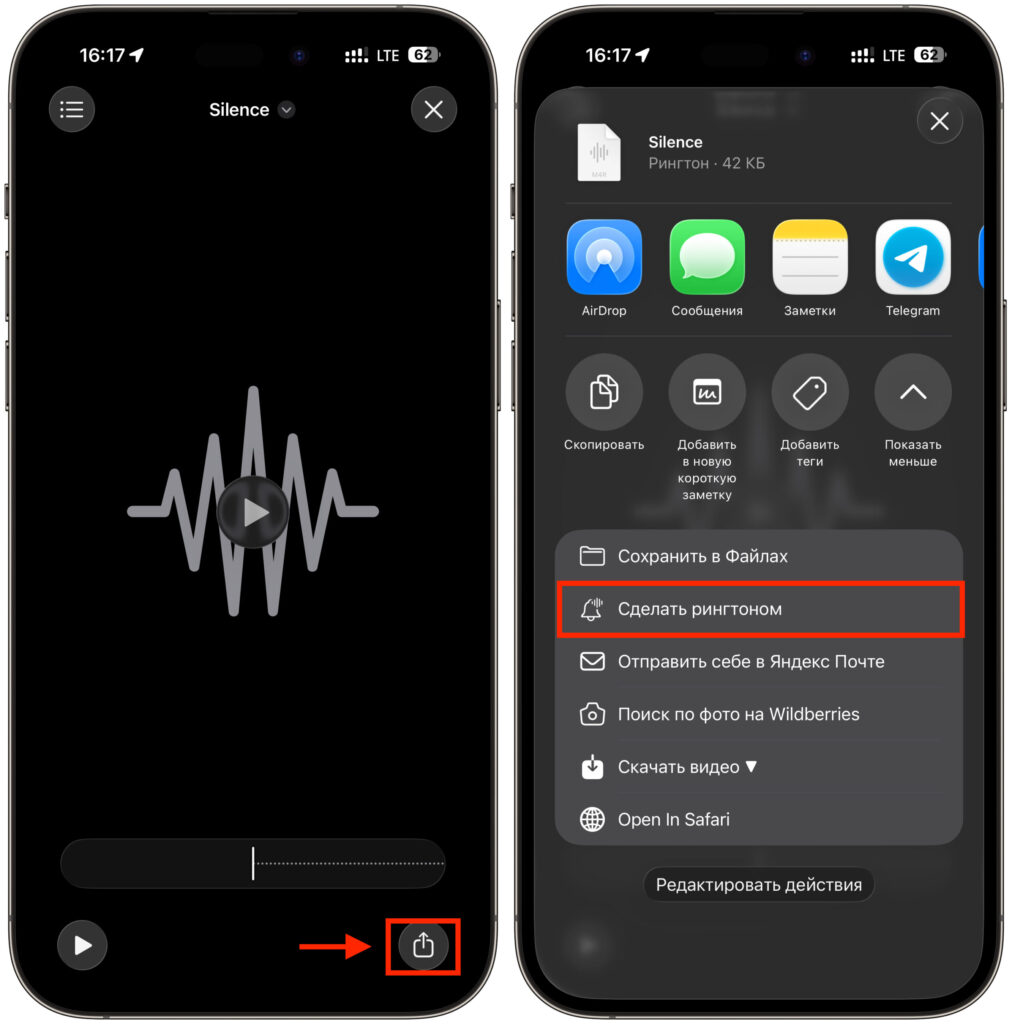
A ringtone is added with one button. The main thing is that it’s no longer than 29 seconds
- Make sure your iPhone or iPad has the latest version of iOS 26 installed.
- Open the Files app and navigate to the folder where you saved the silent file, or find it on the “Recents” tab.
- Tap the file — a preview will open. Then tap the “Share” button.
- Scroll down the menu and select “Use as Ringtone.” iOS will add the silence to the list of available ringtones.
- Open “Settings,” then “Sounds & Haptics,” then “Ringtone.” If you have two SIM cards, first select the desired line. Find your silent ringtone in the list and tap on it.
Done. The “Use as Ringtone” option also appears for audio files in some other apps, including Voice Memos. A useful detail: the silent ringtone will remain in the ringtone list even if you delete the original MP3 file from Files.
How to Assign a Custom Ringtone to a Contact on iPhone
Most often, silence is assigned not system-wide but to a single person. That way all other calls sound as usual, and the desired contact comes in silently.
Here’s how to do it:
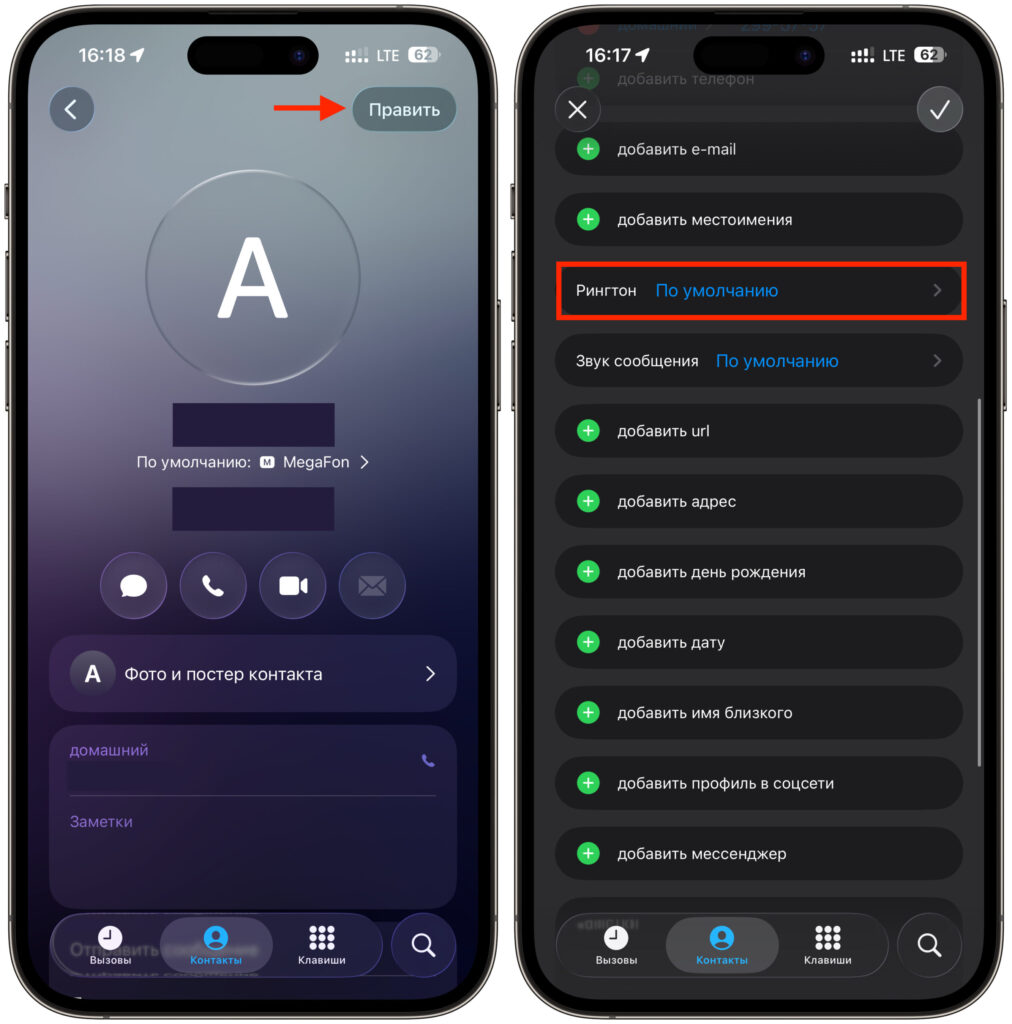
Each user in contacts can be assigned their own ringtone
- Open the Contacts app or the person’s card in the Phone app.
- Tap “Edit” in the upper right corner.
- Select “Ringtone.”
- In the list of ringtones, find and select your silent ringtone, then save the changes.
Now calls from this person will come in without sound but will remain in the call log. You’ll see the missed call and decide for yourself whether to call back. This is more tactful than blocking: technically you’re “available,” you just don’t hear a specific caller.