Almost every photo taken with a phone stores much more information than meets the eye: the date, time, device model, and often the exact coordinates of the shooting location. This data can be read right from your smartphone — and just as easily, someone else can see it if you send a photo without processing.
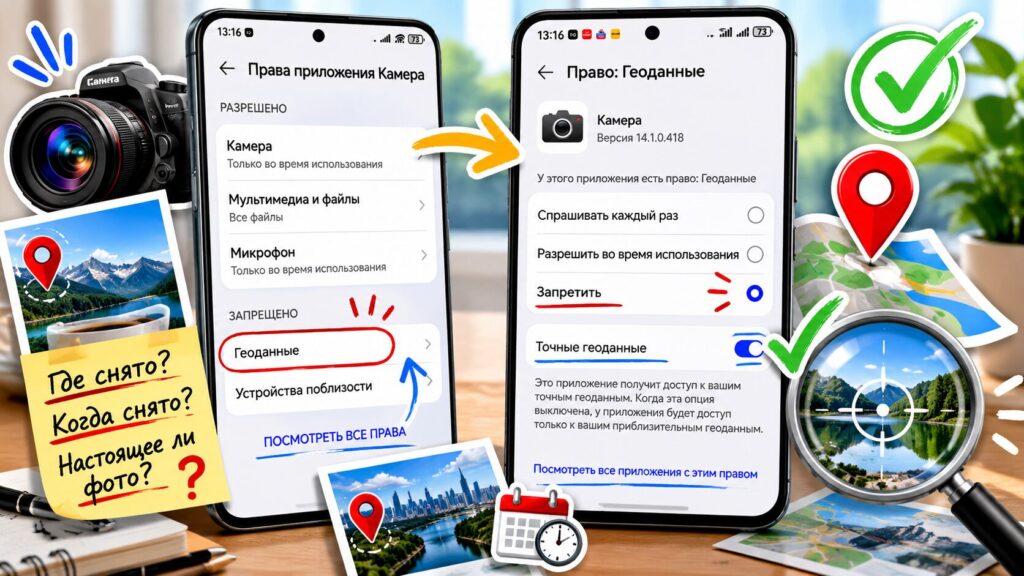
Want to find out where a photo was taken? Most of the time, it’s actually possible
What Is a Geotag and What Data Does a Photo Store
When you take a photo, your phone or camera writes service information into the file. This set of data is called EXIF — essentially, the technical passport of the image. It usually contains the date and time of the shot, camera settings, device model, and, if geolocation is enabled, the coordinates of the location.
A geotag is precisely those coordinates — latitude and longitude, sometimes even altitude above sea level. If your smartphone has location access enabled for the camera, every photo is essentially marked with a point on the map. It sounds harmless when it comes to travel, but a photo taken at home essentially contains your address.
It’s important to understand: geodata isn’t always present. The camera can be configured so that coordinates aren’t recorded, and many services and social networks automatically strip metadata during upload to protect user privacy. So the presence of a geotag isn’t guaranteed — it’s just a common occurrence.
How to See When a Photo Was Taken
The simplest scenario is finding out the date and time of a shot. This is especially relevant when a photo was sent via a messenger and you want to know whether it’s a fresh shot or an old one. There’s a nuance here: if the image was sent in Telegram or WhatsApp as a regular compressed photo, the metadata has most likely already been removed. But if the file was sent as a document without compression, the chance of reading the EXIF data is much higher.
You can check the shooting date in several ways:
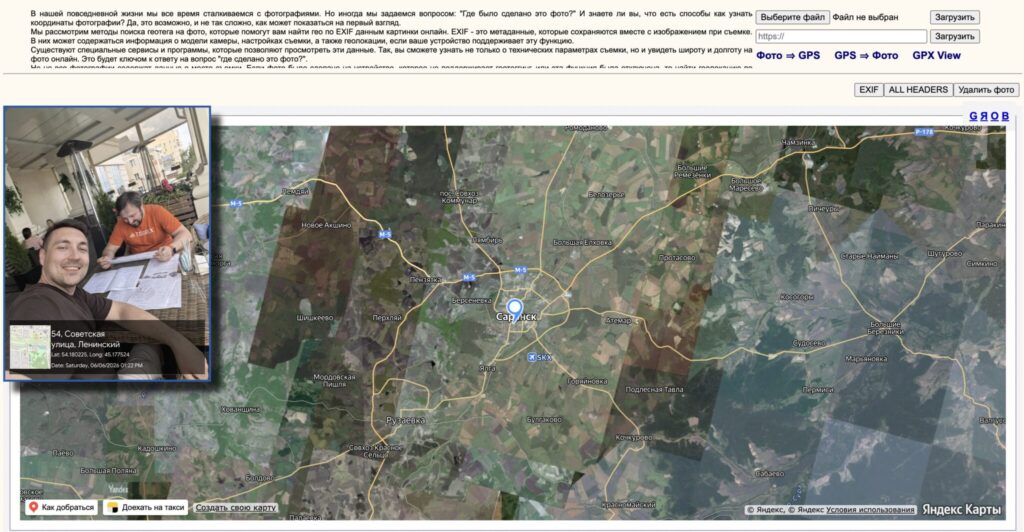
Checked the EXIF on my photo and found a geotag there
- through the file properties on a computer — right-click on the image and open the detailed information tab;
- through free online services like Metadata2Go or GPS Photo — upload the image and get a report;
- through a mobile EXIF viewer app on Android.
Keep a practical point in mind: the date in EXIF reflects the device’s settings at the time of the shot. If the camera’s calendar was incorrect, the timestamp will be wrong too. Also, some online services save uploaded images on their servers, so it’s better not to run confidential photos through them.
How to Find Out Where a Photo Was Taken
If the coordinates are preserved in the image, the task is solved in a couple of minutes: open the EXIF using any of the services above, copy the latitude and longitude, and paste them into Google Maps or Yandex.Maps. The map will show the exact point, sometimes accurate down to the building entrance.
It’s harder when the metadata has been erased. Then visual clues come into play — and this is where what the internet calls citizen investigation begins. These details help:
- recognizable architecture, monuments, and distinctive buildings;
- signs, language, street names, and store names;
- natural landscape — mountains, rivers, vegetation;
- shadows and the sun’s position, which can help estimate the time and cardinal direction.
Then the image is compared with street panoramas in Google Maps and Yandex.Maps, or similar shots are searched through reverse image search — Google Images, Yandex.Images, or TinEye. Sometimes the original is found on another website where the location is described in plain text.
Can Others See the Geolocation on Your Photos
This is the key practical question. If you send the original image — for example, as an uncompressed file or through the cloud — then the recipient can read the coordinates using the exact same methods described above. It’s especially unpleasant when it comes to photos taken at home or at work.
The good news is that popular messengers and social networks usually remove metadata when sending compressed photos. The bad news is that you shouldn’t blindly rely on this: platform rules differ, and sending a file “as a document” preserves the EXIF entirely. A simple rule: if the photo is sensitive, assume the geotag is there until you’ve confirmed otherwise.
How to Remove a Geotag from a Photo Before Sending
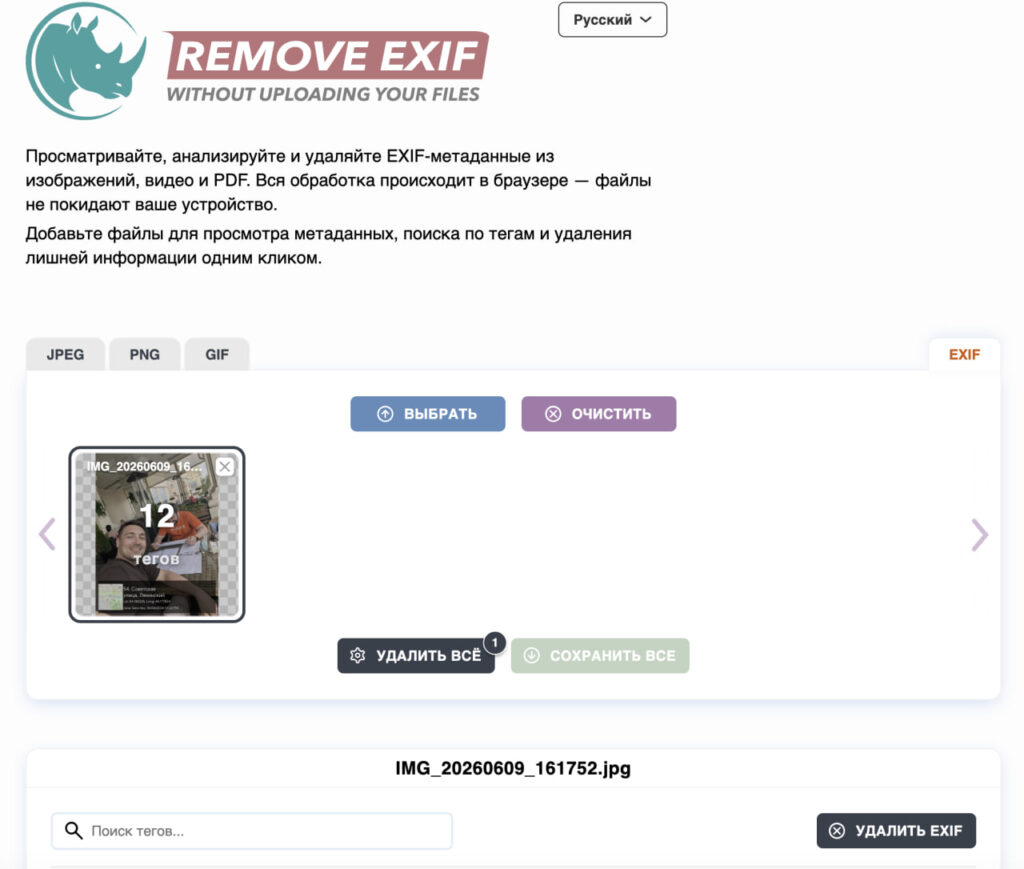
Removed the EXIF — and download the photo back
Removing coordinates from an existing photo is easy. On Android, it can be done right in the gallery or through a separate app:
- Go to the EXIF Remover website.
- Upload your photo to the site.
- Click the button to delete EXIF data.
- Download the photo back to your device.
On a computer, the same task can be handled by free programs like ExifTool or by exporting from a photo editor with metadata recording disabled. Before publishing, it’s worth checking not only the coordinates but also what’s visible in the background: signs, license plates, recognizable buildings. They give away the location just as well as exact coordinates.
How to Disable Geotags in the Android Camera
Manually removing coordinates from every shot is tedious. It’s easier to disable geolocation recording in the camera itself, and then new photos won’t contain any coordinates at all. On most Android phones, this is done as follows:
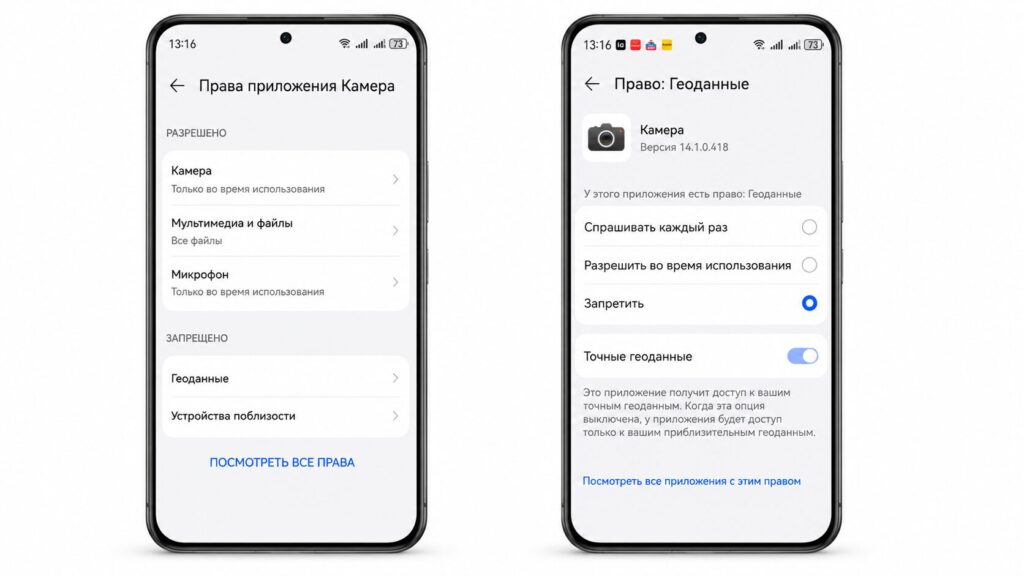
Disable geolocation for the Camera, and it won’t collect geotags
- Open the Camera app.
- Go to camera settings — usually the gear icon.
- Find the geodata option — it may be called “Geotags,” “Save location,” or “GPS tags.”
- Turn it off.
Additionally, you can deny the camera access to location in the app permissions settings — this is a reliable way to block coordinate recording at the system level. The names of the options vary depending on the manufacturer and the UI skin, but the logic is the same everywhere.
And one last thing about the law. The act of determining a location from a photo is not a violation in itself, but distributing someone else’s personal data — coordinates, addresses, license plate numbers — without that person’s consent is regulated by personal data protection laws and can have consequences. So finding out where and when a shot was taken is primarily useful for checking your own photos and protecting your own privacy, rather than for tracking others.