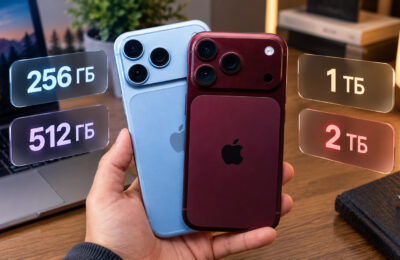
If your iPhone has become noticeably slower than it was a couple of years ago, don’t rush to blame Apple for a conspiracy. The real reasons for the slowdown are actually much more mundane than you might think. In fact, there are only three of them, and you can deal with each of these problems on your own. Let’s figure out what exactly slows down an old iPhone and how to fix it without visiting a service center.
How to speed up an old iPhone: 3 proven ways
iPhone Battery Replacement: What It Does
Lithium-ion batteries wear out over time. A worn battery cannot deliver peak power — for example, when launching a demanding game or processing video. If there isn’t enough energy at such a moment, the iPhone simply restarts.
After such an emergency restart, iOS automatically enables performance management mode. A message appears in settings saying that “performance management has been applied.” Essentially, the system intentionally reduces processor speed so that the iPhone no longer shuts down due to a weak battery.
To check if this mode is enabled, open:
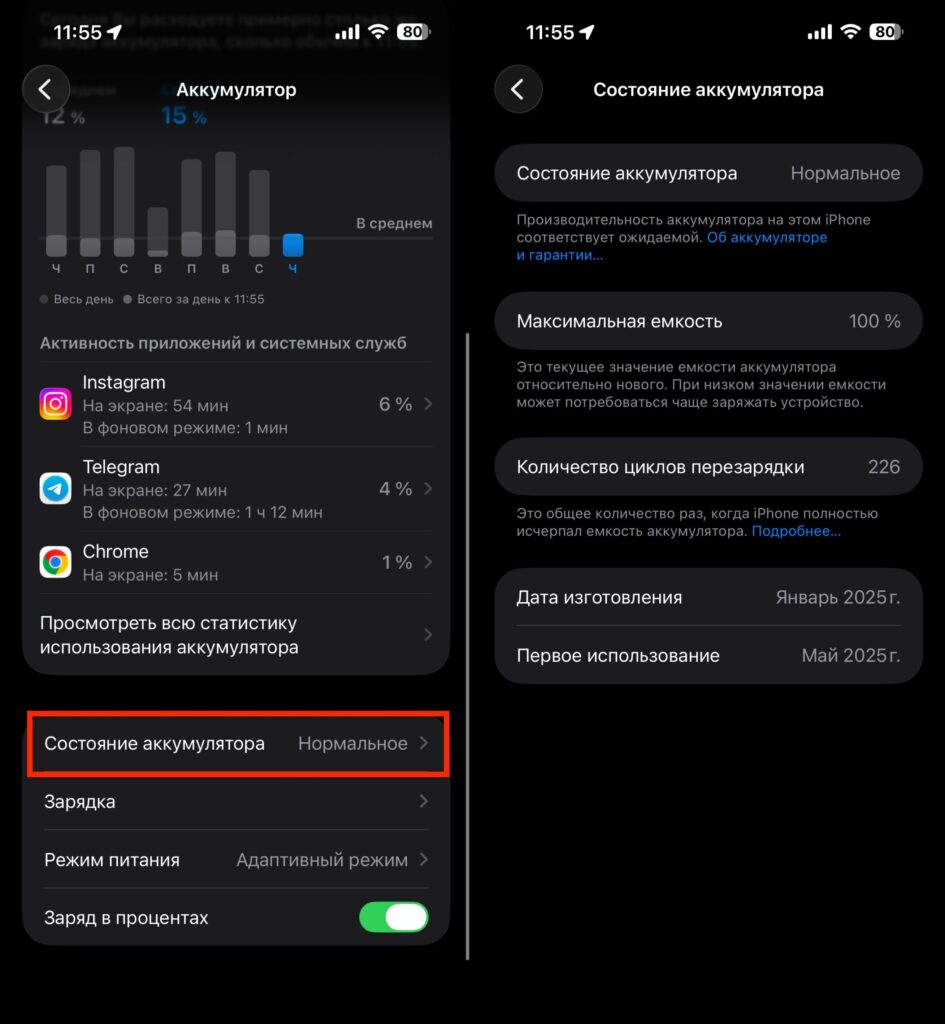
When the battery condition is unsatisfactory, a disable button will appear in this section
- “Settings”
- “Battery”
- “Battery Health”
- Find the “Peak Performance Capability” section — if there’s a “Disable” button, it means the throttling mode is active
You can disable it, but then the iPhone will periodically restart. The best solution is to replace the battery. This can be done at an authorized Apple service center or at any reputable phone repair shop.
Clearing iPhone Storage
When iPhone storage is almost completely full, the system doesn’t have enough space for temporary files and service operations. Because of this, even simple actions — saving a photo, launching an app — start taking longer.
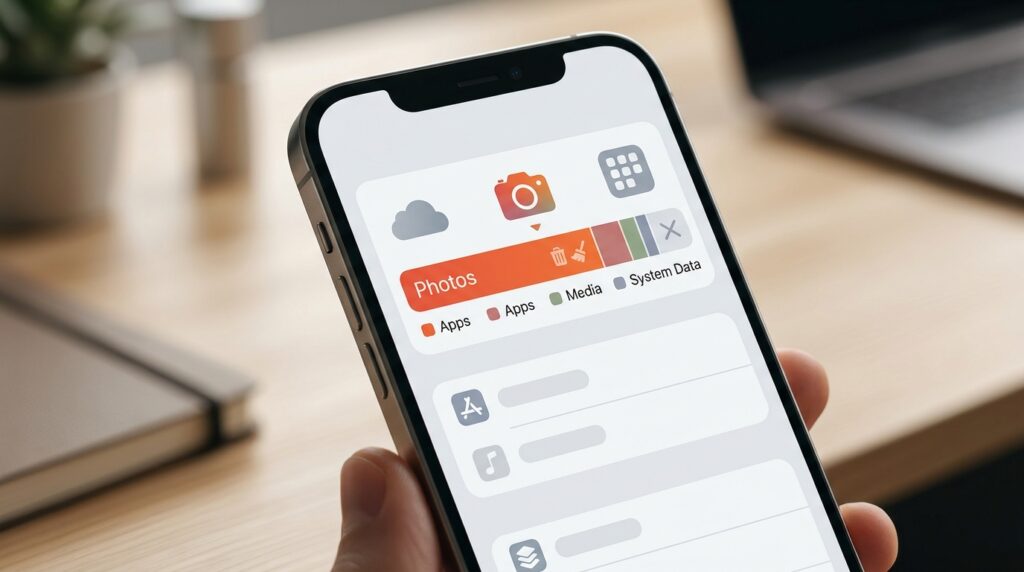
iPhone storage filled with photos and videos
Technically, here’s what happens: iOS is forced to constantly search for and redistribute free memory blocks, which slows down data reading and writing.
The simplest way to free up space is to delete old photos that you never revisit. Open the Photos app, scroll to pictures from two or three years ago, and start deleting duplicates and bad shots. Out of 37 photos from a 2018 party, three will surely be enough.
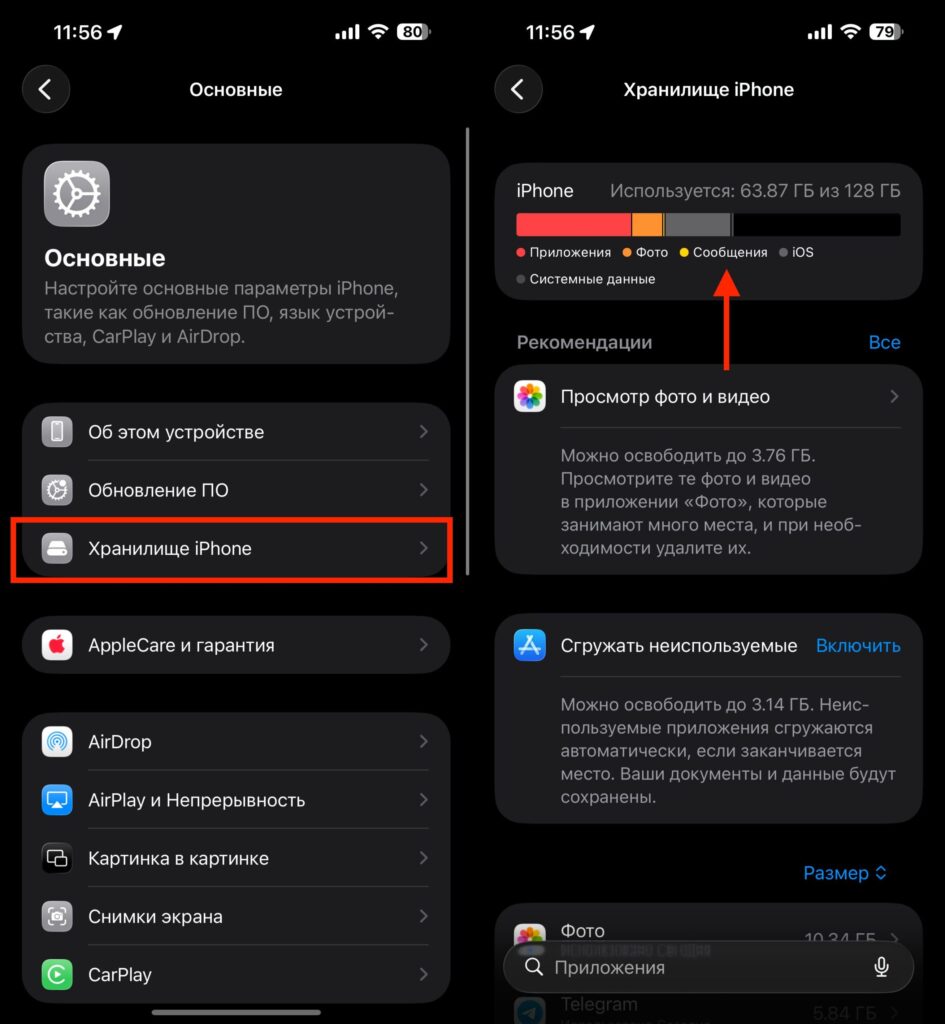
Simple tip: keep at least 10% of your iPhone’s storage free and there will be no lag
If you don’t want to delete photos, you can transfer them to an external drive. After freeing up storage, your iPhone will start working noticeably faster.
Disable Background App Refresh on iPhone
Over time, dozens of apps accumulate on your iPhone that you barely use. Many of them update their data in background mode — preloading content to be ready when launched. For apps you open every day, this is convenient. But games and programs you haven’t launched in months also consume processor resources and battery on these background updates.
The simplest solution is to delete apps you haven’t used in a long time. If you change your mind, you can always download them again from the App Store.
If you don’t want to delete them, selectively disable background refresh:
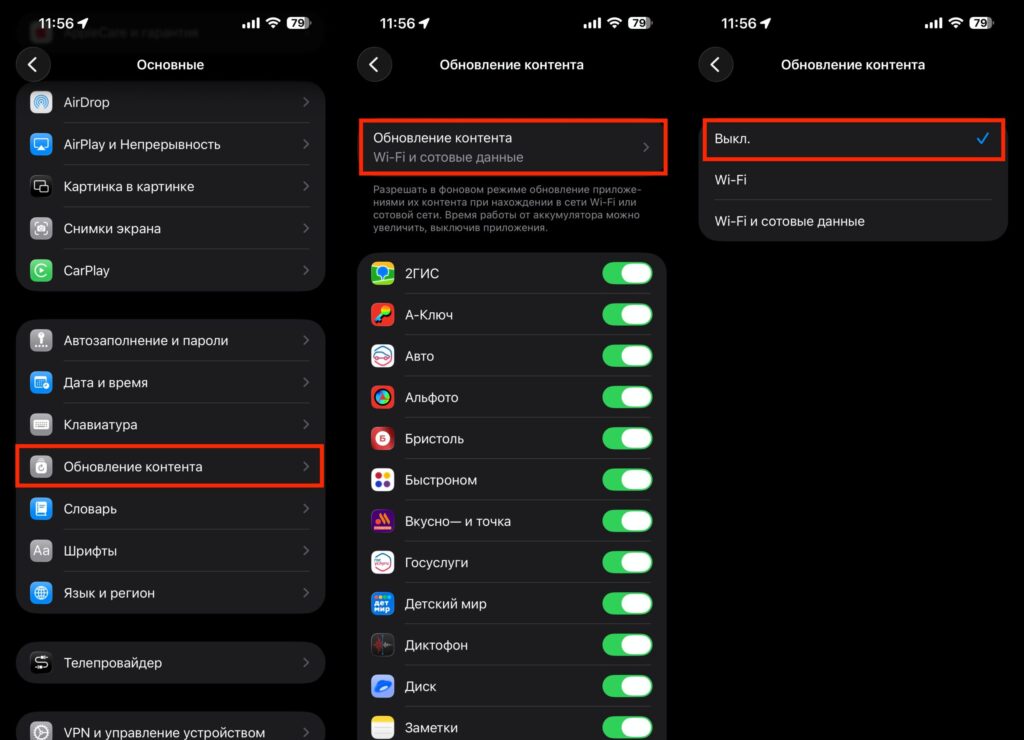
Background app refresh also drains battery and provides no benefit
- Open “Settings”
- Go to “General”
- Select “Background App Refresh”
- Disable refresh for apps you rarely use
A nice bonus: this will not only speed up your iPhone but also extend battery life.
Why an Old iPhone Is Slower Than a New iPhone
Even after all optimizations, it’s important to be realistic. Apps are constantly updated: developers add new features, and each new version requires more processor power and RAM.
For example, the iPhone 11 from 2019 has 4 GB of RAM. Starting in 2024, all new iPhones come with at least 8 GB. Apps written with 8 GB in mind inevitably run slower on a device with half that amount.
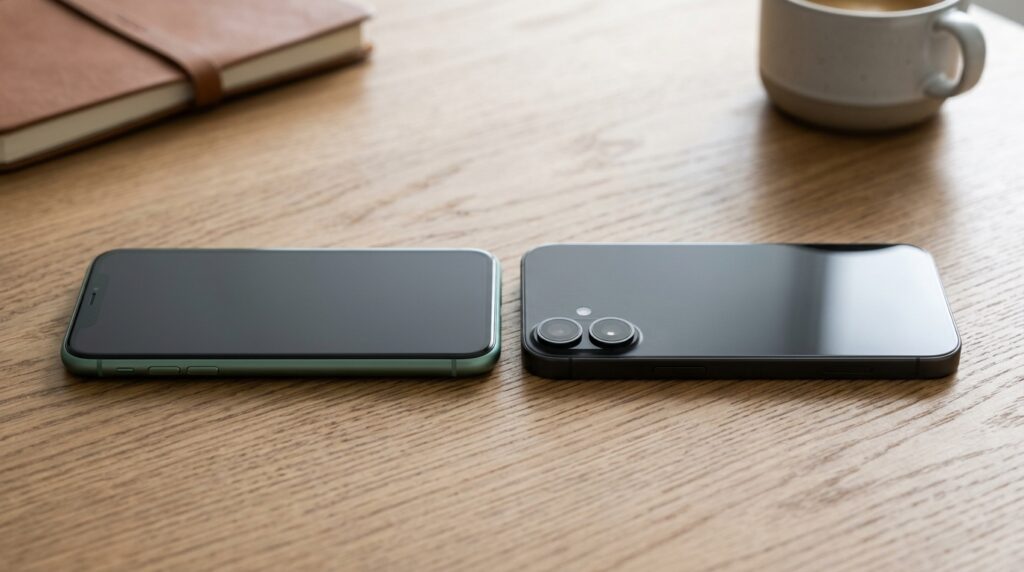
iPhone 11 and a modern iPhone — the performance difference is noticeable
The same applies to iOS itself: each major version of the system becomes more demanding than the previous one. It’s impossible to completely stop natural slowdown, but replacing the battery, clearing storage, and disabling background updates can realistically extend comfortable use of an old iPhone by a couple of years.
If your iPhone still supports the current version of iOS and handles basic tasks, all three tips from this article will help restore a noticeable portion of its former speed. However, if the device is more than five or six years old and the lag has become critical even after optimization — it may be time to think about a replacement.