You might think email on your phone is a relic of 2010 that messengers replaced long ago. But no: work emails, order confirmations, authorization codes — all of this still comes via email, and life without a proper app on your phone is inconvenient. Yandex Mail is an Android app that by 2026 has essentially become the main email client in Russia. You can download it for free, it’s fully in Russian, works with Android 16, and can do much more than just show your inbox. Let’s figure out why you need it, how to set it up, and what to do if something goes wrong.

Here’s how to set up Yandex Mail on Android
What Is the Yandex Mail App for Android and Why Do You Need It
The Yandex Mail app is the official email client from Yandex. But calling it “just email” is like calling Telegram “just a messenger.” It features integration with Yandex Disk, Calendar, smart email sorting, and a ton of settings that aren’t available in Gmail or other Android email apps. Why do you need it if you can read email through a browser?
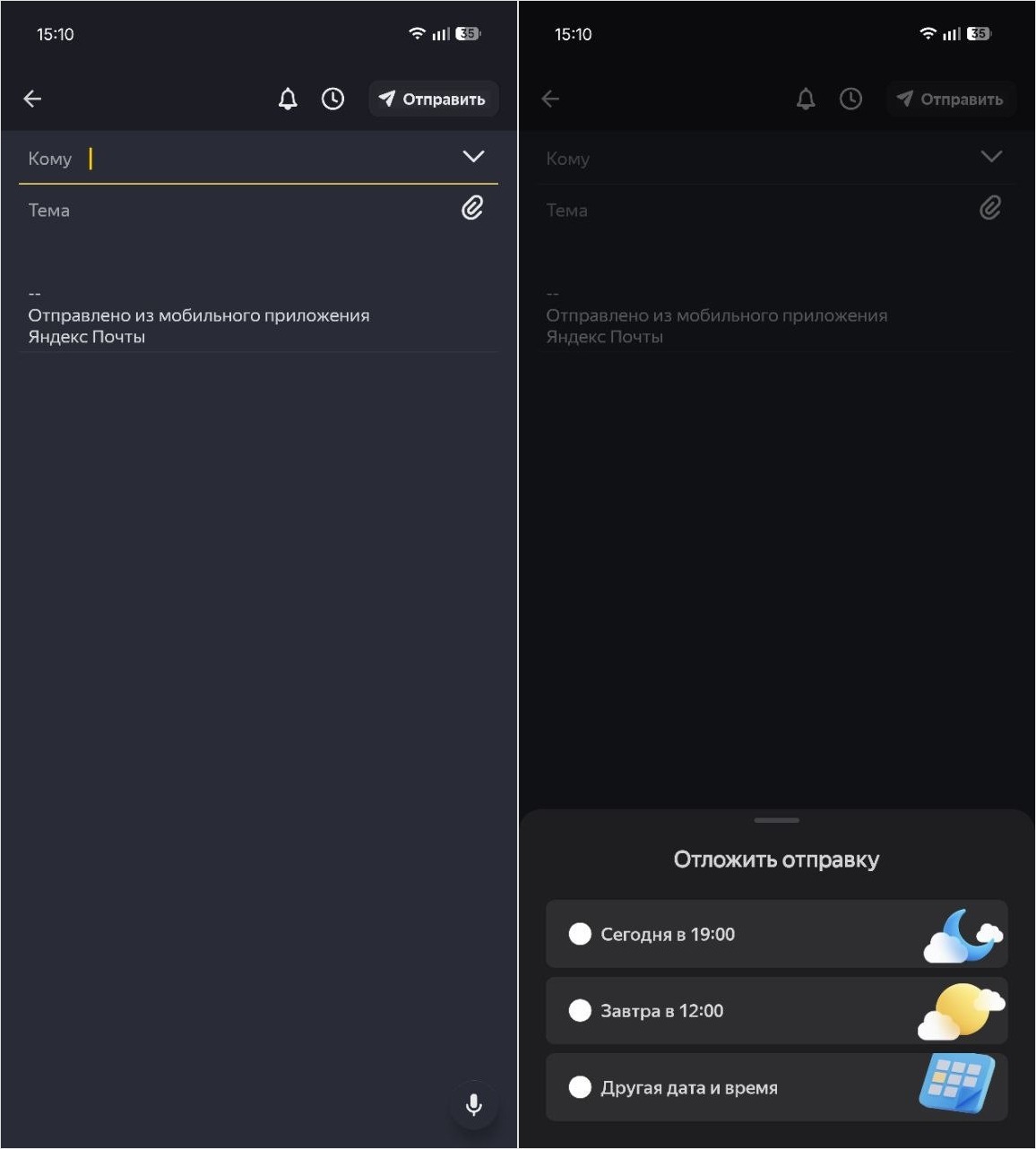
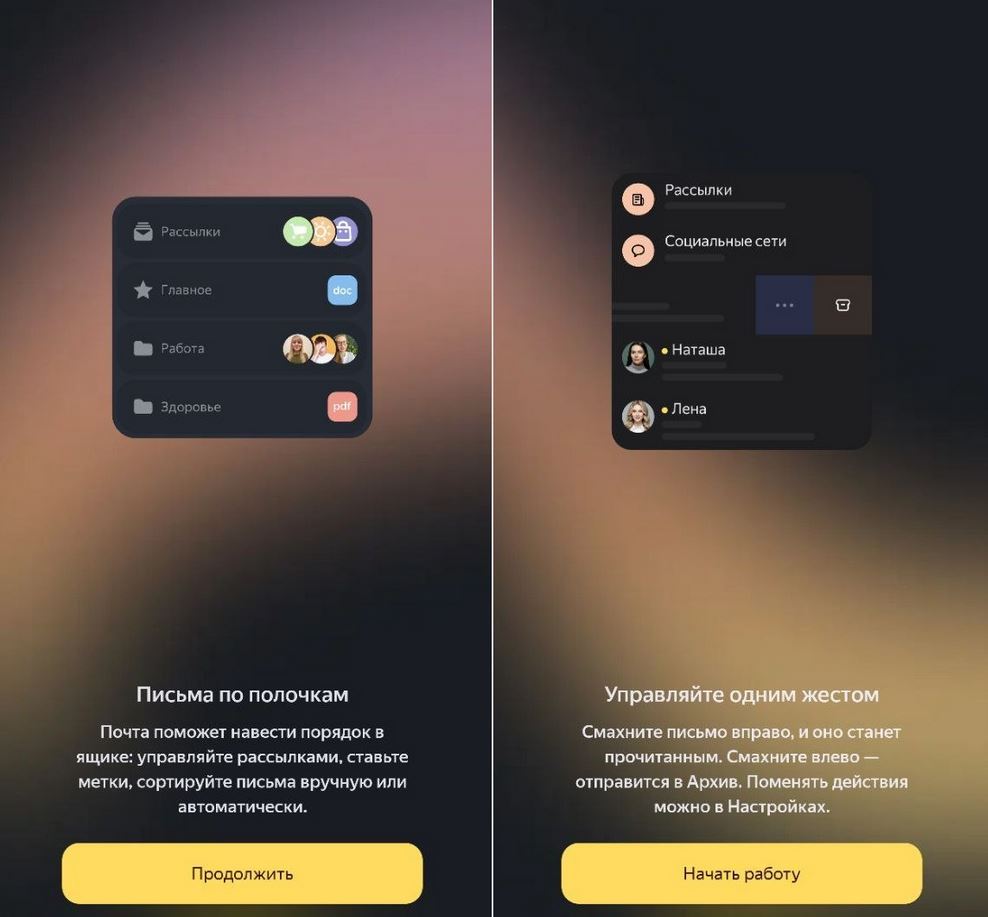
The Mail app has a fairly simple interface and all the key features
- First of all, push notifications for email — messages arrive instantly, not when you remember and visit the website.
- Second, offline access to email: you can re-read important correspondence where the connection is, to put it mildly, unstable.
- Third, Yandex Mail lets you manage multiple mailboxes — Yandex, Gmail, Mail.ru, Outlook, Rambler. One app instead of five, and that’s wonderful.
And let’s be honest: after a number of Western services left Russia, many people switched to Yandex ID as their primary account. And if you have a Yandex ID, Yandex Mail is already yours, and it makes sense to use the native client under one account.
How to Download Yandex Mail on Android for Free
It’s pretty straightforward, but there are nuances depending on what phone you have and whether you have Google services. Google Play is the main method. Open the store, search for “Yandex Mail” or “Yandex Mail,” tap “Install” — done.
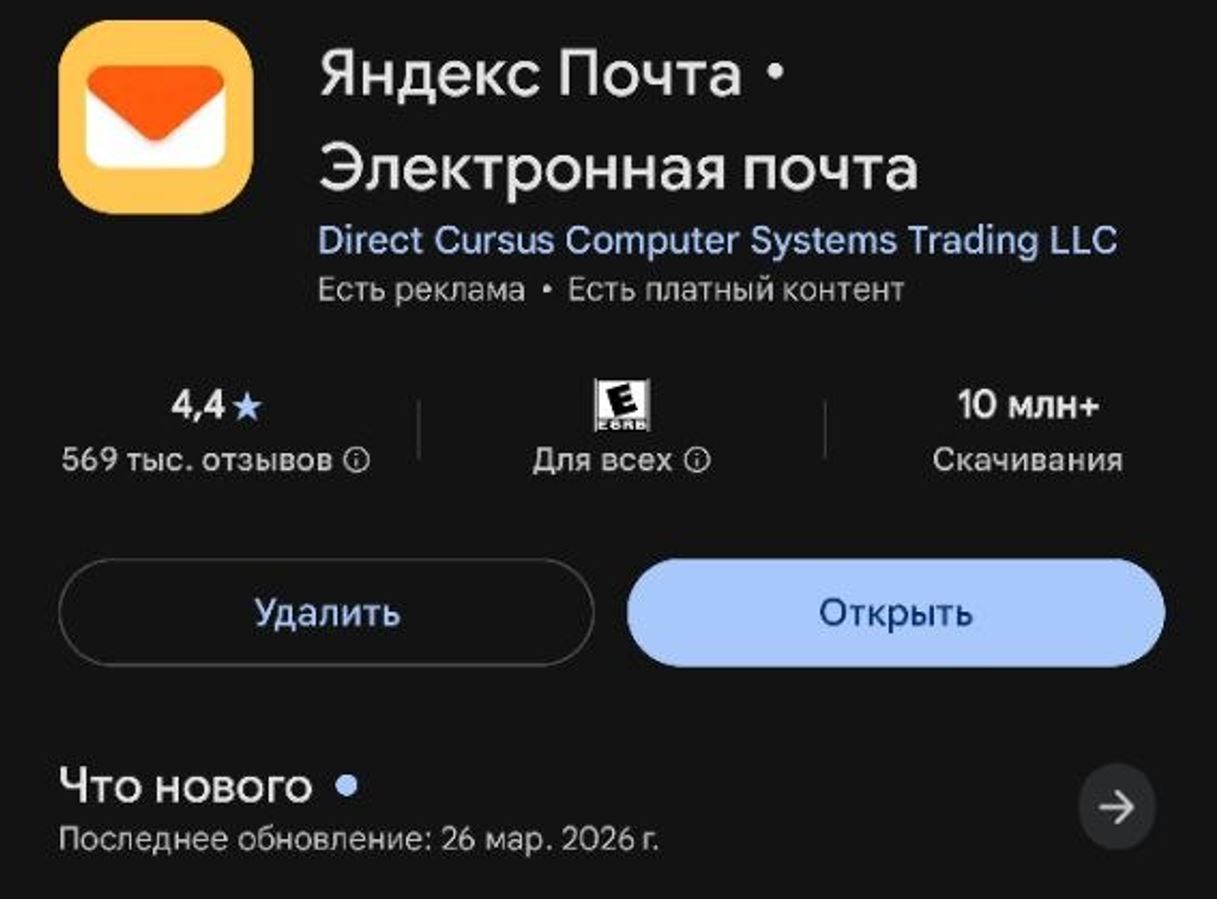
The easiest way to download Yandex Mail is through Google Play
The app weighs about 80–90 MB, and Russian language is automatically pulled from your system settings. You can download Yandex Mail for free in Russian — there are no subscriptions or in-app purchases, but there are ads.
- RuStore — if you don’t have Google Play. On Huawei devices without Google services or phones with domestic firmware, Google Play may be absent. No problem: the app is available in RuStore, and the installation process is exactly the same.
- Yandex Mail APK — for those who like to control everything. If both stores are unavailable for some reason, the APK file can be downloaded from Yandex’s official website. Before installing, you need to allow installation from unknown sources in your app settings.
It’s important to understand that when installing via APK, there won’t be automatic updates — you’ll need to keep track of new versions yourself.
How to Install and Set Up Yandex Mail on Android 16
Okay, the app is downloaded. How do you set up Yandex Mail? There’s one very important point that almost nobody writes about, and then people complain in reviews that “notifications aren’t coming.” But let’s take it step by step.
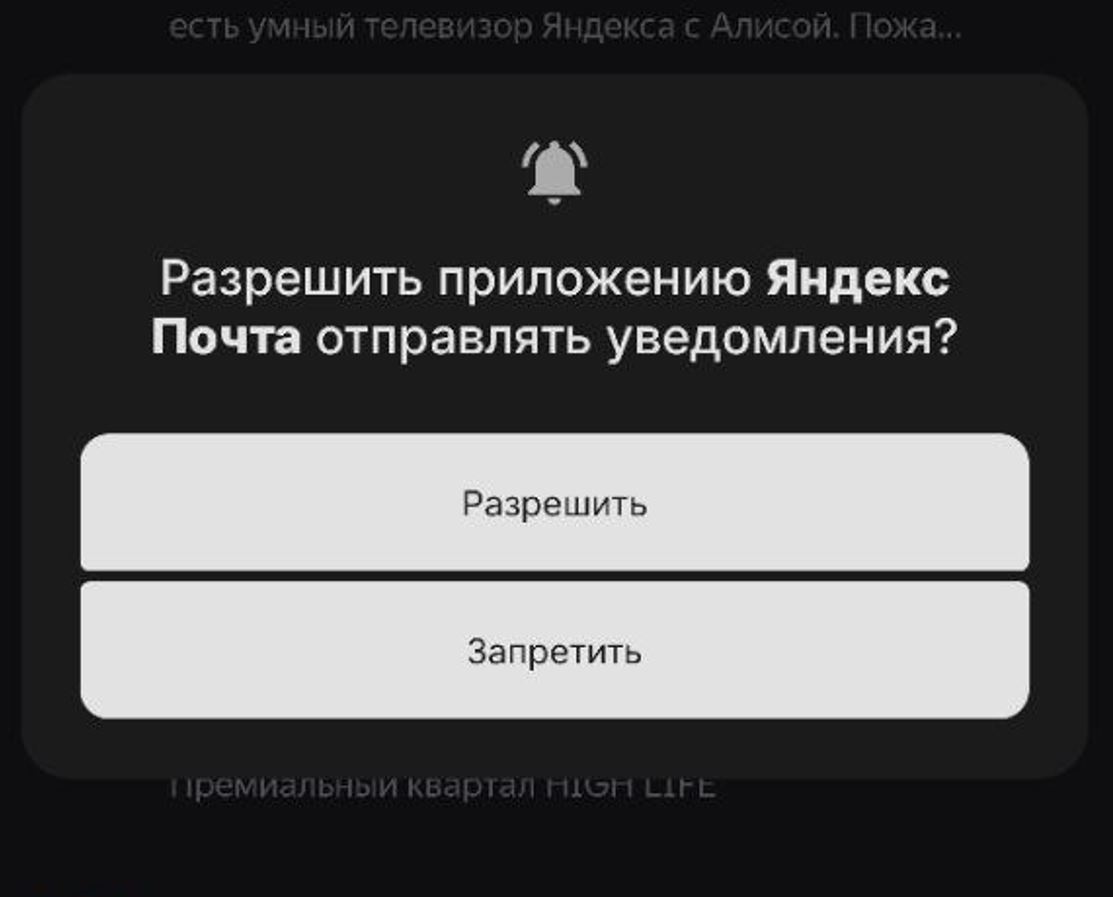
Setting up the app is pretty easy
- On the first launch, the app will prompt you to sign in with Yandex ID. If you have an account, enter your login and password (or scan a QR code via Yandex Key if two-factor authentication is set up). If you don’t have an account, you can create one right here without leaving the app.
- Permissions for Yandex Mail. Android will ask for notification permission — make sure to allow it, otherwise there will be no push notifications about new emails. The app will also request access to contacts (for auto-filling addresses) and storage (for saving attachments). Both permissions aren’t critical, but they make things more convenient.
- Notification settings in Yandex Mail. Go to the app settings (gear icon) → “Notifications.” Here you can choose what to be notified about: all emails, only unread ones, or only emails from specific contacts. I recommend setting it to “Inbox only” — otherwise spam from the “Newsletters” folder will bug you every five minutes.
And the most important point — battery optimization. Android aggressively kills background processes. If you don’t disable optimization for Yandex Mail, the system will “put the app to sleep,” and emails will start arriving with a delay of 10 minutes to several hours. Or they won’t arrive at all if you haven’t opened the app in a while. The solution is obvious: in the “Apps” section, you need to disable “Stop app activity when idle” for Yandex Mail.
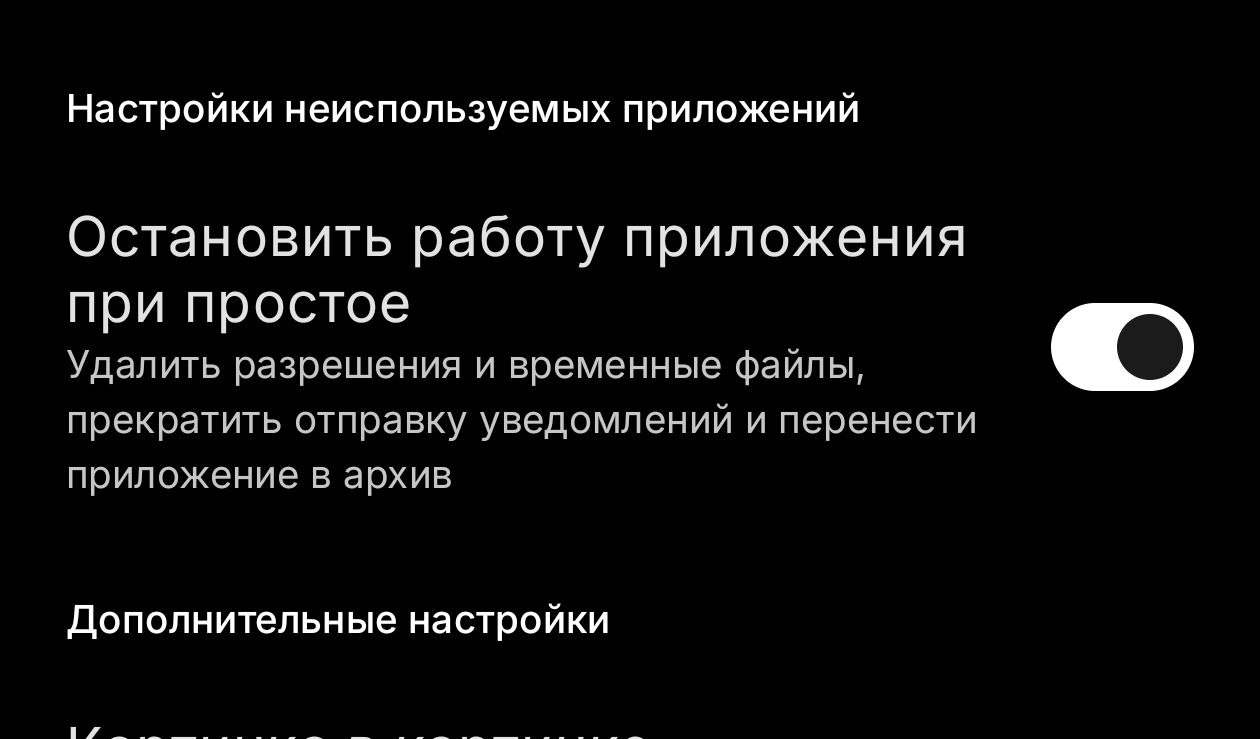
Disable battery saving so you always receive notifications from Mail
On Samsung, this setting may be in the “Device Care” → “Battery” section; on Xiaomi, you need to go to “Security” → “Autostart.”
And don’t forget to set up the theme in Yandex Mail. Light, dark, and automatic theme (follows the system) — everything is there. You can also configure swipe actions here: for example, swipe left to delete, swipe right to mark as read. It’s a small thing, but it saves a lot of time in daily use.
Yandex Mail App Features on Android
Listing all the features is a thankless task because there are really a lot of them. I’ll tell you about the ones that set Yandex Mail apart from competitors and make it worth using.